Generate Analytics Report
You can generate various types of analytics reports for your
blueprint. These reports are based on historical data. Each report is dependent on data
collected from the predefined probes. You must enable the required probes to generate a
report.
To enable a probe, navigate to Analytics > Probes within your blueprint, and then click Create Probe > Instantiate Predefined Probe.
To generate a predefined report using the GUI:
-
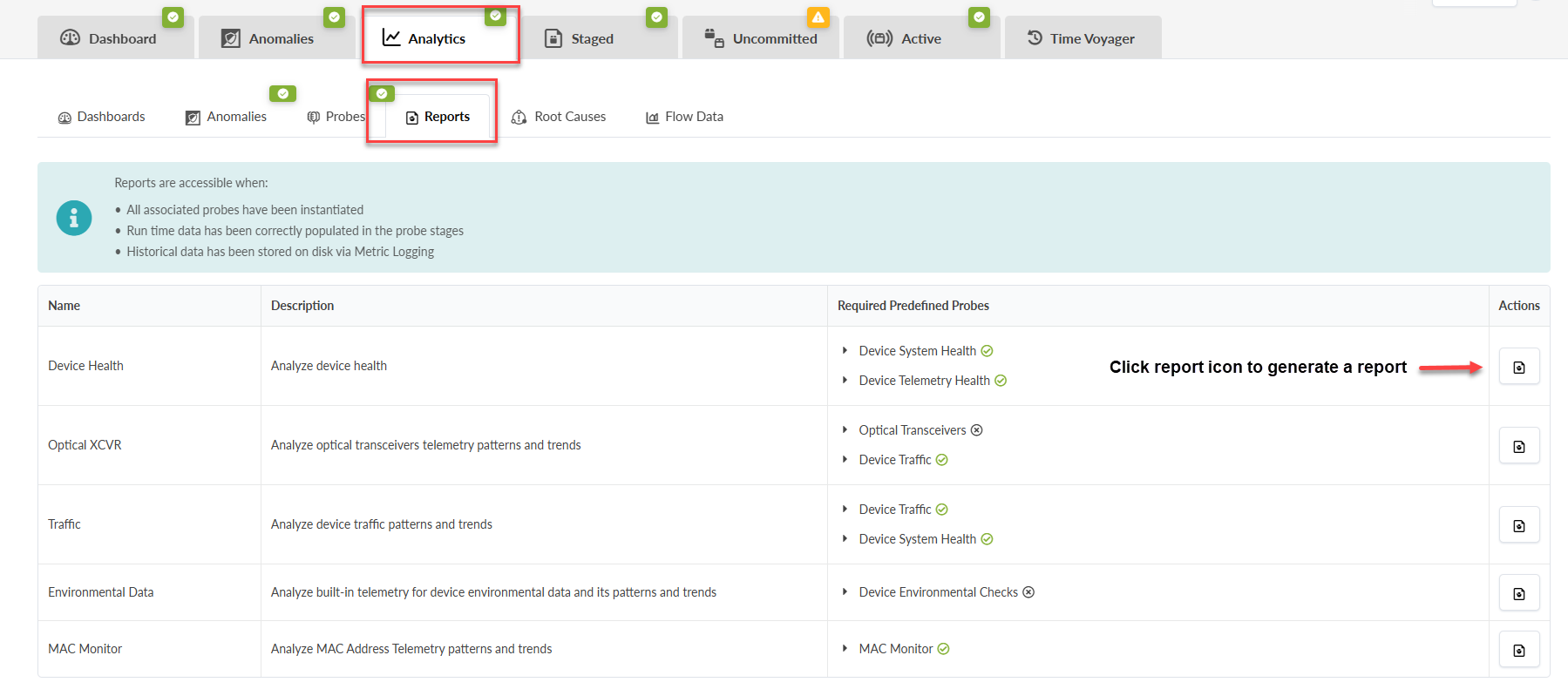
Click the Generate Report icon in the
Actions panel for the report you want to generate. A green check
box means that the probe is enabled. If not, click the name of the probe to enable
it.
-
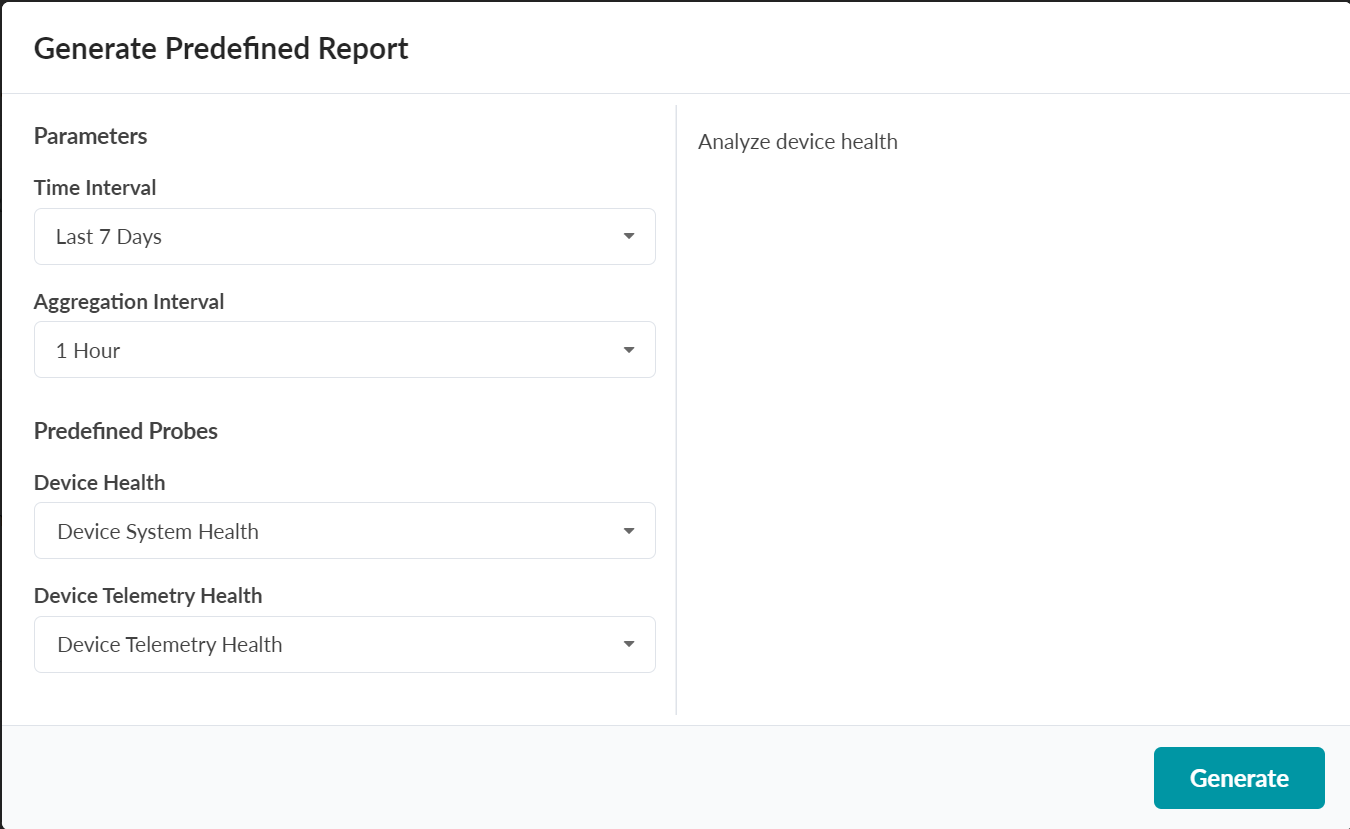
From the Generate Predefined Report window, specify the time and
aggregation interval parameters for your report.
-
Time interval: Specify a predefined date range or custom range. The default time interval is 7 days.
-
Aggregation interval: Specify the interval or frequency that data is returned. If no interval is defined, the data is returned in the default aggregation interval. The default is 1 hour.
-