Racks (Datacenter)
From the blueprint, navigate to Staged > Physical > Racks to go to the Racks view.
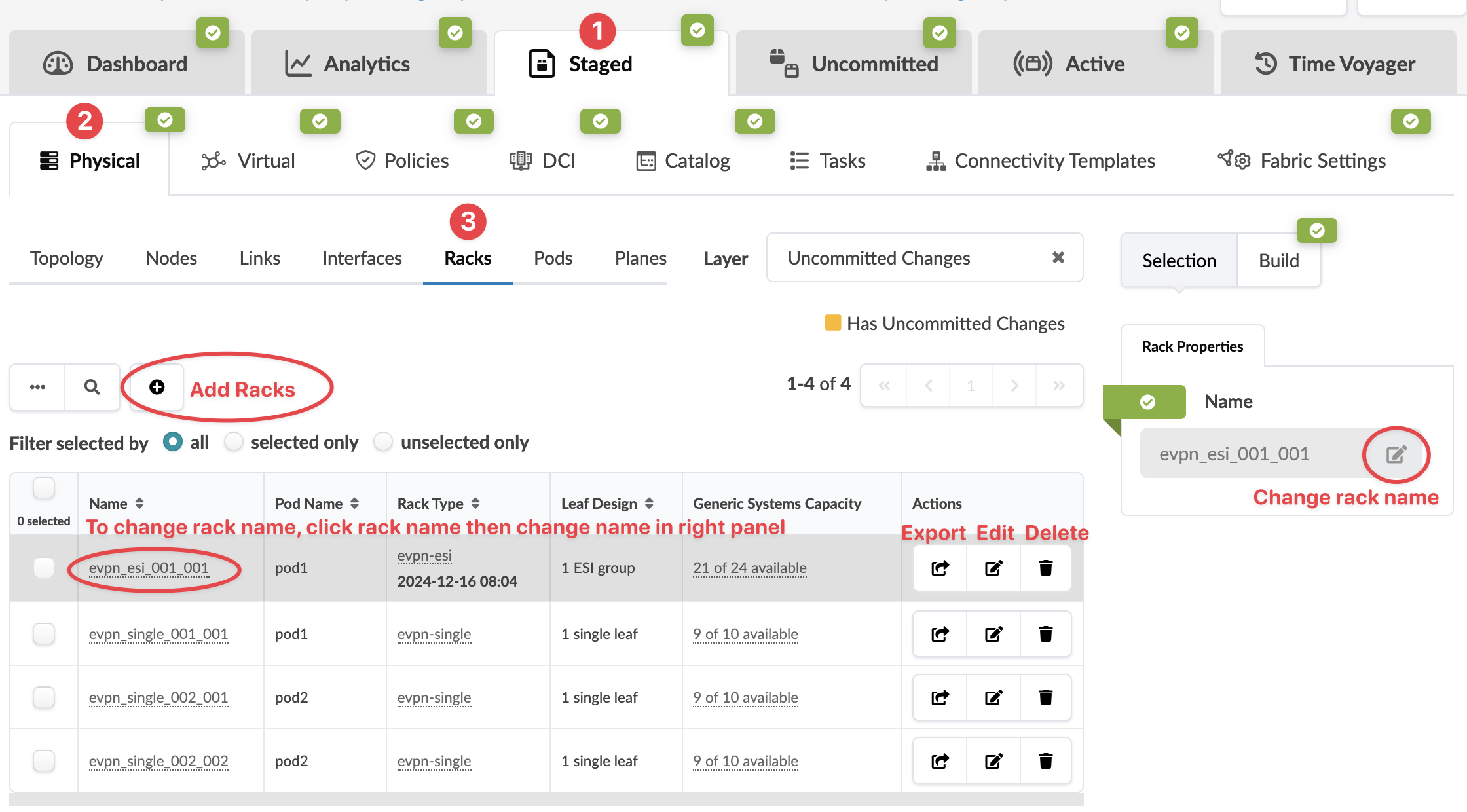
-
You can view racks in table view or card view.
-
You can filter racks to show all, selected only, or unselected only.
You can control the growth of your network by adding, editing and deleting complete racks in a running blueprint. This flexible fabric expansion (FFE) feature is supported on both 3-stage and 5-stage Clos networks. (In 5-stage topologies, you can also add and remove pods, increase the number of superpines per plane. Although, you can't add or remove planes themselves.) You can also change rack names.
Rack types are embedded into blueprints from the global catalog. The rack type in the global catalog and the blueprint are initially the same. When you use FFE operations (for example to change link speeds, add generic systems or add/remove links) the rack type is modified and its timestamp is updated. The rack type name in the global catalog and the blueprint are still the same, but their contents are now different from each other.
See the following sections for more information on rack operations.