Add Superspine per Plane
As a Day 2 operation, you can add superspines per plane on 5-stage blueprints.
-
From the 5-stage blueprint, navigate to Staged > Physical >
Planes and click the Change number of superspines per
plane button.
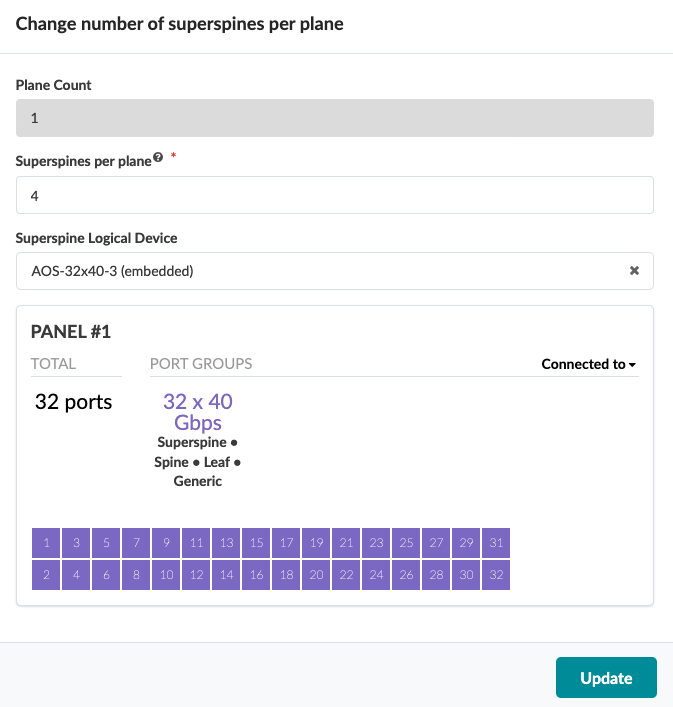
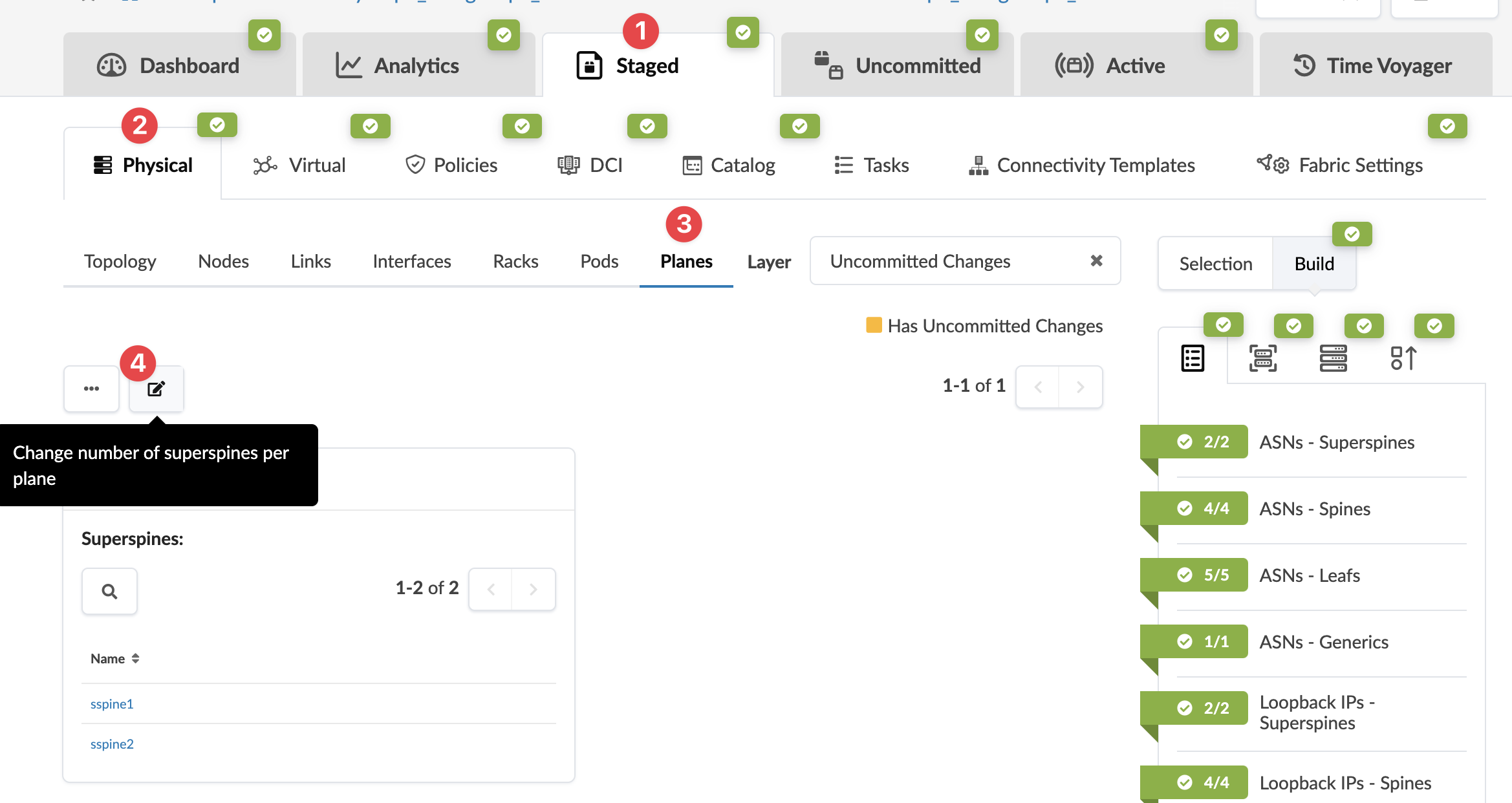 The Change number of superspines per plane dialog opens.
 -
In the Superspines per plane field, enter the total number of superspines you
want. You can only add superspines per plane. Plan carefully. After you add superspines,
you won't be able to remove them later.
When you're ready to activate changes, commit them from the Uncommitted tab.