Topology (Datacenter)
Before you push your changes to the active blueprint you can view progressive changes in the staged blueprint. This staging area allows you to validate that the pending changes are compliant with your intent, and that they work together with available resources and devices before you deploy the network.
Many node and link operations are performed from the Topology view. See Nodes and Links for more information.
You can view selections within topologies as neighbors, links, interfaces or virtual network endpoints, as applicable.
Main Topology View
From the blueprint, navigate to Staged > Physical > Topology.
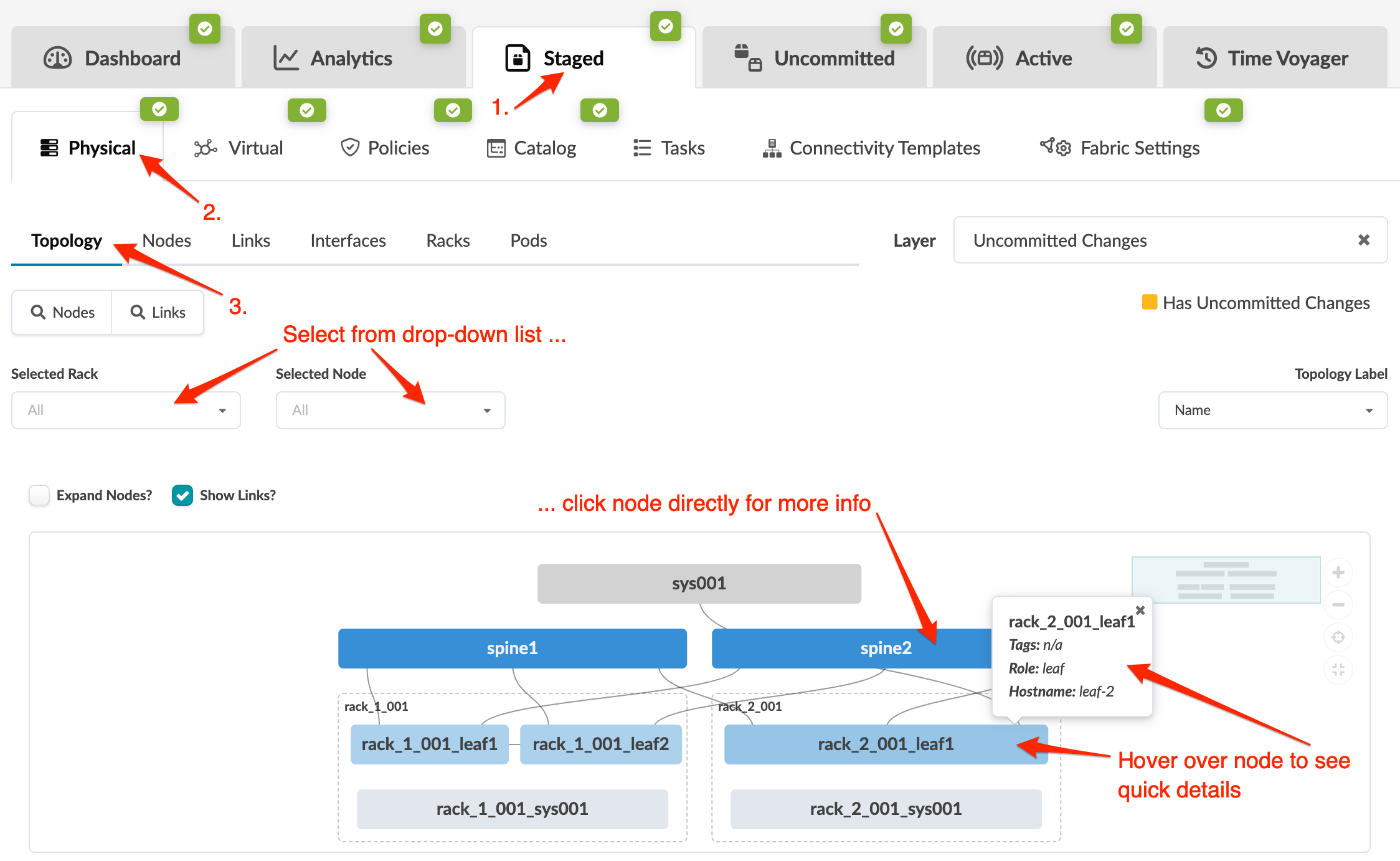
- To make topology elements larger, click the Expand Nodes check box.
- To display the links between elements, click the Show Links check box.
- To display a different layer, select the layer from the Layer drop-down list. Uncommitted Changes is an example of one of the layers you could display. The nodes with uncommitted changes are shown in yellow. The changes that apply to this layer are specific to the nodes themselves, such as ASN, loopback IP addresses and deploy modes. It doesn't apply to such changes as adding routing zones, virtual networks or connectivity templates on those nodes.
- To display additional information (node name, hostname, role, link, tags, as applicable), hover over a node or link.
- To display a different label (name, hostname, S/N), select a different label from the Topology Label drop-down list.
- To display a specific rack topology, click the rack element or select the rack from the Selected Rack drop-down list.
- To display a specific node topology, click the node element in the topology or select the node from the Selected Node drop-down list.
Neighbors Selection View
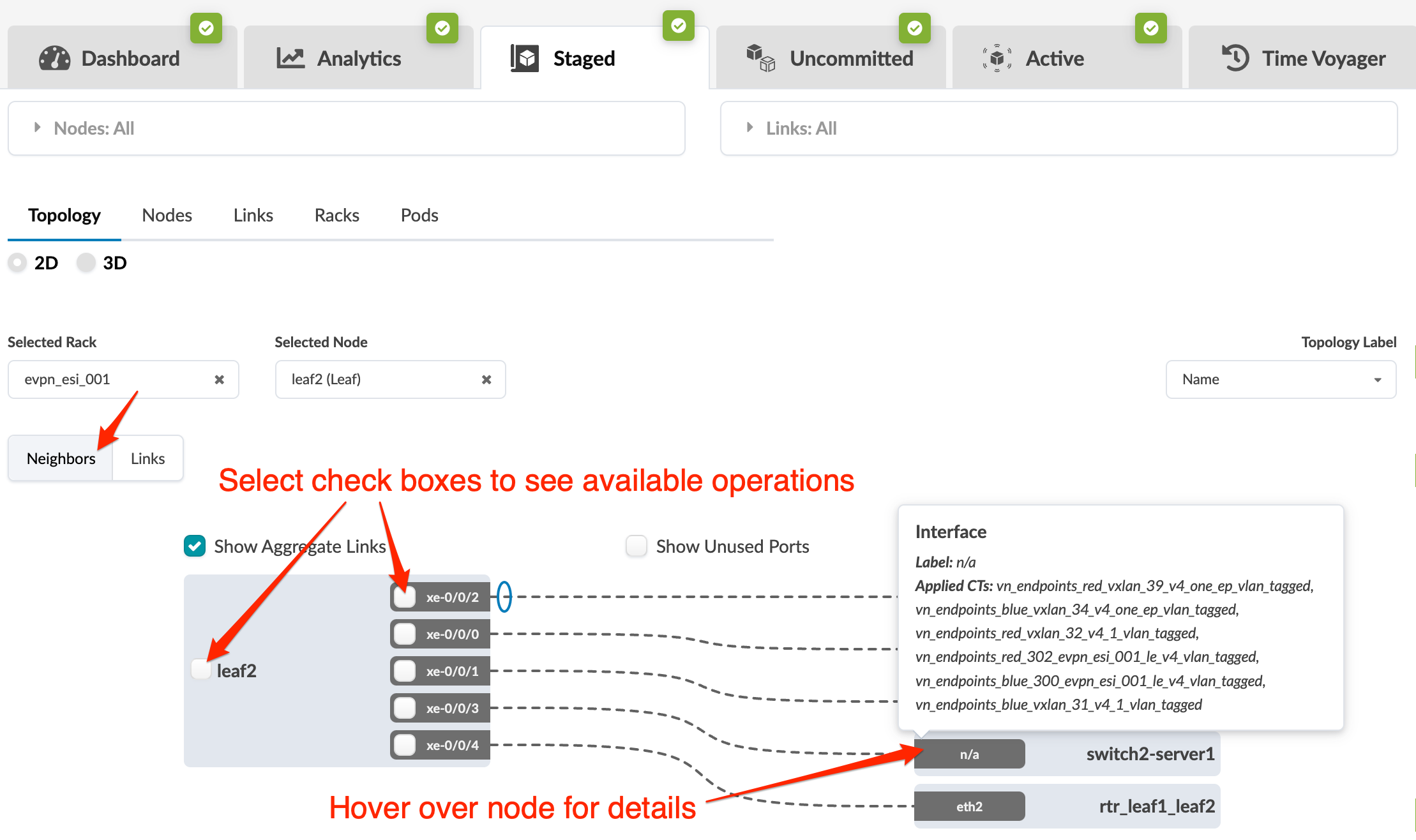
To see the neighbors view of a selection, click Neighbors.
-
To display aggregate links, click the Show Aggregate Links check box.
-
To display unused ports, click the Show Unused Ports check box.
-
To display a different label (name, hostname, S/N), select a different label from the Topology Label drop-down list (right side).
-
To display a particular neighbor type (all neighbors, generic, leaf, spine, and so on) select it from the Show drop-down list.
-
To display available operations for a selected node or interface select the check box(es).
-
To see details, hover over a node. Hovering over a generic system shows applied connectivity templates.
Links Selection View
To see the links view of a selection, click Links. 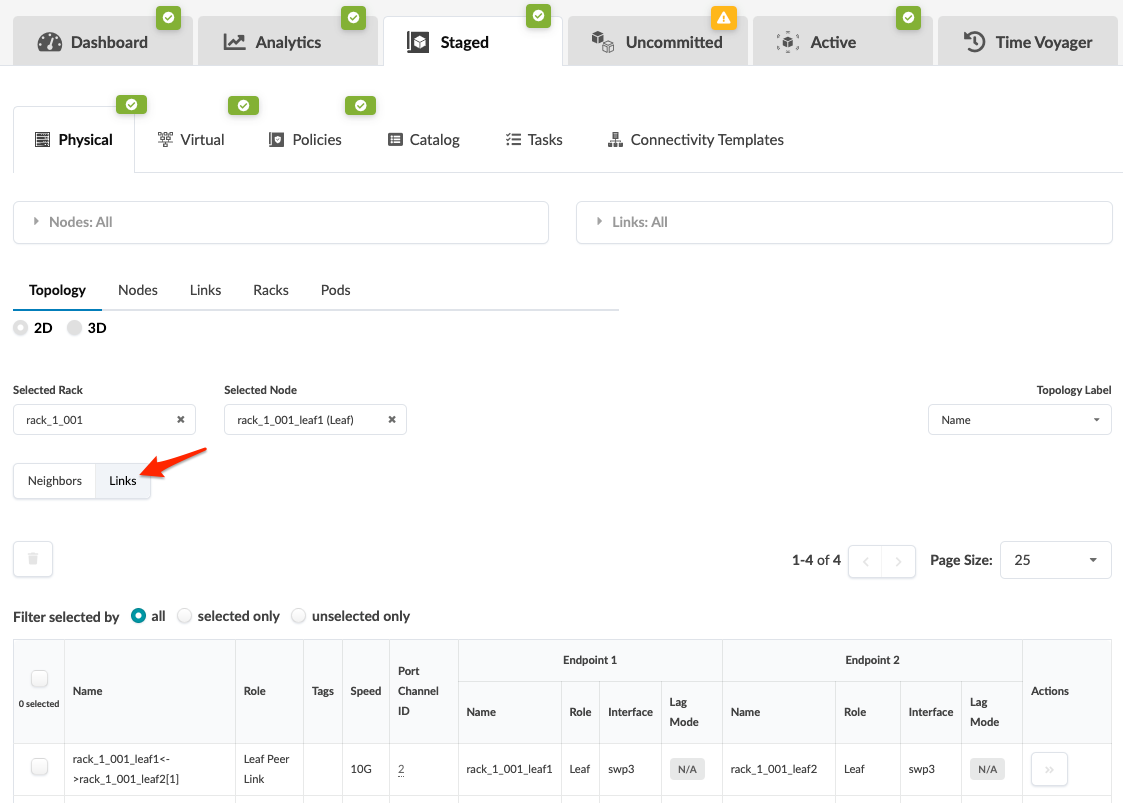
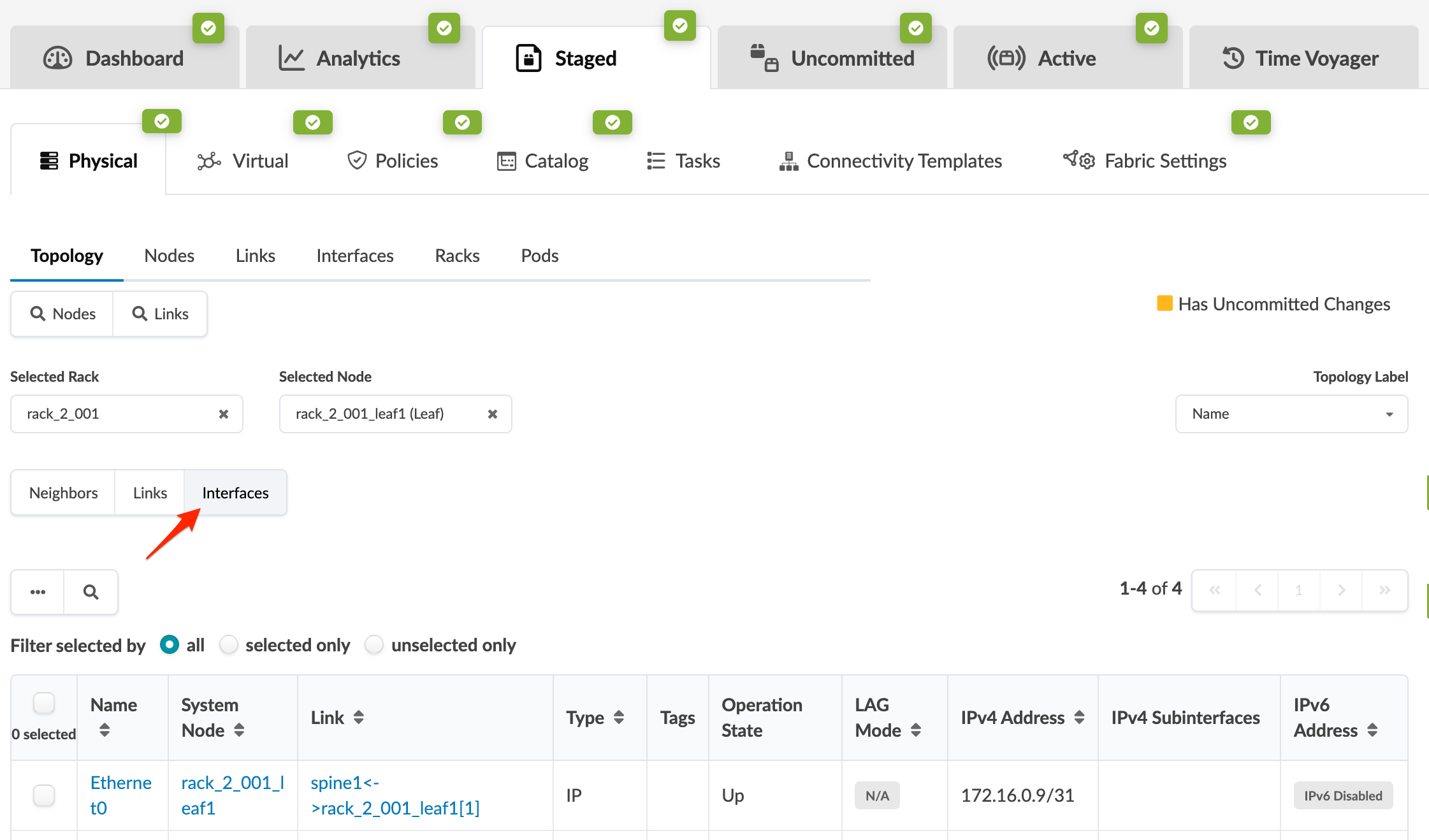
Interfaces Selection View
To see the interfaces view of a selection, click Interfaces.
Virtual Network Endpoints
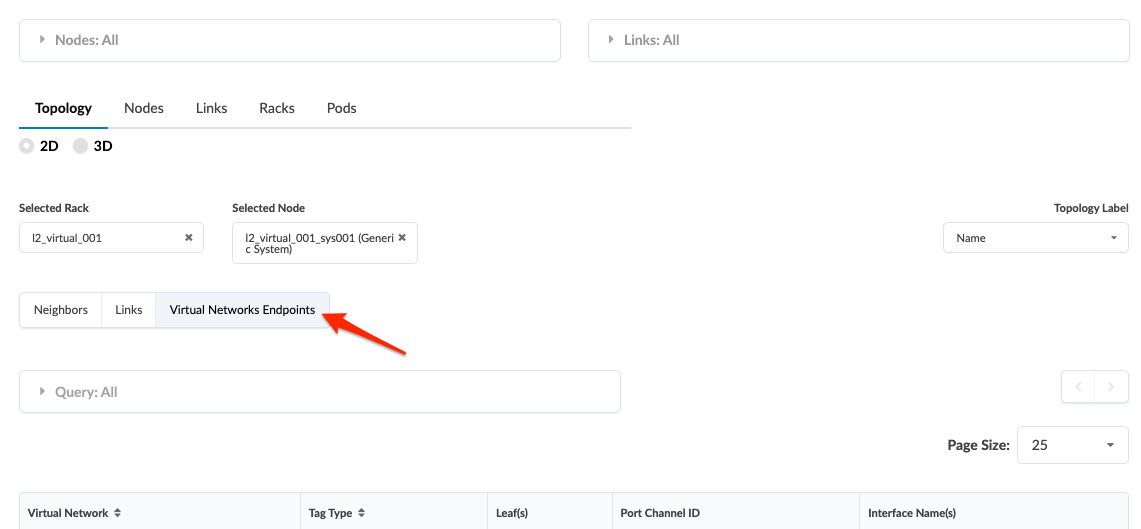
To see the virtual network endpoints of a selection, click Virtual
Networks Endpoints.