Delete Routing Zone
When you delete routing zones, all virtual networks created under the routing zone are also deleted, and the connectivity templates that are assigned are automatically unassigned. Those unassigned connectivity templates become available to be assigned elsewhere, or to be deleted. (In previous versions, you had to manually find and unassign connectivity templates before you could delete routing zones.)
Delete One Routing Zone
-
From the blueprint, navigate to Staged > Virtual > Routing
Zones and click the Delete button in
the Actions panel for the RZ to delete.
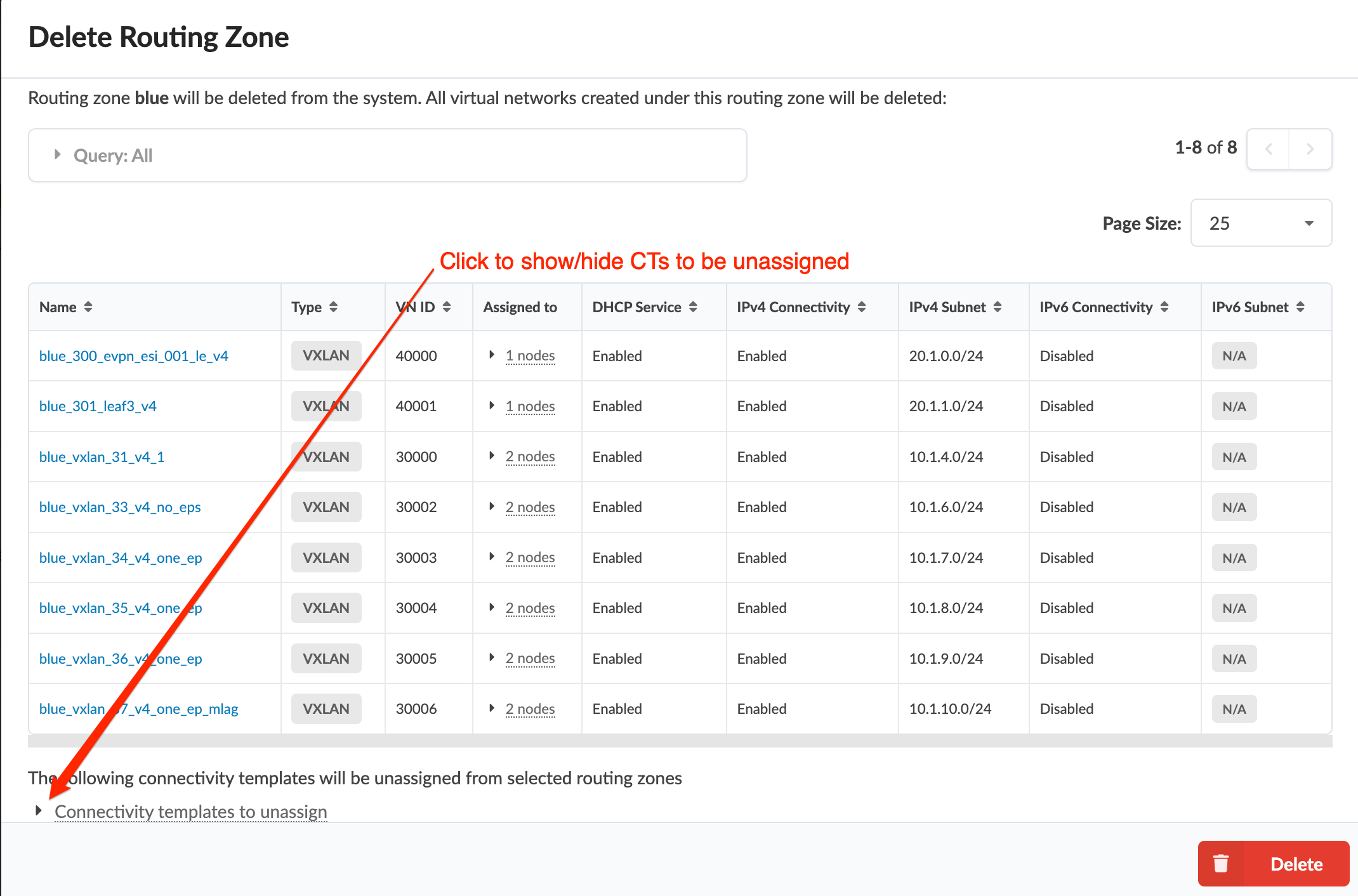
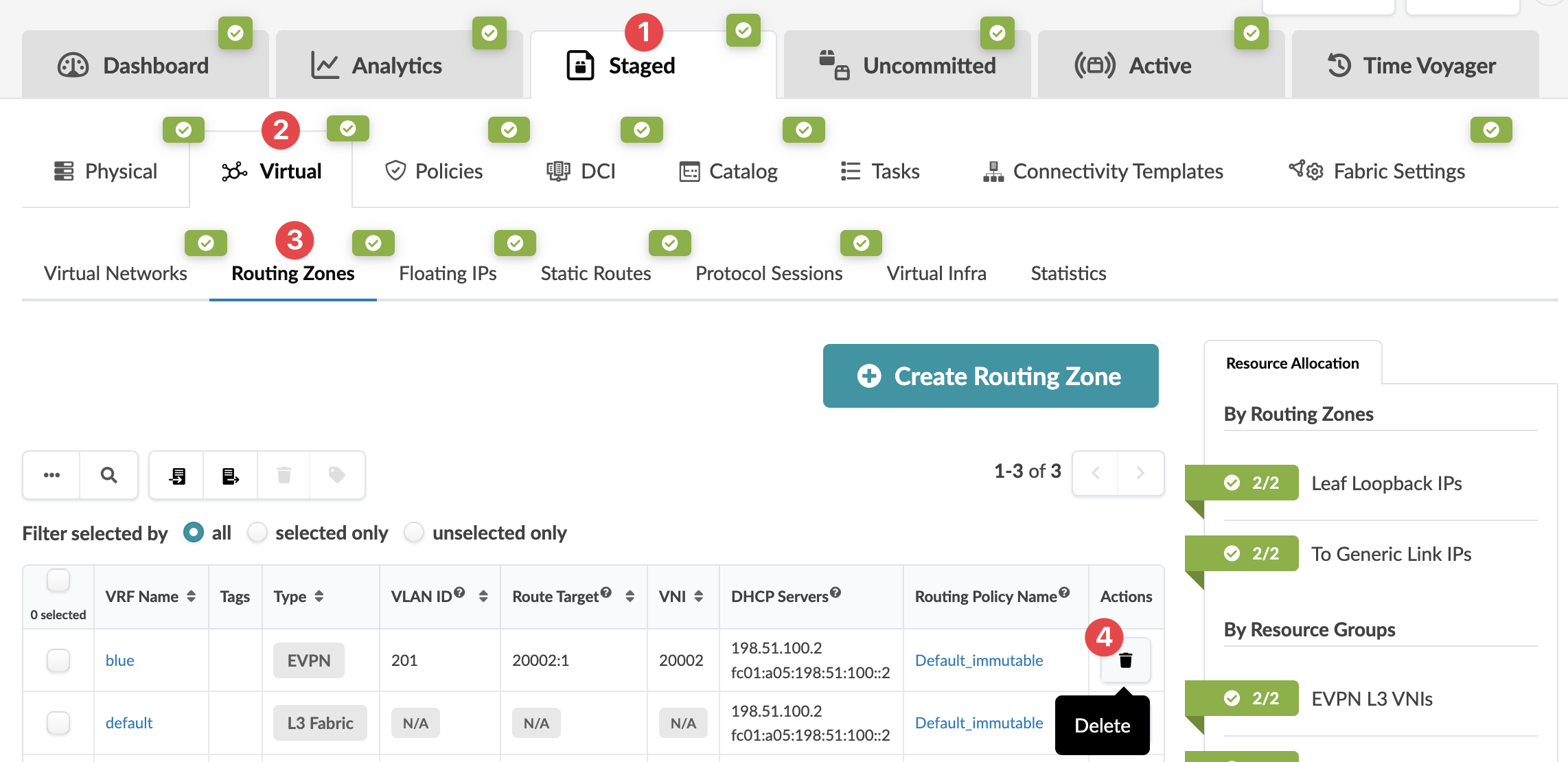 The Delete Routing Zone dialog opens.
 -
The dialog shows the routing zone and virtual networks to be deleted. Click
the drop-down triangle to show (or hide) the connectivity templates that
will be unassigned.
When you're ready to activate your changes, commit them from the Uncommitted tab.
Delete Multiple Routing Zones
-
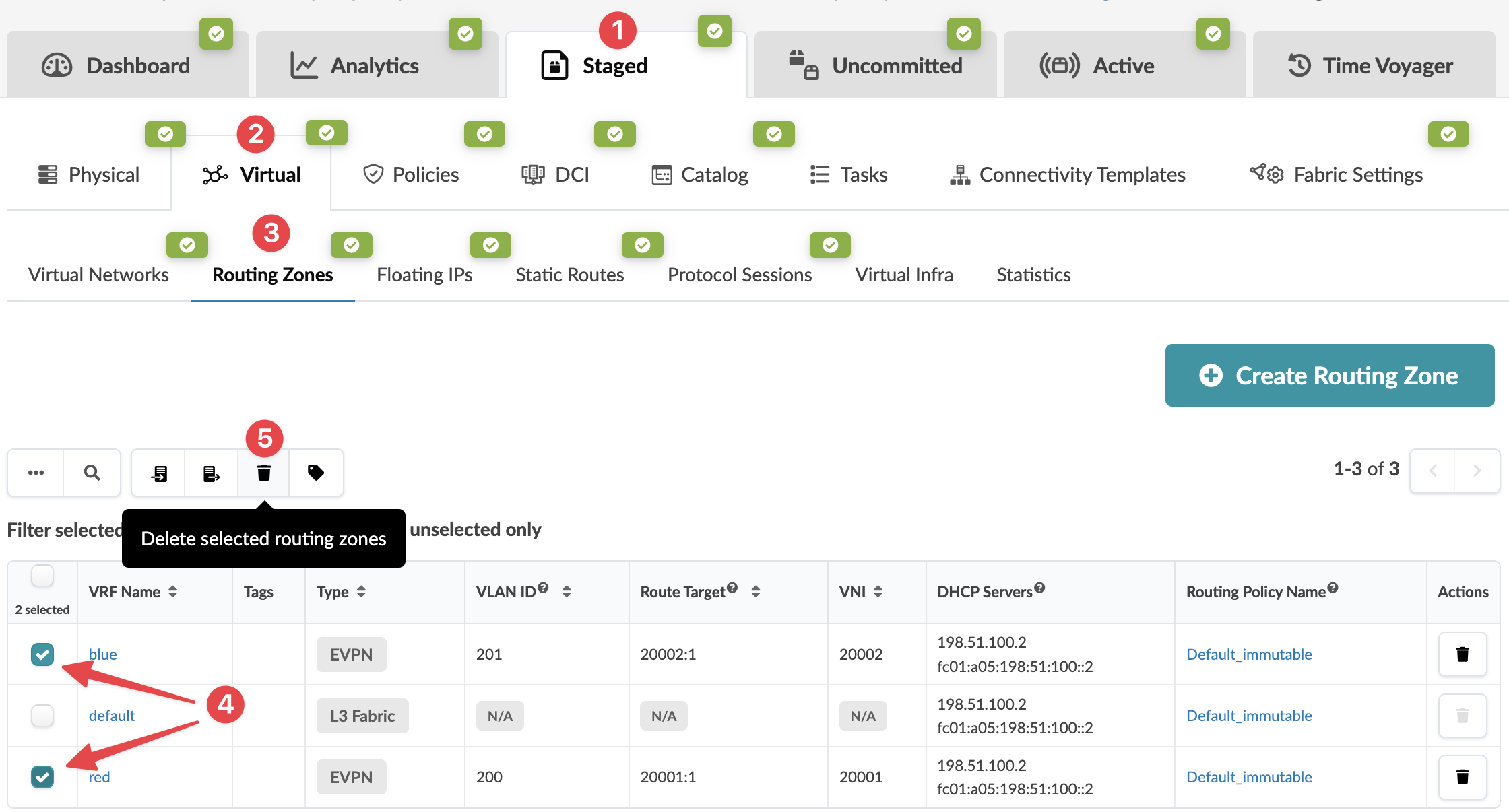
From the blueprint, navigate to Staged > Virtual > Routing
Zones, select the check boxes for the routing zones to
delete, then click the Delete selected routing zones
button that becomes available above the table. (Tip: Use the Query function
to filter specific routing zones.) (The screenshot below is for version
4.2.0. Newer versions include a column for Routing Policy Name that you can
link to directly; and you can select which columns to show in the table, and
some menu tabs have been renamed, moved, and/or added.)
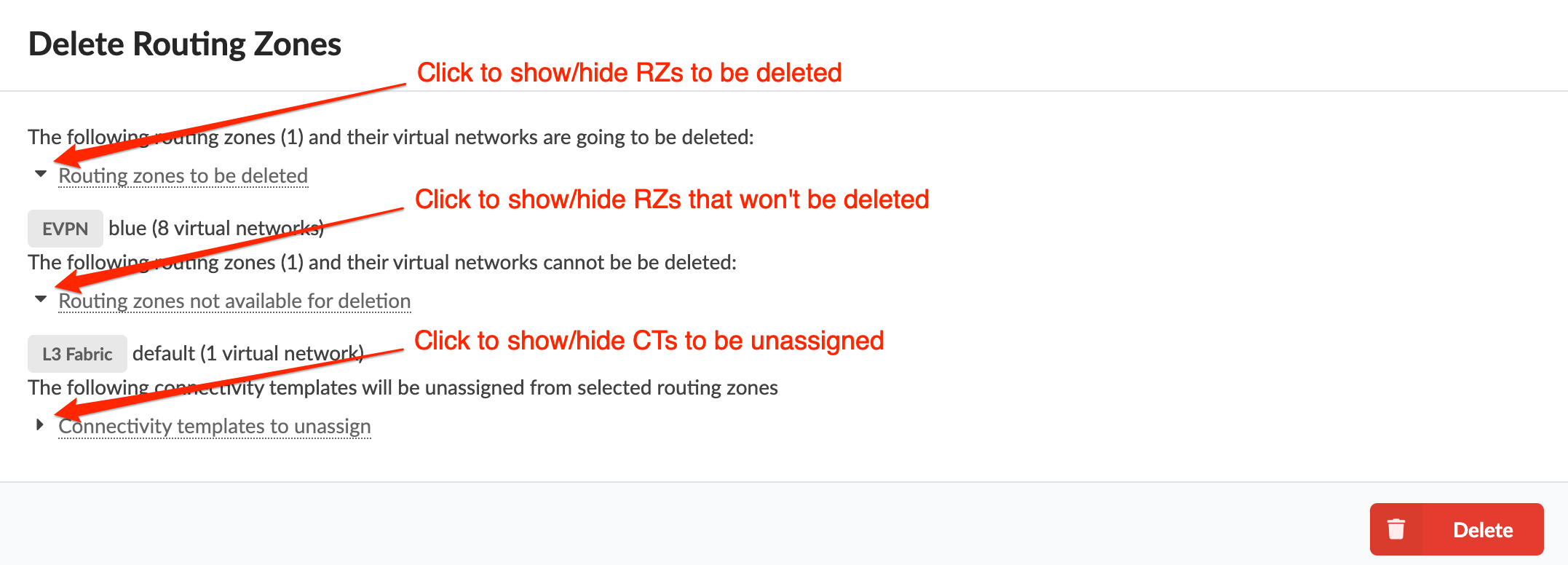
 The Delete Routing Zones dialog opens.
 -
Click the drop-down triangles to show (or hide) the routing zones to be
deleted and the connectivity templates to be unassigned