(Optional) Enable File Encryption

Optionally, you can enable file encryption in your configuration file (flowcoll.yml). Encrypting this file safeguards sensitive data such as your passwords and network settings.

To enable file encryption:

  1. Type manage-config in the CLI to launch the Apstra Server configuration tool.
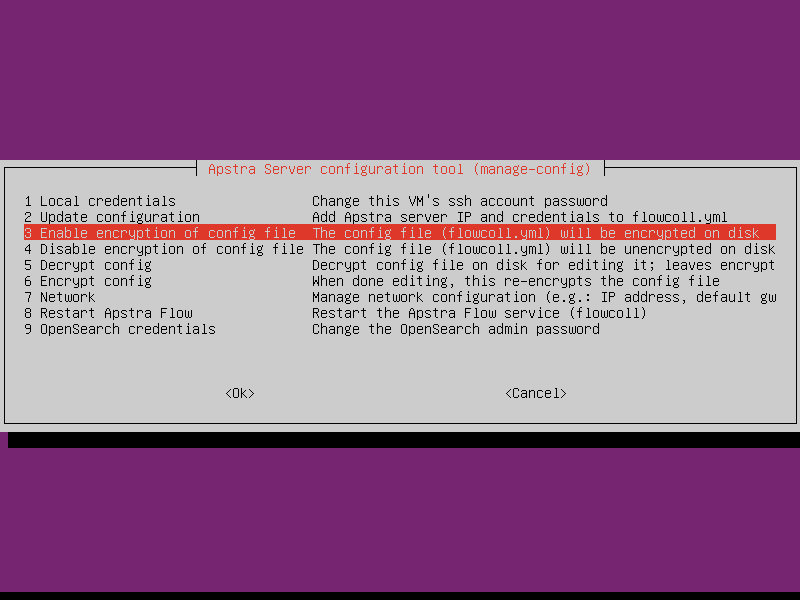
  2. From the configuration tool select 3 Enable encryption of config file and click OK.
    Apstra Server configuration tool interface showing a text-based menu for server settings. Highlighted option is Enable encryption of config file.
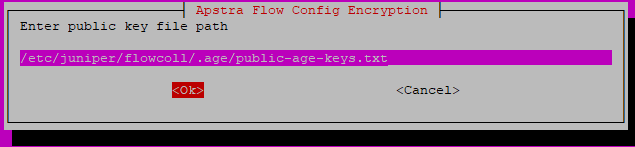
  3. Accept the defaults settings for your private and public keys and click Ok.
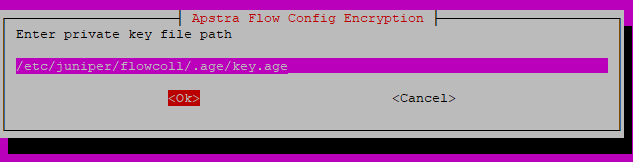
    Configuration dialog for Apstra Flow Config Encryption prompting for private key file path with pre-filled path /etc/juniper/flowcoll/.age/key.age. OK button highlighted.
    Configuration dialog box for Apstra Flow Config Encryption, prompting for public key file path. File path entered: /etc/juniper/flowcoll/.age/public-age-keys.txt. OK button highlighted.
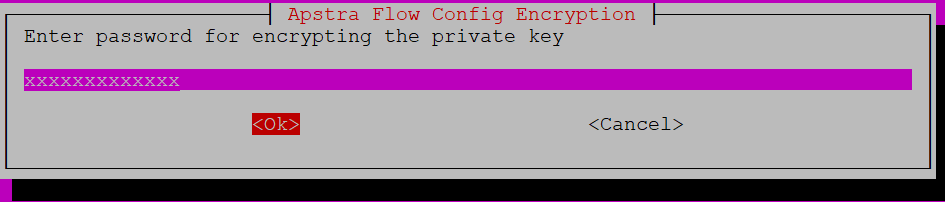
  4. (Optional) If needed, set a password for the private key. Then, enter a password for encrypting the private key and click Ok.
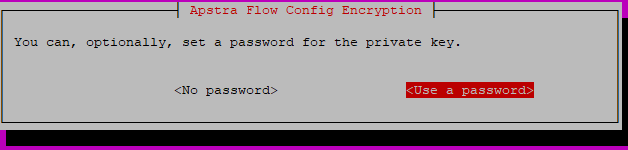
    Configuration screen for Apstra Flow Config Encryption showing options for private key password: No password default and Use a password highlighted in red.
    Dialog box titled Apstra Flow Config Encryption prompting to enter password for encrypting private key with Ok and Cancel options.
  5. Select the encryption type and click Ok. Standard (age) is the default.

    Configuration dialog for Apstra Flow Config Encryption with Standard option selected. Options include Standard to encrypt entire file and SOPS to encrypt values and comments. OK and Cancel buttons available.
  6. Verify that all values are correct and click Yes.
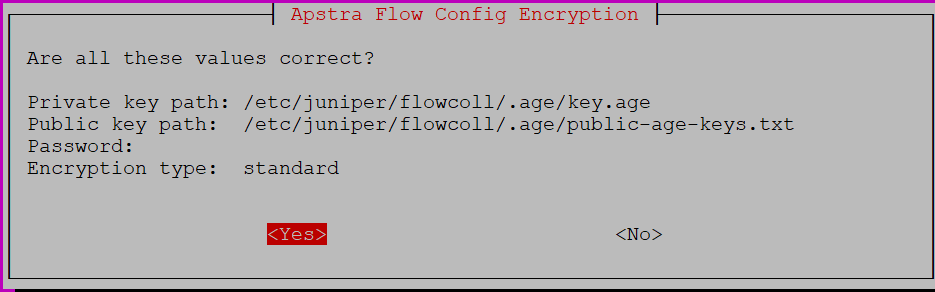
    Apstra Flow Config Encryption screen: Confirm private key path at /etc/juniper/flowcoll/.age/key.age and public key path at /etc/juniper/flowcoll/.age/public-age-keys.txt. Encryption type is standard. Select Yes or No to confirm.
  7. Click Ok to save the encryption settings to your configuration file.
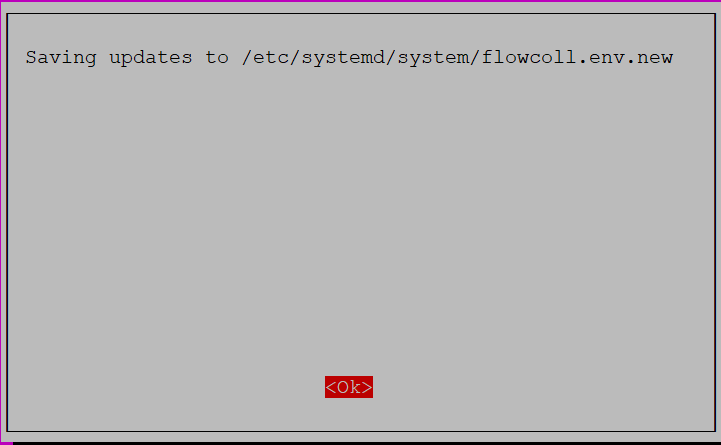
    Dialog box indicating updates are being saved to file path /etc/systemd/system/flowcoll.env.new with a red OK button to confirm.

    The system automatically starts generating the keys.
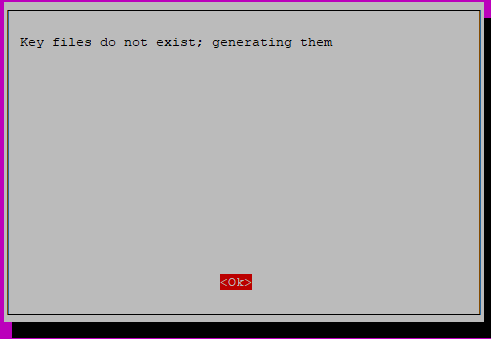
    Key files do not exist; generating them. Red OK button to proceed. Likely part of a terminal setup process.
  8. To encrypt your private key, type the passphrase you created in Step 4.

    Terminal interface requesting passphrase for encryption; type password or leave blank to auto-generate.
  9. Success! Your configuration file was successfully encrypted.
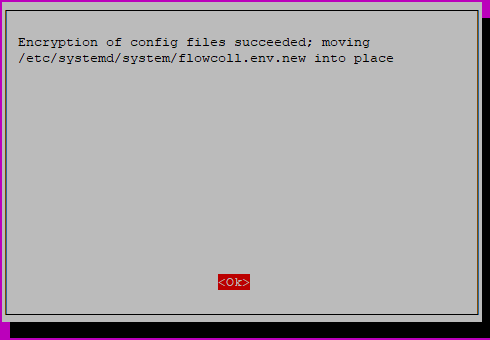
    Encryption of configuration files succeeded. File /etc/systemd/system/flowcoll.env.new ready to move into place. Red Ok button to proceed.
    Note: If you need to modify the configuration file later, you must first decrypt the file and then re-encrypt the file with the Apstra configuration tool. See Update the Configuration File with File Encryption Enabled.
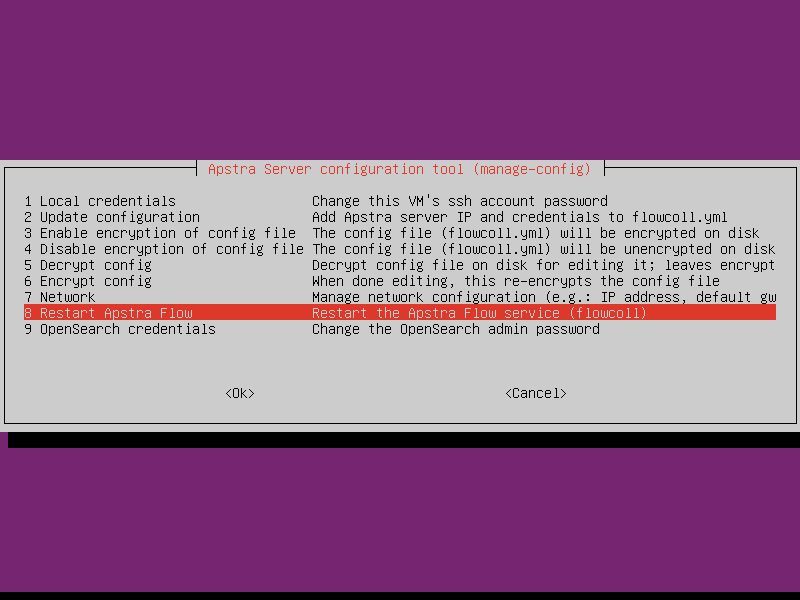
  10. Restart Apstra Flow.
    Select 8 Restart the Apstra Flow Service (flowcoll) and click Ok.
    Apstra Server configuration tool interface showing a text-based menu for server management. Highlighted option is Restart Apstra Flow.
    You successfully encrypted your configuration file. Next, continue to Apply Your License.