Apply Your License

Apply Your License in Apstra DC Director

By now, you should have received your activation code and activated your license from the HPE Agile Licensing Portal (see the HPE Licensing User Guide for activation instructions). You now need to apply your license in the HPE Networking Apstra Data Center Director GUI.

To apply your license:

  1. Login to the Apstra DC Director GUI using the credentials you set when you first configured the Apstra DC Director server.
  2. From the left navigation menu, select Platform > Licenses and click Create License.
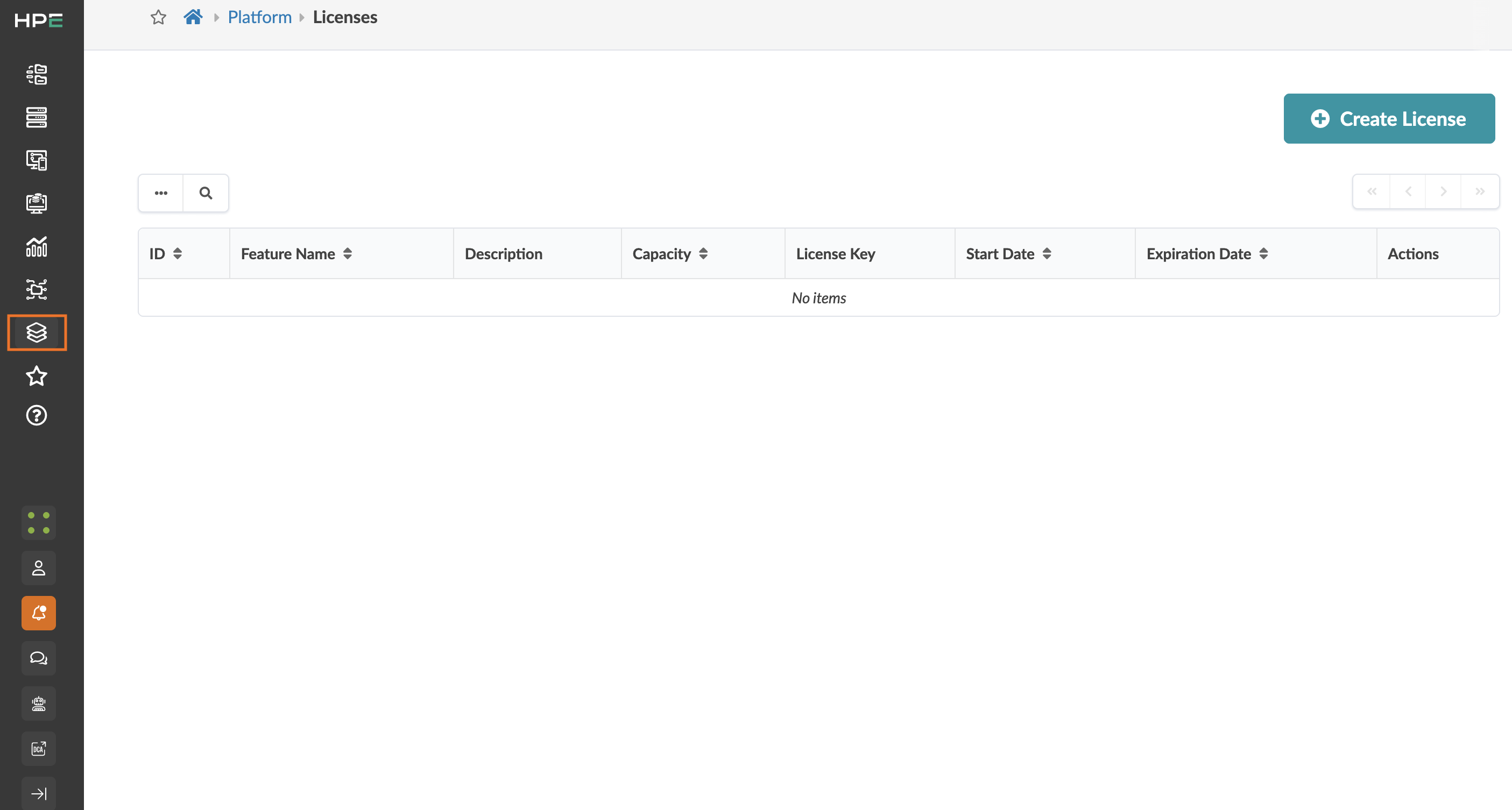
    Juniper Apstra Licenses section showing active license details: ID TRIALJUNOS, Apstra Premium feature, start and expiration dates, and create license button.
  3. Copy your license key into the License Key text box and click Create.

    User interface for creating a license key with a text field labeled License Key, a checkbox for Create Another, and a teal Create button.
  4. Verify your license.
    If the license was applied successfully, the Feature Name displays Apstra Premium.

    Software license management interface displaying details for license JUNOS5161254970 for Apstra Premium. Includes start date 2023-09-06 and expiration date 2028-09-05. Options to view the license key and delete the license. Create License button available for adding new licenses.

Restart the Flow Services

After you apply your license in Apstra DC Director, restart your flow services so that the services can pick up the license.
Note: You can restart the flow services using the Apstra DC Director Server Configuration tool 8 Restart the Apstra Flow Service (flowcoll). Alternatively, you can restart the services through SSH. This option restarts only the Flow Collector, not the opensearch or opensearch-dashboards.

To restart the flow services using SSH:

  1. SSH to the Flow VM. The default login credentials are: apstra/apstra.
  2. Restart the collector service.
    sudo systemctl restart flowcoll
  3. Restart the OpenSearch service.
    sudo systemctl restart opensearch
  4. Restart the OpenSearch dashboard service.
    sudo systemctl restart opensearch-dashboards
  5. Verify your license.
    Enter the IP address of your VM by accessing: http://<flow-vm-ip>:8080/metrics.
    If you apply the license successfully, the license_flow_records_per_second value displays 64000 (4×16000). The Apstra DC Director GUI then presents Apstra Premium as the Feature Name.