Import the Junos OS Apstra DC Director Flow Configlet

Import the Configlet

HPE provides a Junos Operating System sFlow configlet with your product. You'll want to clone this default configlet, modify it to your needs, and then import it into your blueprint from the HPE Networking Apstra Data Center Director GUI. See Example: Junos OS Apstra DC Director Flow Configlet.

Note: Before you begin, onboard all your devices and confirm that you have created a blueprint.
Note: You can also import other configlets, such as SNMP, into your blueprint. See Import the SNMP Configlet for Interface Name Enrichment.

To import the Flow Data configlet:

  1. From the left navigation menu in the Apstra GUI, navigate to Blueprints > Staged.
  2. From the Catalog tab, select Configlets and click Import Configlet.

    User interface screenshot of a network management tool showing tabs like Dashboard, Anomalies, Analytics, Staged, and others. The Staged tab and Configlets section are highlighted, with an Import Configlet button visible in the bottom-right corner.
  3. From the Configlet drop-down menu, select Flow Data for Optional Flow Analytics and click Next.
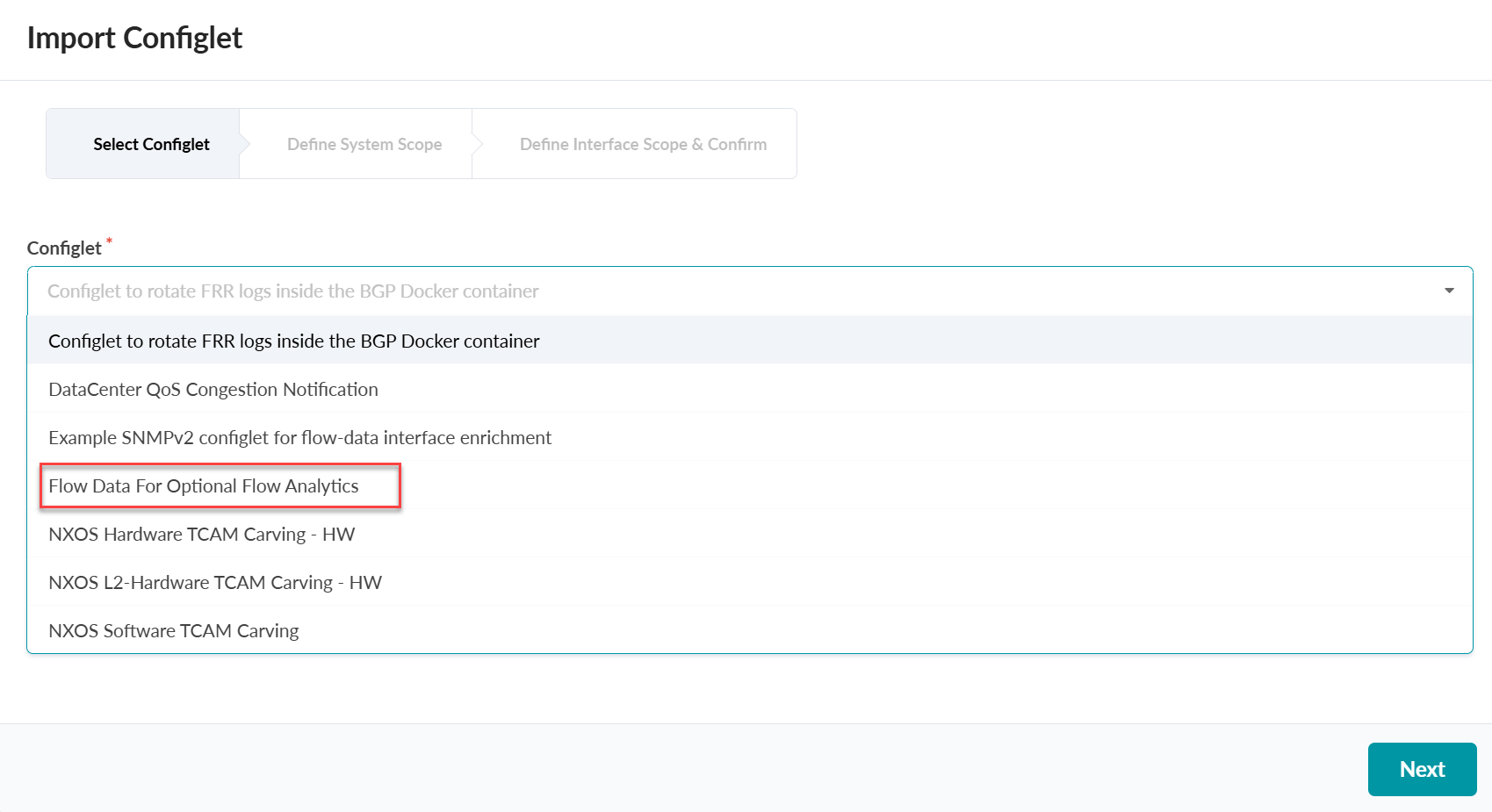
    User interface for importing a Configlet, current step is Select Configlet. Dropdown menu lists options, with Flow Data For Optional Flow Analytics highlighted in red. Next button is at the bottom right.
  4. Select the devices for the configlet, such as spine, and click Next.
    Define System Scope interface for importing a Configlet. Configlet scope is set to role in [spine]. Includes Add and trash buttons for conditions, Previous and Next navigation buttons.
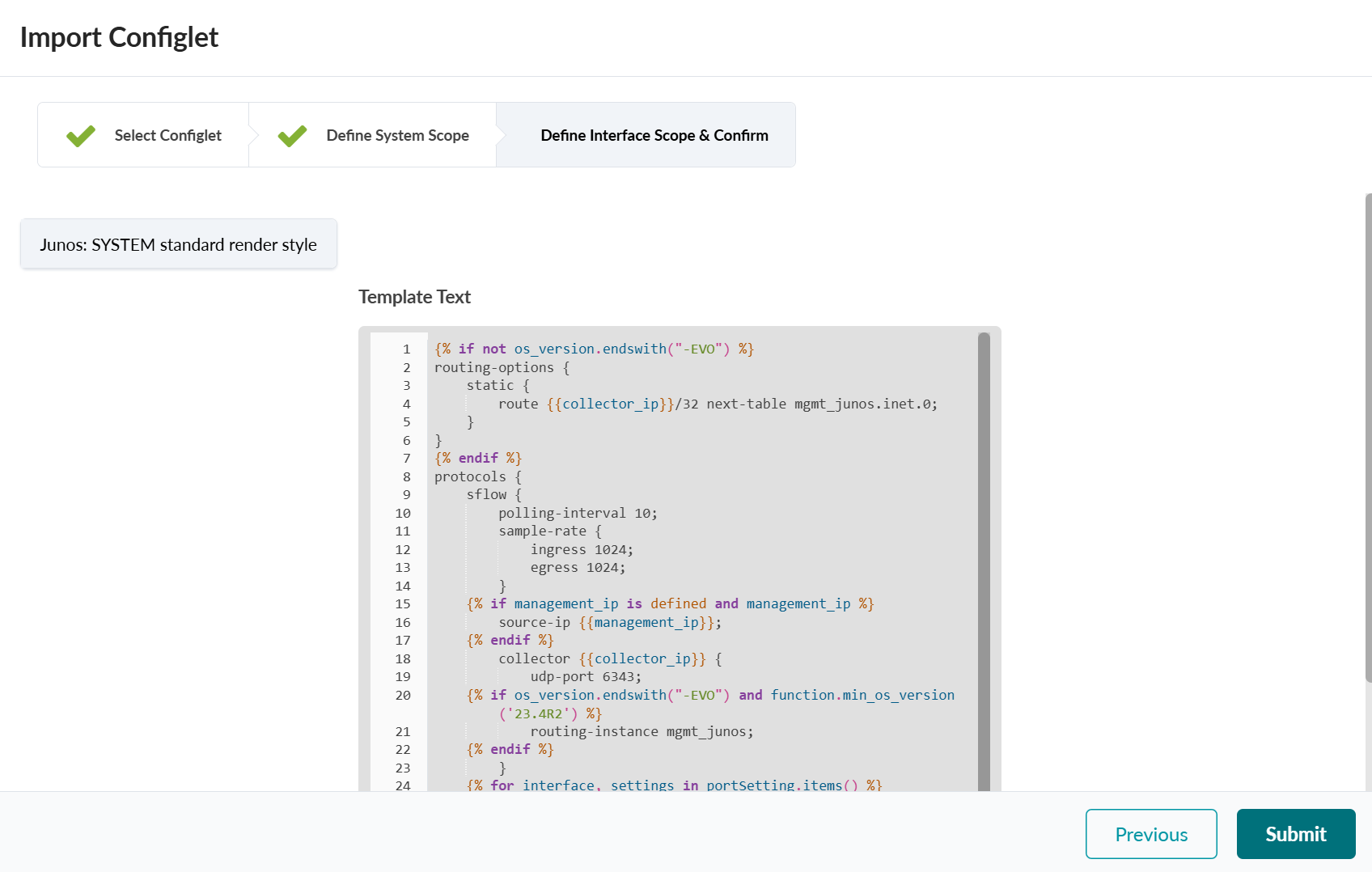
    User interface for importing a Configlet in a network tool, showing steps Select Configlet and Define System Scope as completed, Template Text with dynamic configuration code, and navigation buttons Previous and Submit.
  5. Click Submit to import the configuration template.
  6. Import the property set.
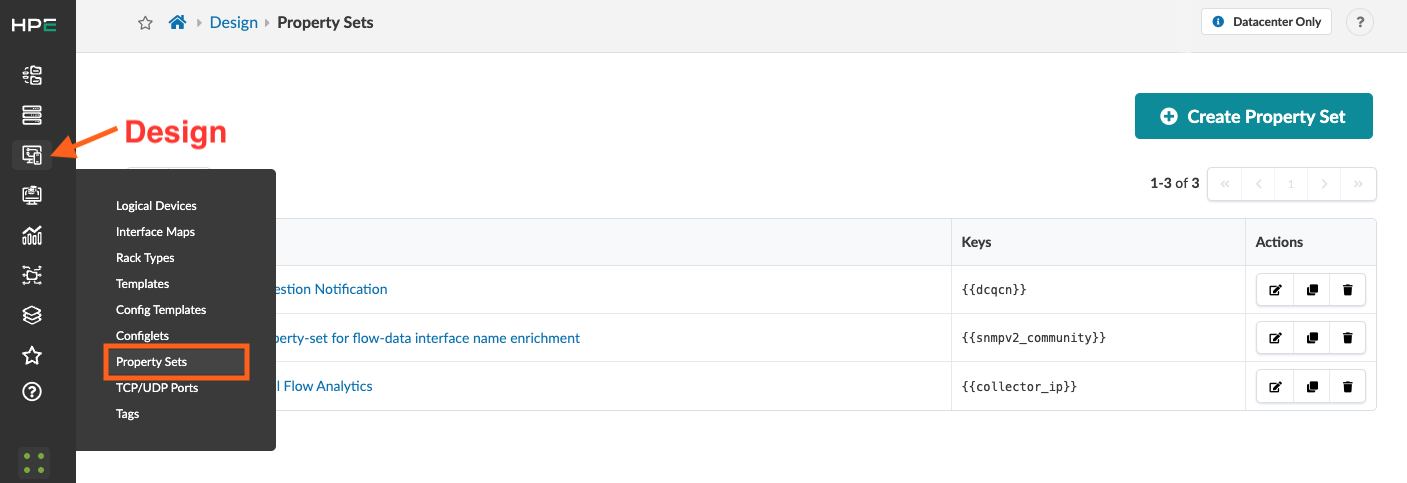
    From the left navigation menu, navigate to Design > Property Sets.HPE application interface showing Design section with Property Sets menu highlighted, listing property sets by name, key, and actions like edit and delete. Create Property Set button visible.
  7. From the table, select the Flow Data for Optional Flow Analytics configlet and click the Edit button.
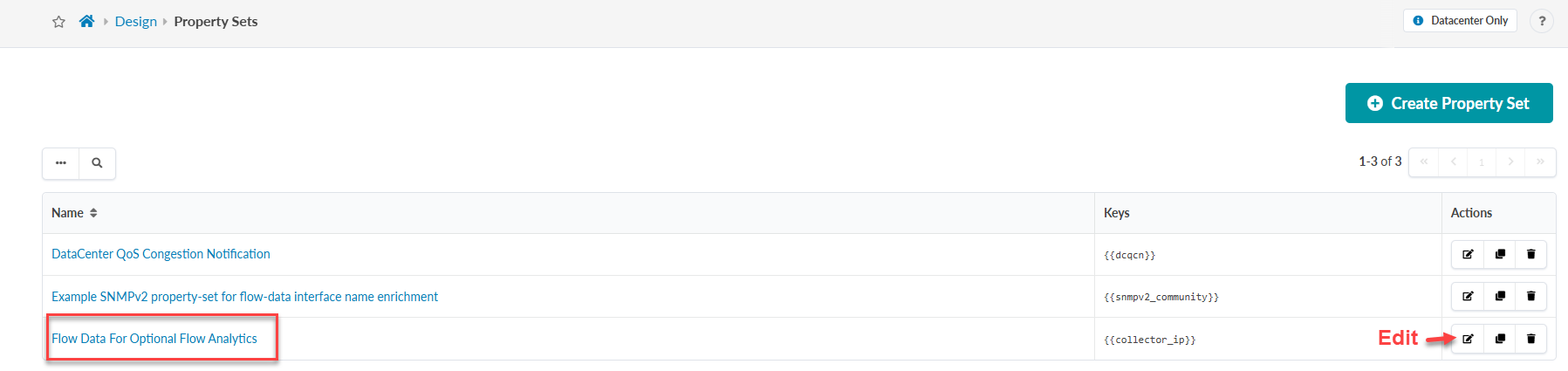
    User interface for managing Property Sets with breadcrumb Design > Property Sets, a table listing names, keys, actions, a highlighted row for Flow Data For Optional Flow Analytics with Edit marked, a Create Property Set button, and pagination controls.
  8. Edit the property set.
    Add the collector IP address of your Flow Data VM and click Update.
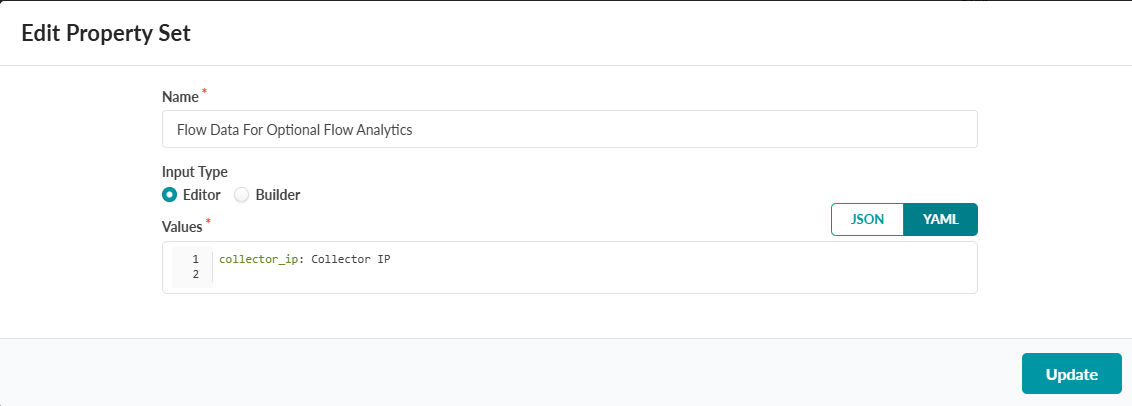
    Edit Property Set interface with fields to configure Name, Input Type, Values, and Format. YAML selected. Update button at the bottom.
  9. To import the configlet, go to Blueprint > Staged > Catalog > Property Sets and click Import Property Set. Afterward, commit your changes.
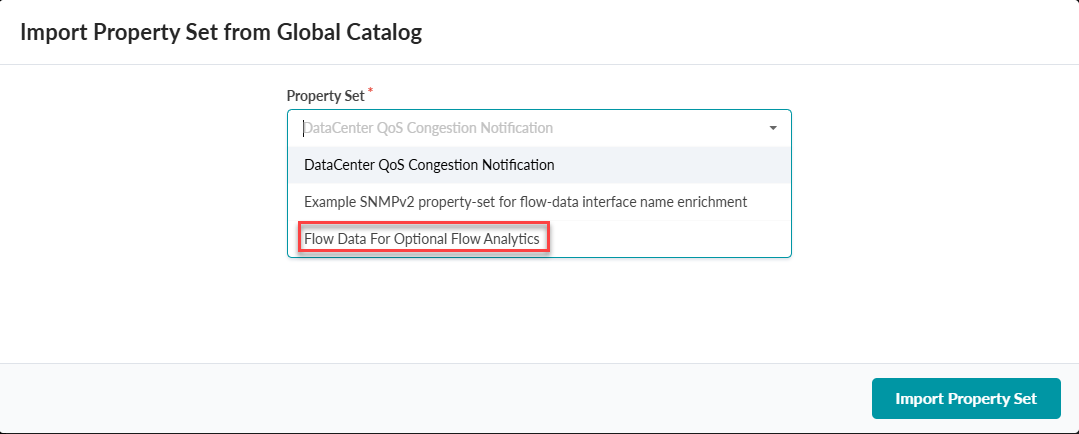
    User interface for importing a property set from a global catalog. Dropdown menu labeled Property Set shows options, with Flow Data For Optional Flow Analytics highlighted in red. Import Property Set button at bottom right.
    The property set was successfully imported into your blueprint.

    User interface for managing Property Sets with tabs, table, search bar, and Import Property Set button. Table includes Flow Data For Optional Flow Analytics entry with collector_ip key and green label As in global catalog.
Good job! You completed the completed the Apstra Flow Data installation. Next, continue to Launch the Apstra DC Director Flow Dashboard.

Example: Junos OS Apstra DC Director Flow Configlet

The following example shows the Junos OS Apstra DC Director Flow configlet that is provided with your product.

The configlet includes settings for sFlow polling and sampling intervals, Collector IP address, UDP port, and Interfaces for data collection. It also includes a static routing option for traffic flow over the management Junos OS RPF interface.
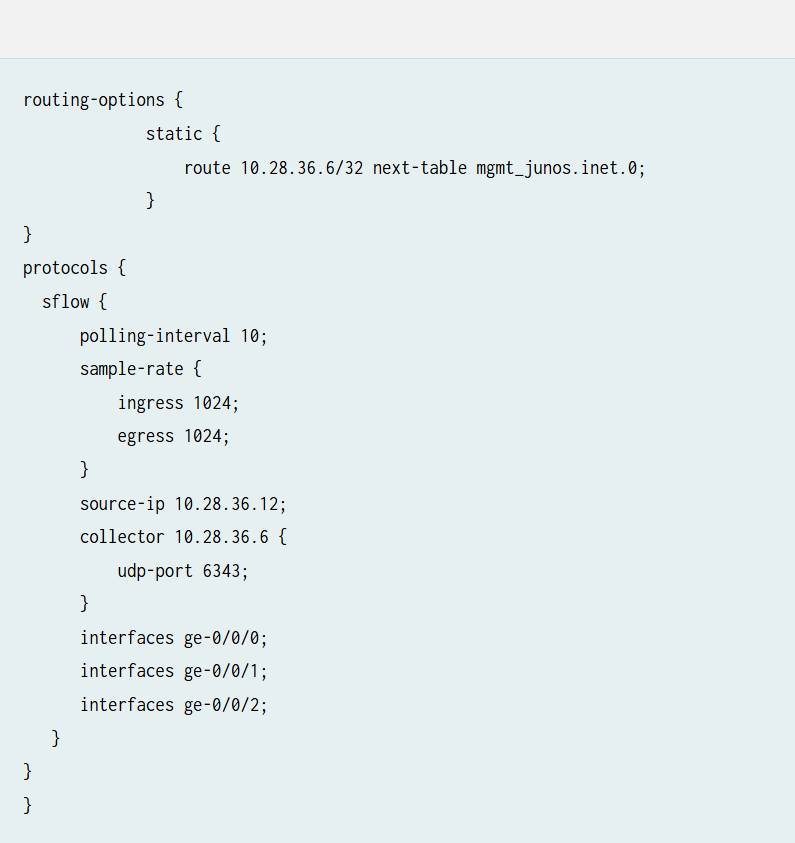
Network configuration snippet with routing options for IP 10.28.36.6/32 to mgmt_junos.inet.0 table and sFlow settings including polling interval 10 seconds, sample rate 1024, source IP 10.28.36.12, collector IP 10.28.36.6 on port 6343, and enabled interfaces ge-0/0/0, ge-0/0/1, ge-0/0/2.

Import the SNMP Configlet for Interface Name Enrichment

If you prefer to see actual interface names such as xe-0/0/1 over interface indexes, Apstra DC Director Flow must query the devices using SNMP.

Follow the same steps specified in the Import the Configlet section but choose Example SNMPv2 configlet for flow-data interface enrichment when importing the configlet.