Related Documentation
- ACX Series
- Understanding Traffic Control with Metrics in a RIP Network
- RIP Configuration Overview
- J Series
- Understanding Traffic Control with Metrics in a RIP Network
- RIP Configuration Overview
- Verifying a RIP Configuration
- M Series
- Understanding Traffic Control with Metrics in a RIP Network
- RIP Configuration Overview
- Verifying a RIP Configuration
- MX Series
- Understanding Traffic Control with Metrics in a RIP Network
- RIP Configuration Overview
- Verifying a RIP Configuration
- PTX Series
- Understanding Traffic Control with Metrics in a RIP Network
- QFX Series
- Understanding Traffic Control with Metrics in a RIP Network
- SRX Series
- Understanding Traffic Control with Metrics in a RIP Network
- RIP Configuration Overview
- Verifying a RIP Configuration
- T Series
- Understanding Traffic Control with Metrics in a RIP Network
- RIP Configuration Overview
- Verifying a RIP Configuration
Example: Controlling Traffic in a RIP Network with an Outgoing Metric
This example shows how to control traffic with an outgoing metric.
Requirements
Before you begin:
- Define RIP groups, and add interfaces to the groups. Then configure a routing policy to export directly connected routes and routes learned through RIP routing exchanges. See Example: Configuring a Basic RIP Network.
- Control traffic with an incoming metric. See Example: Controlling Traffic in a RIP Network with an Incoming Metric.
Overview
In this example, each route from Router A to Router D has two hops as shown in Figure 1. However, because the link from Router A to Router B in the RIP group has a higher bandwidth than the link from Router A to Router C in RIP group Alpha 1, you want traffic from Router D to Router A to flow through Router B. To control the way Router D sends traffic to Router A, you can alter the routes that Router D receives by configuring the outgoing metric on Router A's interfaces in the Alpha 1 RIP group.
Figure 1: Controlling Traffic in a RIP Network with the Outgoing Metric
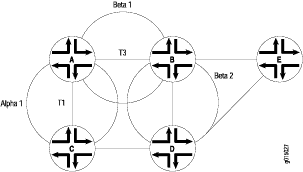
If the outgoing metric for the Alpha 1 RIP group—the A-to-C link—is changed to 3, Router D calculates the total path metric from Router A through Router C as 4. In contrast, the unchanged default total path metric to Router A through Router B in the RIP group is 2. The fact that Router A's interfaces belong to two different RIP groups allows you to configure two different outgoing metrics on its interfaces, because you configure path metrics at the group level.
By configuring the outgoing metric, you control the way Router A sends traffic to Router D. By configuring the outgoing metric on the same router, you control the way Router D sends traffic to Router A.
This example uses an outgoing metric of 3.
Configuration
Step-by-Step Procedure
To control traffic with an outgoing metric:
- Set the outgoing metric.[edit protocols rip group alpha1]user@host# set metric-out 3
- If you are done configuring the device, commit the configuration.[edit]user@host# commit
Verification
To verify that the configuration is working properly, enter the show protocols rip command.
Related Documentation
- ACX Series
- Understanding Traffic Control with Metrics in a RIP Network
- RIP Configuration Overview
- J Series
- Understanding Traffic Control with Metrics in a RIP Network
- RIP Configuration Overview
- Verifying a RIP Configuration
- M Series
- Understanding Traffic Control with Metrics in a RIP Network
- RIP Configuration Overview
- Verifying a RIP Configuration
- MX Series
- Understanding Traffic Control with Metrics in a RIP Network
- RIP Configuration Overview
- Verifying a RIP Configuration
- PTX Series
- Understanding Traffic Control with Metrics in a RIP Network
- QFX Series
- Understanding Traffic Control with Metrics in a RIP Network
- SRX Series
- Understanding Traffic Control with Metrics in a RIP Network
- RIP Configuration Overview
- Verifying a RIP Configuration
- T Series
- Understanding Traffic Control with Metrics in a RIP Network
- RIP Configuration Overview
- Verifying a RIP Configuration