Related Documentation
- ACX Series
- Example: Configuring the Transmission Frequency for Link-State PDUs on IS-IS Interfaces
- M Series
- Understanding the Transmission Frequency for CSNPs on IS-IS Interfaces
- Example: Configuring the Transmission Frequency for Link-State PDUs on IS-IS Interfaces
- MX Series
- Understanding the Transmission Frequency for CSNPs on IS-IS Interfaces
- Example: Configuring the Transmission Frequency for Link-State PDUs on IS-IS Interfaces
- PTX Series
- Understanding the Transmission Frequency for CSNPs on IS-IS Interfaces
- Example: Configuring the Transmission Frequency for Link-State PDUs on IS-IS Interfaces
- QFX Series
- Understanding the Transmission Frequency for CSNPs on IS-IS Interfaces
- Example: Configuring the Transmission Frequency for Link-State PDUs on IS-IS Interfaces
- T Series
- Understanding the Transmission Frequency for CSNPs on IS-IS Interfaces
- Example: Configuring the Transmission Frequency for Link-State PDUs on IS-IS Interfaces
Example: Configuring the Transmission Frequency for CSNP Packets on IS-IS Interfaces
This example shows how to modify the complete sequence number PDU (CSNP) interval on IS-IS interfaces.
Requirements
Before you begin, configure IS-IS. See Example: Configuring IS-IS for information about the sample IS-IS configuration.
Overview
CSNPs contain a complete list of all link-state PDUs in the IS-IS database. CSNPs are sent periodically on all links, and the receiving systems use the information in the CSNP to update and synchronize their link-state PDU databases. The designated router multicasts CSNPs on broadcast links in place of sending explicit acknowledgments for each link-state PDU.
If the routing device is the designated router on a LAN, IS-IS sends CSNPs every 10 seconds. If the routing device is on a point-to-point interface, it sends CSNPs every 5 seconds. You might want to modify the default interval to protect against CSNP flooding.
To modify the CSNP interval, include the csnp-interval statement:
The time can range from 1 through 65,535 seconds.
To configure the interface not to send any CSNPs, specify the disable option:
In this example, an IS-IS routing device on a LAN segment is configured to send CSNPs every 30 seconds.
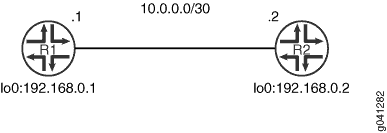
Figure 1 shows the topology used in this example.
Figure 1: IS-IS CSNP Interval Topology
This example describes the steps on Device R1.
Configuration
CLI Quick Configuration
To quickly configure this example, copy the following commands, paste them into a text file, remove any line breaks, change any details necessary to match your network configuration, and then copy and paste the commands into the CLI at the [edit] hierarchy level.
Device R1
Step-by-Step Procedure
The following example requires you to navigate various levels in the configuration hierarchy. For information about navigating the CLI, see Using the CLI Editor in Configuration Mode in the CLI User Guide.
To configure the CSNP interval:
- Configure the interfaces[edit interfaces]user@R1# set fe-1/2/0 unit 0 description to-R2user@R1# set fe-1/2/0 unit 0 family inet address 10.0.0.1/30user@R1# set fe-1/2/0 unit 0 family isouser@R1# set lo0 unit 0 family inet address 192.168.0.1/32user@R1# set lo0 unit 0 family iso address 49.0002.0192.0168.0001.00
- Enable IS-IS on the interfaces.[edit protocols isis]user@R1# set interface fe-1/2/0.0 user@R1# set interface lo0.0
- Modify the CSNP interval.[edit protocols isis interface fe-1/2/0.0]user@R1# set csnp-interval 30
- (Optional) Enable tracing for tracking CSNP operations.[edit protocols isis traceoptions]user@R1# set file isis-traceuser@R1# set flag csn
Results
From configuration mode, confirm your configuration by entering the show interfaces and show protocols commands. If the output does not display the intended configuration, repeat the instructions in this example to correct the configuration.
If you are done configuring the device, enter commit from configuration mode. Repeat the configuration on Device R2.
Verification
Confirm that the configuration is working properly.
Verifying the CSNP Interval
Purpose
Check the CSNP interval setting on the IS-IS interface.
Action
From operational mode, enter the show isis interface extensive command.
user@R1> show isis interface extensiveIS-IS interface database:
fe-1/2/0.0
Index: 70, State: 0x6, Circuit id: 0x1, Circuit type: 3
LSP interval: 100 ms, CSNP interval: 30 s, Loose Hello padding
Adjacency advertisement: Advertise
Level 1
Adjacencies: 1, Priority: 64, Metric: 10
Hello Interval: 9.000 s, Hold Time: 27 s
Designated Router: R2.02 (not us)
Level 2
Adjacencies: 1, Priority: 64, Metric: 10
Hello Interval: 9.000 s, Hold Time: 27 s
Designated Router: R2.02 (not us)
Meaning
The output shows that the CSNP interval is set to 30 seconds.
Checking the CSNP Statistics
Purpose
Checking the number of CSNPs sent and received.
Action
From operational mode, enter the show isis statistics command.
user@R1> show isis statisticsIS-IS statistics for R1: PDU type Received Processed Drops Sent Rexmit LSP 5 5 0 3 0 IIH 94 20 0 43 0 CSNP 6 6 0 0 0 PSNP 0 0 0 0 0 Unknown 0 0 0 0 0 Totals 105 31 0 46 0 Total packets received: 105 Sent: 46 SNP queue length: 0 Drops: 0 LSP queue length: 0 Drops: 0 SPF runs: 5 Fragments rebuilt: 5 LSP regenerations: 0 Purges initiated: 0 -----
user@R2> show isis statisticsIS-IS statistics for R2: PDU type Received Processed Drops Sent Rexmit LSP 3 3 0 5 0 IIH 35 11 0 86 0 CSNP 0 0 0 6 0 PSNP 0 0 0 0 0 Unknown 0 0 0 0 0 Totals 38 14 0 97 0 Total packets received: 38 Sent: 97 SNP queue length: 0 Drops: 0 LSP queue length: 0 Drops: 0 SPF runs: 7 Fragments rebuilt: 7 LSP regenerations: 0 Purges initiated: 0
Meaning
The output shows the number of CSNPs sent and received on Device R1 and Device R2.
 | Note: On broadcast links, only the designated intermediate system (DIS) sends CSNPs. |
Checking the IS-IS Log
Purpose
Check the IS-IS trace log to view the interval between packets.
Action
From operational mode, enter the show log isis-trace | match csn command.
user@R1> show log isis-trace | match csnJun 18 14:36:19.504064 Received L1 CSN, source R2, interface fe-1/2/0.0 Jun 18 14:36:19.523065 Received L2 CSN, source R2, interface fe-1/2/0.0 Jun 18 14:36:48.904120 Received L1 CSN, source R2, interface fe-1/2/0.0 Jun 18 14:36:48.916425 Received L2 CSN, source R2, interface fe-1/2/0.0 Jun 18 14:37:14.954447 Received L1 CSN, source R2, interface fe-1/2/0.0 Jun 18 14:37:14.971329 Received L2 CSN, source R2, interface fe-1/2/0.0 Jun 18 14:37:44.227106 Received L1 CSN, source R2, interface fe-1/2/0.0 Jun 18 14:37:44.244181 Received L2 CSN, source R2, interface fe-1/2/0.0
Meaning
The output shows that Level 1 and Level 2 CSNPs are being received roughly every 30 seconds.
Related Documentation
- ACX Series
- Example: Configuring the Transmission Frequency for Link-State PDUs on IS-IS Interfaces
- M Series
- Understanding the Transmission Frequency for CSNPs on IS-IS Interfaces
- Example: Configuring the Transmission Frequency for Link-State PDUs on IS-IS Interfaces
- MX Series
- Understanding the Transmission Frequency for CSNPs on IS-IS Interfaces
- Example: Configuring the Transmission Frequency for Link-State PDUs on IS-IS Interfaces
- PTX Series
- Understanding the Transmission Frequency for CSNPs on IS-IS Interfaces
- Example: Configuring the Transmission Frequency for Link-State PDUs on IS-IS Interfaces
- QFX Series
- Understanding the Transmission Frequency for CSNPs on IS-IS Interfaces
- Example: Configuring the Transmission Frequency for Link-State PDUs on IS-IS Interfaces
- T Series
- Understanding the Transmission Frequency for CSNPs on IS-IS Interfaces
- Example: Configuring the Transmission Frequency for Link-State PDUs on IS-IS Interfaces