Related Documentation
- ACX Series
- Understanding IS-IS Configuration
- Example: Configuring Designated Router Election Priority for IS-IS
- EX Series
- Example: Configuring IS-IS for GRES with Graceful Restart
- J Series
- Understanding IS-IS Configuration
- Example: Configuring Designated Router Election Priority for IS-IS
- M Series
- Understanding IS-IS Configuration
- Example: Configuring IS-IS for GRES with Graceful Restart
- Example: Configuring Designated Router Election Priority for IS-IS
- MX Series
- Understanding IS-IS Configuration
- Example: Configuring Designated Router Election Priority for IS-IS
- PTX Series
- Example: Configuring IS-IS for GRES with Graceful Restart
- QFX Series
- Example: Configuring IS-IS for GRES with Graceful Restart
- SRX Series
- Understanding IS-IS Configuration
- Example: Configuring Designated Router Election Priority for IS-IS
- T Series
- Understanding IS-IS Configuration
- Example: Configuring IS-IS for GRES with Graceful Restart
- Example: Configuring Designated Router Election Priority for IS-IS
Example: Configuring IS-IS
This example shows how to configure IS-IS.
Requirements
No special configuration beyond device initialization is required before configuring this example.
Overview
In this example, you configure the two IS-IS routing devices in a single area. The devices have NET addresses 49.0002.0192.0168.0001.00 and 49.0002.0192.0168.0002.00 on the lo0 interfaces. Additionally, you configure the ISO family on the IS-IS interfaces.
For Junos OS security devices only, you configure the mode packet-based statement at the [edit security forwarding-options family iso] hierarchy level.
Figure 1 shows the topology used in this example.
Figure 1: Simple IS-IS Topology
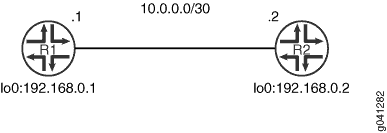
CLI Quick Configuration shows the configuration for both of the devices in Figure 1. The section Step-by-Step Procedure describes the steps on Device R1.
Configuration
CLI Quick Configuration
To quickly configure this example, copy the following commands, paste them into a text file, remove any line breaks, change any details necessary to match your network configuration, and then copy and paste the commands into the CLI at the [edit] hierarchy level.
Device R1
Device R2
Step-by-Step Procedure
The following example requires you to navigate various levels in the configuration hierarchy. For information about navigating the CLI, see Using the CLI Editor in Configuration Mode in the CLI User Guide.
To configure IS-IS:
- Enable IS-IS if your router is in secure context.[edit security forwarding-options family iso]user@R1# set mode packet-based
- Create the interface that connects to Device R2, and configure
the ISO family on the interface.[edit interfaces ge-1/2/0 unit 0]user@R1# set description to-R2user@R1# set family inet address 10.0.0.1/30user@R1# set family iso
- Create the loopback interface, set the IP address, and
set the NET address.[edit interfaces lo0 unit 0]user@R1# set family inet address 192.168.0.1/32user@R1# set family iso address 49.0002.0192.0168.0001.00
- Enable IS-IS on the interfaces.[edit protocols isis]user@R1# set interface ge-1/2/0.0user@R1# set interface lo0.0
Results
From configuration mode, confirm your configuration by entering the show interfaces, show protocols, and show security commands. If the output does not display the intended configuration, repeat the instructions in this example to correct the configuration.
If you are done configuring the device, enter commit from configuration mode.
Verification
Confirm that the configuration is working properly.
- Verifying IS-IS Interface Configuration
- Verifying IS-IS Interface Configuration in Detail
- Verifying IS-IS Adjacencies
- Verifying IS-IS Adjacencies in Detail
Verifying IS-IS Interface Configuration
Purpose
Verify the status of the IS-IS-enabled interfaces.
Action
From operational mode, enter the show isis interface brief command.
user@R1> show isis interface briefIS-IS interface database: Interface L CirID Level 1 DR Level 2 DR L1/L2 Metric lo0.0 0 0x1 Passive Passive 0/0 ge-1/2/0.0 3 0x1 R2.02 R2.02 10/10
Meaning
Verify that the output shows the intended configuration of the interfaces on which IS-IS is enabled.
Verifying IS-IS Interface Configuration in Detail
Purpose
Verify the details of IS-IS-enabled interfaces.
Action
From operational mode, enter the show isis interface detail command.
user@R1> show isis interface detailIS-IS interface database:
lo0.0
Index: 75, State: 0x6, Circuit id: 0x1, Circuit type: 0
LSP interval: 100 ms, CSNP interval: disabled
Adjacency advertisement: Advertise
Level Adjacencies Priority Metric Hello (s) Hold (s) Designated Router
1 0 64 0 Passive
2 0 64 0 Passive
ge-1/2/0.0
Index: 77, State: 0x6, Circuit id: 0x1, Circuit type: 3
LSP interval: 100 ms, CSNP interval: 10 s
Adjacency advertisement: Advertise
Level Adjacencies Priority Metric Hello (s) Hold (s) Designated Router
1 1 64 10 9.000 27 R2.02 (not us)
2 1 64 10 9.000 27 R2.02 (not us)Meaning
Check the following output fields and verify that the output shows the intended configuration of IS-IS-enabled interfaces:
- Interface—Interface configured for IS-IS.
- State—Internal implementation information.
- Circuit id—Circuit identifier.
- Circuit type—Configured level of IS-IS:
- 1—Level 1 only
- 2—Level 2 only
- 3—Level 1 and Level 2
- link-state PDU interval—Time between IS-IS information messages.
- L or Level—Type of adjacency:
- 1—Level 1 only
- 2—Level 2 only
- 3—Level 1 and Level 2
- Adjacencies—Adjacencies established on the interface.
- Priority—Priority value established on the interface.
- Metric—Metric value for the interface.
- Hello(s)—Intervals between hello PDUs.
- Hold(s)—Hold time on the interface.
Verifying IS-IS Adjacencies
Purpose
Display brief information about IS-IS neighbors.
Action
From operational mode, enter the show isis adjacency brief command.
user@R1> show isis adjacency briefInterface System L State Hold (secs) SNPA ge-1/2/0.0 R2 1 Up 6 0:5:85:8f:c8:bd ge-1/2/0.0 R2 2 Up 6 0:5:85:8f:c8:bd
Meaning
Verify the adjacent routers in the IS-IS database.
Verifying IS-IS Adjacencies in Detail
Purpose
Display extensive information about IS-IS neighbors.
Action
From operational mode, enter the show isis adjacency extensive command.
user@R1> show isis adjacency extensiveR2 Interface: ge-1/2/0.0, Level: 1, State: Up, Expires in 6 secs Priority: 64, Up/Down transitions: 1, Last transition: 00:40:28 ago Circuit type: 3, Speaks: IP, IPv6, MAC address: 0:5:85:8f:c8:bd Topologies: Unicast Restart capable: Yes, Adjacency advertisement: Advertise LAN id: R2.02, IP addresses: 10.0.0.2 Transition log: When State Event Down reason Thu May 31 11:18:48 Up Seenself R2 Interface: ge-1/2/0.0, Level: 2, State: Up, Expires in 8 secs Priority: 64, Up/Down transitions: 1, Last transition: 00:40:28 ago Circuit type: 3, Speaks: IP, IPv6, MAC address: 0:5:85:8f:c8:bd Topologies: Unicast Restart capable: Yes, Adjacency advertisement: Advertise LAN id: R2.02, IP addresses: 10.0.0.2 Transition log: When State Event Down reason Thu May 31 11:18:48 Up Seenself
Meaning
Check the following fields and verify the adjacency information about IS-IS neighbors:
- Interface—Interface through which the neighbor is reachable.
- L or Level—Configured level of IS-IS:
- 1—Level 1 only
- 2—Level 2 only
- 3—Level 1 and Level 2
An exclamation point before the level number indicates that the adjacency is missing an IP address.
- State—Status of the adjacency: Up, Down, New, One-way, Initializing, or Rejected.
- Event—Message that identifies the cause of a state.
- Down reason—Reason the adjacency is down.
- Restart capable—A neighbor is configured for graceful restart.
- Transition log—List of transitions including When, State, and Reason.
Related Documentation
- ACX Series
- Understanding IS-IS Configuration
- Example: Configuring Designated Router Election Priority for IS-IS
- EX Series
- Example: Configuring IS-IS for GRES with Graceful Restart
- J Series
- Understanding IS-IS Configuration
- Example: Configuring Designated Router Election Priority for IS-IS
- M Series
- Understanding IS-IS Configuration
- Example: Configuring IS-IS for GRES with Graceful Restart
- Example: Configuring Designated Router Election Priority for IS-IS
- MX Series
- Understanding IS-IS Configuration
- Example: Configuring Designated Router Election Priority for IS-IS
- PTX Series
- Example: Configuring IS-IS for GRES with Graceful Restart
- QFX Series
- Example: Configuring IS-IS for GRES with Graceful Restart
- SRX Series
- Understanding IS-IS Configuration
- Example: Configuring Designated Router Election Priority for IS-IS
- T Series
- Understanding IS-IS Configuration
- Example: Configuring IS-IS for GRES with Graceful Restart
- Example: Configuring Designated Router Election Priority for IS-IS