Step 1: Create the VMware Conductor VM
This step creates the VMware ESXi virtual machine that will host the SSR conductor. A standalone conductor requires a minimum of one VMXNet3 network adapter connected to the management network that will be reachable from all branch routers.
VM Minimum Requirements
| Resource | Minimum Value | Notes |
|---|---|---|
| vCPUs | 4 | Expand for deployments with more than 25 managed routers |
| Scheduling Affinity | 0-3 | Set under CPU → expand |
| Memory | 8 GB | |
| Disk | 62 GB | |
| Network Adapters | 1 × VMXNet3 | Connected to the management network portgroup |
| Boot Firmware | EFI | UEFI secure boot disabled |
For guidance on scaling the conductor for larger deployments, see Conductor Scaling Recommendations.
Log In to VMware ESXi
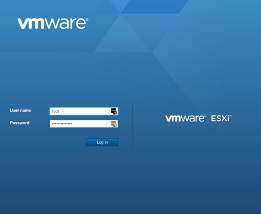
Open a web browser and navigate to your ESXi host. Log in with administrative credentials.
Create the Virtual Machine
-
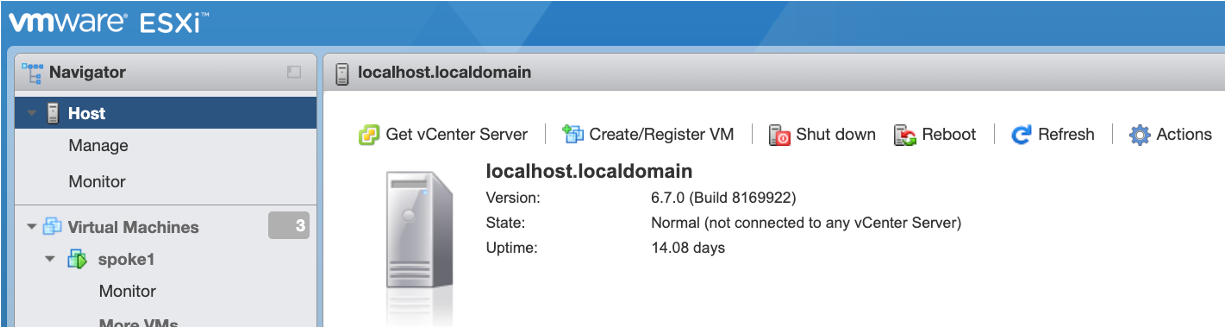
From the VMWare Navigator window, click on Create/Register VM.
-
In the Select creation type window click Create a new virtual machine and then click Next.

Name and Guest OS
Use the steps below to configure the following:
| Field | Value |
|---|---|
| Name | A descriptive name. In this example, Conductor |
| Compatibility | ESXi 7.0 U2 virtual machine |
| Guest OS family | Linux |
| Guest OS version | Highest available Oracle Linux (64-bit) version |
-
Name the Virtual Machine Conductor.
-
Select Linux from the Guest OS family dropdown selection, and select the Guest OS version as the highest available Oracle Linux (64-bit) version. In this example it is Oracle Linux 8, but your deployment may be different. Click Next.

Storage
-
From the Storage screen, select datastore1 and click Next.

Virtual Hardware
-
On the Customize settings screen, click Virtual Hardware and configure the following settings.
These values meet the minimum conductor requirements; scale up for larger deployments (see Conductor Scaling Recommendations).
Setting Value Notes CPUs 4Minimum; expand for >25 managed routers Scheduling Affinity 0-3Set under CPU → expand Memory 8 GBMinimum Hard Disk 1 62 GBMinimum 
Click Next when the settings are configured.
Boot Settings
Secure Boot verifies the integrity of the system. Because the kernel modules of the SSR are not signed, the modules required by the network interface drivers cannot be loaded at runtime. In order to allow the loading of the necessary drivers, the Secure Boot setting in the BIOS must be disabled.
-
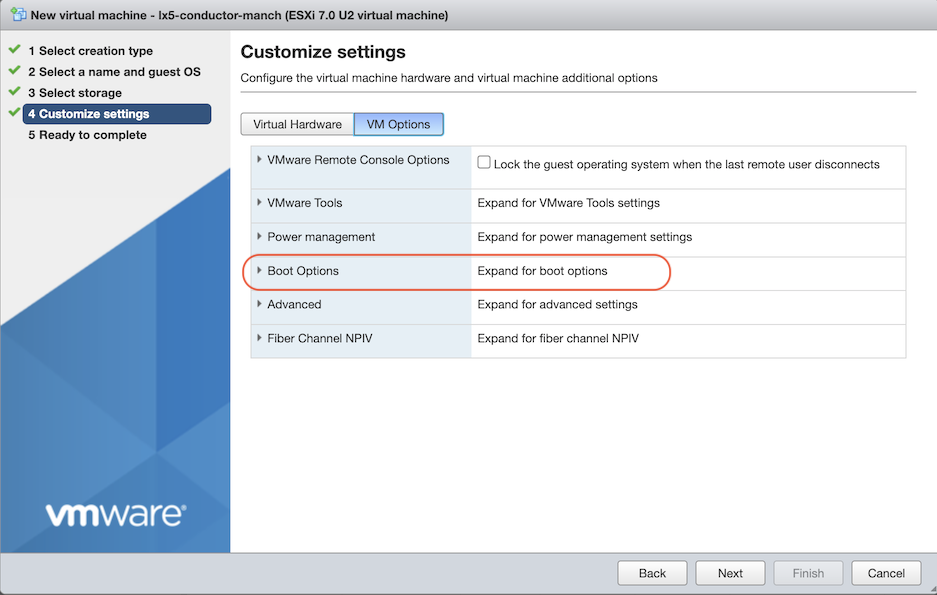
Click the VM Options tab.
-
Expand Boot Options.
-
Verify that EFI is selected.
-
Click Next.
Network Adapters
By default, one network adapter is created. For a standalone conductor, one adapter is sufficient. Click the adapter to expand it and set the Adapter Type to VMXNET3. Set the Network to the management network portgroup connected to your conductor management subnet.

CD/DVD Media - Software Selection
-
As shown in the image above, expand CD/DVD Drive 1.
-
Place a check next to Connect at power on. In the dropdown to the right, select Datastore ISO file and then click Browse. The Datastore Browser opens.
-
Select the
SSR-7.1.4-3.r2.el9.x86_64.ibu-v1.isoand click Select.


-
Confirm the settings, and then click Next.
-
Review the summary, scroll to the bottom of the window and click Finish.

Next Step
Proceed to Step 2 — Install SSR 7.1.4 and Initialize the Conductor.