Use the Mist API Reference for API Testing
You can use the Juniper Mist™ API Reference to make API calls and see the responses that are returned from those calls. This is useful for when you’re working on a script and you want to better understand what is returned to you from the API.
To make API calls on the Mist API Reference website, you must
first do the following:
-
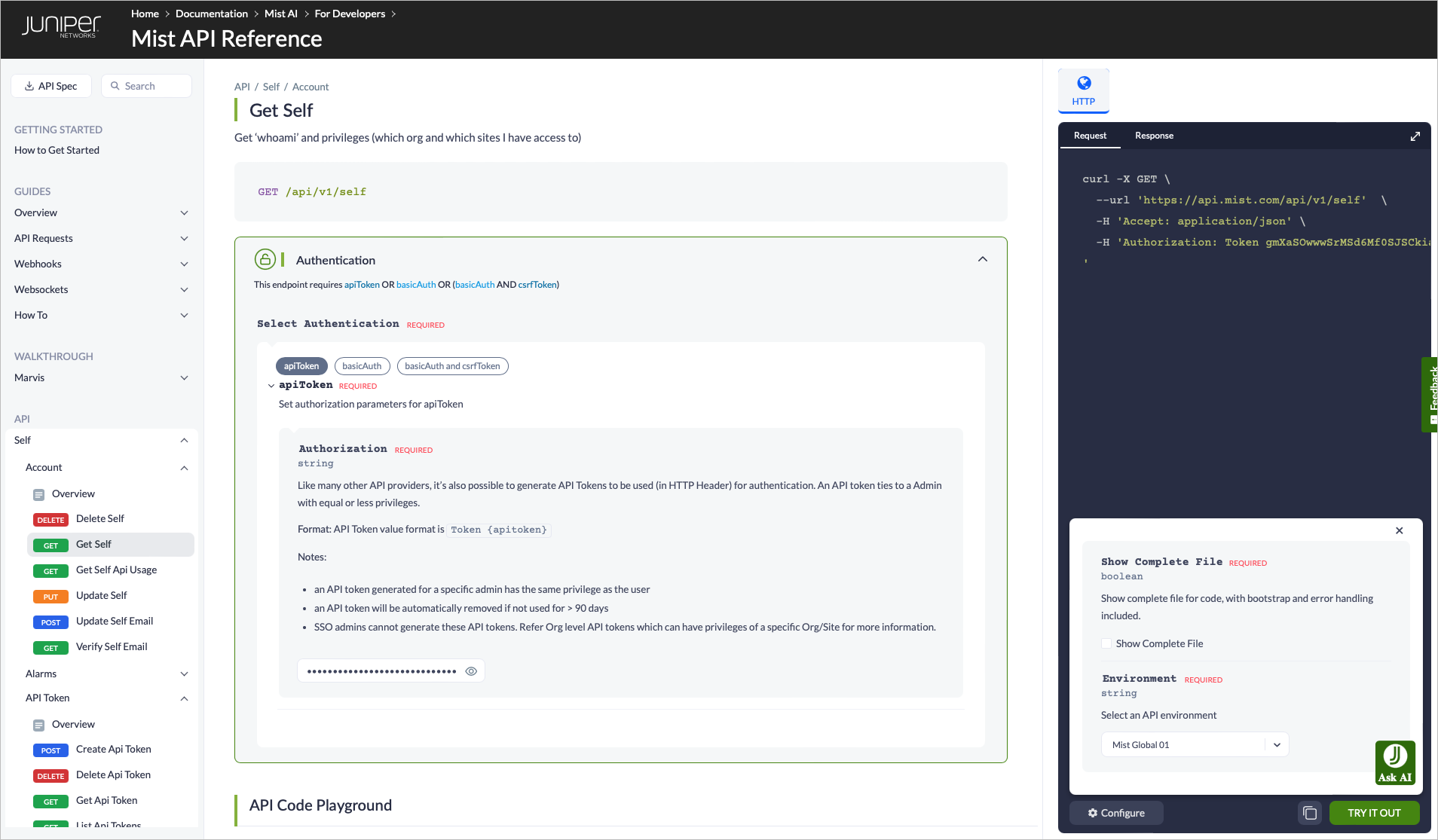
Scroll down to the Authentication section and expand it, then enter your API
token in the required field, or provide another form of authentication. Otherwise, a
response will not be returned. See Create API
Tokens.
Note: In the token field, you must enter the word Token followed by a space, then paste your token after the space. Follow this format:
Token
              <token>
.
-
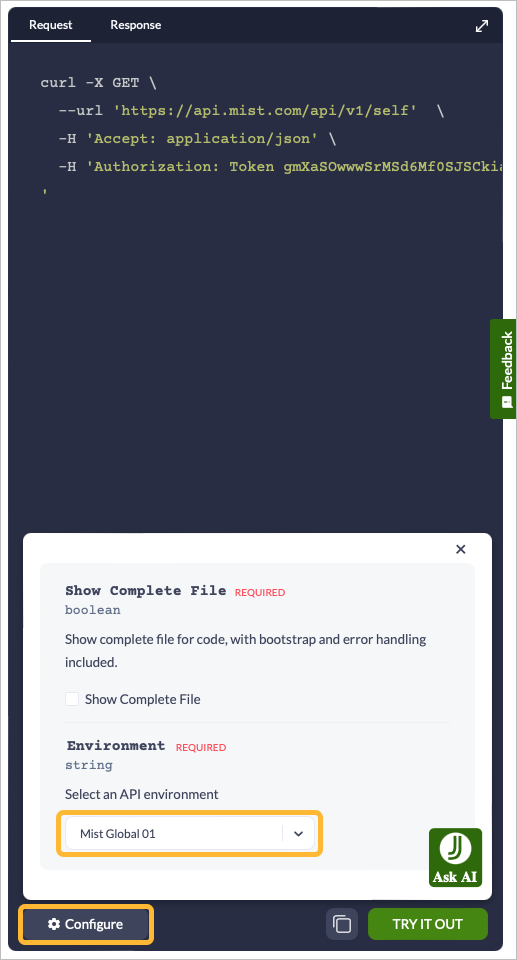
Navigate to the Request/Response panel on the right side of the screen and
select the Configure button at the bottom left corner. Select the region of your
API environment (API Endpoint). See API Endpoints and
Global Regions.
-
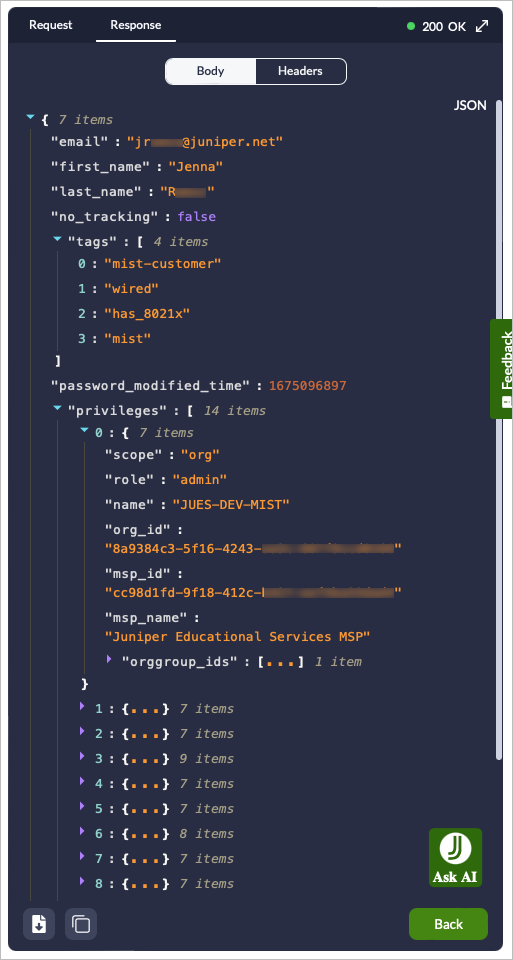
Select Try it Out from the bottom right corner of the Request panel. This
returns you with a Response. Review the results to help you better understand the response
that will be returned from the API.
Note: If you do not want to authenticate, you can scroll down to the
Responses section in the center of the page to see sample responses. This section simply
provides you with a sample response for the specified API call and does not require
authentication from you.
You are now set up to test API calls. Use the lefthand menu to find the API call you want to make, or use the Search field at the top to search for it, then select Try It Out from the bottom of the Request panel to be returned with a response that you can review.