Delete Virtual Network

When you delete virtual networks, any connectivity templates that are assigned to those virtual networks are automatically unassigned. Those unassigned connectivity templates become available to be assigned elsewhere, or to be deleted. (In previous versions, you had to manually find and unassign connectivity templates before you could delete virtual networks.)

Delete One Virtual Network

  1. From the blueprint, navigate to Staged > Virtual > Virtual Networks and click the Delete button in the Actions panel for the VN to delete.
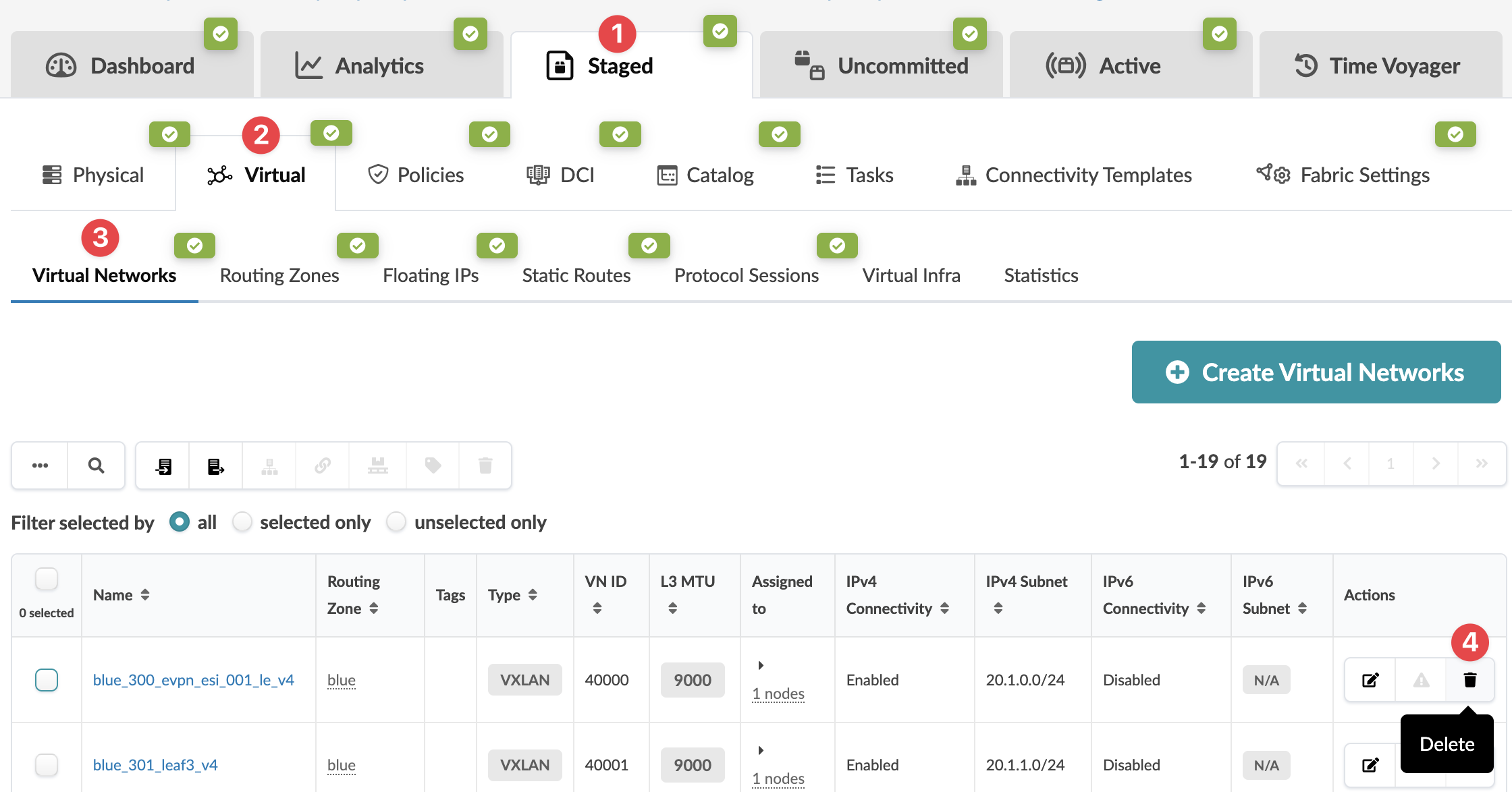
    Network management interface with tabs for Dashboard, Analytics, Staged, Uncommitted, Active, and Time Voyager. Below tabs are options for Physical, Virtual, Policies, DCI, Catalog, Tasks, Connectivity Templates, and Fabric Settings. Virtual Networks tab shows network details like Name, Routing Zone, Type, VN ID, L3 MTU, Assigned to, IPv4 Connectivity and Subnet, IPv6 Connectivity and Subnet. Actions column includes editing and deleting. Delete button is highlighted. Create Virtual Networks button is prominently displayed.
  2. The Delete Virtual Network dialog that opens shows the virtual network to be deleted. Click the drop-down triangle to show (or hide) the connectivity templates that will be unassigned.
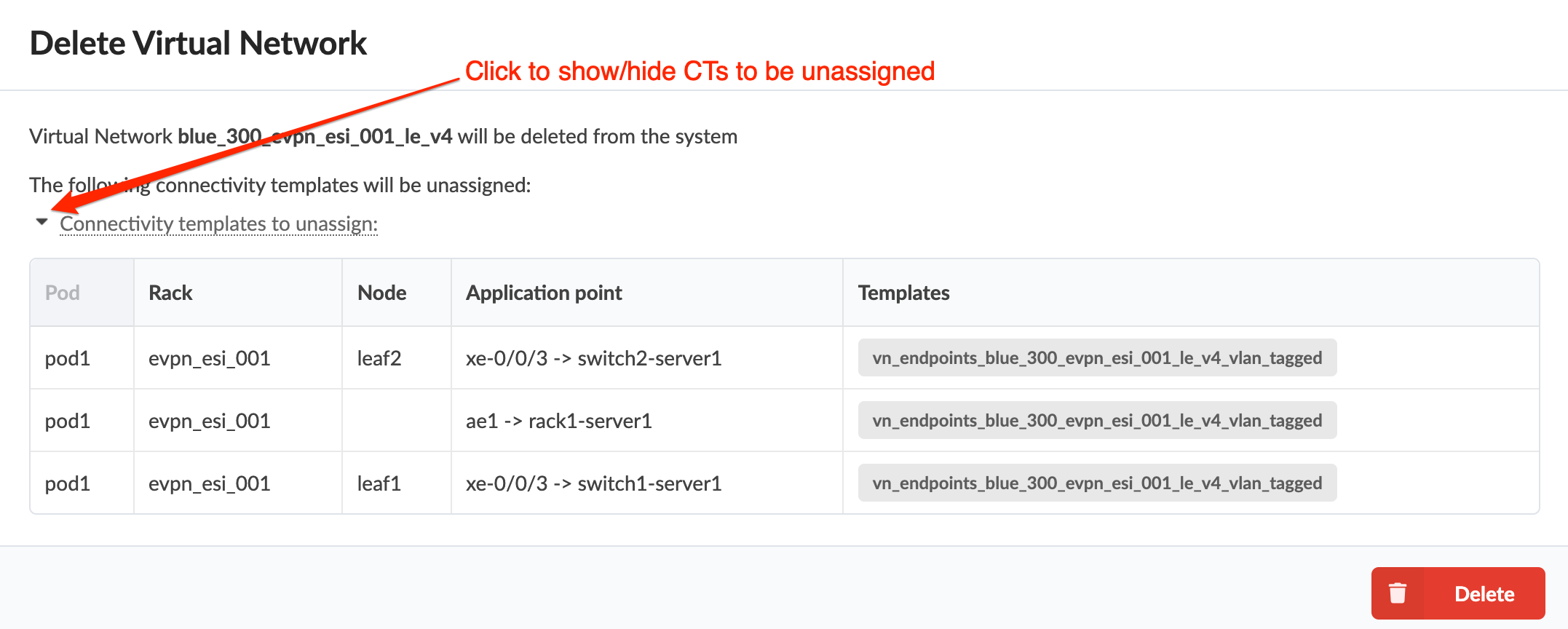
    Delete Virtual Network interface showing the virtual network blue_300_evpn_esi_001_le_v4 being deleted, with a collapsible section listing connectivity templates to unassign, including pod pod1, rack evpn_esi_001, nodes leaf2 and leaf1, and application points like xe-0/0/3 -> switch2-server1. A red button confirms deletion.
  3. Click Delete to stage the deletion and return to the table view.
    Note:

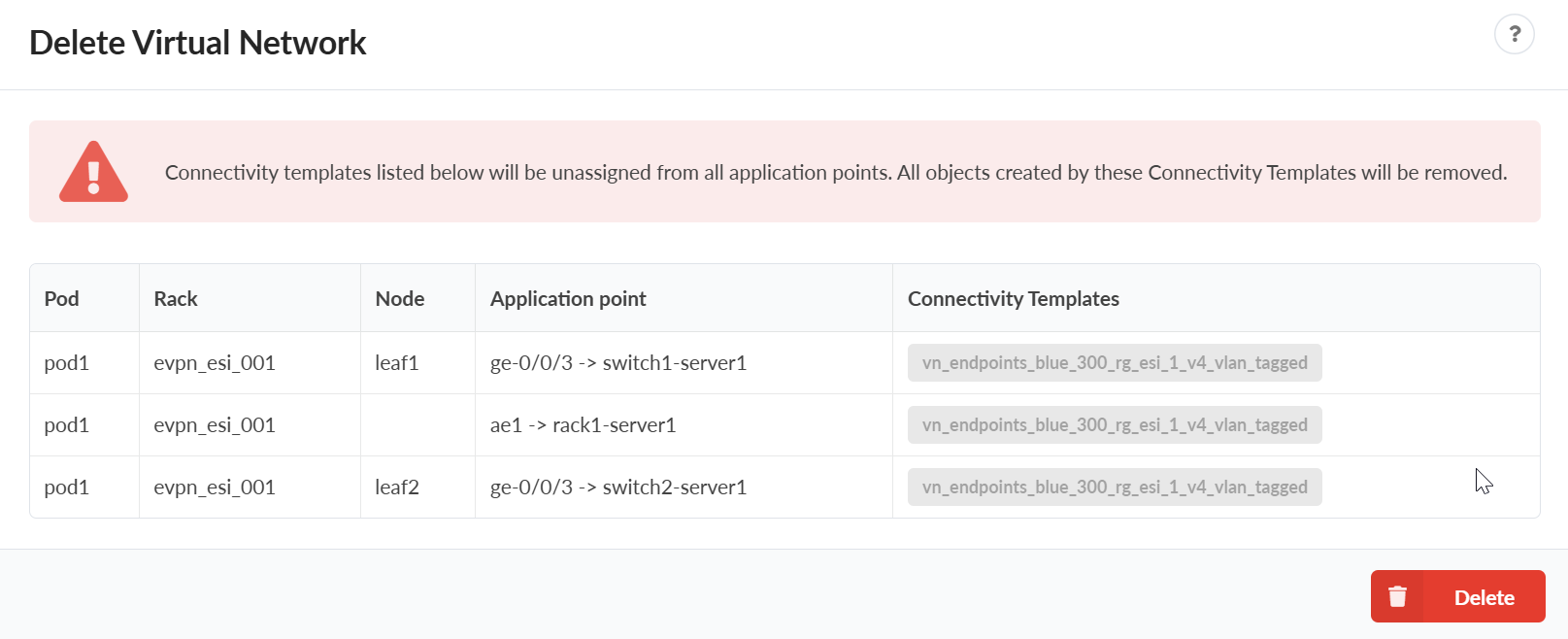
    When you click Delete, and the virtual network is part of any connectivity templates, you will see the following warning:Warning message about unassigning connectivity templates and removing associated objects, with a table showing pod, rack, node, application point, and connectivity templates. Red Delete button at the bottom right to confirm deletion.

    Click View Impact to see which connectivity templates will be unassigned from all application points. Any objects that were created by these connectivity templates will be deleted.

    Click Delete if you want to delete the virtual network and are aware that the connectivity templates will be unassigned to from all application points. Warning message about unassigning connectivity templates and removing associated objects, with a table showing pod, rack, node, application point, and connectivity templates. Red Delete button at the bottom right to confirm deletion.

    Note:

    If you get an error, it's probably because there's a dependency that you need to remove manually. If a connectivity template refers to an object (like a virtual network endpoint) that is created by another connectivity template, you need to unassign that dependent object. Then you can return to step 1.

When you're ready to activate your changes, commit them from the Uncommitted tab.

Delete Multiple Virtual Networks

  1. From the blueprint, navigate to Staged > Virtual > Virtual Networks, check the check boxes for the virtual networks to delete, then click the Delete selected virtual networks button that becomes available above the table. (Tip: Use the Query function to filter specific virtual networks.)
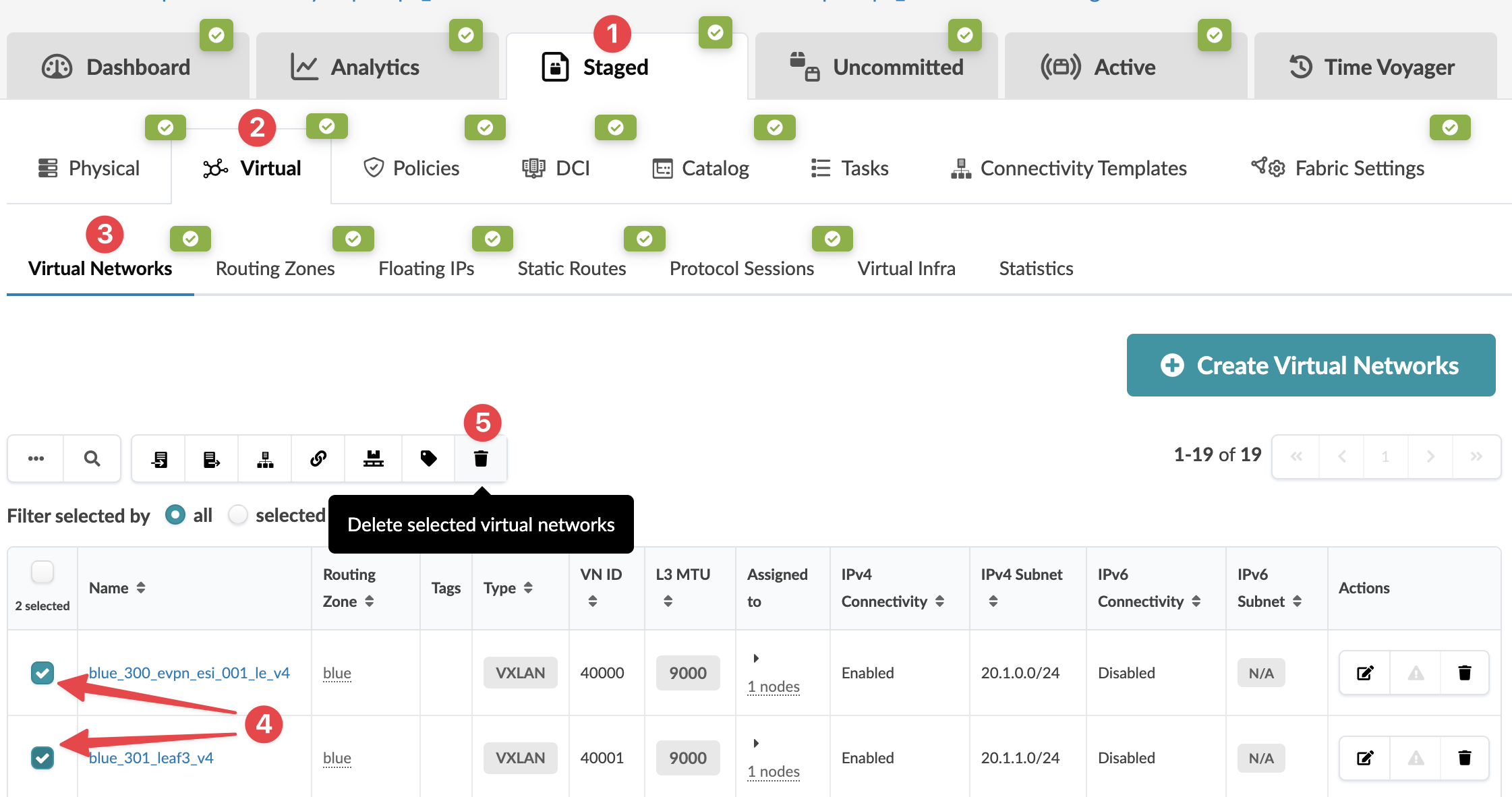
    Screenshot of a network management interface with a focus on managing Virtual Networks. The interface shows tabs like Dashboard and Analytics, and a table listing networks with details like Name and Routing Zone. Two networks are selected, with options to edit or delete them. A button labeled Create Virtual Networks is available.
  2. In the Delete Virtual Networks dialog that opens, click the drop-down triangles to show (or hide) the virtual networks to be deleted and the connectivity templates to be unassigned.
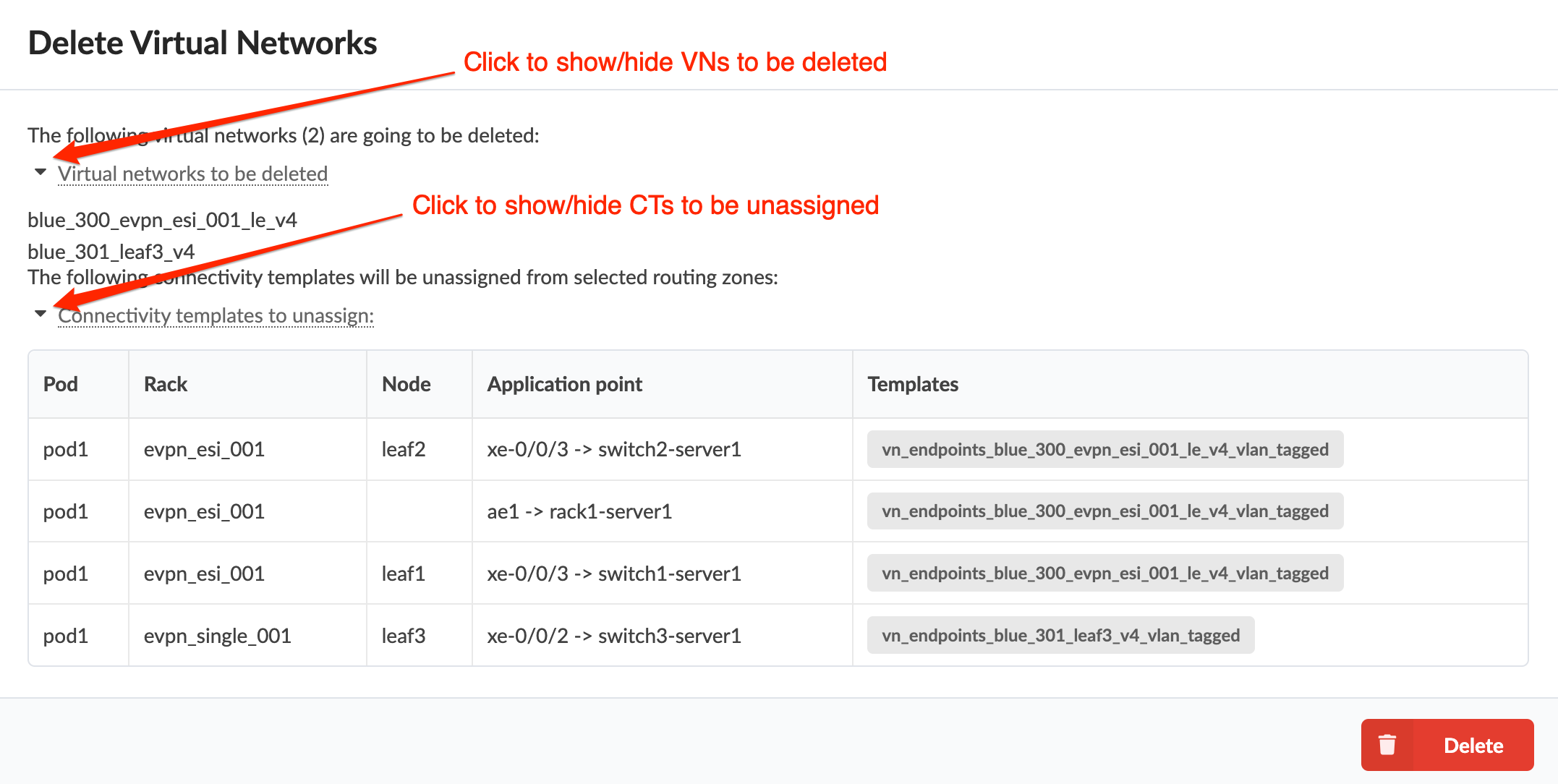
    Delete Virtual Networks interface showing lists of virtual networks and connectivity templates to be unassigned, with toggles to show or hide details. Red Delete button initiates process.
  3. Click Delete to stage the deletion and return to the table view.
    Note:

    If you get an error, it's probably because there's a dependency that you need to remove manually. If a connectivity template refers to an object (like a virtual network endpoint) that is created by another connectivity template, you need to unassign that dependent object. Then you can return to step 1.

When you're ready to activate your changes, commit them from the Uncommitted tab.