Change Generic System Hostname/Name
You can change hostnames and/or names of generic systems.
Change the Hostname and/or Name of a Single Generic System
To change a hostname and/or name on one generic system using the GUI:
-
From the blueprint, navigate to Staged > Physical >
Topology and select the applicable generic system.
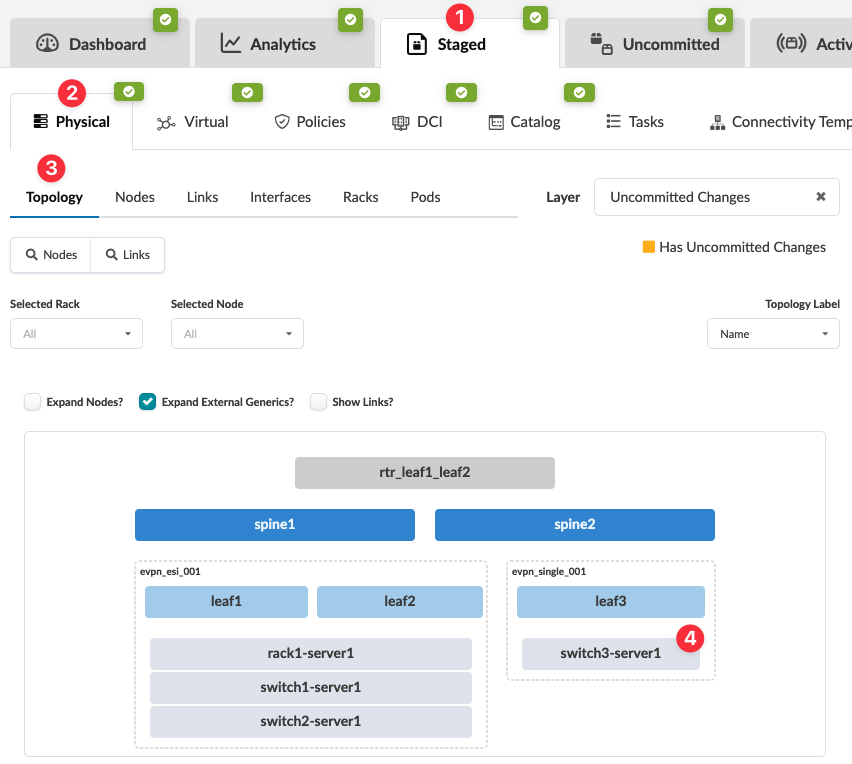 The Selection panel opens (on the right).Note:
You can also get to the Selection panel by clicking the name of the generic system in the Nodes table (Staged > Physical > Nodes).
-
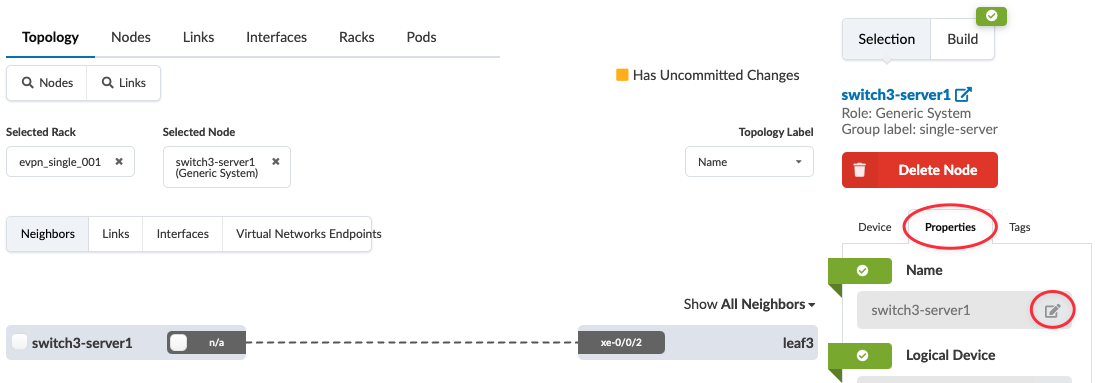
To change the generic system name - From the
Properties tab in the
Selection panel, click the
Edit button for Name,
change the name accordingly, then click the Save
button. (Notice you can change other various parameter values from the
Properties tab.)
-
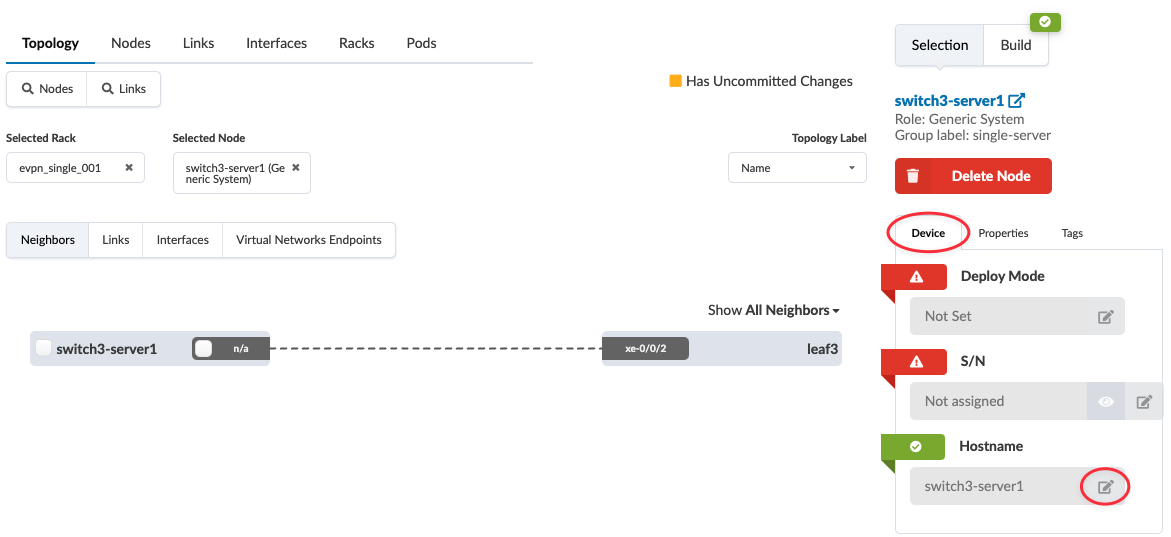
To change the generic system hostname - click the
Device tab in the
Selection panel, click the
Edit button for Hostname,
change the hostname accordingly, then click the Save
button. (Notice you can change other various parameter values from the
Device tab.)
Any associated link names do not automatically update to match the changed server names and/or hostnames. You can manually change the link names to match so when you're reviewing an updated cabling map the names align.
When you're ready to activate your changes, go to the Uncommitted tab to review and commit (or discard) your changes.
Change Hostnames and/or Names of Multiple Generic Systems
To change hostnames and/or names of multiple generic systems using the GUI:
-
From the blueprint, navigate to Staged > Physical >
Nodes and click the Edit generic system names and
hostnames button, above the table.
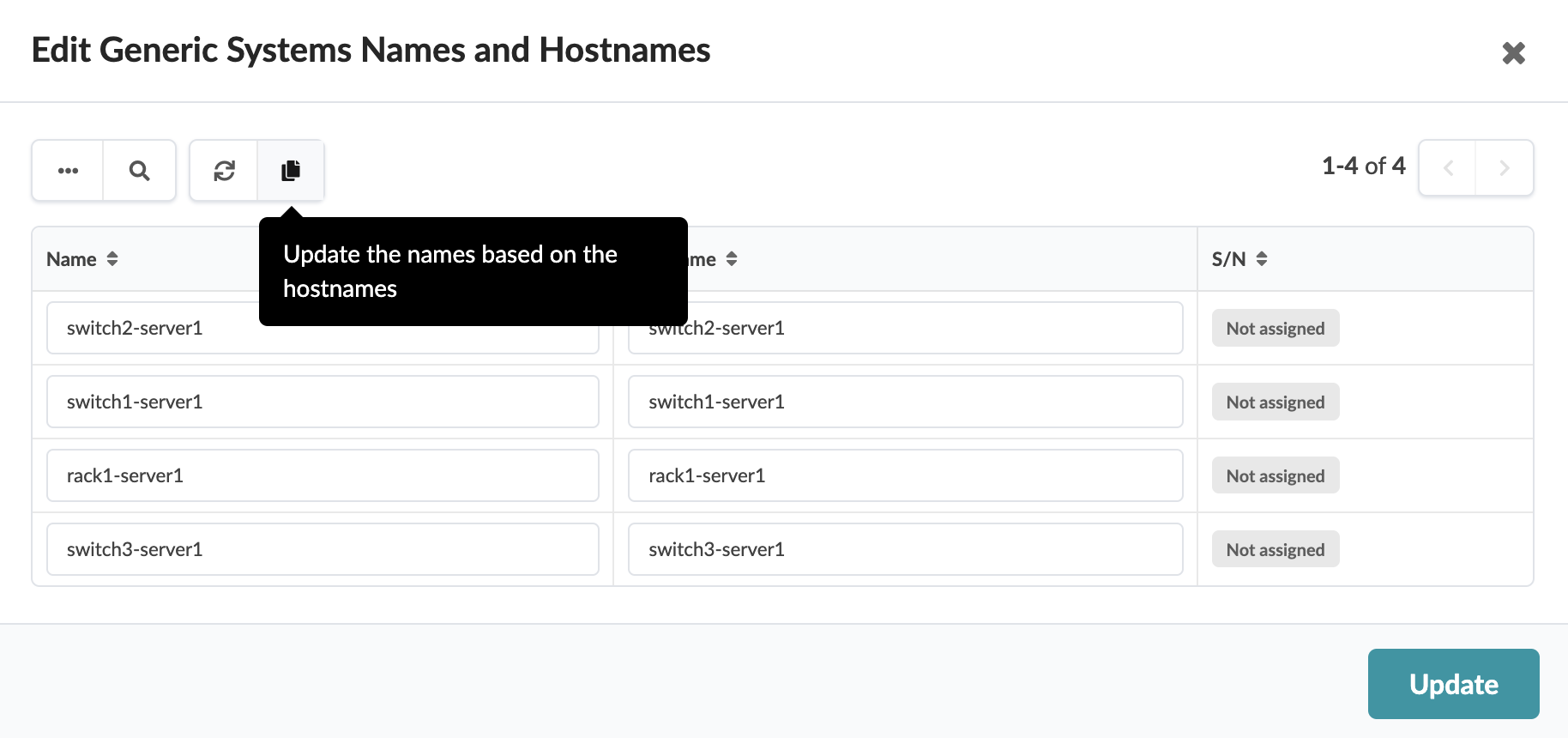
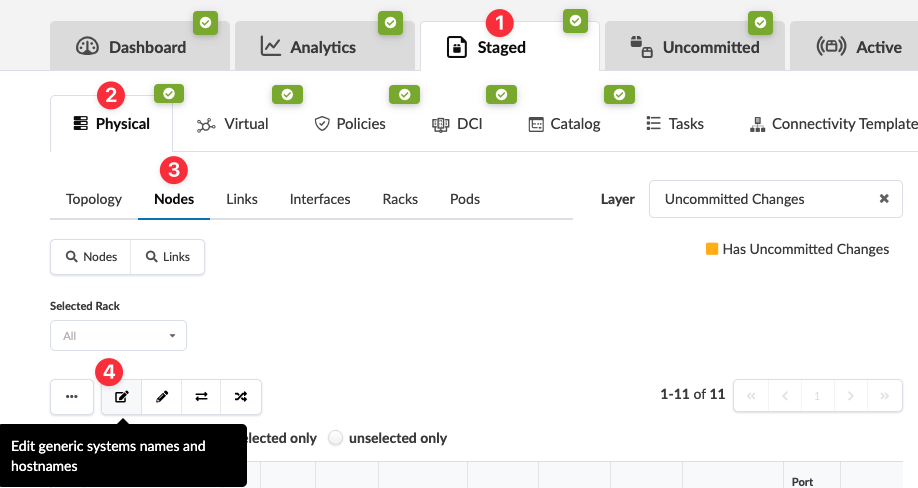 The Edit Generic Systems Names and Hostnames dialog opens.
 -
Change generic system names and/or hostnames. To efficiently change names
to match the hostnames, after you've changed the hostnames click the
Update the names based on the hostnames button.
All names in the dialog change to match the hostnames.
Any associated link names do not automatically update to match the changed server names and/or hostnames. You can manually change the link names to match so when you're reviewing an updated cabling map the names align.
When you're ready to activate your changes, go to the Uncommitted tab to review and commit (or discard) your changes.