Update Link Speed
You can update link speeds between a spine device and leaf devices directly from the Topology view or from the Links view in the blueprint.
To change link speeds between spine devices and superspine devices, see Update Link Speed per Superspine (5-Stage).
Update Link Speed (Topology View)
From the Topology view, you can update one link speed at a time. (You can update more than one link speed at a time from the Links view; see the next section.)
To update one link speed using the GUI:
-
From the blueprint, navigate to Staged > Physical >
Topology and select the node where you want to change link
speed.
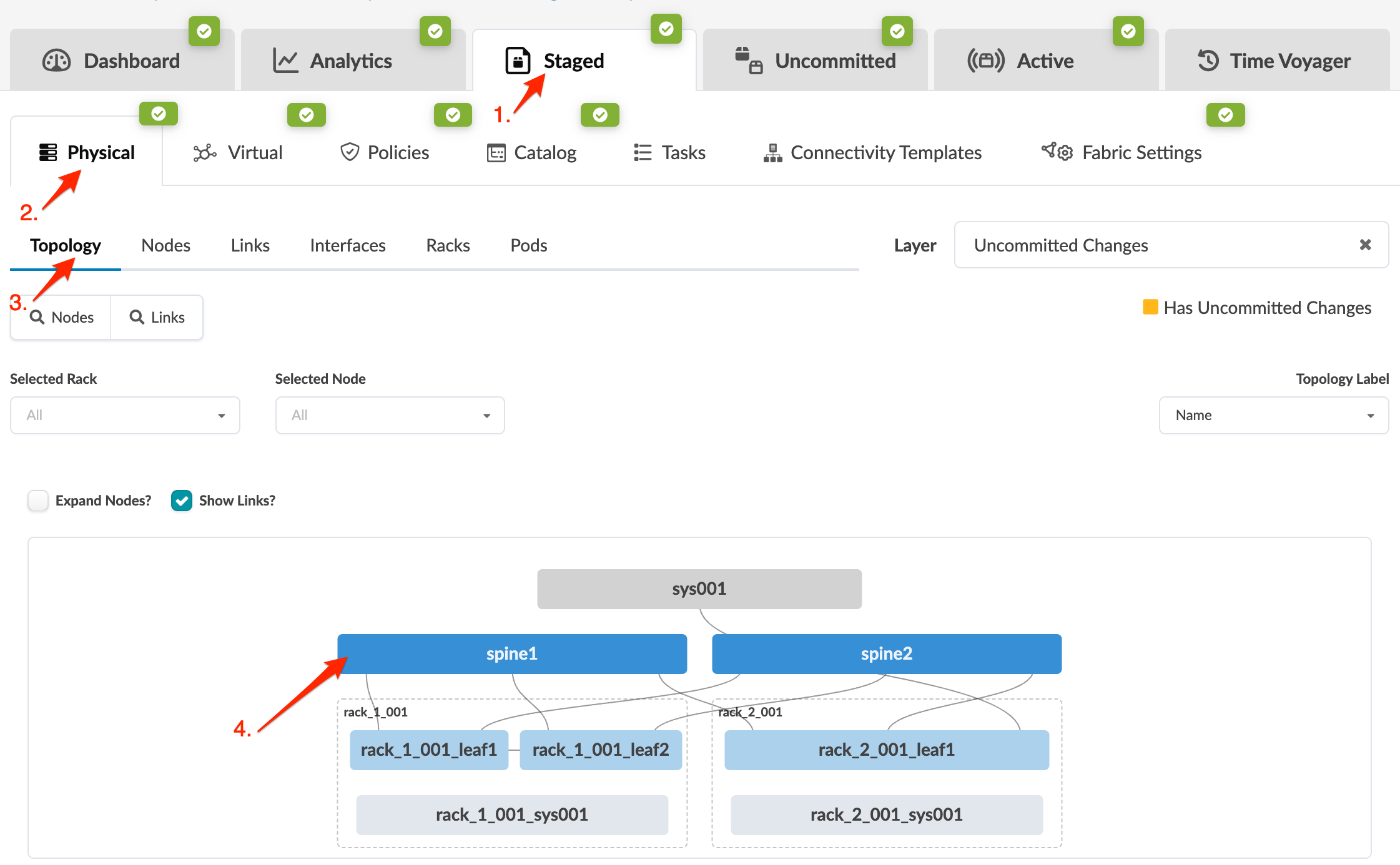 The Topology selection view appears.
 -
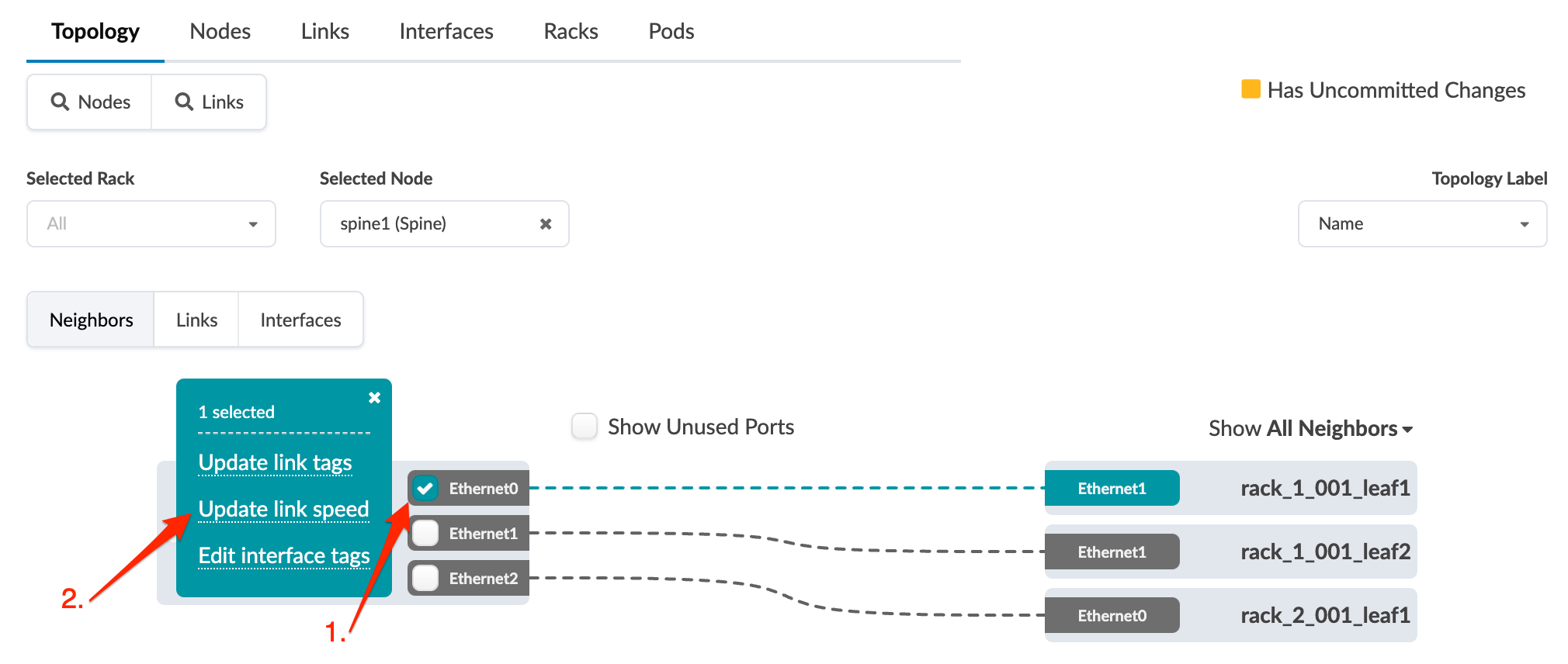
Select the interface check box to see the operations available for that
interface (and that you have permissions for).
-
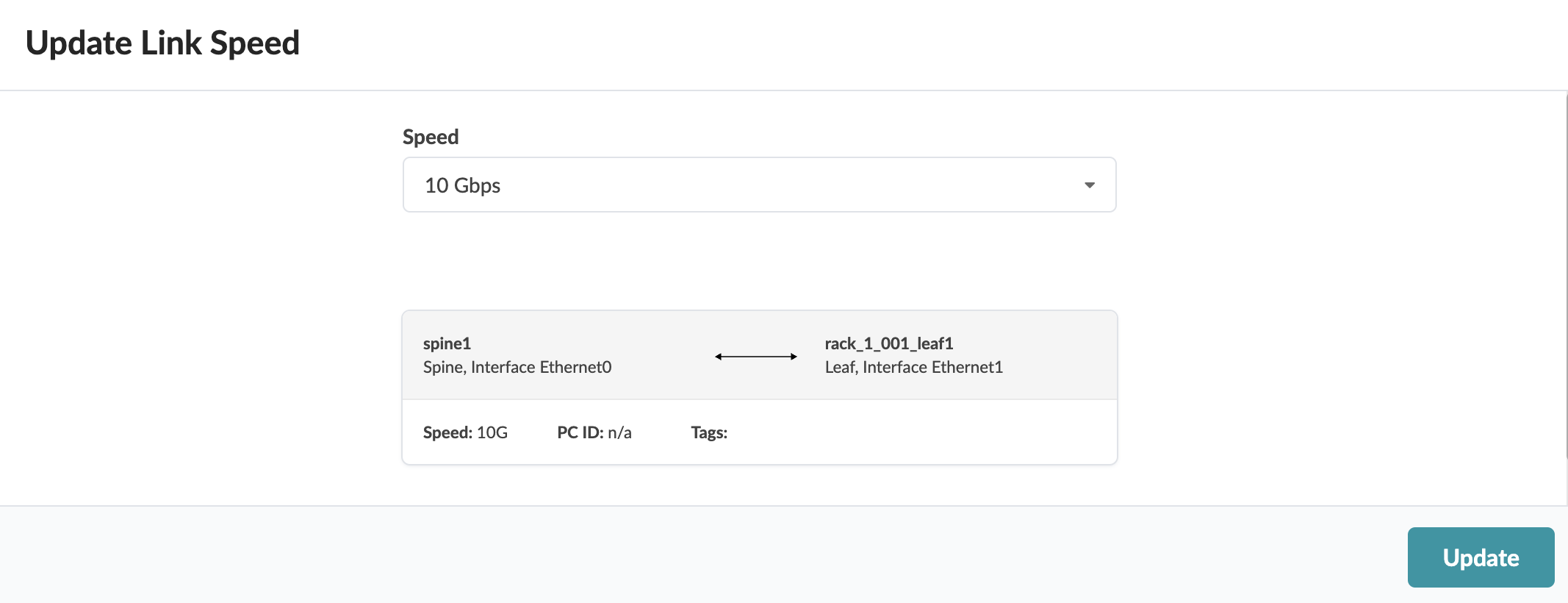
Select the new link speed from the drop-down list. Only speeds that are
available for that link/interface are listed.
When you're ready to activate your changes, go to the Uncommitted tab to review and commit (or discard) your changes.
Update Link Speed (Links View)
To update one or more link speeds using the GUI:
-
From the blueprint, navigate to Staged > Physical >
Links and click the Change link
speeds button.
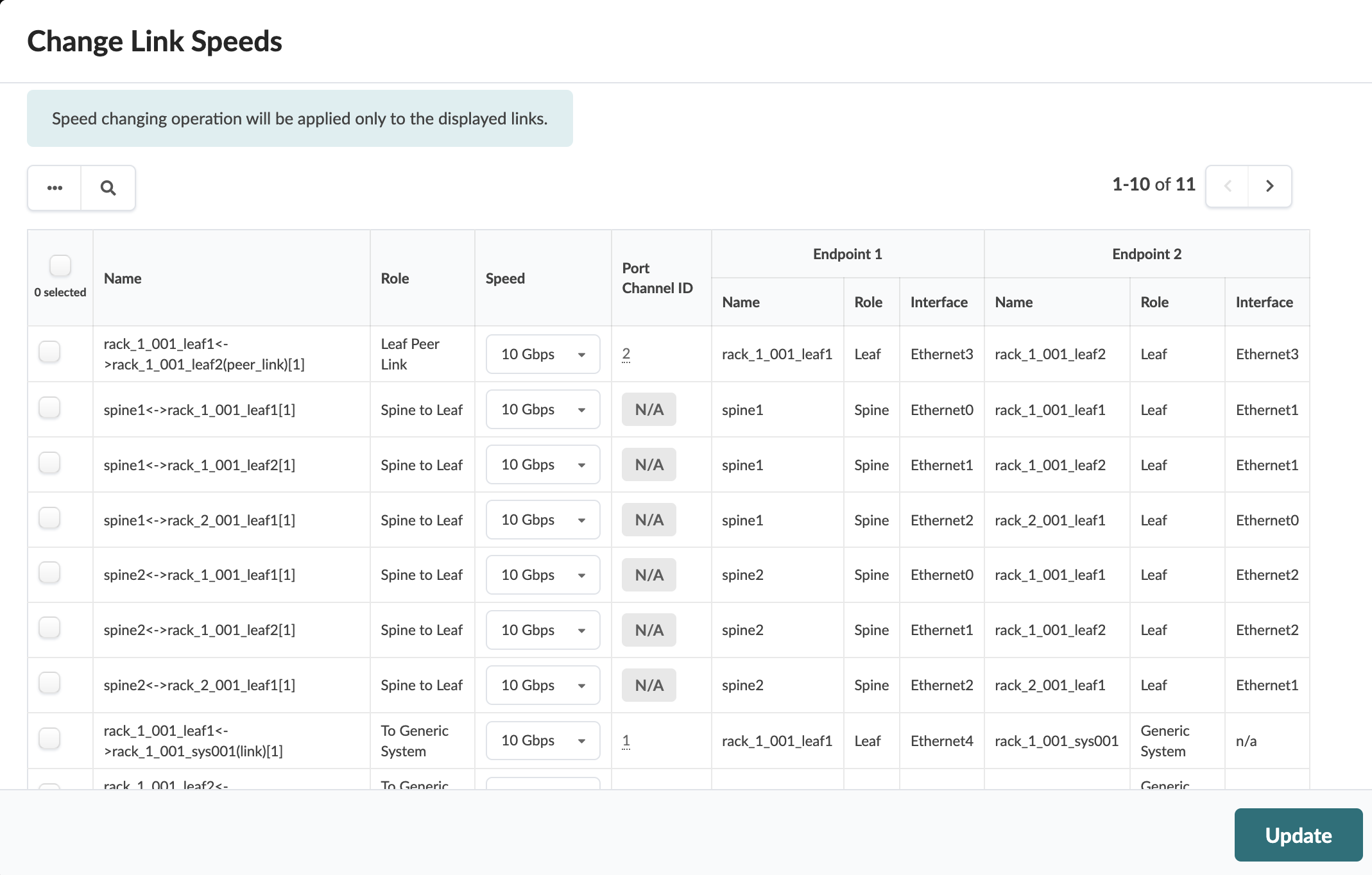
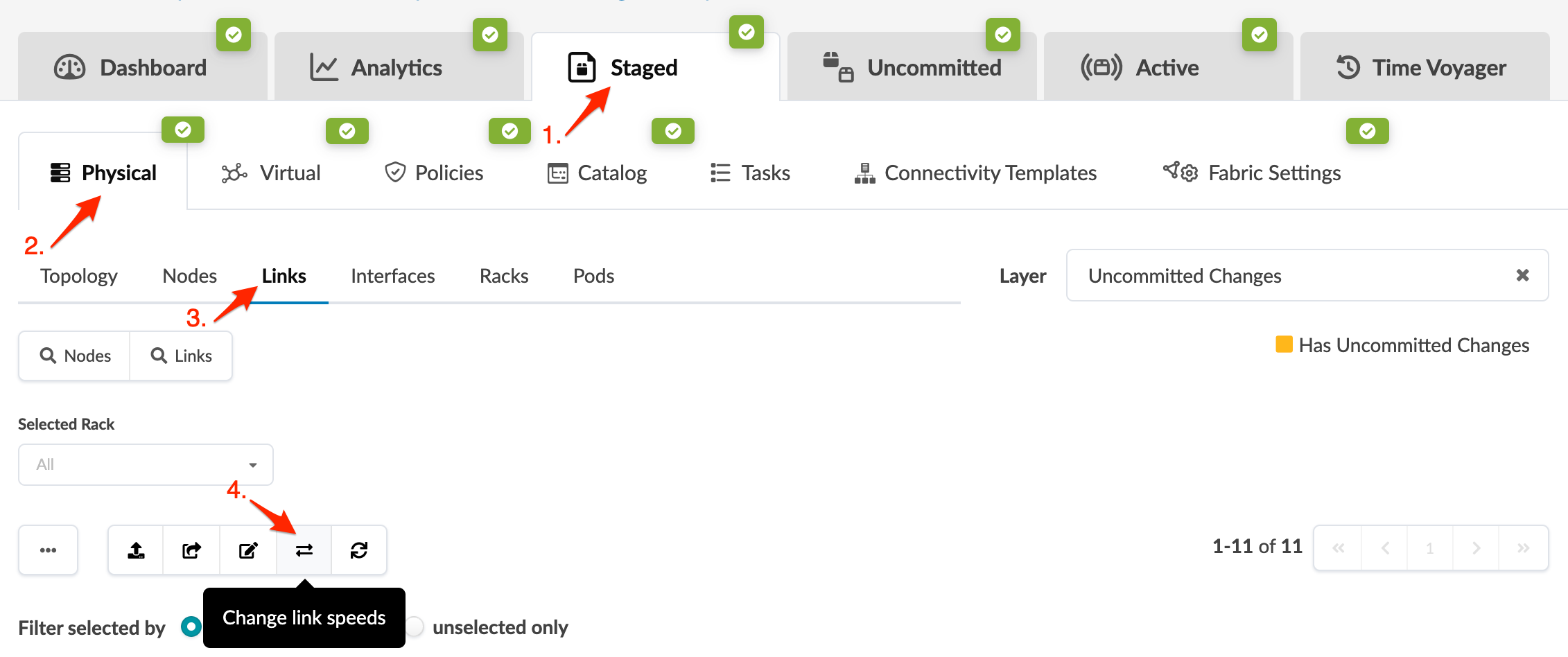 The Change Link Speeds dialog opens.
 -
Select new link speeds for one or more links from the
Speed drop-down lists.
Only speeds that are available for that link/interface are listed. You can change link speeds between multiple leaf devices and spine devices from this dialog.
All leaf devices linked to a particular spine device must use the same link speed, so if you change a spine-to-leaf speed, be sure to change all leafs linked to that spine accordingly. This also applies to leafs in logical leaf devices (ESI pairs). They are considered as one leaf, so each leaf must use the same link speed.
When you're ready to activate your changes, go to the Uncommitted tab to review and commit (or discard) your changes.