Update Pristine Config from Device

  1. From the blueprint, unassign the device (The deploy mode is automatically changed from Deploy to Not Set, as of version 5.0.0.) Make sure the device is in the out of service state (OOS-READY or OOS-MAINT).
  2. Make any necessary changes to the running device configuration via CLI.
  3. From the left navigation menu in the GUI, navigate to Devices > Managed Devices and click the Management IP of the device to update.
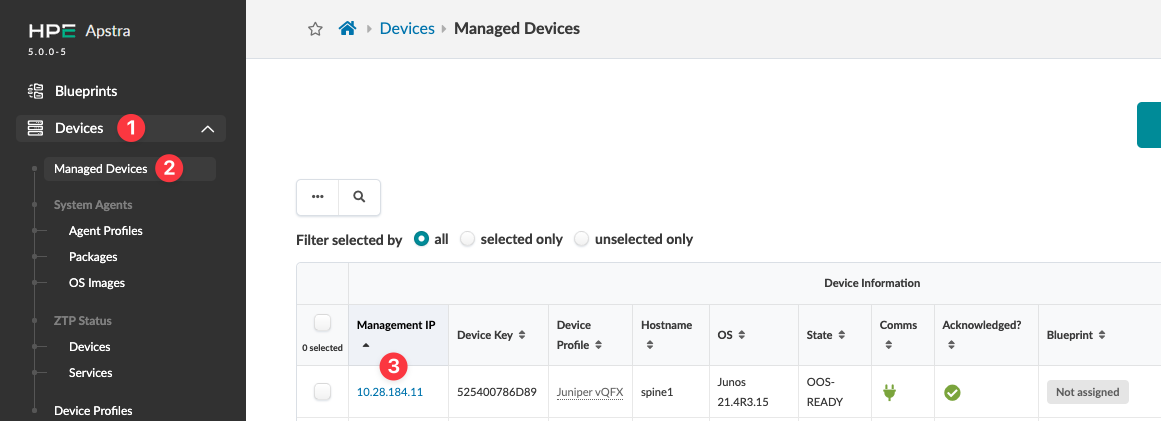
    HPE Apstra interface showing Managed Devices section listing device details like management IP, device key, profile, hostname, OS version, state, communication status, acknowledgment status, and blueprint assignment. Left sidebar displays navigation options including Blueprints, Devices, System Agents, ZTP Status, and Device Profiles.
    The Device details page for the selection appears.
  4. Click the Pristine Config tab (top), then click Update From Device (top-right).
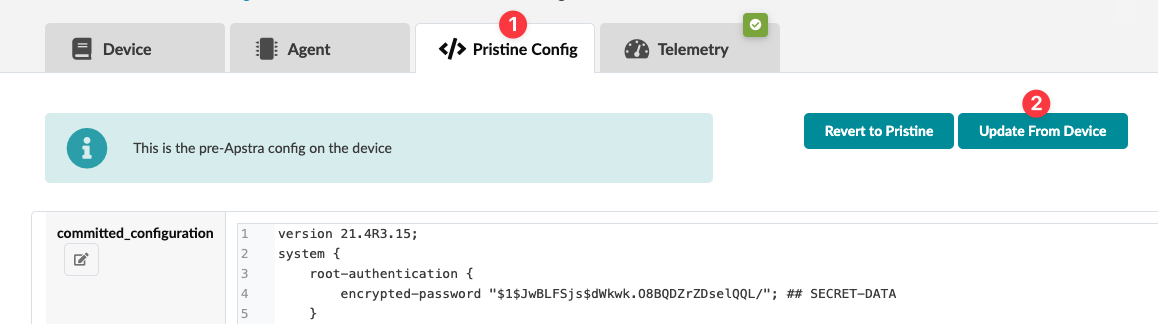
    Network management interface showing Pristine Config tab with Apstra. Includes committed configuration code for a device with version 21.4R3.15 and root authentication. Options to Revert to Pristine or Update From Device. Pre-Apstra configuration notification present.
    The Collect Pristine Config from Device dialog opens.
  5. Click Collect to update Pristine Config from the device and return to the Pristine Config tab.

Verify the Pristine Config. You have copied the running config of the device in the out of service state, which should be Discovery 1 config. It may include additional configuration such as interface "speed" commands. You can edit Pristine Config again and delete the additional configuration manually. Contact Juniper Support for assistance as needed.