Create Logical Device
If none of the predefined logical devices meet the capability requirements of your qualified device, you can create a custom one.
To create a logical device using the GUI:
-
From the left navigation menu, navigate to Design > Logical
Devices and click Create Logical Device (or to copy
an existing logical device and customize it, click the Clone button in the
Actions panel for the logical device to copy).
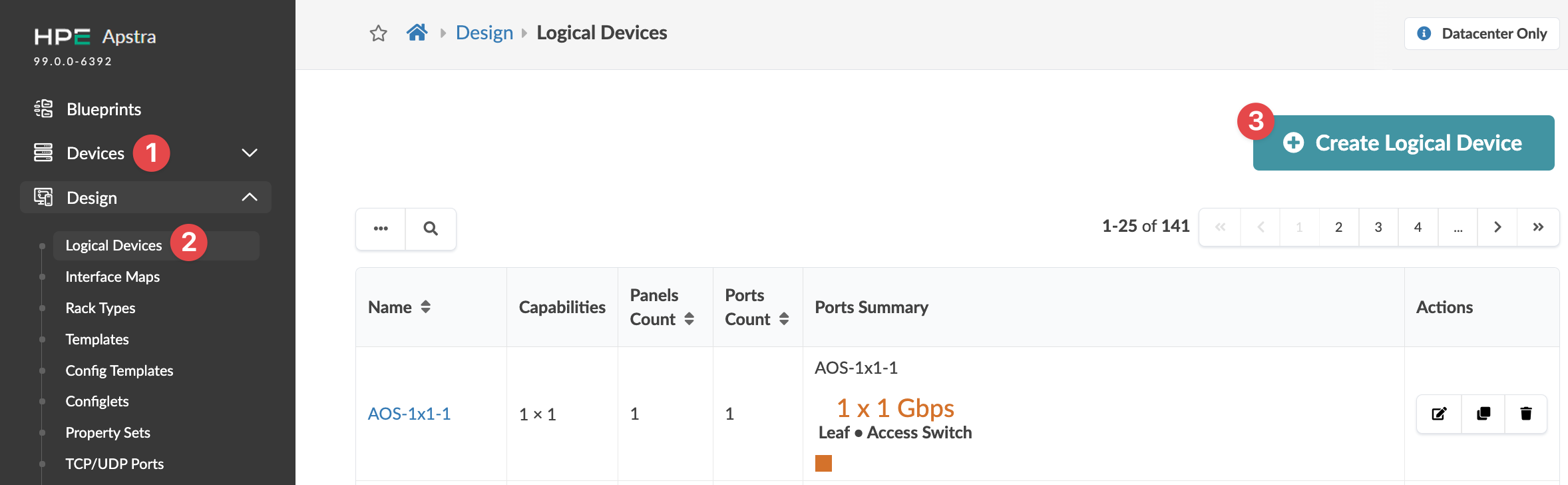 The Create Logical Device dialog opens (or the Clone Logical Device dialog opens).
 -
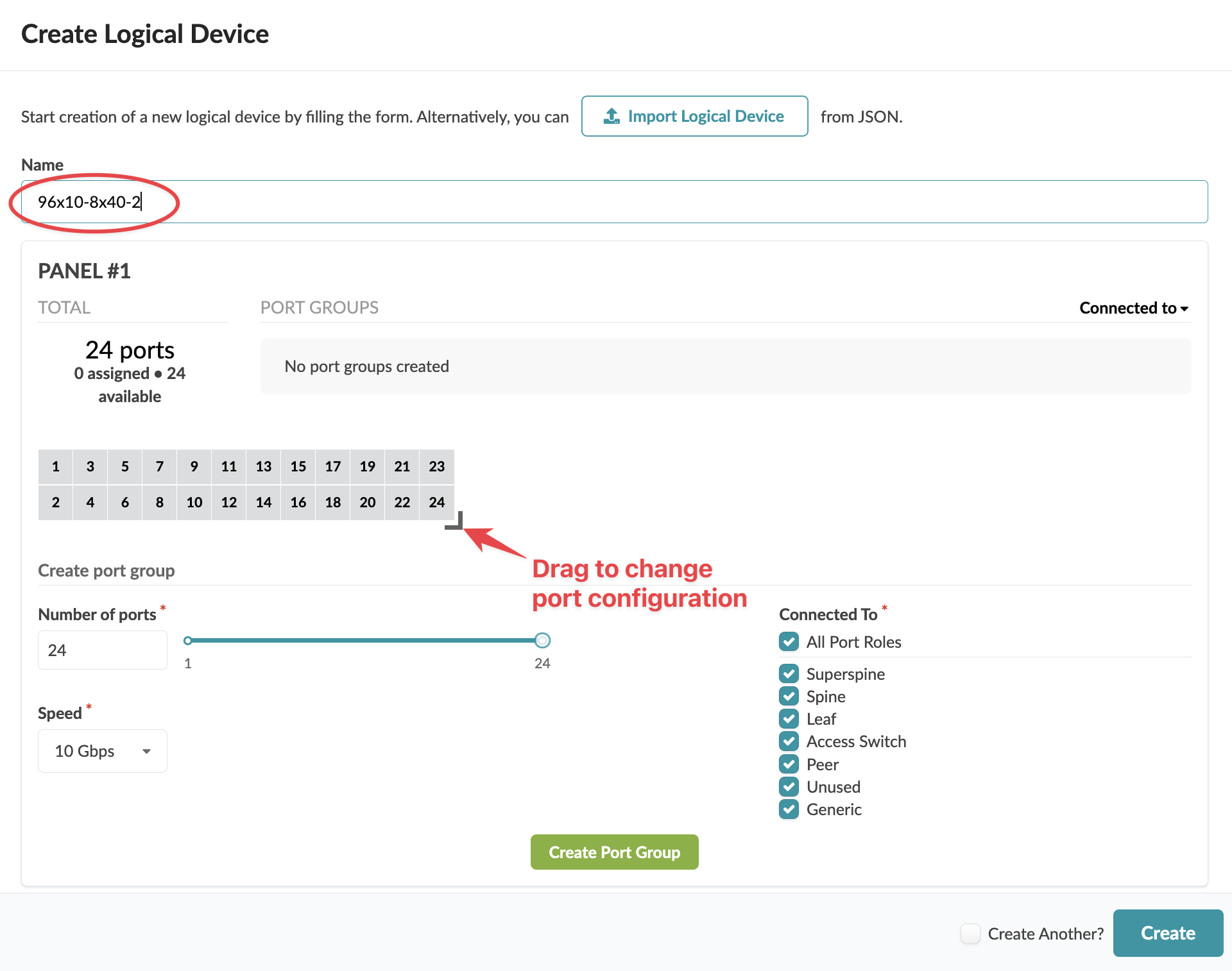
Enter a unique name for the logical device (64 characters or fewer).
Using descriptive names makes it easier for you to find later. In our example, we're naming the logical device 96x10-8x40-2, which represents the following configuration:
-
96x10 - a panel with one port group consisting of 96 ports at 10 Gbps
-
8x40 - a panel with one port group consisting of 8 ports at 40 Gbps
-
2 - number of panels (rack units)
-
-
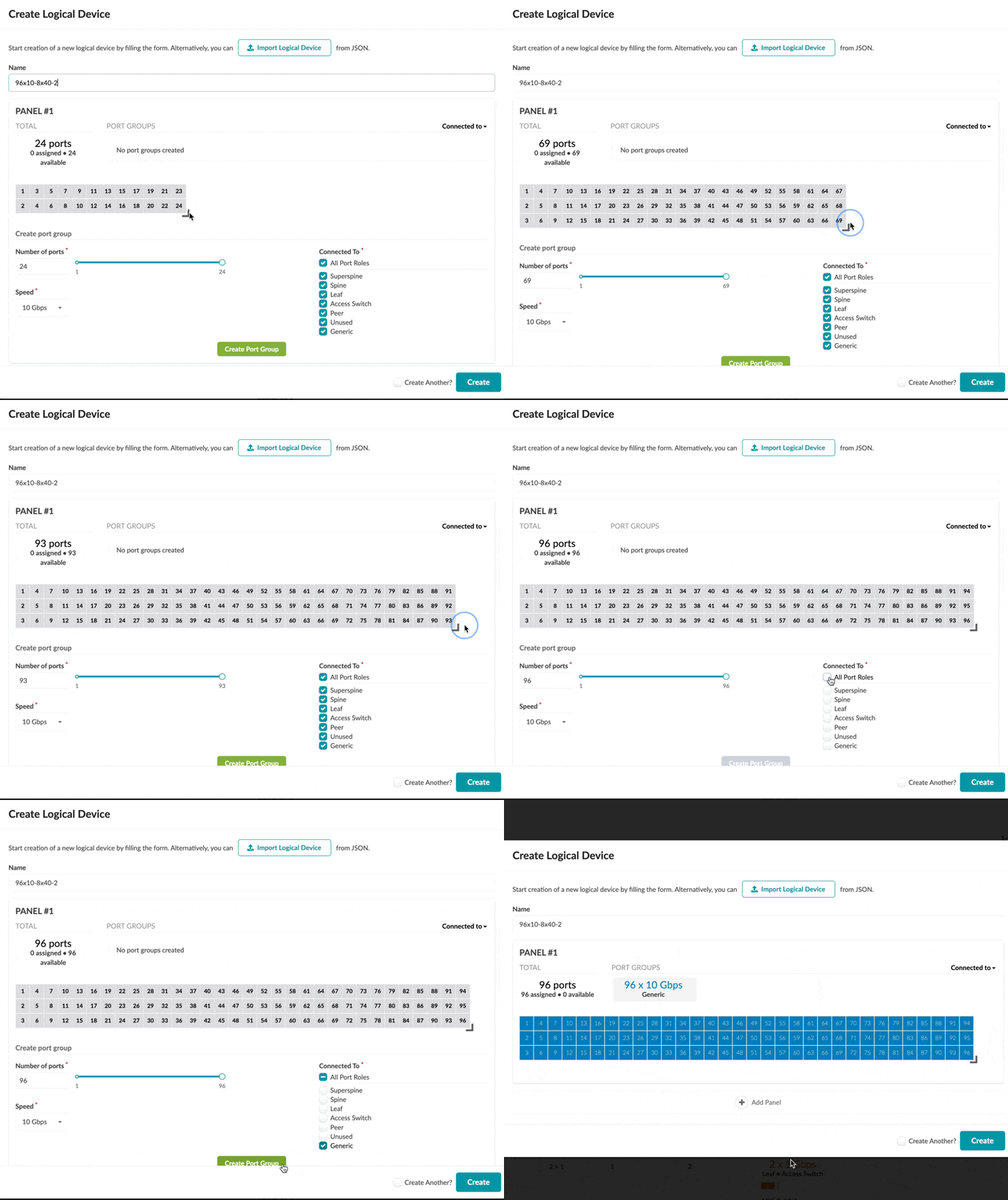
Specify the number and arrangement of ports by dragging from the bottom-right corner of
the port layout.
The default panel layout consists of 24 ports, 2 rows of 12 ports each. In our example, the first panel has 96 ports, 3 rows of 32 ports each.
-
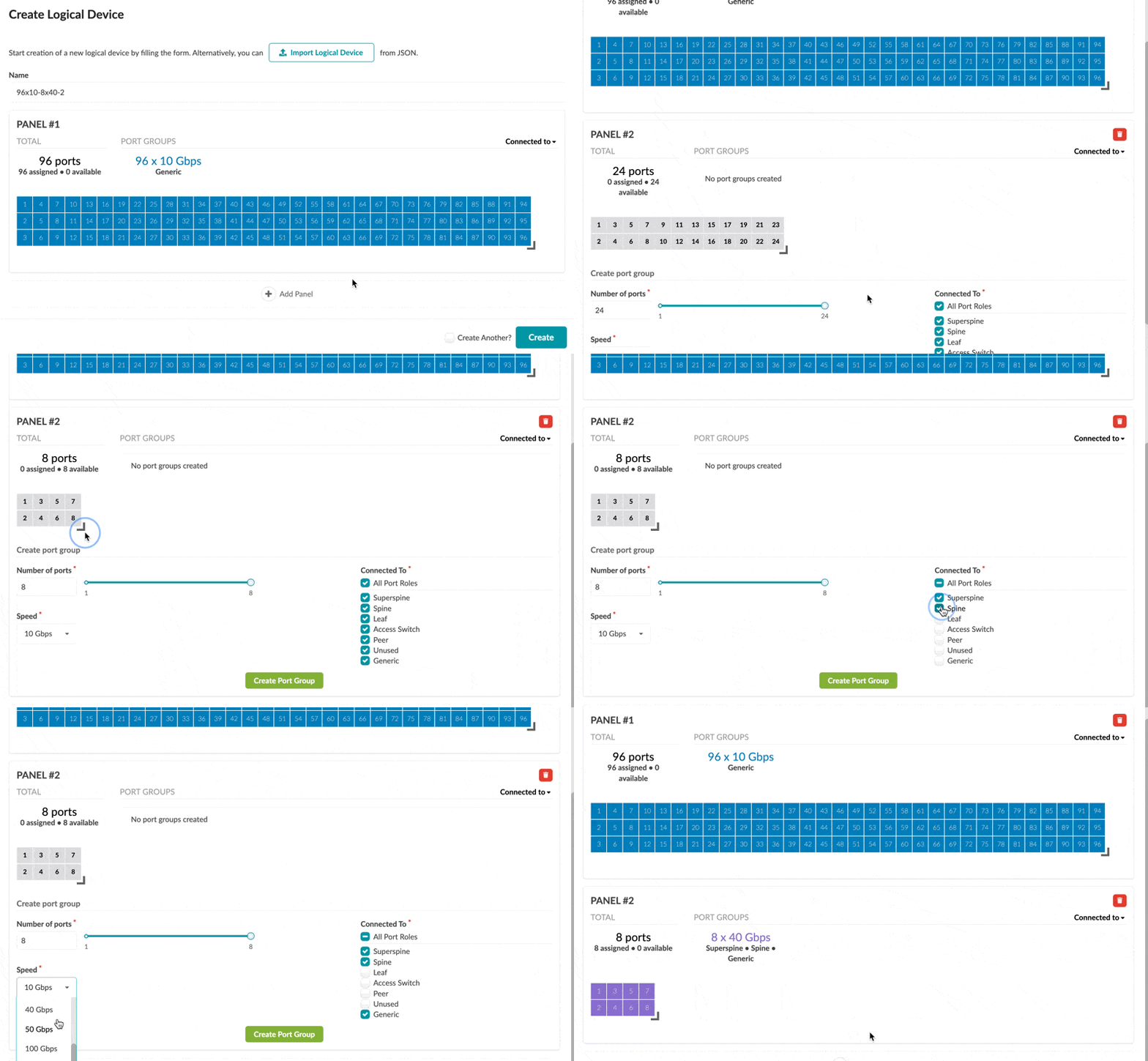
To add a panel, click Add Panel (bottom-middle) and repeat the
steps as for the first panel.
Our example has a second panel with 8 ports at 40 Gbps with superspine, spine, and generic roles.
Logical devices are used in interface maps, rack types and templates in Day 0 operations. They are also used in Day 2 operations.