Logical Devices
Logical devices are abstractions of physical devices. They define device capabilities without defining any vendor-specific information. This enables you to design your network fabric based on a common set of form factors (ports, speeds and roles) before selecting underlying hardware. Some applications of logical devices include:
- Specifying speed and roles for specific ports (For example, the 48th port is always a leaf, or the speed of the 10th port is always 1 Gbps).
- Preparing for port speed transformations (For example, transforming one - 40 GbE port into four - 10 GbE ports).
- Using non-standard port speeds (For example, for a 1 GbE SFP in a 10 GbE port, the underlying hardware is automatically configured correctly.)
- Solving for automatic cable map generation that takes into account failure domains on modular systems (for example, a line card).
Logical Device Details
Logical devices include the following details:
| Name | The name is a unique identifier for the logical device. |
| Panel | Logical devices include one or more panels. A panel is the port layout based on IP fabric, forwarding engine, line card (slot) or physical layout. A panel contains one or more port groups. |
| Port Group | A port group is a collection of ports with the same speed and role(s). |
| Number of ports | Port groups specify the number of ports in that group. |
| Speed | Port groups specify the speed of the ports in that group. |
| Roles |
|
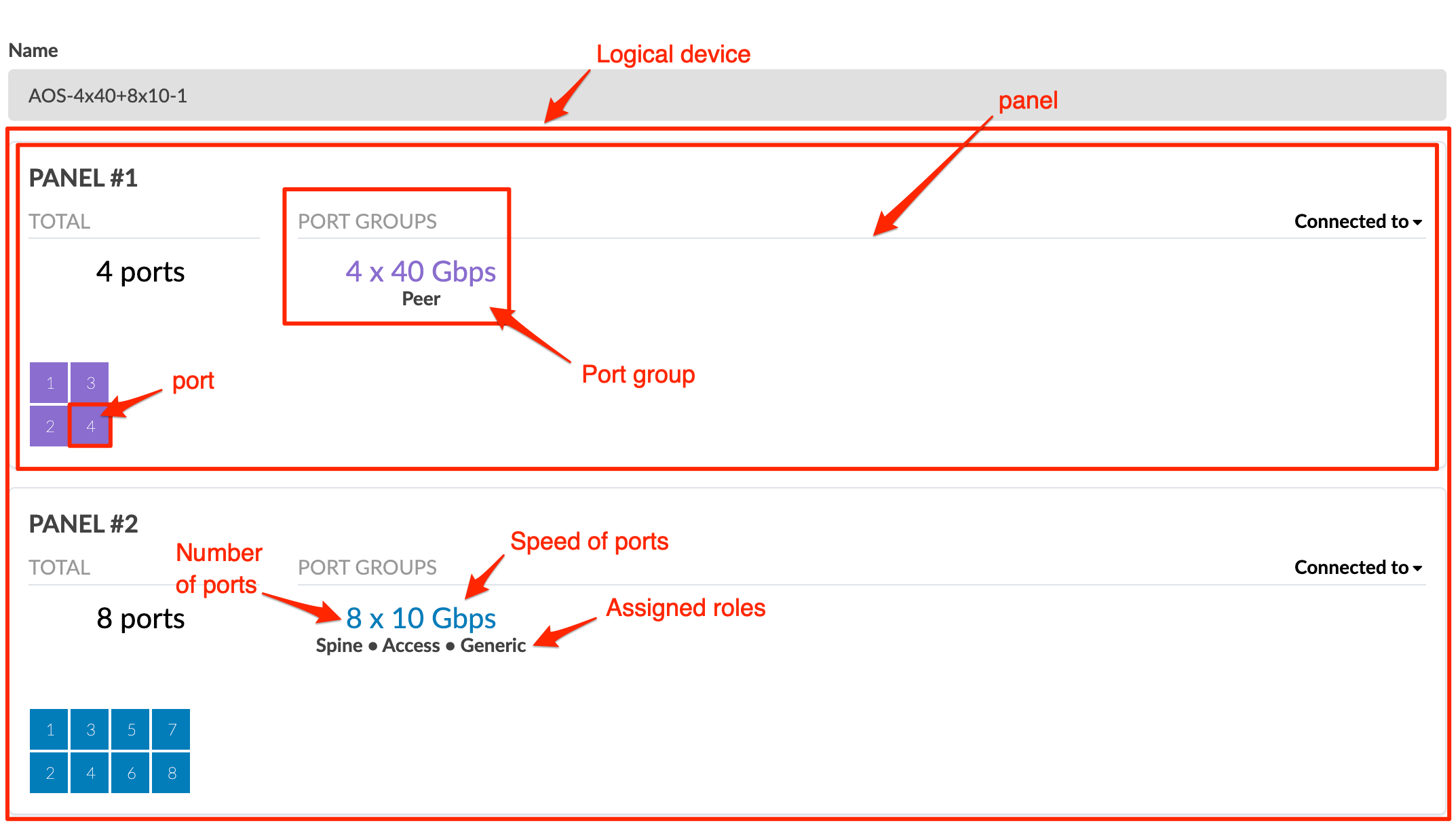
Logical devices are used in interface maps, rack types and templates in Day 0 operations. They are also used in Day 2 operations.
Logical Devices Using the GUI
From the left navigation menu, navigate to to go to the logical devices table in the design (global) catalog.
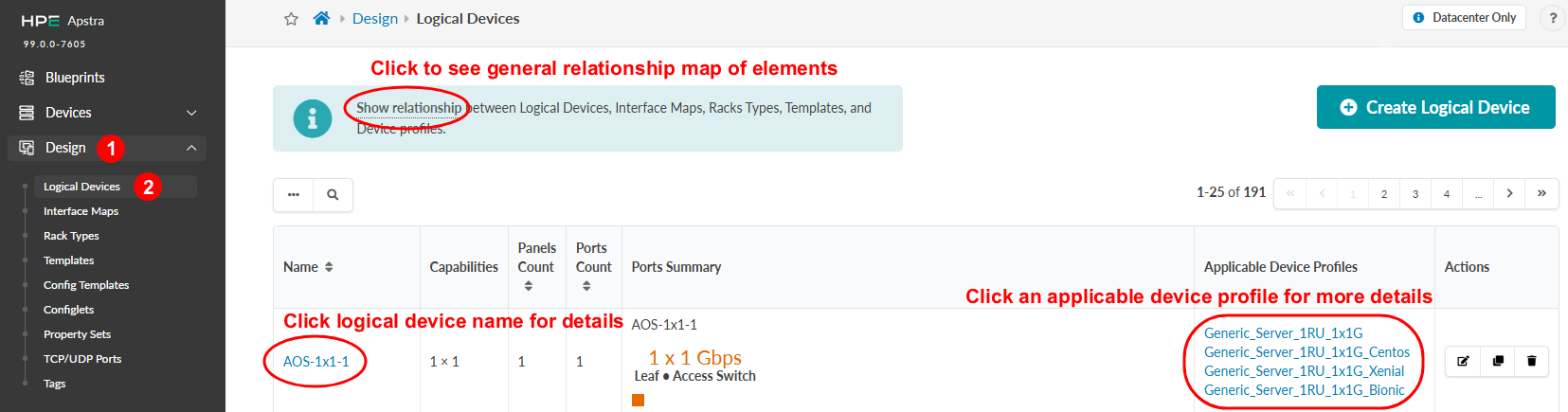
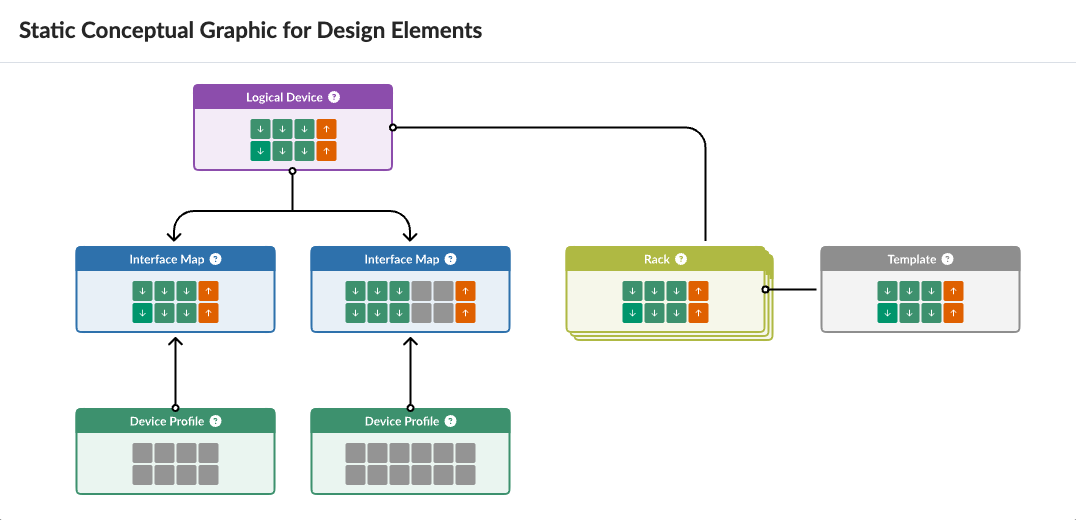
To see how design elements and device profiles are related to each other, click Show relationship This is helpful if you're new to the software.
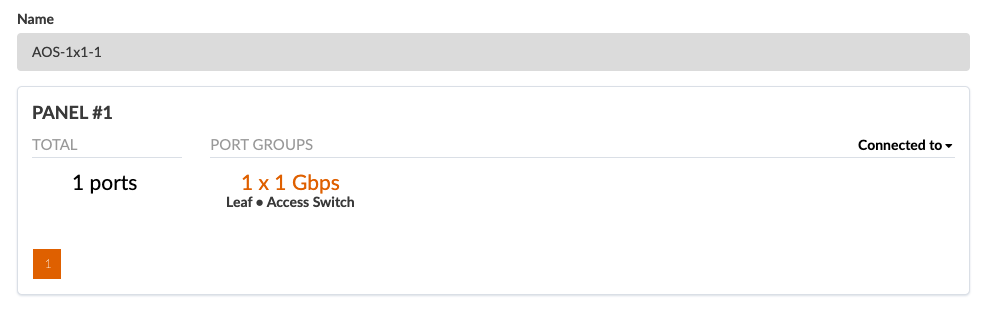
Many logical devices are predefined for you. To search for a logical device by its name and/or capabilities, click the Search button (magnifying glass) and enter your criteria. You can also filter by applicable device profile. Use this filtering approach to identify the logical devices most relevant to your needs based on actual device names.
Click a logical device name to go to its details.
Click an applicable device profile name to view its details. All applicable device profiles that are associated with the logical device are listed. This eliminates the guesswork about which device profiles are compatible with the selected logical device.
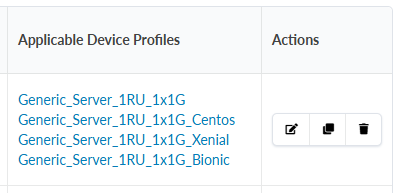
You can edit, clone, and delete logical devices.