Update Fabric MTU
To update the fabric-wide MTU setting from the GUI:
-
From the blueprint, navigate to Staged > Fabric Settings > Fabric
Policy and click Modify Settings.
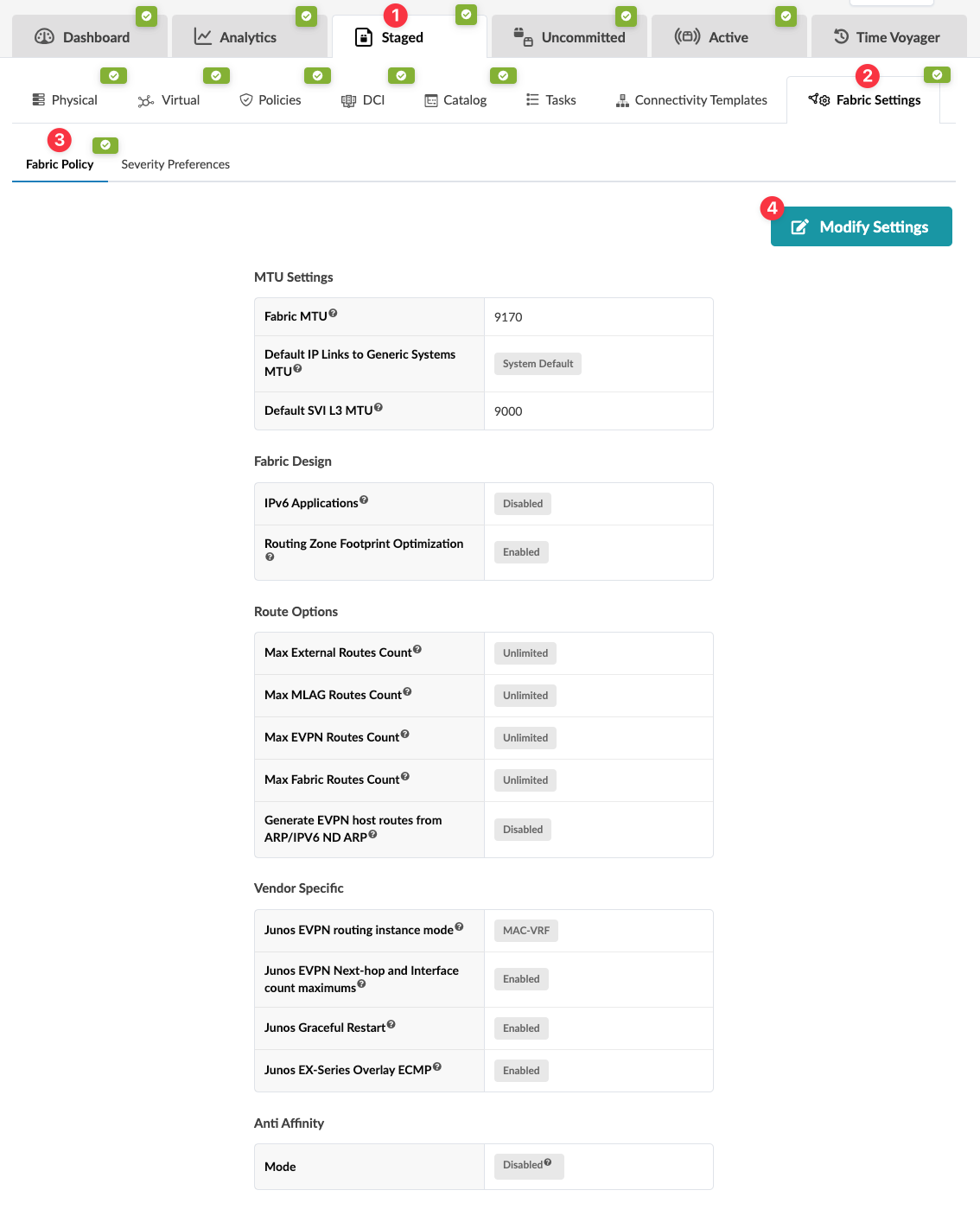 The Modify Fabric Policy Settings dialog opens.
When you're ready to activate your changes, commit them from the Uncommitted tab.
Note: Additional granular MTU update capabilities:
-
To update the global default settings for SVIs and IP link MTUs, update the Default IP Links to Generic Systems MTU and/or the Default SVI L3 MTU fields in the Virtual Network Policy.
-
To update the MTU on a specific SVI, update the L3 MTU field in the corresponding virtual network.
-
To update the MTU on subinterfaces, update the L3 MTU field in the IP Link connectivity template primitive.