Create Offbox Agent
Before installing offbox agents, make sure to do the following:
-
Confirm that the server VMs have enough space for an additional offbox agent. If not, add a VM. For more information, see Apstra Cluster Nodes.
-
Add login credentials for the devices.
-
Configure management IP connectivity between devices and the HPE Networking Apstra Data Center Director server.
Starting in Apstra DC Director 6.1, you can enable IPv6-based management for your devices. For more information, see Enabling IPv6-Based Management of the HPE Networking Apstra Data Center Director Cluster and Devices.
You must do this before installing agents so it’s out-of-band (OOB). Configuring management connectivity in-band (through the fabric) is not supported and could cause connectivity issues when changes are made to the blueprint.
-
Upload required packages.
-
If you're using Juniper offbox agents, increase the application memory usage.
-
From the left navigation menu, navigate to Devices > Managed
Devices and click Create Offbox
Agent(s).
 The Create Offbox System Agent(s) dialog opens.
 -
If you want the offbox agent to manage multiple devices from a single
container, toggle on Host in Offbox Unit. You would
typically toggle on Host in Offbox Unit to optimize
resource usage and scaling in your
environment.
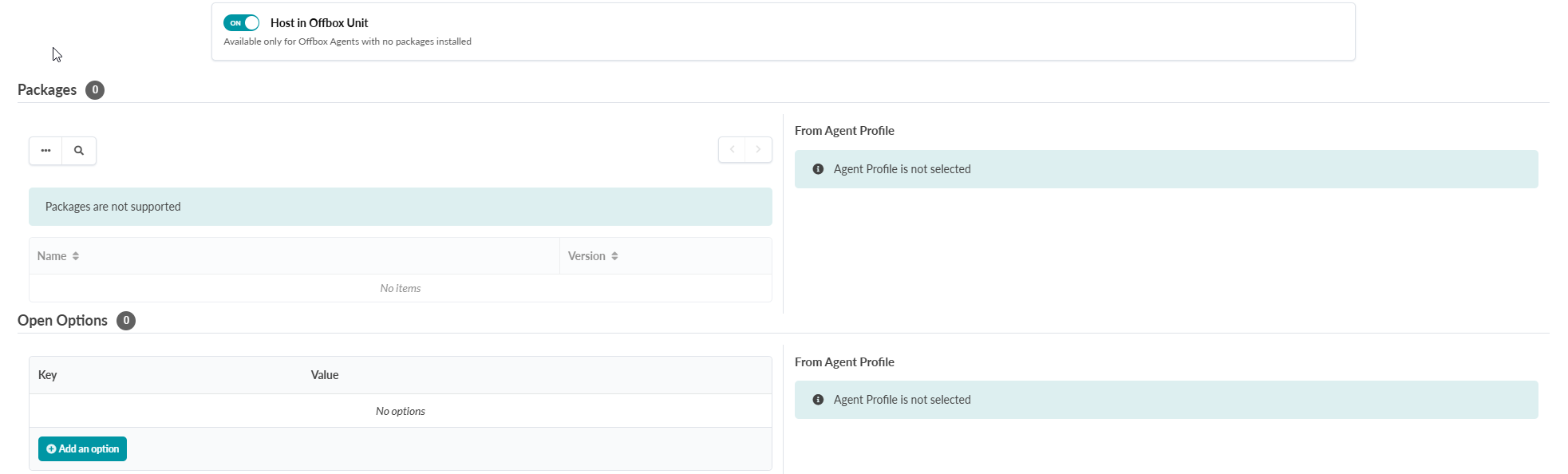
You can, by default, manage up to 16 devices from a single container working as an offbox agent when Host in Offbox Unit is on. If you need to change this default number of devices, you should change the value before toggling Host in Offbox Unit to on. We strongly discourage changing the number of managed devices after a host in offbox unit is enabled.
Host in Offbox Unit is only available for offbox agents with no installed packages.
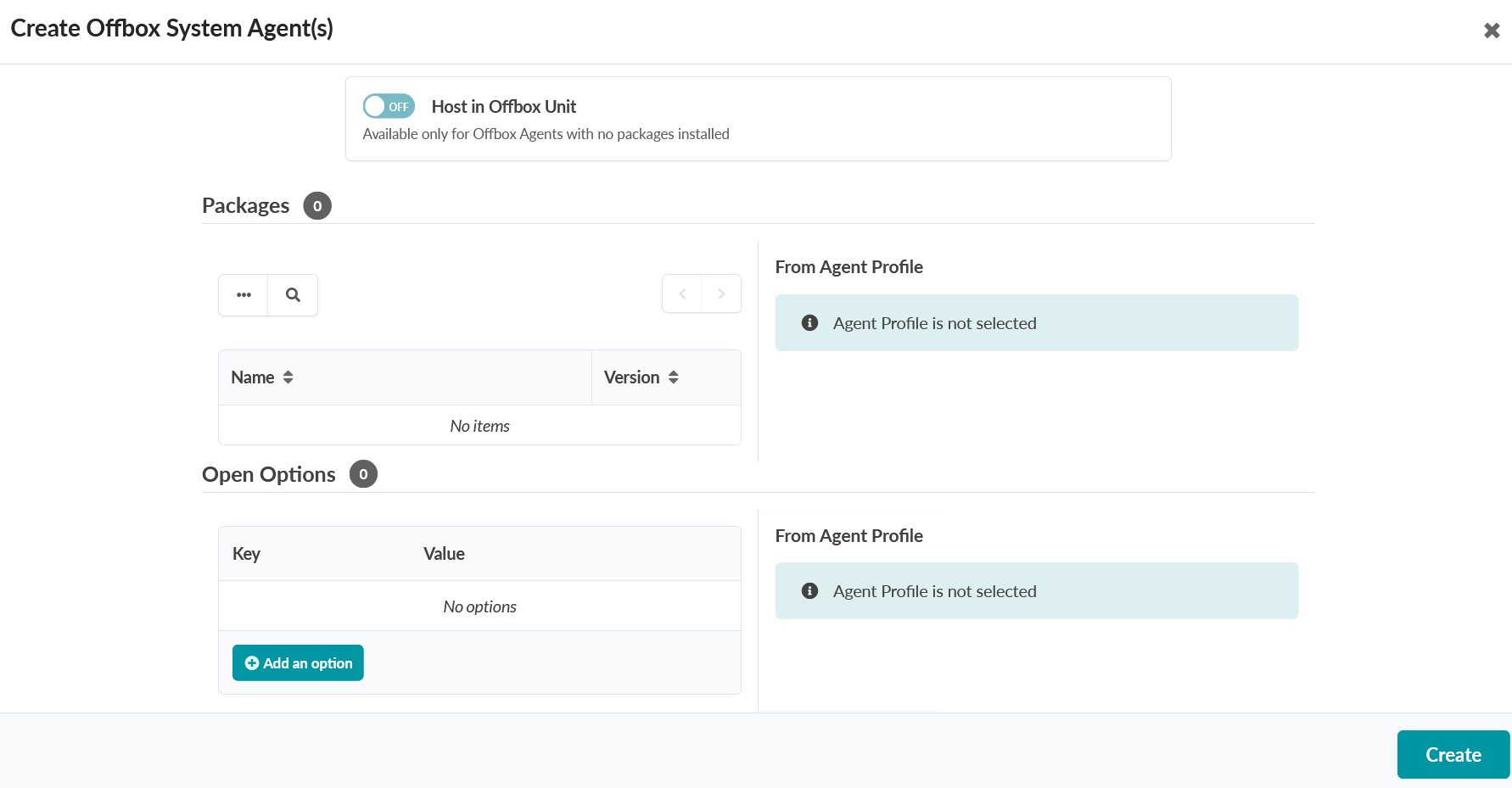
A single container manages each offbox agent when Host in Offbox Unit is off. Host in Offbox Unit is off by default:
You should know the following details around memory impact if you are enabling offbox unit containers:
-
In most scenarios, you can toggle on hosts in offbox units without having to configure any additional memory parameters. The actual memory impact varies by environment.
-
You should be aware of the offbox agent capacity score when enabling containers hosting offbox units. The capacity score is a measure of memory used by a scheduler to distribute containers among cluster nodes. The default capacity cost score for an offbox unit container is 20.
For additional information on capacity scoring, see Apstra Cluster Nodes.
-
If you want to tune your memory to host offbox unit containers, see Change Cluster Application Memory Usage (API).
-
-
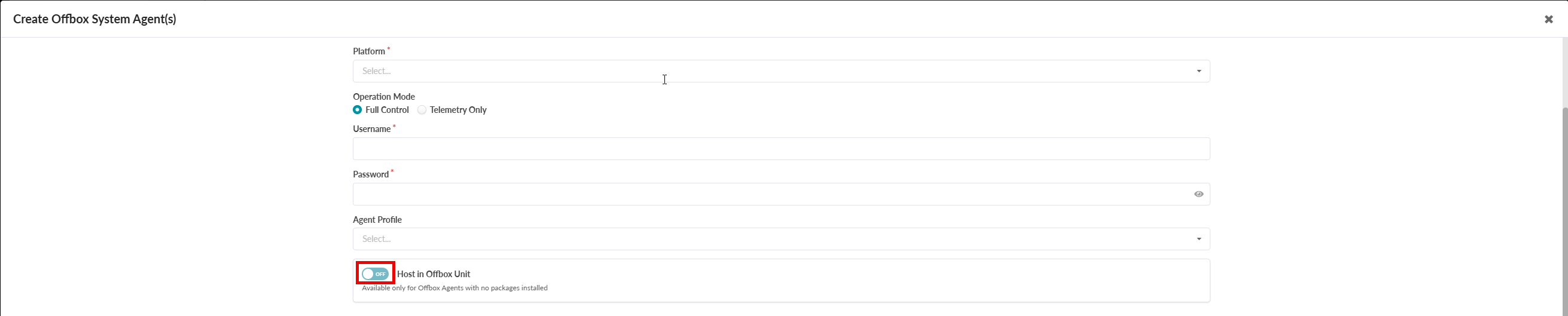
To host in an offbox unit, enable the Host in Offbox
Unit button.
The screen below provides an overview of the HPE Networking Apstra Datacenter Director cluster from an offbox-unit perspective.
In the screen below, hen the entries in the Assigned devices column are green, which means that the device-to-unit distribution is healthy.
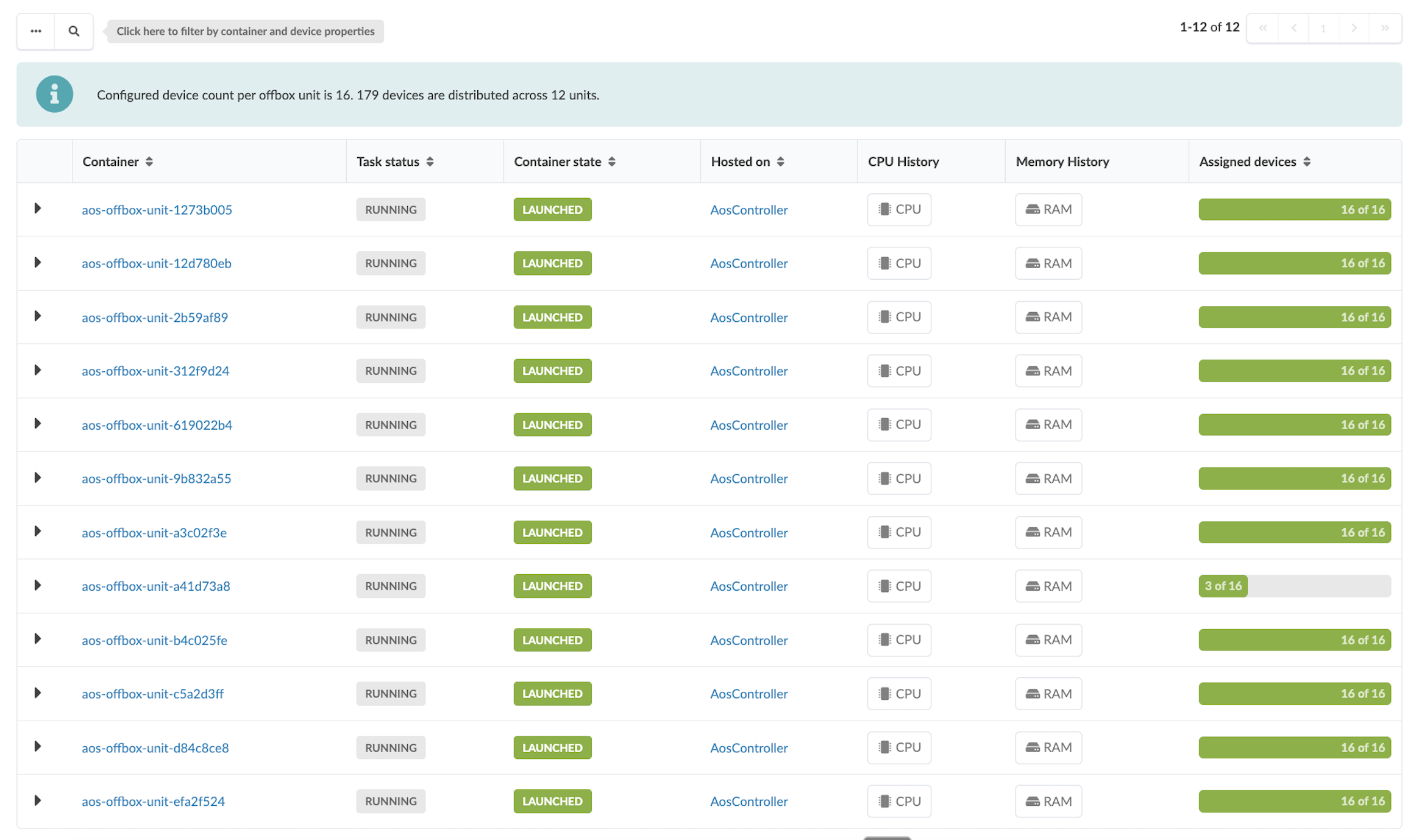
The table below provides information regarding the container.
Table 1: Container Properties Container GUI Elements Defintions Container Name of the container representing the offbox unit Task status Status of the offbox unit Container state Container status Hosted on Name of cluster node that is hosting the container CPU History Historical CPU consumption Memory History Historical memory consumption Assigned devices Quantity of managed devices to the offbox unit In the screen below, the containers are under-utilized. This means that containers host fewer devices than the configured device count per unit. When that happens, the bars in the Assigned Device remain green. In this situation, you will see an informational banner at the top of the screen. This banner alerts you to a potential optimization opportunity and recommends that you reduce the unit-to-device count for improved distribution.
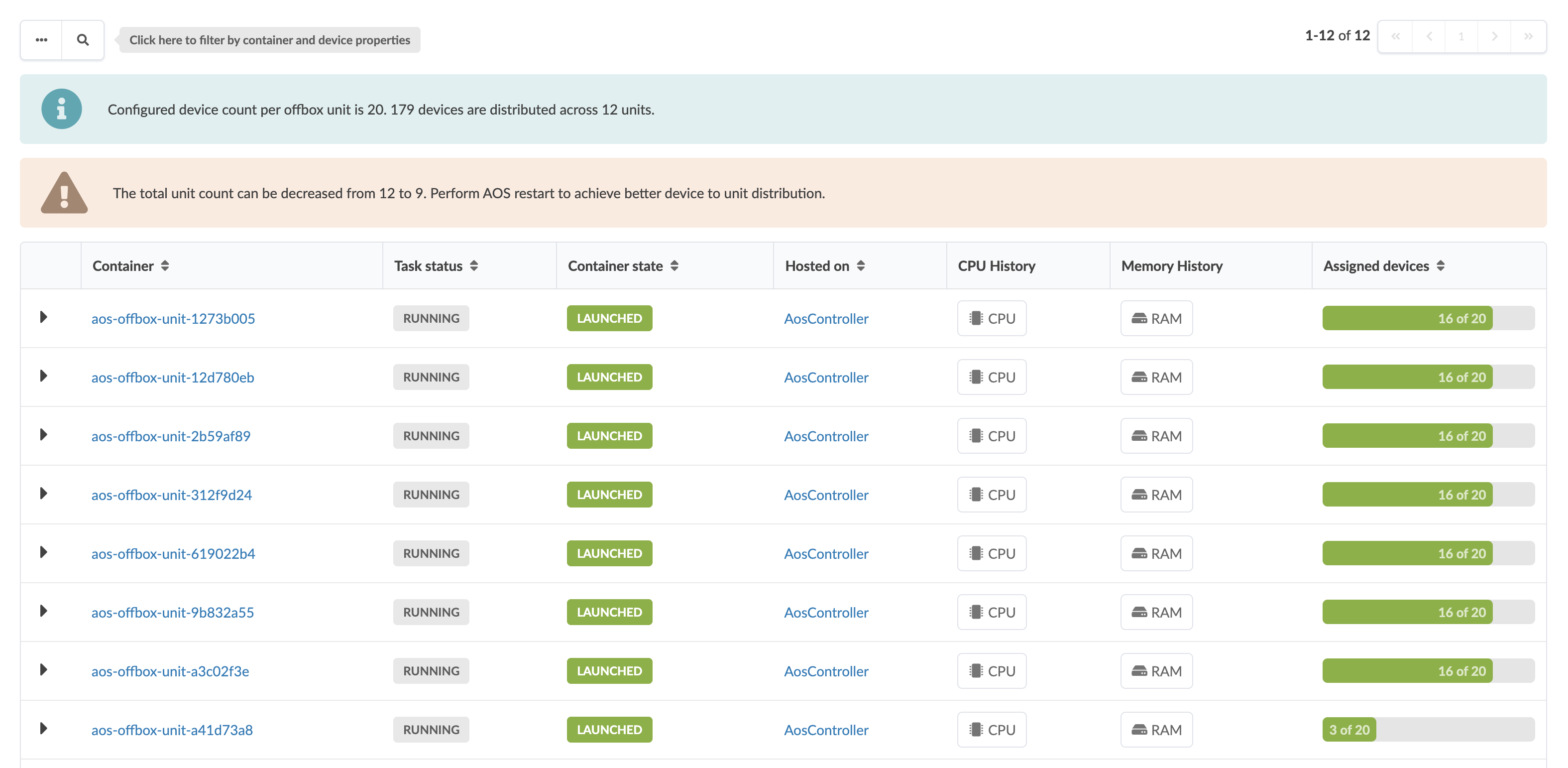
In the screen below, we are using the same cluster as used in the previous screen. This controller contains 179 devices. If we increase the device count per offbox unit from 16 to 20, the bars in the Assigned Device column remain green. You can also see that there is available capacity to host more devices,
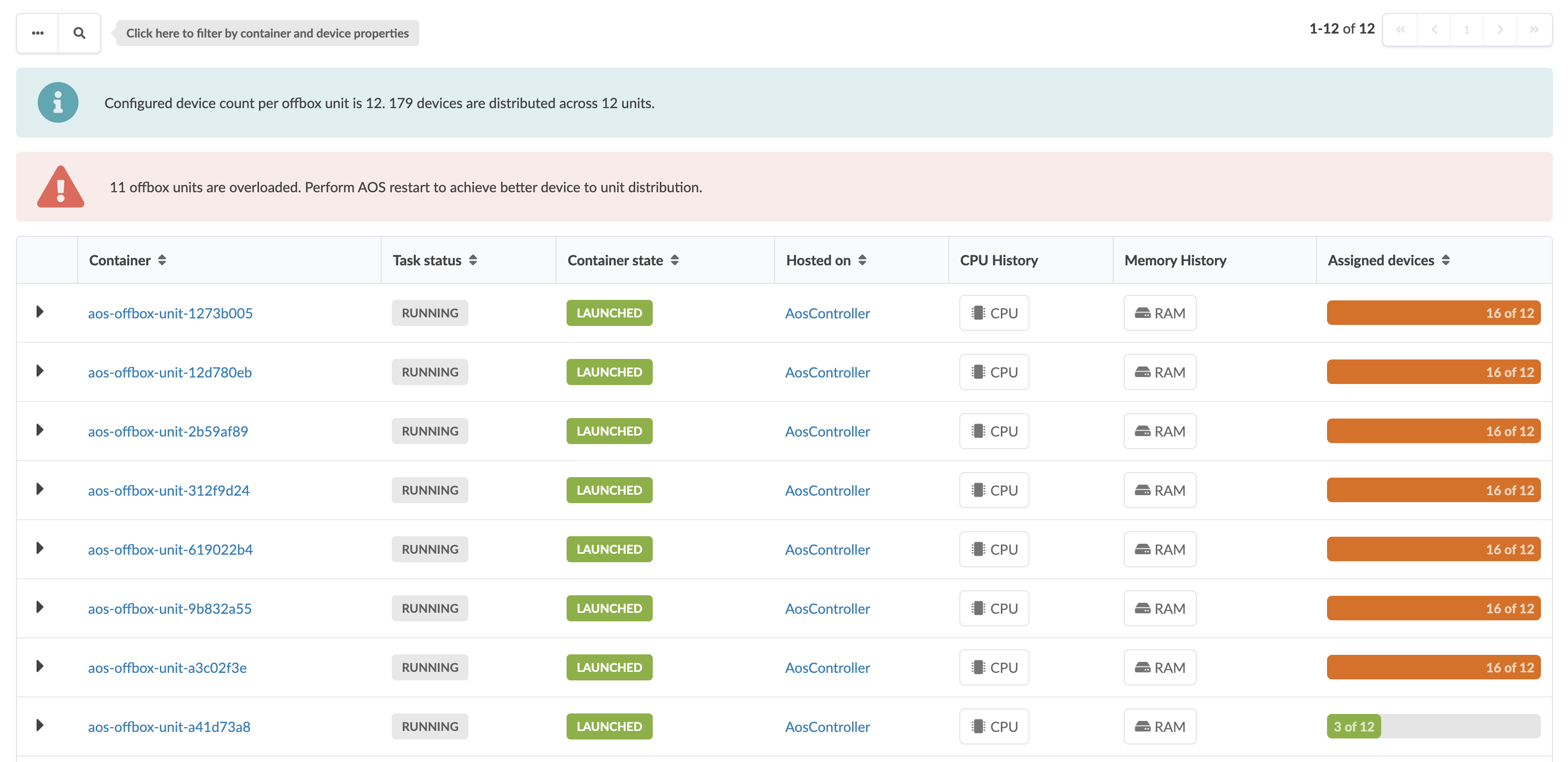
When containers are over-utilized, meaning they host more devices than the configured device count per unit, the bars in the Assigned Device column turn orange. Also, a warning banner at the top of the screen appears. The banner displays the number of overloaded units and prompts you to perform a cluster restart to achieve better distribution.
Using the same 179 device cluster example in the screen, if the device count per offbox unit is set lower than what some units are currently hosting, the units in the Assigned Device column turn orange. Orange signifies that the units are overloaded.
Additionally, you can filter and search systems through various criteria such as Device Hostname, Device management IP, Container Name, Offbox Unit Name, and others.
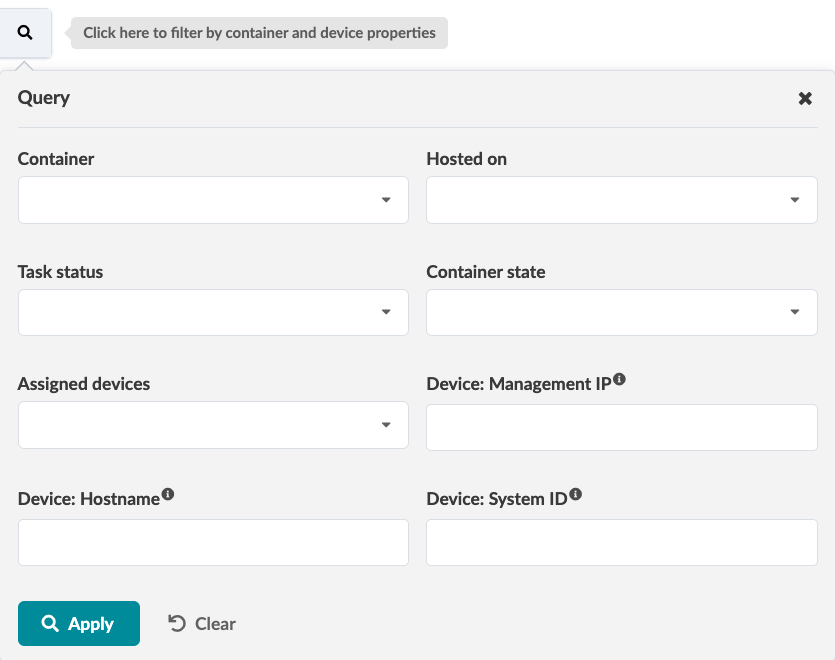
Table 2: Container and Device Properties Container GUI Elements Definitions Device: Hostname Hostname of the managed device Device: Management IP Management IP address of the managed device Device: System ID System ID of the managed device that has a configured offbox unit -
To
continue creating your offbox agent, you can select the software package you
want to install. Packages that you've
previously installed appear in the Packages section.
Packages associated with selected agent profiles are listed here as well. Select
packages, as
required.
-
Click Create.
During the agent install process, device configuration is validated; if the device contains configuration that could prevent service configuration from deploying, the agent install process raises an error.
In this case, check the device log for error details (Navigate to Devices / Managed Devices, click the three dots in the device's Actions panel (right column), then in the Agent menu click the Show Log button (eyeball).) Manually remove conflicting configuration and start the agent installation process again.
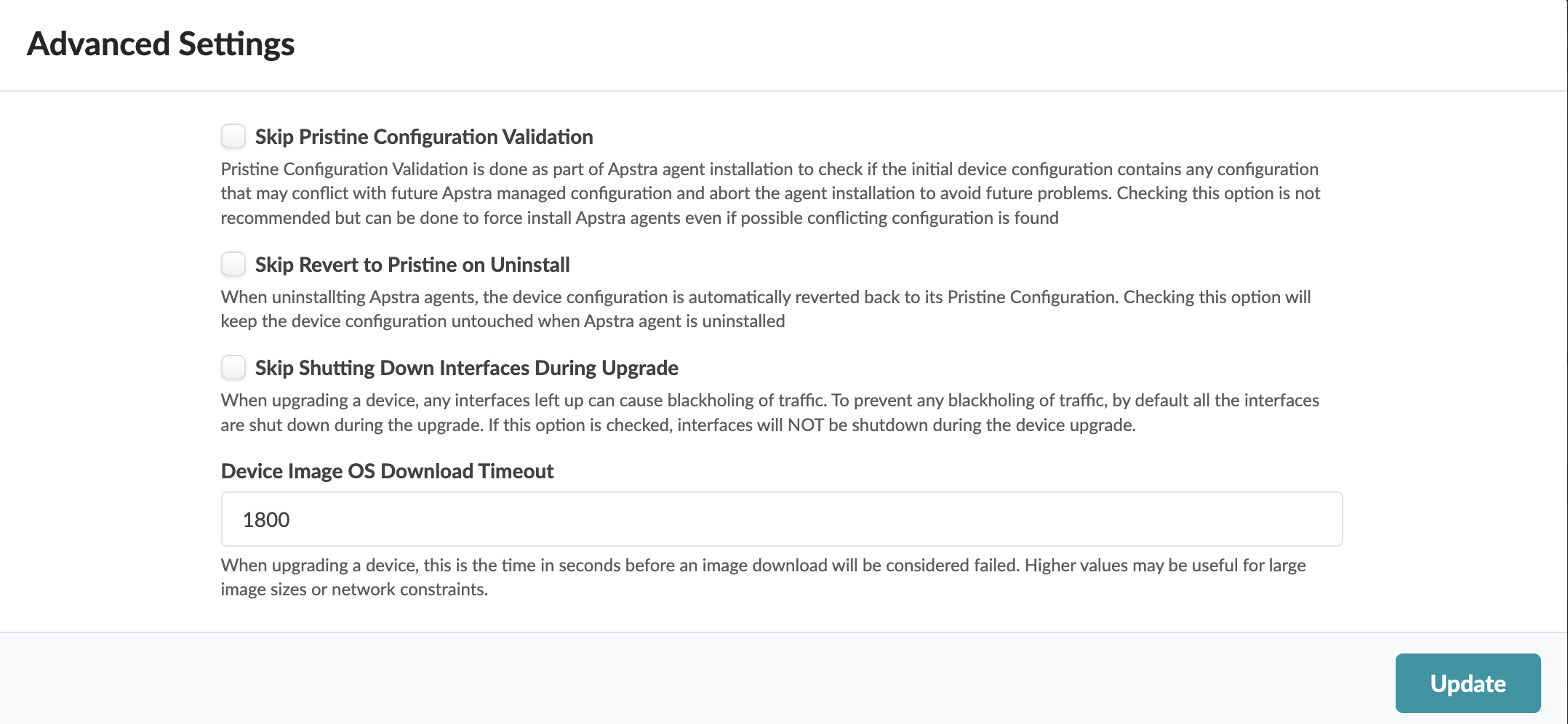
If you must complete the agent installation with configuration validation errors, you can disable pristine configuration validation. To do this, from Devices > Managed Devices, click Advanced Settings (top-right), select Skip Pristine Configuration Validation, then click Update.
For information about retaining pre-existing configuration when bringing devices under Apstra DC Director management, see Device Configuration Lifecycle.
Note:On some platforms (Junos for example) you can configure rate-limiting for management traffic (SSH for example). When the Apstra DC Director server interacts directly with devices it can be more bursty than when it interacts with a user. Rate-limiting configurations that are used for hardening security can impact device management, and lead to deployment failures and other agent-related issues.
While the task is active you can view its progress at the bottom of the screen in the Active Jobs section. The job status changes from Initialized to In Progress to Succeeded.
-
After the offbox agent is successfully created:
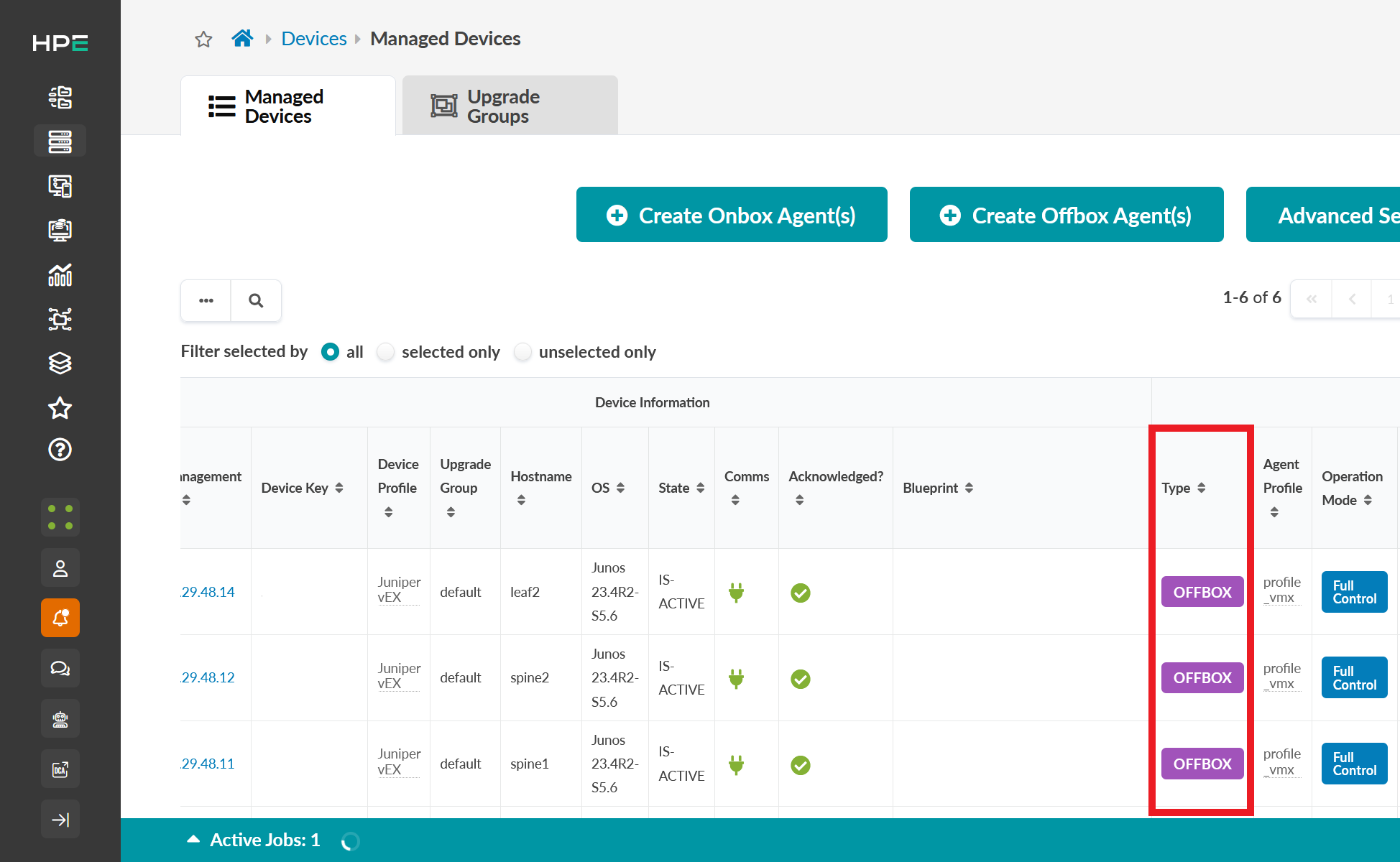
Navigate to Devices > Managed Devices to view the Agent Information table.
You can identify offbox agents in the table using the OFFBOX type in the Type column.
If you created an offbox agent with Host in Offbox Unit toggled on, consider changing the View Options on the Agent Information table to include the Agent Information: Host in Offbox Unit option. The Host in Offbox Unit column verifies if an agent has the option enabled or disabled. The Host in Offbox Unit column is not viewable in the table by default.
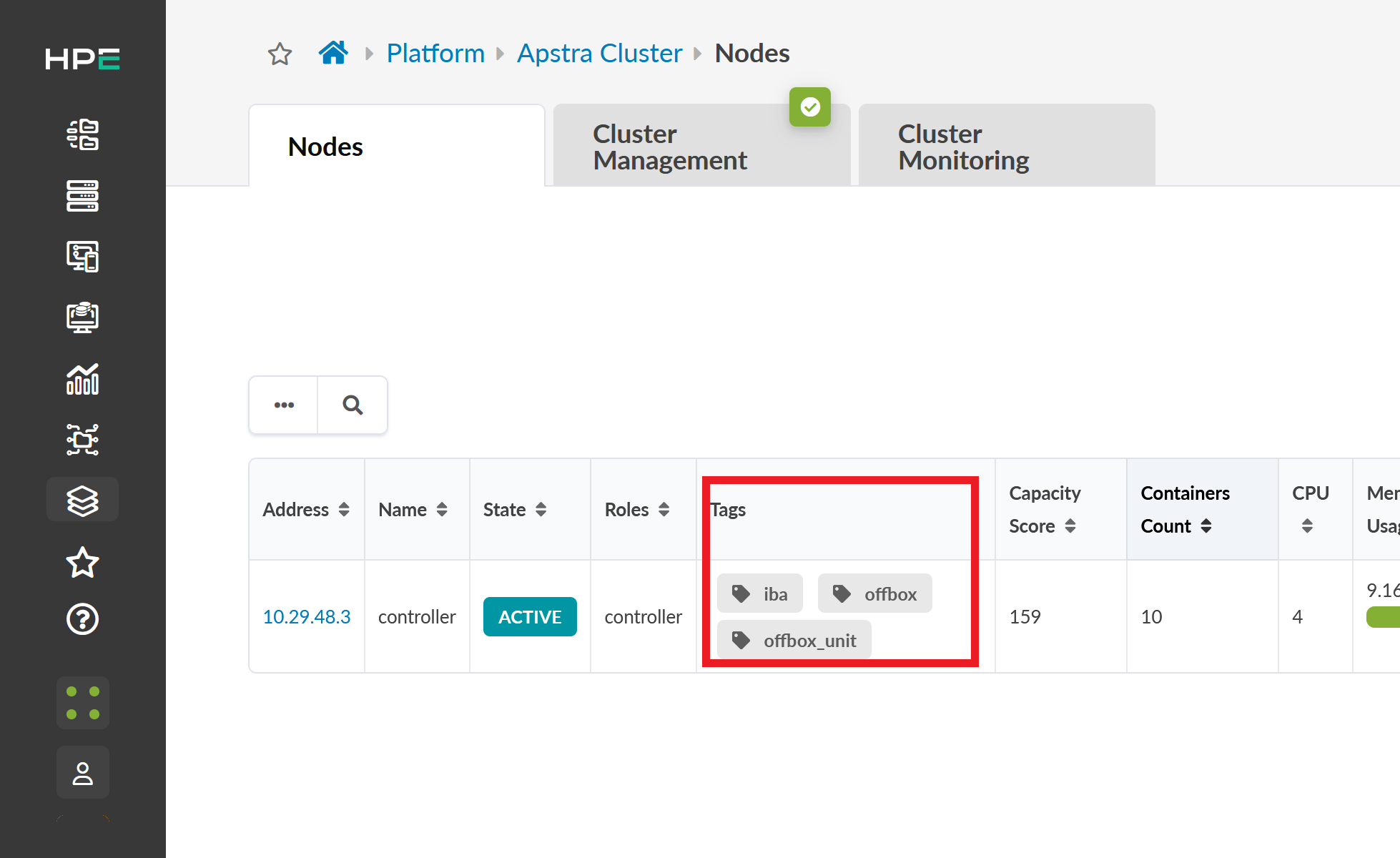
Navigate to Platform > Apstra Cluster > Nodes to view the cluster nodes.
Review the Tags column for the following tags:
-
offbox—node is using an offbox agent.
-
offbox_unit—node is using an offbox agent that can manage multiple devices from a single container.
You see this tag when Host in Offbox Unit is toggled on.
-
-
Navigate to Platform > Apstra Cluster > Cluster Monitoring.
You will see device names that include the keyword offbox when an offbox agent is enabled. You will also see container names that include the keyword offbox_unit to identify containers that are managing multiple devices.