Install Apstra DCD on ESXi
These instructions are for installing Apstra DCD software on an ESXi hypervisor. For information about using ESXi in general, refer to VMware's ESXi documentation.
- Confirm that you're running one of the Supported Hypervisors and Versions.
-
Make sure that you allocate enough resources for your network. For example, if
you're using more than 25 offbox agents, you'll need to add another VM. See
Required
Server Resources for more details.
CAUTION:
If you allocate insufficient CPU and RAM allocations for your network you'll probably experience issues such as slow response times, system errors and a critical "segmentation fault" (core dump). If this happens, you'll need to delete the VM and redeploy it with additional resources.
- Apstra DCD software is delivered pre-installed on a single VM. The same Apstra DCD VM image is used for installing both the Apstra DCD controller and Apstra DCD workers. As a registered support user, download the Apstra DCD VM Image for VMware ESXi (OVA) from the Support Downloads page.
-
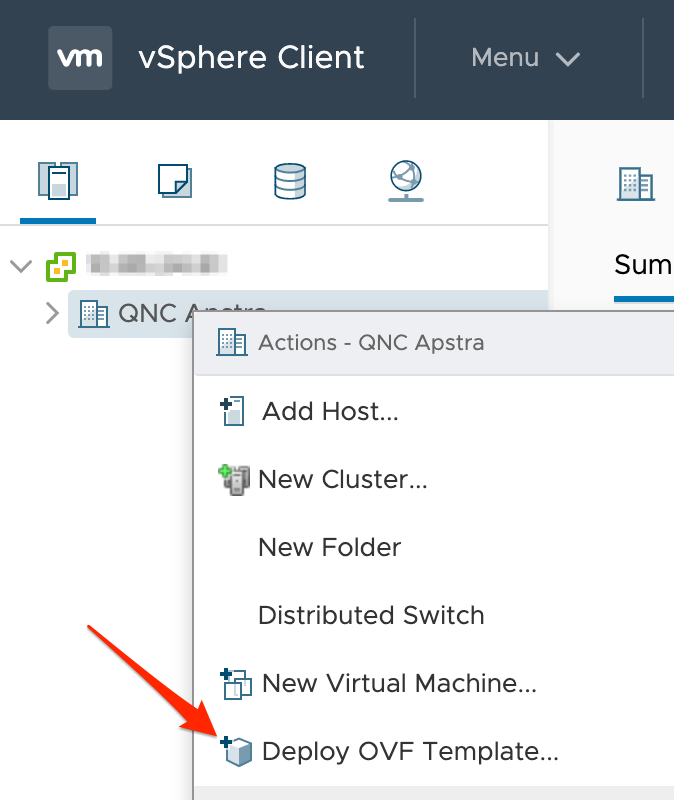
Log in to vCenter, right-click your target deployment environment, then click
Deploy OVF Template.
-
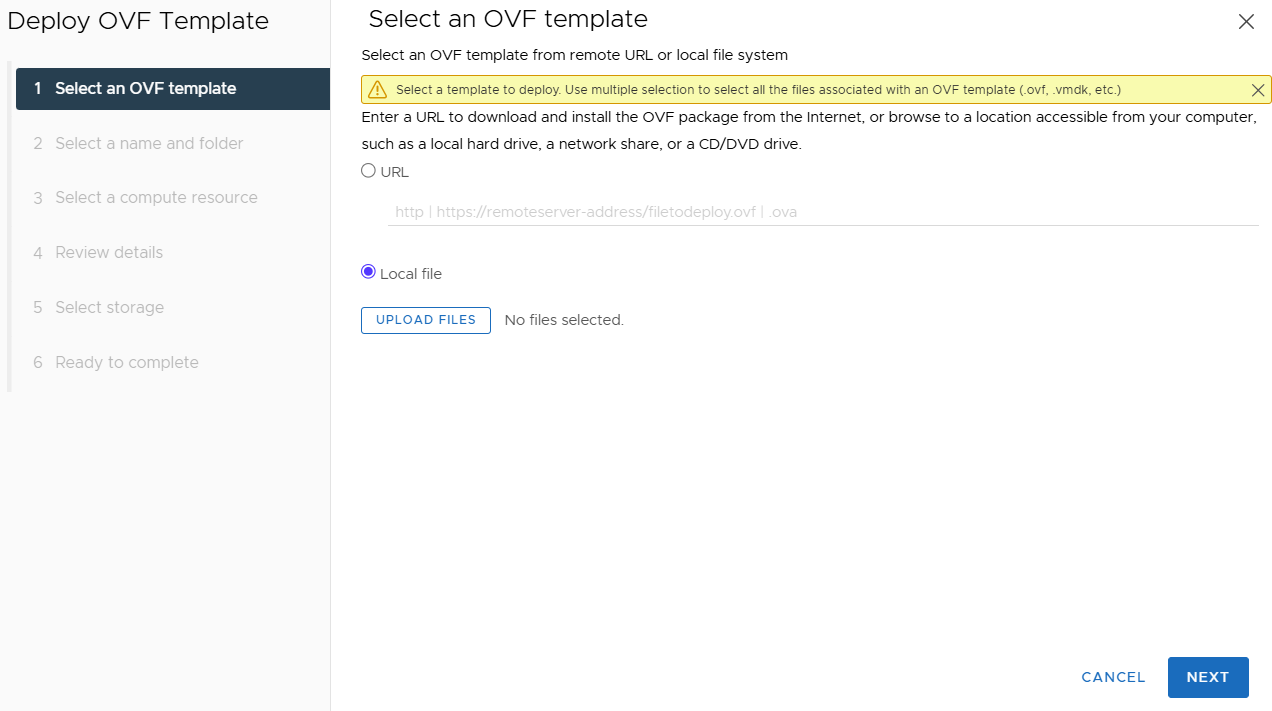
Specify the URL or local file location for the OVA file you downloaded, then
click Next. (Screenshot below is for a previous Apstra
DCD version.)
-
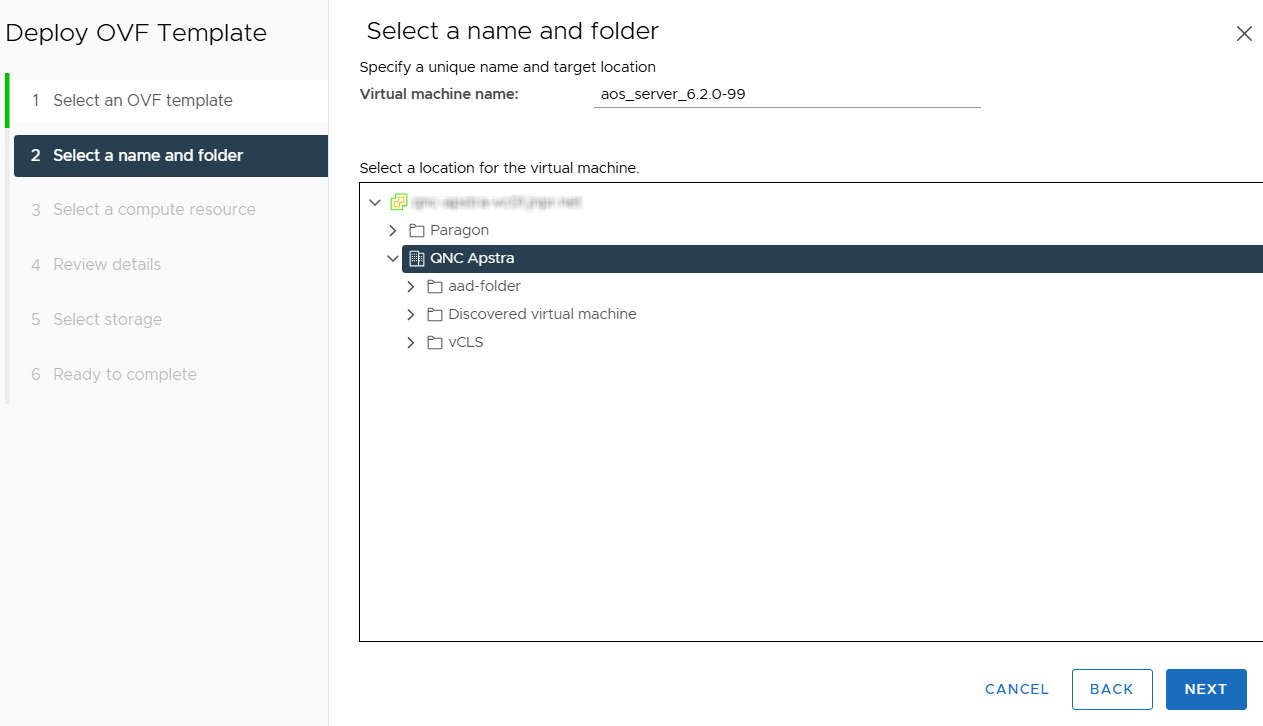
Specify a unique name and target location for the VM, then click
Next. (Screenshot below is for a previous Apstra DCD
version.)
-
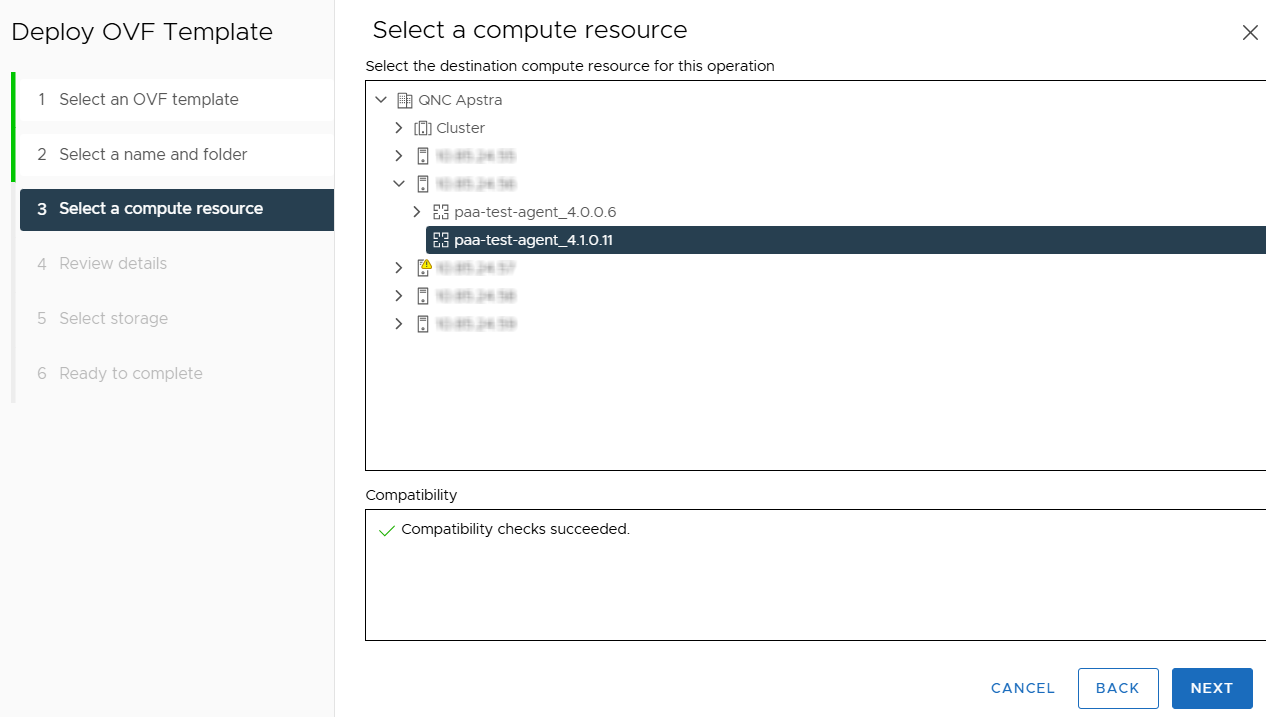
Select your destination compute resource, then click
Next.
- Review template details, then click Next.
-
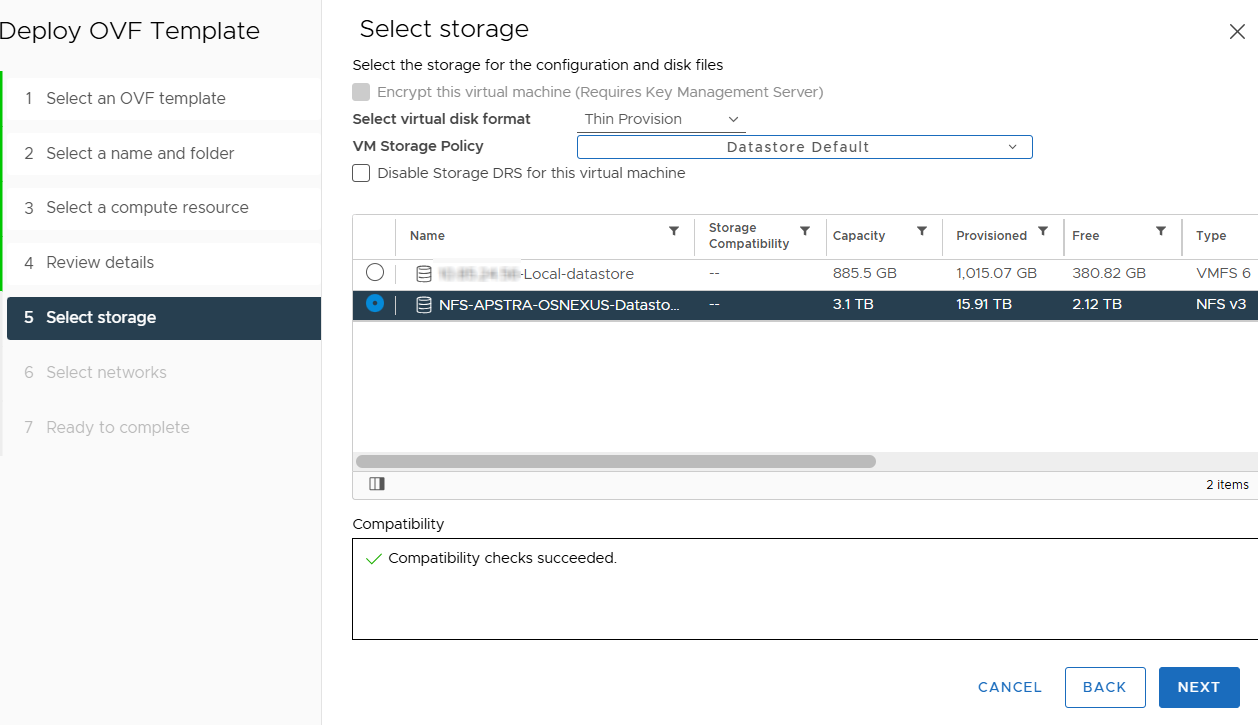
Select storage for the files, then click Next. We
recommend thick provisioning for the Apstra DCD server.
-
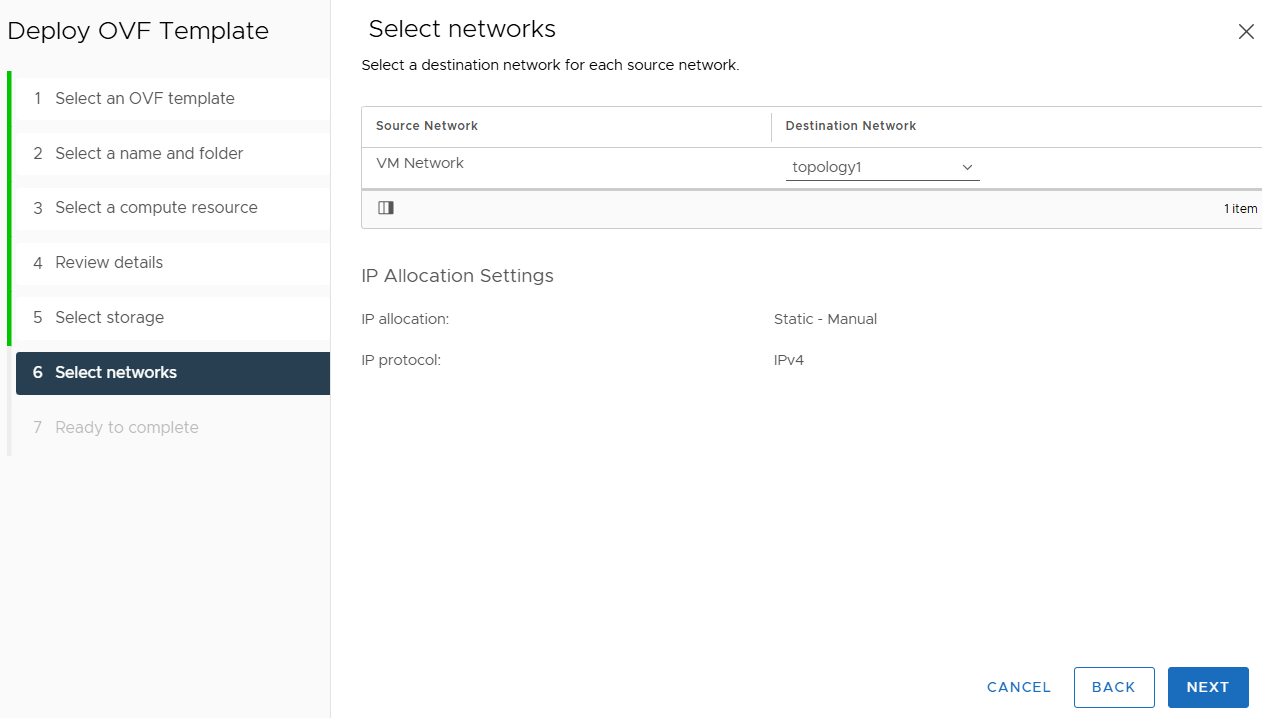
Map the Apstra DCD Management network to enable it to reach the virtual
networks that the Apstra DCD server will manage on ESXi, then click
Next.
- Review your specifications, then click Finish.
You're ready to configure the Apstra DCD server.