Configure Apstra DCD Server
-
Log in to the Apstra DCD server with the default credentials (user: admin,
password: admin) either from the web console or via SSH (
ssh admin@<Apstra DCD-server-ip>where<Apstra DCD-server-ip>is the IP address of the Apstra DCD server.) You must change the default password before you can proceed.
-
When you've successfully changed the Apstra DCD server password a dialog opens
prompting you to set the Apstra DCD GUI password.
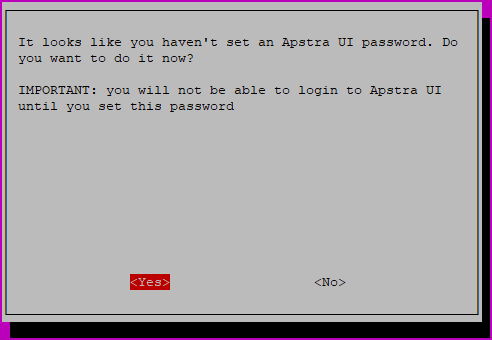
You won't be able to access the Apstra DCD GUI until you set this password. Select Yes and enter a password that meets the following complexity requirements, then enter it again:
-
Must contain at least 9 characters
-
Must contain an uppercase letter
-
Must contain a lowercase letter
-
Must contain a digit
-
Must contain a special character
-
Must NOT be the same as the username
-
Must NOT contain a repeat of the same character
-
Must NOT contain consecutive sequential characters
-
Must NOT use adjacent keys on the keyboard
-
-
The configuration tool menu appears.
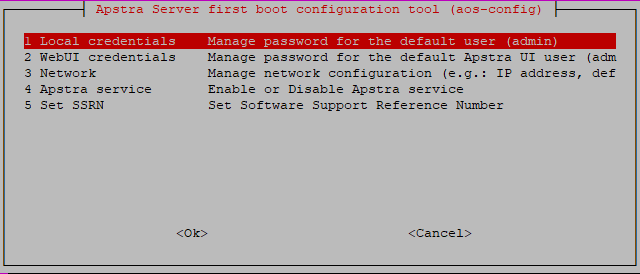
You've just changed the local credentials and the Apstra DCD GUI credentials, so you don't need to manage them again now.
The network is configured to use DHCP by default. To assign static IP addresses instead, select Network, change it to Manual, and provide the following:
-
(Static Management) IP address in CIDR format with netmask (for example, 192.168.0.10/24)
-
Gateway IP address
-
Primary DNS
-
Secondary DNS (optional)
-
Domain
-
-
You can add a Software Support Reference Number (SSRN) to the Apstra DCD GUI. Select
Set SSRN, enter the SSRN number you received when you purchased
your license, and click Ok.
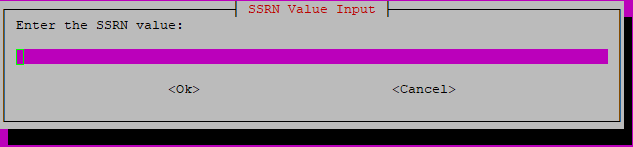 Note that this step is optional. Setting an SSRN is not required, but may speed up Support times.The SSRN number is saved in Apstra DCD ShowTech, and lets JTAC Support know you have a valid Apstra DCD license.
You're ready to Replace the default SSL certificate with a signed one.
We recommend that you back up the Apstra DCD server on a regular basis (since HA is not available). For backup details, see the HPE Networking Apstra Data Center Director User Guide.