Related Documentation
- ACX Series
- Example: Configuring the Transmission Frequency for Link-State PDUs on IS-IS Interfaces
- M Series
- Example: Configuring the Transmission Frequency for Link-State PDUs on IS-IS Interfaces
- MX Series
- Example: Configuring the Transmission Frequency for Link-State PDUs on IS-IS Interfaces
- PTX Series
- Example: Configuring the Transmission Frequency for Link-State PDUs on IS-IS Interfaces
- QFX Series
- Example: Configuring the Transmission Frequency for Link-State PDUs on IS-IS Interfaces
- T Series
- Example: Configuring the Transmission Frequency for Link-State PDUs on IS-IS Interfaces
Example: Configuring Mesh Groups of IS-IS Interfaces
Understanding IS-IS Mesh Groups
A mesh group is a set of routing devices that are fully connected. That is, they have a fully meshed topology.
Junos OS supports IS-IS mesh groups as documented in RFC 2973, IS-IS Mesh Groups.
When link-state PDUs are being flooded throughout an area, each router within a mesh group receives only a single copy of a link-state PDU instead of receiving one copy from each neighbor, thus minimizing the overhead associated with the flooding of link-state PDUs.
Mesh groups provide a scaling method for the flooding subsystem. We recommend that you deploy mesh groups when your network design has a dense flooding topology. For example, consider the classical overlay topologies of the 1990s where 200 routers were fully meshed using permanent virtual circuits (PVCs) over an ATM core, because ATM was the only high-speed technology at the time. A PVC is a software-defined logical connection in a network such as a Frame Relay network.
What has changed since the 1990s is that IP and MPLS technology have reduced the ATM layer and removed the need for overlay meshing. The flooding graphs have become sparse in almost all practical deployments. In service provider networks, overlay networks are no longer used.
In enterprise networks, dense flooding graphs that, for example, lease a Layer 2 VPN service (an overlay network) to fully mesh its WAN routers might continue to be a useful architecture. In such cases, mesh groups might be useful.
Example: Configuring Mesh Groups of IS-IS Interfaces
This example shows how to configure mesh groups of IS-IS interfaces.
Requirements
No special configuration beyond device initialization is required before configuring this example.
Overview
When link-state PDUs are being flooded throughout an area, each router within a mesh group receives only a single copy of a link-state PDU instead of receiving one copy from each neighbor, thus minimizing the overhead associated with the flooding of link-state PDUs.
To create a mesh group and designate that an interface be part of the group, assign a mesh-group number to all the routing device interfaces in the group:
To prevent an interface in the mesh group from flooding link-state PDUs, configure blocking on that interface:
Figure 1 shows the topology used in this example.
Figure 1: IS-IS Mesh Topology
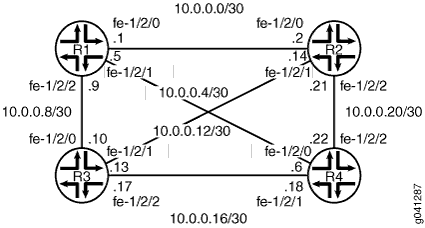
CLI Quick Configuration shows the configuration for all of the devices in Figure 1. The section Step-by-Step Procedure describes the steps on Device R1.
Configuration
CLI Quick Configuration
To quickly configure this example, copy the following commands, paste them into a text file, remove any line breaks, change any details necessary to match your network configuration, and then copy and paste the commands into the CLI at the [edit] hierarchy level.
Device R1
Device R2
Device R3
Device R4
Step-by-Step Procedure
The following example requires you to navigate various levels in the configuration hierarchy. For information about navigating the CLI, see Using the CLI Editor in Configuration Mode in the CLI User Guide.
To configure an IS-IS mesh group:
- Configure the interfaces.[edit interfaces]user@R1# set fe-1/2/0 unit 0 description to-R2user@R1# set fe-1/2/0 unit 0 family inet address 10.0.0.1/30user@R1# set fe-1/2/0 unit 0 family isouser@R1# set fe-1/2/1 unit 0 description to-R4user@R1# set fe-1/2/1 unit 0 family inet address 10.0.0.5/30user@R1# set fe-1/2/1 unit 0 family isouser@R1# set fe-1/2/2 unit 0 description to-R3user@R1# set fe-1/2/2 unit 0 family inet address 10.0.0.9/30user@R1# set fe-1/2/2 unit 0 family isouser@R1# set lo0 unit 0 family inet address 192.168.0.1/32user@R1# set lo0 unit 0 family iso address 49.0002.0192.0168.0001.00
- Enable IS-IS on the interfaces, and assign a mesh group
number.[edit protocols isis]user@R1# set interface fe-1/2/0.0 mesh-group 1user@R1# set interface fe-1/2/1.0 mesh-group 1user@R1# set interface fe-1/2/2.0 mesh-group 1user@R1# set interface lo0.0
Results
From configuration mode, confirm your configuration by entering the show interfaces and show protocols commands. If the output does not display the intended configuration, repeat the instructions in this example to correct the configuration.
If you are done configuring the device, enter commit from configuration mode.
Verification
Confirm that the configuration is working properly.
Checking the Interface Mesh Group
Purpose
Verify that the mesh group is enabled on the IS-IS interfaces.
Action
From operational mode, enter the show isis interface extensive command.
user@R1> show isis interface extensive
IS-IS interface database:
lo0.0
  Index: 68, State: 0x6, Circuit id: 0x1, Circuit type: 0
  LSP interval: 100 ms, CSNP interval: disabled, Loose Hello padding
  Adjacency advertisement: Advertise
  Level 1
    Adjacencies: 0, Priority: 64, Metric: 0
    Passive
  Level 2
    Adjacencies: 0, Priority: 64, Metric: 0
    Passive
fe-1/2/0.1
  Index: 73, State: 0x206, Circuit id: 0x1, Circuit type: 3
  LSP interval: 100 ms, CSNP interval: 10 s, Loose Hello padding
  Adjacency advertisement: Advertise
   CSNP interval: disabled, Mesh group: 1
  Level 1
    Adjacencies: 1, Priority: 64, Metric: 10
    Hello Interval: 9.000 s, Hold Time: 27 s
    Designated Router: tp5-R2.03 (not us)
  Level 2
    Adjacencies: 1, Priority: 64, Metric: 10
    Hello Interval: 9.000 s, Hold Time: 27 s
    Designated Router: tp5-R2.03 (not us)
fe-1/2/1.0
  Index: 75, State: 0x206, Circuit id: 0x1, Circuit type: 3
  LSP interval: 100 ms, CSNP interval: 10 s, Loose Hello padding
  Adjacency advertisement: Advertise
   CSNP interval: disabled, Mesh group: 1
  Level 1
    Adjacencies: 1, Priority: 64, Metric: 10
    Hello Interval: 9.000 s, Hold Time: 27 s
    Designated Router: tp5-R4.03 (not us)
  Level 2
    Adjacencies: 1, Priority: 64, Metric: 10
    Hello Interval: 9.000 s, Hold Time: 27 s
    Designated Router: tp5-R4.03 (not us)
fe-1/2/2.0
  Index: 76, State: 0x206, Circuit id: 0x1, Circuit type: 3
  LSP interval: 100 ms, CSNP interval: 10 s, Loose Hello padding
  Adjacency advertisement: Advertise
   CSNP interval: disabled, Mesh group: 1
  Level 1
    Adjacencies: 1, Priority: 64, Metric: 10
    Hello Interval: 9.000 s, Hold Time: 27 s
    Designated Router: tp5-R3.02 (not us)
  Level 2
    Adjacencies: 1, Priority: 64, Metric: 10
    Hello Interval: 9.000 s, Hold Time: 27 s
    Designated Router: tp5-R3.02 (not us)
Meaning
Mesh group: 1 in the output shows that the mesh group is enabled as expected.
Checking the IS-IS Statistics
Purpose
Verify that the number of link-state PDUs received and sent is less than what it would be if the mesh group were not enabled.
Action
From operational mode, enter the show isis statistics command.
user@R1> show isis statisticsIS-IS statistics for tp5-R1: PDU type Received Processed Drops Sent Rexmit LSP 73 73 0 37 0 IIH 4463 85 0 1525 0 CSNP 1294 1294 0 0 0 PSNP 0 0 0 2 0 Unknown 0 0 0 0 0 Totals 5830 1452 0 1564 0 Total packets received: 5830 Sent: 1564 SNP queue length: 0 Drops: 0 LSP queue length: 0 Drops: 0 SPF runs: 26 Fragments rebuilt: 15 LSP regenerations: 4 Purges initiated: 0
Meaning
After the adjacencies have been up for about 38 minutes, the output shows that Device R1 has received 73 link-state PDUs and sent 37 link-state PDUs. In the same topology in the same amount of time without the mesh group enabled, Device R1 would have received roughly 156 link-state PDUs and sent roughly 117 link-state PDUs.
Related Documentation
- ACX Series
- Example: Configuring the Transmission Frequency for Link-State PDUs on IS-IS Interfaces
- M Series
- Example: Configuring the Transmission Frequency for Link-State PDUs on IS-IS Interfaces
- MX Series
- Example: Configuring the Transmission Frequency for Link-State PDUs on IS-IS Interfaces
- PTX Series
- Example: Configuring the Transmission Frequency for Link-State PDUs on IS-IS Interfaces
- QFX Series
- Example: Configuring the Transmission Frequency for Link-State PDUs on IS-IS Interfaces
- T Series
- Example: Configuring the Transmission Frequency for Link-State PDUs on IS-IS Interfaces