Related Documentation
- ACX Series
- Checking the Status of a Device Running Junos OS
- Displaying Junos OS Information
- EX Series
- Checking the Status of a Device Running Junos OS
- Displaying Junos OS Information
- J Series
- Checking the Status of a Device Running Junos OS
- Displaying Junos OS Information
- M Series
- Checking the Status of a Device Running Junos OS
- Displaying Junos OS Information
- MX Series
- Checking the Status of a Device Running Junos OS
- Displaying Junos OS Information
- PTX Series
- Checking the Status of a Device Running Junos OS
- Displaying Junos OS Information
- T Series
- Checking the Status of a Device Running Junos OS
- Displaying Junos OS Information
Managing Programs and Processes Using Junos OS Operational Mode Commands
This topic shows some examples of Junos operational commands that you can use to manage programs and processes on a device running Junos OS.
Sections include:
Showing Software Processes
To verify system operation or to begin diagnosing an error condition, you may need to display information about software processes running on the device.
To show software processes:
- Make sure you are in operational mode.
- Type the show system processes
extensive command. This command shows the CPU utilization on
the device and lists the processes in order of CPU utilization. For
example:
user@host> show system processes extensivelast pid: 28689; load averages: 0.01, 0.00, 0.00 up 56+06:16:13 04:52:04 73 processes: 1 running, 72 sleeping Mem: 101M Active, 101M Inact, 98M Wired, 159M Cache, 69M Buf, 286M Free Swap: 1536M Total, 1536M Free PID USERNAME PRI NICE SIZE RES STATE TIME WCPU CPU COMMAND 3365 root 2 0 21408K 4464K select 511:23 0.00% 0.00% chassisd 3508 root 2 0 3352K 1168K select 32:45 0.00% 0.00% l2ald 3525 root 2 0 3904K 1620K select 13:40 0.00% 0.00% dcd 5532 root 2 0 11660K 2856K kqread 10:36 0.00% 0.00% rpd 3366 root 2 0 2080K 828K select 8:33 0.00% 0.00% alarmd 3529 root 2 0 2040K 428K select 7:32 0.00% 0.00% irsd 3375 root 2 0 2900K 1600K select 6:01 0.00% 0.00% ppmd 3506 root 2 0 5176K 2568K select 5:38 0.00% 0.00% mib2d 4957 root 2 0 1284K 624K select 5:16 0.00% 0.00% ntpd 6 root 18 0 0K 0K syncer 4:49 0.00% 0.00% syncer 3521 root 2 0 2312K 928K select 2:14 0.00% 0.00% lfmd 3526 root 2 0 5192K 1988K select 2:04 0.00% 0.00% snmpd 3543 root 2 0 0K 0K peer_s 1:46 0.00% 0.00% peer proxy 3512 root 2 0 3472K 1044K select 1:44 0.00% 0.00% rmopd 3537 root 2 0 0K 0K peer_s 1:30 0.00% 0.00% peer proxy 3527 root 2 0 3100K 1176K select 1:14 0.00% 0.00% pfed 3380 root 2 0 3208K 1052K select 1:11 0.00% 0.00% bfdd 4136 root 2 0 11252K 3668K select 0:54 0.00% 0.00% cli 3280 root 2 0 2248K 1420K select 0:28 0.00% 0.00% eventd 3528 root 2 0 2708K 672K select 0:28 0.00% 0.00% dfwd 7 root -2 0 0K 0K vlruwt 0:26 0.00% 0.00% vnlru 3371 root 2 0 1024K 216K sbwait 0:25 0.00% 0.00% tnp.sntpd 13 root -18 0 0K 0K psleep 0:24 0.00% 0.00% vmuncacheda 3376 root 2 0 1228K 672K select 0:22 0.00% 0.00% smartd 5 root -18 0 0K 0K psleep 0:17 0.00% 0.00% bufdaemon 3368 root 2 0 15648K 9428K select 0:17 0.00% 0.00% mgd 3362 root 2 0 1020K 204K select 0:15 0.00% 0.00% watchdog 3381 root 2 0 2124K 808K select 0:15 0.00% 0.00% lacpd 3524 root 2 0 6276K 1492K select 0:14 0.00% 0.00% kmd 3343 root 10 0 1156K 404K nanslp 0:14 0.00% 0.00% cron ---(more)---
Table 1 lists and describes the output fields included in this example. The fields are listed in alphabetical order.
Table 1: show system process extensive Command Output Fields
Field | Description |
|---|---|
COMMAND | Command that is running. |
CPU | Raw (unweighted) CPU usage. The value of this field is used to sort the processes in the output. |
last pid | Last process identifier assigned to the process. |
load averages | Three load averages, followed by the current time. |
Mem | Information about physical and virtual memory allocation. |
NICE | UNIX “nice” value. The nice value allows a process to change its final scheduling priority. |
PID | Process identifier. |
PRI | Current kernel scheduling priority of the process. A lower number indicates a higher priority. |
processes | Number of existing processes and the number of processes in each state (sleeping, running, starting, zombies, and stopped). |
RES | Current amount of resident memory, in KB. |
SIZE | Total size of the process (text, data, and stack), in KB. |
STATE | Current state of the process (sleep, wait, run, idle, zombi, or stop). |
Swap | Information about physical and virtual memory allocation. |
USERNAME | Owner of the process. |
WCPU | Weighted CPU usage. |
Restarting a Junos OS Process
To correct an error condition, you might need to restart a software process running on the device. You can use the restart command to force a restart of a software process.
 | Caution: Do not restart a software process unless specifically asked to do so by your Juniper Networks customer support representative. Restarting a software process during normal operation of a device could cause interruption of packet forwarding and loss of data. |
To restart a software process:
- Make sure you are in operational mode.
- Type the following command:user@host> restart process-name < (immediately | gracefully | soft) >
- process-name is the name of the process that you want to restart. For example, routing or class-of-service. You can use the command completion feature of Junos OS to see a list of software processes that you can restart using this command.
- gracefully restarts the software process after performing clean-up tasks.
- immediately restarts the software process without performing any clean-up tasks.
- soft rereads and reactivates the configuration without completely restarting the software processes. For example, BGP peers stay up and the routing table stays constant.
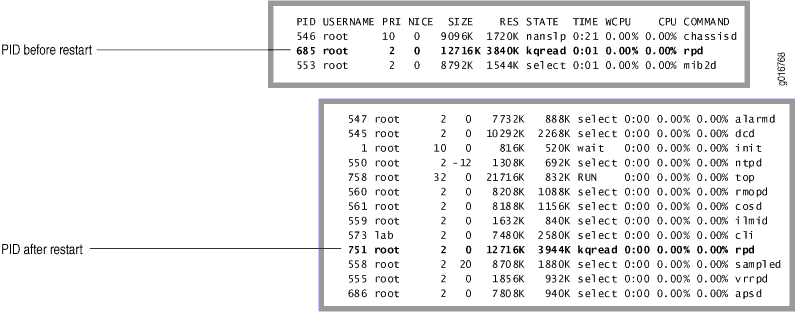
The following example shows how to restart the routing process:
When a process restarts, the process identifer (PID) is updated. (See Figure 1.)
Figure 1: Restarting a Process
Stopping the Junos OS
To avoid damage to the file system and to prevent loss of data, you must always gracefully shut down Junos OS before powering off the device.
 | Note: SRX Series Services Gateway devices for the branch and EX Series Ethernet Switches support resilient dual-root partitioning. If you are unable to shut down a device gracefully because of unexpected circumstances such as a power outage or a device failure, resilient dual-root partitioning prevents file corruption and enables a device to remain operational. In addition, it enables a device to boot transparently from the second root partition if the system fails to boot from the primary root partition. Resilient dual-root partitioning serves as a backup mechanism for providing additional resiliency to a device when there is an abnormal shutdown. However, it is not an alternative to performing a graceful shutdown under normal circumstances. |
To stop Junos OS:
- Make sure you are in operational mode.
- Enter the request system halt command. This
command stops all system processes and halts the operating system.
For example:
user@host> request system haltHalt the system? [yes,no] (no) yes shutdown: [pid 3110] Shutdown NOW! *** FINAL System shutdown message from root@host *** System going down IMMEDIATELY user@host> Dec 17 17:28:40 init: syslogd (PID 2514) exited with status=0 Normal Exit Waiting (max 60 seconds) for system process `bufdaemon' to stop...stopped Waiting (max 60 seconds) for system process `syncer' to stop...stopped syncing disks... 4 done Uptime: 3h31m41s ata0: resetting devices.. done The operating system has halted. Please press any key to reboot.
Rebooting the Junos OS
After a software upgrade or to recover (occasionally) from an error condition, you must reboot Junos OS.
To reboot the Junos OS:
- Make sure you are in operational mode.
- Enter the request system reboot command.
This command displays the final stages of the system shutdown and
executes the reboot. Reboot requests are recorded to the system log
files, which you can view with the show log messages command.
For example:
user@host>request system rebootReboot the system? [yes,no] (no)yesshutdown: [pid 845] Shutdown NOW! *** FINAL System shutdown message from root@host *** System going down IMMEDIATELY user@host> Dec 17 17:34:20 init: syslogd (PID 409) exited with status=0 Normal Exit Waiting (max 60 seconds) for system process `bufdaemon' to stop...stopped Waiting (max 60 seconds) for system process `syncer' to stop...stopped syncing disks... 10 6 done Uptime: 2m45s ata0: resetting devices.. done Rebooting...
Related Documentation
- ACX Series
- Checking the Status of a Device Running Junos OS
- Displaying Junos OS Information
- EX Series
- Checking the Status of a Device Running Junos OS
- Displaying Junos OS Information
- J Series
- Checking the Status of a Device Running Junos OS
- Displaying Junos OS Information
- M Series
- Checking the Status of a Device Running Junos OS
- Displaying Junos OS Information
- MX Series
- Checking the Status of a Device Running Junos OS
- Displaying Junos OS Information
- PTX Series
- Checking the Status of a Device Running Junos OS
- Displaying Junos OS Information
- T Series
- Checking the Status of a Device Running Junos OS
- Displaying Junos OS Information