Related Documentation
- J Series
- Understanding ECMP Flow-Based Forwarding
- M Series
- Understanding ECMP Flow-Based Forwarding
- MX Series
- Understanding ECMP Flow-Based Forwarding
- QFabric System
- Understanding ECMP Flow-Based Forwarding
- QFX Series standalone switches
- Understanding ECMP Flow-Based Forwarding
- SRX Series
- Understanding ECMP Flow-Based Forwarding
- T Series
- Understanding ECMP Flow-Based Forwarding
Example: Configuring ECMP Flow-Based Forwarding
This example shows how to configure ECMP flow-based forwarding.
Requirements
No special configuration beyond device initialization is required before configuring this feature.
Overview
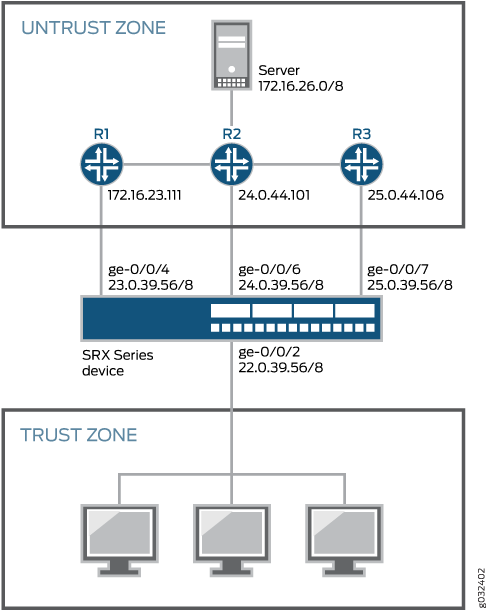
The following example uses a topology of three static ECMP routes. Each static route uses a different router to reach the destination server. The interfaces to the routers are assigned to the untrust security zone. This example creates a load-balancing routing policy named load-balancing-policy and applies the policy to all routes exported from the routing table to the forwarding table.
Topology
Figure 1 shows the topology used in this example.
Figure 1: ECMP Routes
Configuration
CLI Quick Configuration
To quickly configure ECMP flow-based forwarding, copy the following commands, paste them into a text file, remove any line breaks, change any details necessary to match your network configuration, and then copy and paste the commands into the CLI at the [edit] hierarchy level.
Step-by-Step Procedure
The following example requires you to navigate various levels in the configuration hierarchy. For instructions on how to do that, see Using the CLI Editor in Configuration Mode in the CLI User Guide.
To configure ECMP flow-based forwarding:
- Configure interfaces.[edit interaces]user@host# set ge-0/0/2 unit 0 family inet address 22.0.39.56/8user@host# set ge-0/0/4 unit 0 family inet address 23.0.39.56/8user@host# set ge-0/0/6 unit 0 family inet address 24.0.39.56/8user@host# set ge-0/0/7 unit 0 family inet address 25.0.39.56/8
- Create security zones.[edit security]user@host# set zones security-zone trust interfaces ge-0/0/2user@host# set zones security-zone untrust interfaces ge-0/0/4user@host# set zones security-zone untrust interfaces ge-0/0/6user@host# set zones security-zone untrust interfaces ge-0/0/7
- Configure a security policy.[edit security policies from-zone trust to-zone untrust]user@host# set policy permit-mail match source-address 22.0.39.56/8user@host# set policy permit-mail match destination-address 26.0.0.0/8user@host# set policy permit-mail match application junos-mailuser@host# set policy permit-mail then permit
- Configure ECMP routes.[edit routing-options]user@host# set static route 26.0.0.0/8 next-hop 23.0.54.111user@host# set static route 26.0.0.0/8 next-hop 24.0.44.101user@host# set static route 26.0.0.0/8 next-hop 25.0.44.106
- Create a load-balancing routing policy.[edit policy-options]user@host# set policy-statement load-balancing-policy then load-balance per-packet
- Apply the routing policy to all routes exported from the
routing table to the forwarding table.[edit routing-options]user@host# set forwarding-table export load-balancing-policy
Results
From configuration mode, confirm your configuration by entering the show interfaces, show security, show policy-options and show routing-options commands. If the output does not display the intended configuration, repeat the configuration instructions in this example to correct it.
If you are done configuring the device, enter commit from configuration mode.
Verification
Verifying Forwarding Table
Purpose
Verify that the route information for all ECMP routes appears in the forwarding table.
Action
From operational mode, enter the show route forwarding-table command.
Routing table: default.inet
Internet:
Destination        Type RtRef Next hop           Type Index NhRef Netif
...

26.0.0.0/8         user     0 23.0.54.111        rslv     0     1 ge-0/0/4.0
26.0.0.0/8         user     0 24.0.44.101        rslv     0     1 ge-0/0/6.0
26.0.0.0/8         user     0 25.0.44.106        rslv     0     1 ge-0/0/7.0

...
Related Documentation
- J Series
- Understanding ECMP Flow-Based Forwarding
- M Series
- Understanding ECMP Flow-Based Forwarding
- MX Series
- Understanding ECMP Flow-Based Forwarding
- QFabric System
- Understanding ECMP Flow-Based Forwarding
- QFX Series standalone switches
- Understanding ECMP Flow-Based Forwarding
- SRX Series
- Understanding ECMP Flow-Based Forwarding
- T Series
- Understanding ECMP Flow-Based Forwarding