Locate a Switch by LED

Follow these steps to quickly find a particular switch or Virtual Chassis member by causing the status LED to flash.

To find a switch or Virtual Chassis member on a rack full of switches, you can enable the Locate beacon to illuminate an LED on the switch. For Virtual Chassis, this means you can Locate the primary, backup, or a given linecard member (only one member can be located at a time).

To turn on the LED beacon to identify the switch,

  1. In the main menu, select Switches to open the list of switches.
  2. Choose the switch you want to locate by clicking its name in the list of switches.
    The switch details page appears.
  3. Click the Locate button at the top of the page to start the beacon, and again when you want to stop it.
    To locate a member of Virtual Chassis, select the member in the drop down that appears.
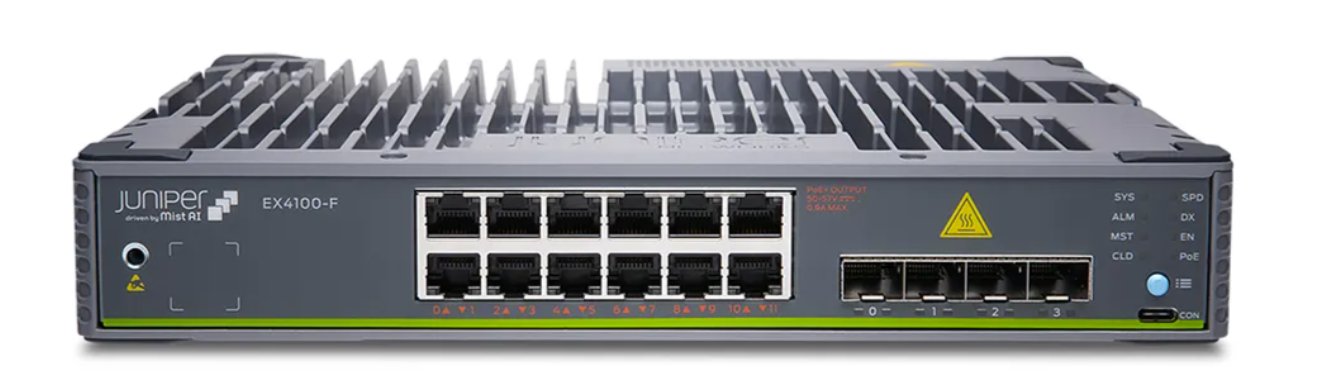
Figure 1: The Mist LED on an EX Series Chassis Juniper Networks EX4100-F Ethernet switch for enterprise and data center use with Mist AI integration for advanced network management.