Request Help with a New Deployment

If you need help with a new deployment of Juniper Mist™ devices, follow these steps to submit your request.

The Juniper Mist Support team provides onboarding assistance to help customers with new deployments. You'll get assistance with initial setup, configuration, and basic troubleshooting.

Note:
  • These services do not include network design.

  • Submit your request at least 48 hours in advance of your preferred appointment time.

  • Available only for wireless, switching, and SD-WAN deployments.

To request help with a new deployment:

  1. Click the question icon near the top-right corner of the Juniper Mist portal, and then click Support Tickets.
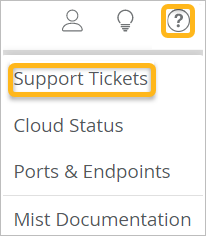
    User interface menu with Support Tickets highlighted, including Cloud Status, Ports and Endpoints, Mist Documentation, and Help icon.
  2. Click Create a Ticket.
  3. For Technology, select the technologies that are applicable to your network and are included in the onboarding support program.
    Note:

    Onboarding help is available only for wireless, switching, and SD-WAN deployments.

  4. For Ticket Type, select Onboarding Help for New Deployment.
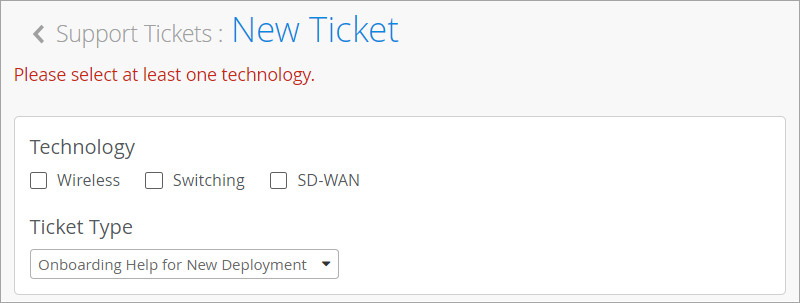
    Support Tickets interface with title Support Tickets: New Ticket. Error message: Please select at least one technology. Sections include Technology with checkboxes for Wireless, Switching, SD-WAN, and Ticket Type with Onboarding Help for New Deployment selected.
  5. Enter a short Ticket Summary and a detailed Description.
  6. Under Checklist, answer all the questions.
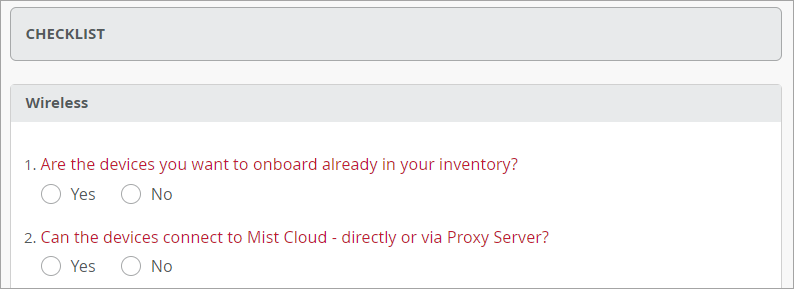
    Checklist for wireless device onboarding with questions about inventory status and Mist Cloud connectivity.
    Note:

    The checklist includes each technology that you selected at the top. Complete all questions in all sections that appear.

    As you complete the checklist, you can use suggested hyperlinks for self-help. If you find your answers in these links, you can cancel submitting this ticket.

  7. Under Schedule, select the date, time, and time zone for your onboarding help session.
    Note:

    If you need to change your appointment after you submit your ticket, you can go to your list of open tickets, select this ticket, and reschedule.

  8. Click Submit at the top right corner of the page.
    If this button is unavailable, ensure that you've entered all required information. Required fields have red labels.
The support team will contact you to conduct the help session.