Claim and Assign Devices to a Site Using the Mist AI Mobile App
Onboard a switch, AP, WAN Edge, or Mist Edge using the Mist AI mobile app.
You can use the Mist AI mobile app to quickly onboard and assign a switch, an access point (AP), a WAN Edge device, or a Mist Edge device to a site.
To onboard a device using the Mist AI mobile app:
- Open the Mist AI app and log in using your account credentials.
- Select your organization.
Claim the device. You can claim a device in several ways:
On the home page, tap Claim Devices to Org. The device is only claimed with this step, and you'll need to manually assign the device to a site.

On the Device Inventory page, select the appropriate device tab (Switches, Access Points, WAN Edges, or Mist Edges), and tap + in the top-right corner. The device is only claimed with this step, and you'll need to manually assign the device to a site.

On the Site page, select the appropriate device tab (Switches, Access Points, WAN Edges, or Mist Edges), and tap + in the top-right corner. In this case, the device is claimed and assigned to the site.

- Locate the QR code on the device.
- Focus the camera on the QR code. Alternatively, you can enter the claim code
manually.
The app automatically claims the device and you see the new device listed under the respective tab.
Assign a Device to a Site
Assigning a device to a site is a simple and quick process using the app. The Device Inventory page provides the list of assigned and unassigned devices in an organization. You can select the unassigned devices, tap Assign, and select the site to which the devices need to be assigned.
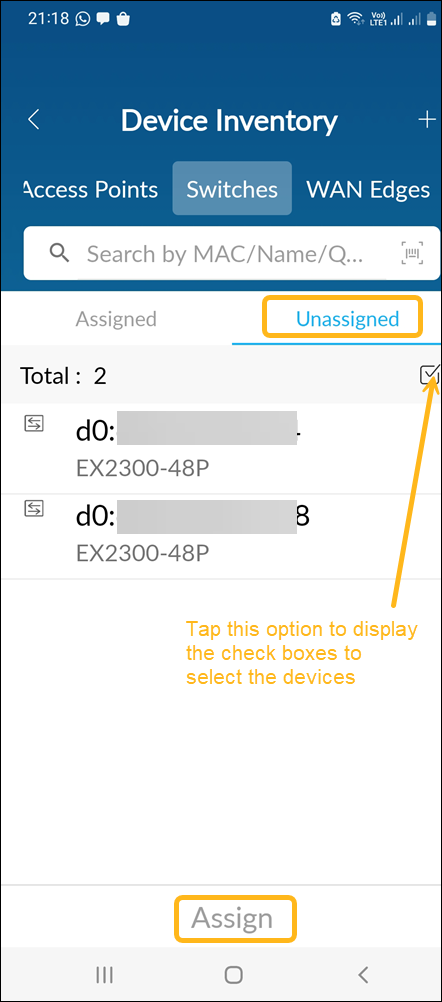
To unassign a device from a site, select the device from the Assigned tab and tap Unassign.
You can also assign a device to a site or unassign a device from a site using the Sites page.