Claim a Switch
Follow these steps to claim a new switch into your Juniper Mist™ organization.
To connect a new switch to the Juniper Mist™ cloud, you need to claim it into your organization. Or, if you want to add a switch from your Juniper Installed Base, see Adopt a Switch from Your Juniper Installed Base. Note that virtual devices such as vJunos-switch, and legacy devices that predate the Mist claim code on the physical hardware, cannot be claimed and instead must be adopted from the Inventory page or your Juniper Installed Base.
-
Click Switches at the top left of the page, and then click
Claim Switches at the top right.

-
Enter the activation code or claim code.
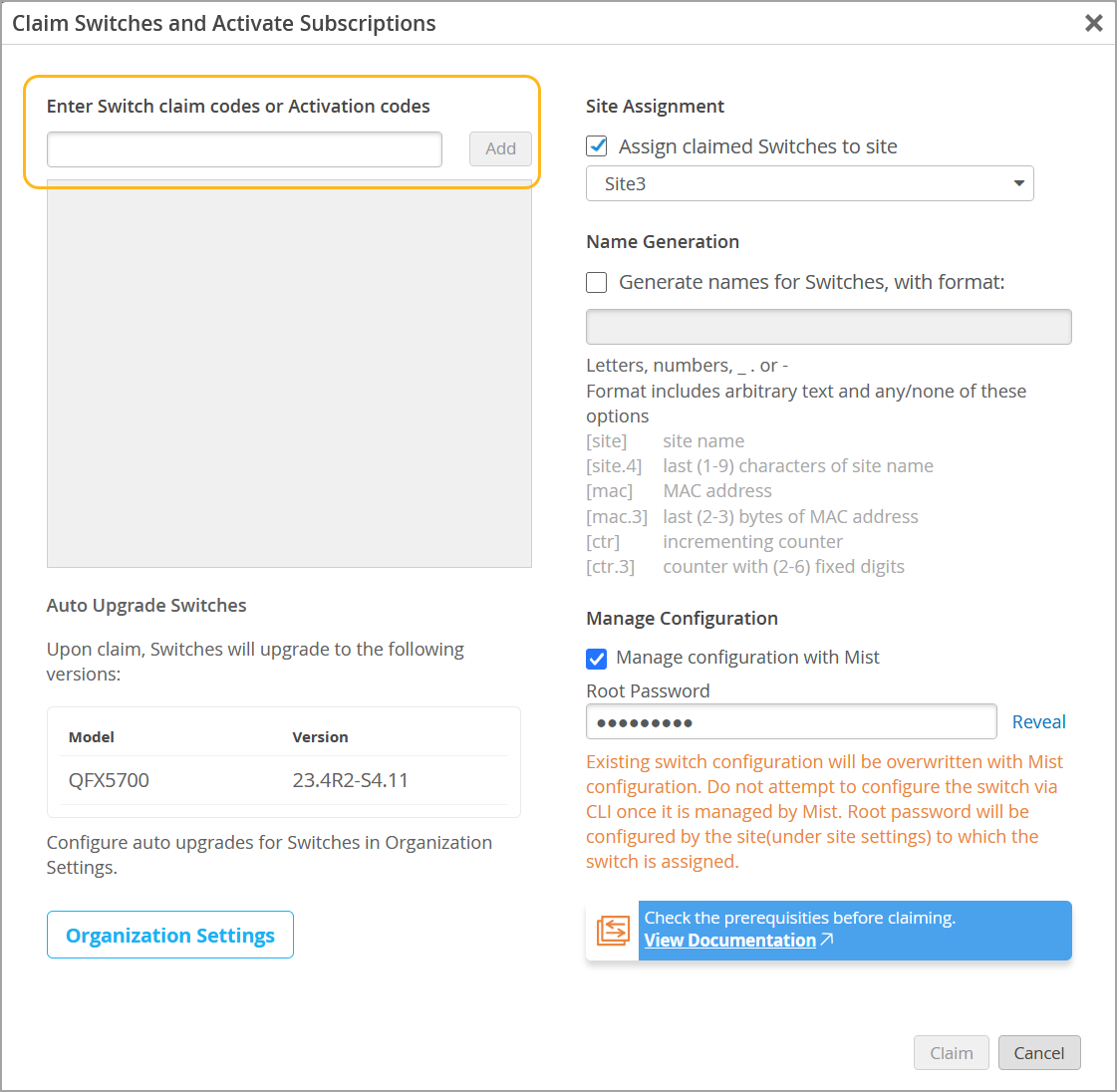
If the organization has automatic upgrade settings configured for the switch being claimed, the switch will be upgraded to the specified Junos version when onboarded. The Auto Upgrade Switches section displays the switch models (along with the target Junos version) for which automatic upgrade configuration is available. If you want to configure or modify these settings, refer to Configure Automatic Upgrade Settings for Switches.