Integrate Your Juniper Support Account with Juniper Mist
For full access to Juniper device data and to features such as bug reports and security alerts, integrate your Juniper support account with Juniper Mist™.
When you integrate your Juniper Account with your Juniper Mist™ organization, the Inventory page presents actionable intelligence about your Juniper devices. This information is powered by Juniper Support Insights (JSI). With these insights, you can transform your support experience from reactive to focused and proactive.
To integrate your Juniper support account with Juniper Mist:
-
Start
from the Organization Settings page or the Installed Base page:
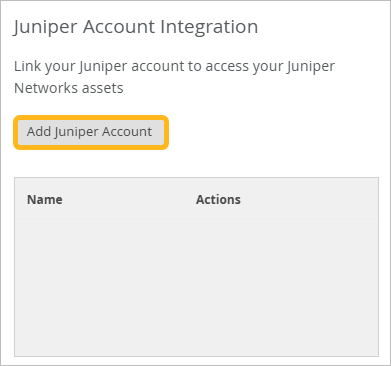
Organization Settings—From the left menu, select Organization > Admin > Settings. Under Juniper Account Integration, click Add Juniper Account.
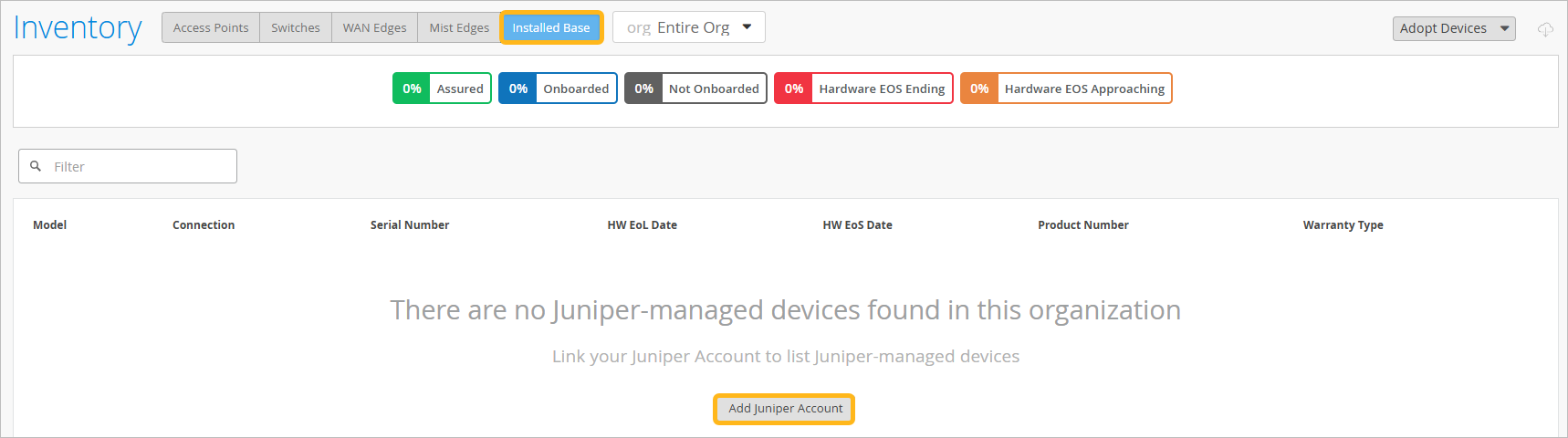
Installed Base—From the left menu, select Organization > Admin > Inventory. At the top of the Inventory page, click the Installed Base button. Click Add Juniper Account.
On successful integration, the primary account name associated with your credentials is listed in the Linked Accounts section. The Linked Account section also lists other primary accounts that are currently linked to the organization.
If you no longer wish to view Juniper-maintained asset information for devices associated with an account in your organization, you can unlink the account.
To view the insights, go to Organization > Admin > Inventory, and then click Installed Base at the top of the page.