Feature Requests
You can submit feature requests through the Juniper Mist™ portal. You also can view other users' requests and vote or comment on them.
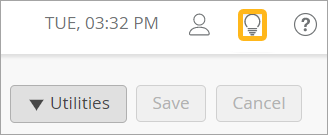
To go to the Product Features pages, click the lightbulb icon (near the top right corner of the Juniper Mist portal).
On this page, you can:
Submit a Feature Request
-
Type a short description of your idea in the Enter your
idea text box.
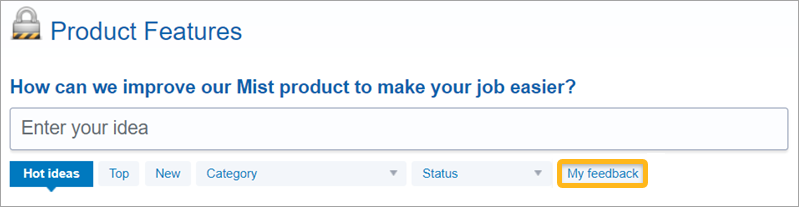 As you type, Juniper Mist searches for similar ideas.
 -
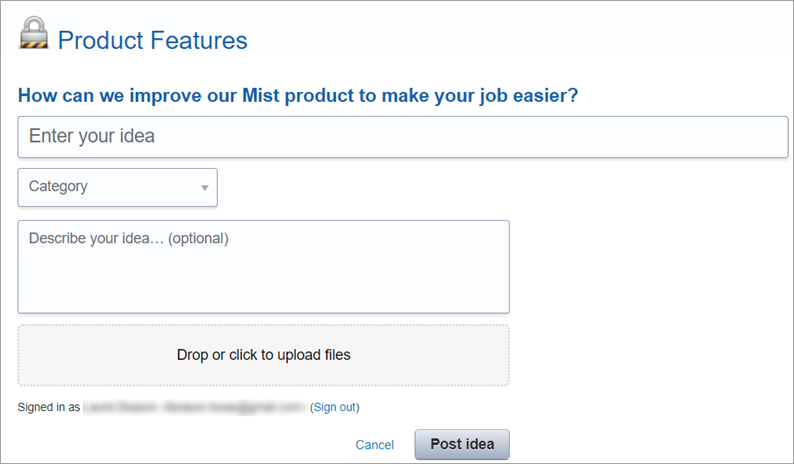
When the feedback form appears, enter details about your idea, and upload
any files that you want to share.
View the Feature Requests
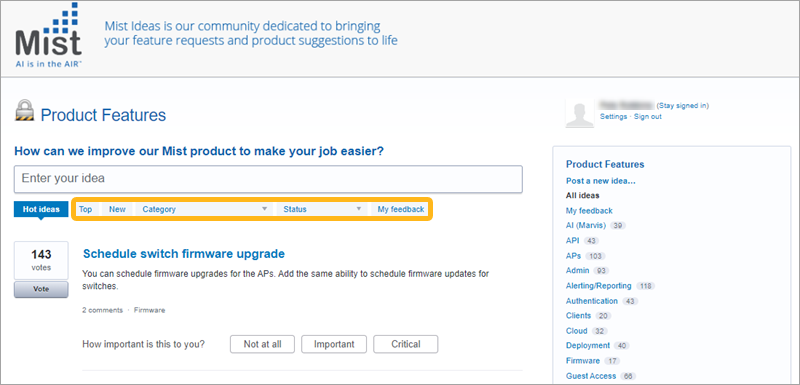
To view the feature requests that you are most interested in, use the buttons, drop-down lists, and category menu.
-
Top—Sort the requests from the highest number of votes to the lowest number of votes.
New
—Sort the requests from the most recent submission to the least recent submission.-
Category—Filter the list based on the category that the user assigned when creating the request.
Tip:Another way to filter by category is to use the category menu on the right side of the page.
-
Status—Filter the list based on the current status.
-
My feedback—View only the feature requests that you've supported or commented on.
Respond to Other Users' Feature Requests
You can respond to the feature requests that other users submitted.
-
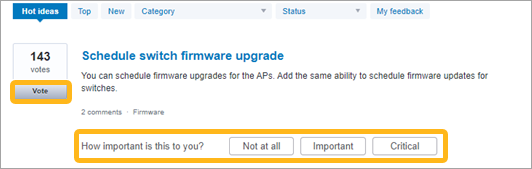
To vote in favor of a request, click Vote on the left side of the page.
-
To rate the importance of a request, click the appropriate button: Not at all, Important, Critical.
-
To add a comment, click the title of the request, then type in the Add a comment text box, and then click Post comment.