Enable or Disable Juniper Mist Support Access
Follow these steps to temporarily allow Juniper Mist support personnel to access your organization for troubleshooting.
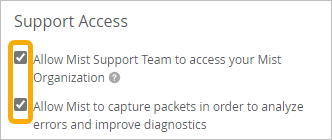
In your organization settings, you can enable or disable access for the Juniper Mist™ support team. As a best practice, disable this feature except during specific time frames when you are working with support to resolve an issue. In that situation, temporarily enable access, and disable it after the issue is resolved.
When this feature is enabled, the support personnel can:
-
See all the device information in the portal.
-
Capture packets. Juniper personnel do not capture payload data, only network data, for analyzing errors and improving diagnostics.
To enable or disable support access:
-
In the Support Access section, select or clear the check boxes.