Troubleshoot Using the Marvis App

Follow these procedures to troubleshoot issues with wireless and wired clients, devices, and sites.

Troubleshoot a Wireless Client

Using the Marvis app, you can view failures of a wireless client and its associated access point (AP).

To check whether a wireless client is experiencing any issues, enter a phrase such as "Troubleshoot client name" in the Teams window.

Here's an example that shows the details Marvis provides for the phrase "troubleshoot client name." In this case, Marvis reports that the client is experiencing an authorization error due to a connection timeout.
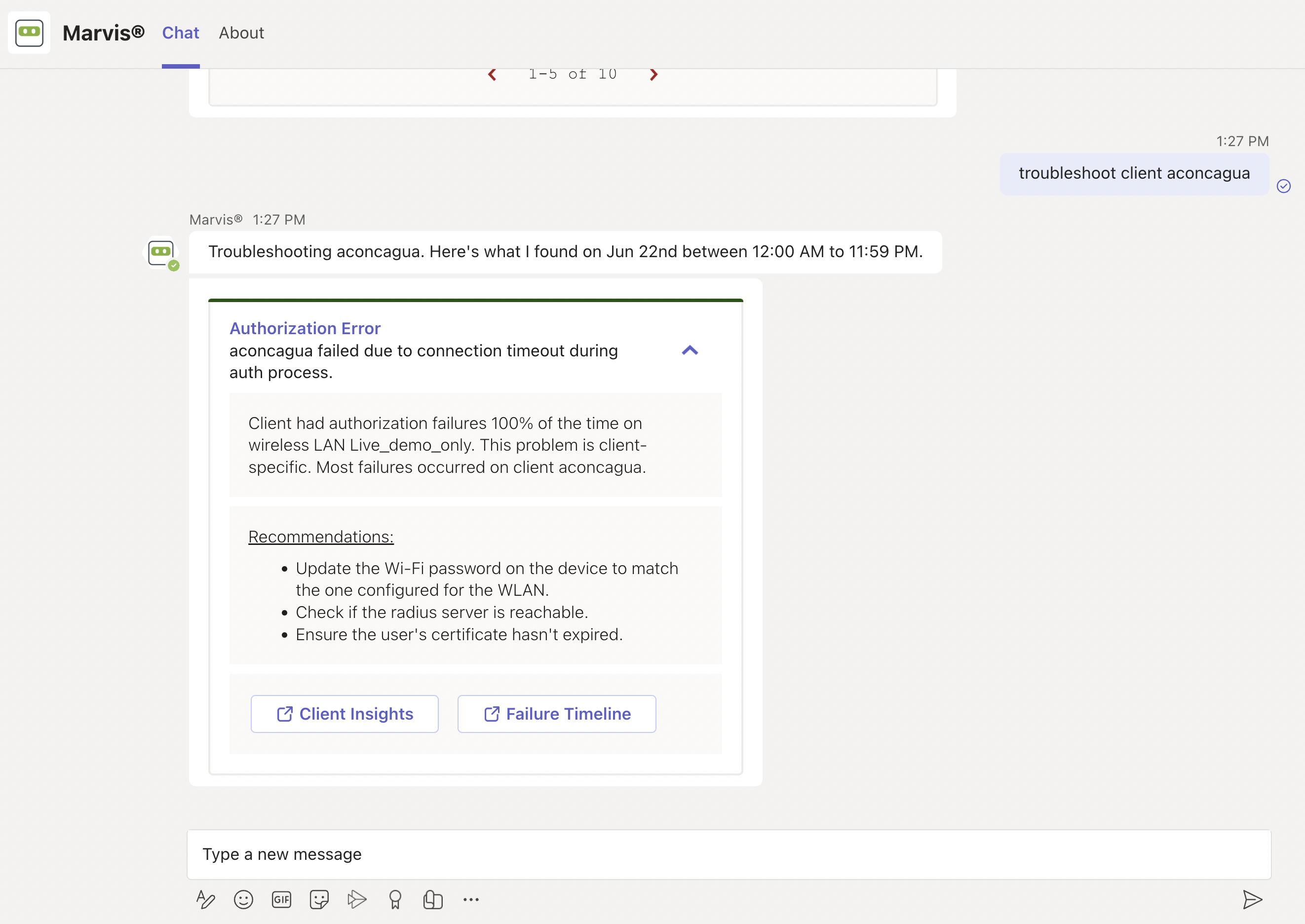
Authorization Error for client aconcagua due to connection timeout. 100 percent authorization failures on WLAN Live_demo_only. Recommendations: update Wi-Fi password, check RADIUS server, ensure certificate validity. Options: Client Insights and Failure Timeline for further investigation.

You can click the issue to view details. You can click the Client Insights or Failure Timeline option for more details. In some cases, Marvis also provides recommendations to fix the issue, as the screenshot shows.

Here are some sample phrases that you can use to troubleshoot wireless clients:

  • how was <client name> on June 22nd

  • tshoot client <mac or name> on June 21

Troubleshoot a Wired Client

To view wired clients that are experiencing issues, use phrases such as the following:

  • tshoot wired client <mac>

  • troubleshoot client name

Here's an example that shows the details Marvis provides for the phrase "tshoot wired client <mac>".
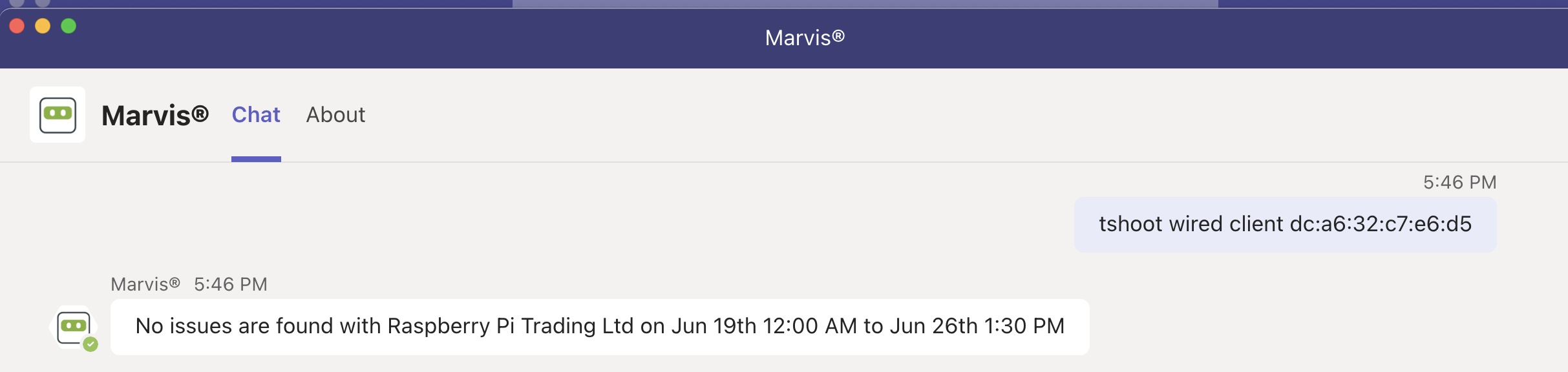
Chat interface showing a query to troubleshoot wired client dc:a6:32:c7:e6:d5. Marvis responds with no issues found for Raspberry Pi Trading Ltd between Jun 19th 12:00 AM and Jun 26th 1:30 PM. Tabs labeled Chat and About are visible at the top.

Troubleshoot a Device

You can use the Marvis app to check for issues on APs, switches, or WAN edge devices.

To check whether a device is experiencing any issues, enter a phrase such as "tshoot switch name" or "tshoot device name" in the Teams window.

Here's an example that shows the details Marvis provides for the phrase "tshoot switch name." In this case, Marvis reports that two clients connected to the switch experienced an authentication failure.
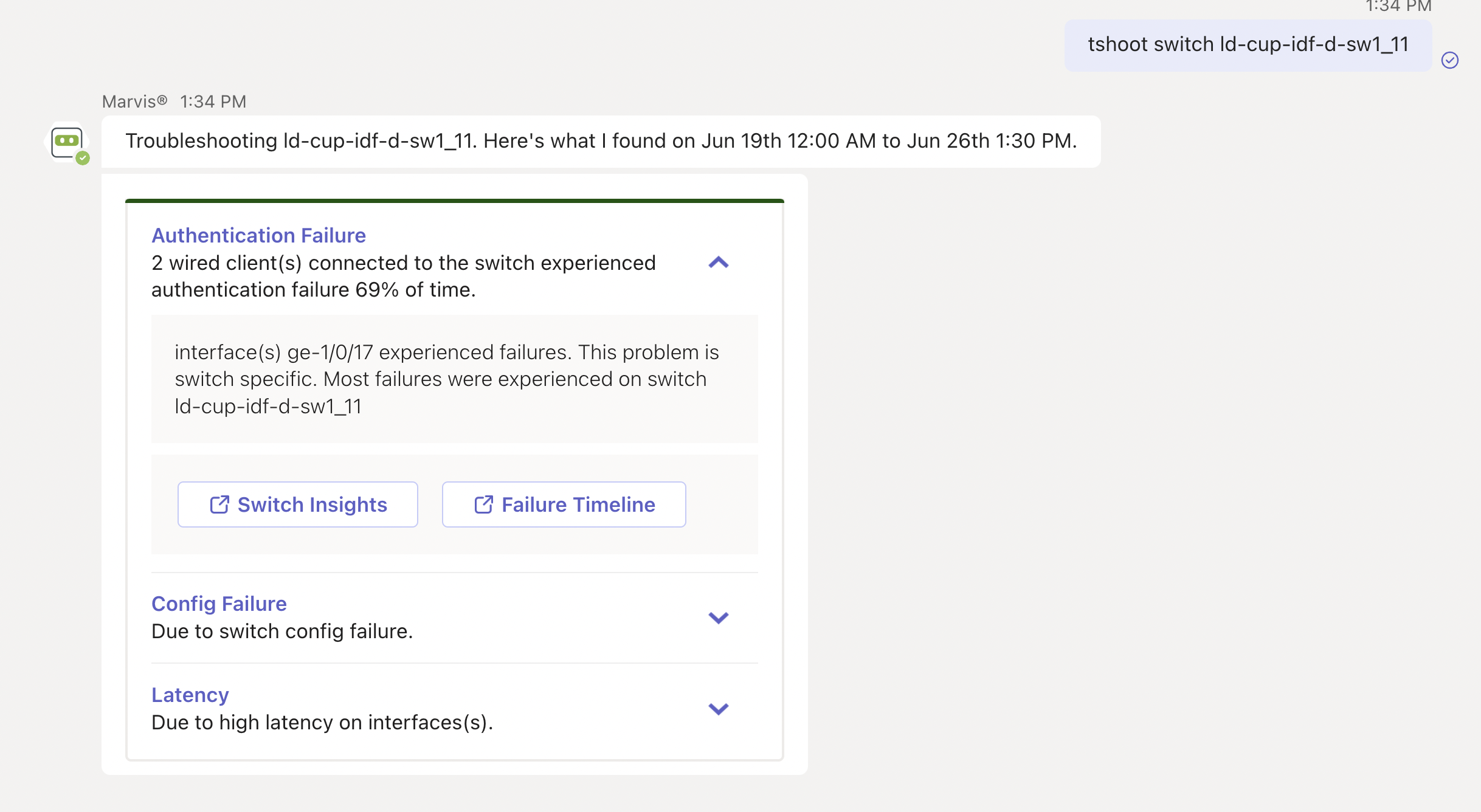
Troubleshooting report for switch ld-cup-idf-d-sw1_11 showing authentication failures for 2 wired clients on interface ge-1/0/17, switch configuration failure, and high latency. Options to view Switch Insights and Failure Timeline.

You can click the issue to view details. You can click the Switch Insights or Failure Timeline option for more details. In some cases, Marvis also provides recommendations to fix the issue, as the following screenshot shows:
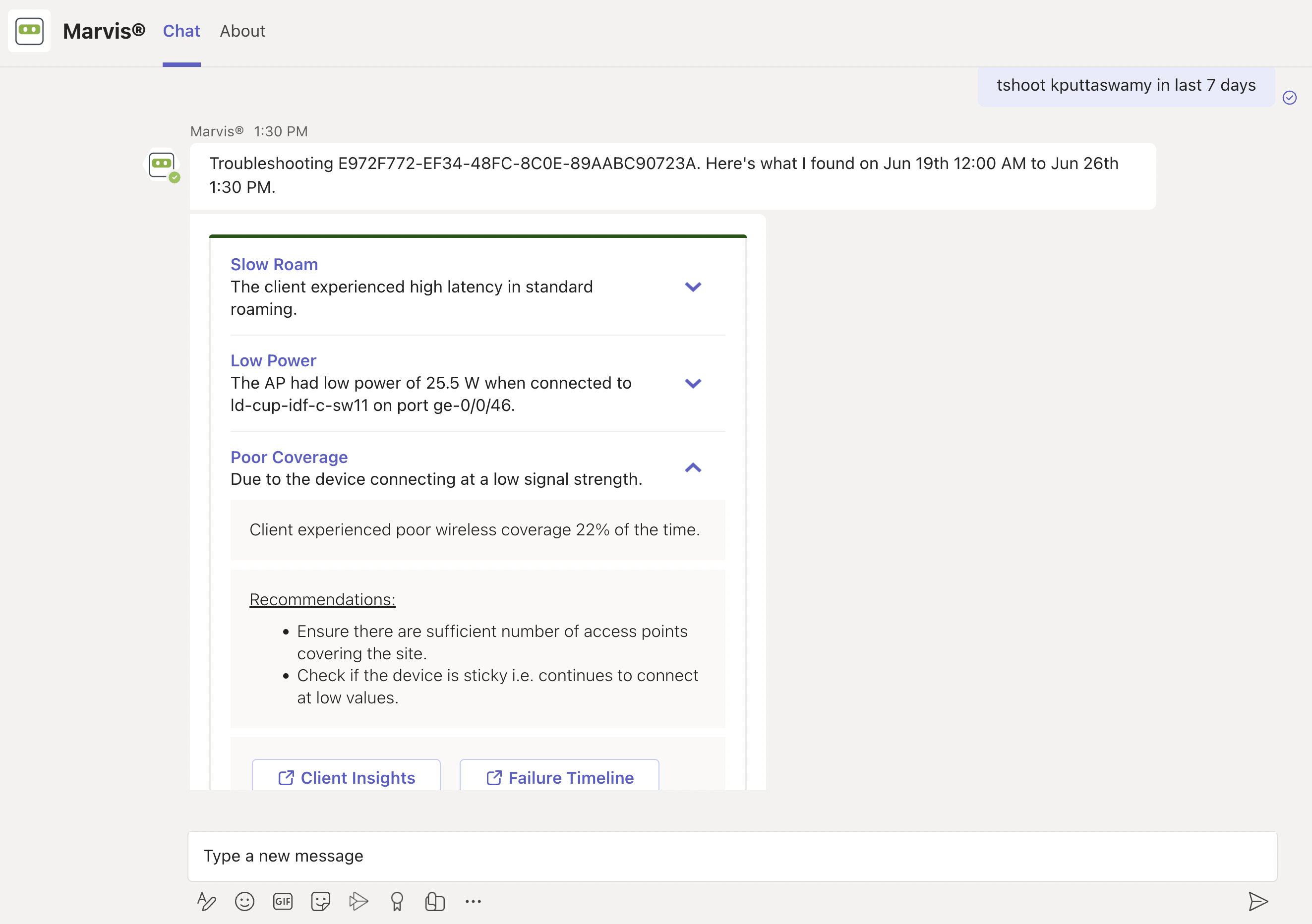
Troubleshooting report from Marvis showing network issues between June 19th and June 26th: slow roam with high latency, low AP power at 25.5 W, and poor wireless coverage at low signal strength 22 percent of the time. Recommendations include adding access points and checking for sticky device behavior. Options for Client Insights and Failure Timeline are available.

Troubleshoot Unhappy Devices or Clients

To check for devices experiencing issues (unhappy devices), simply enter the phrase "unhappy <device type>" in the Marvis chat window. For example, if you want to view unhappy WAN edge devices, enter "unhappy WAN edges" and Marvis will show all the WAN edges that are experiencing issues.

Here are a few examples. You can click any device to view the issues.

Unhappy WAN edges:
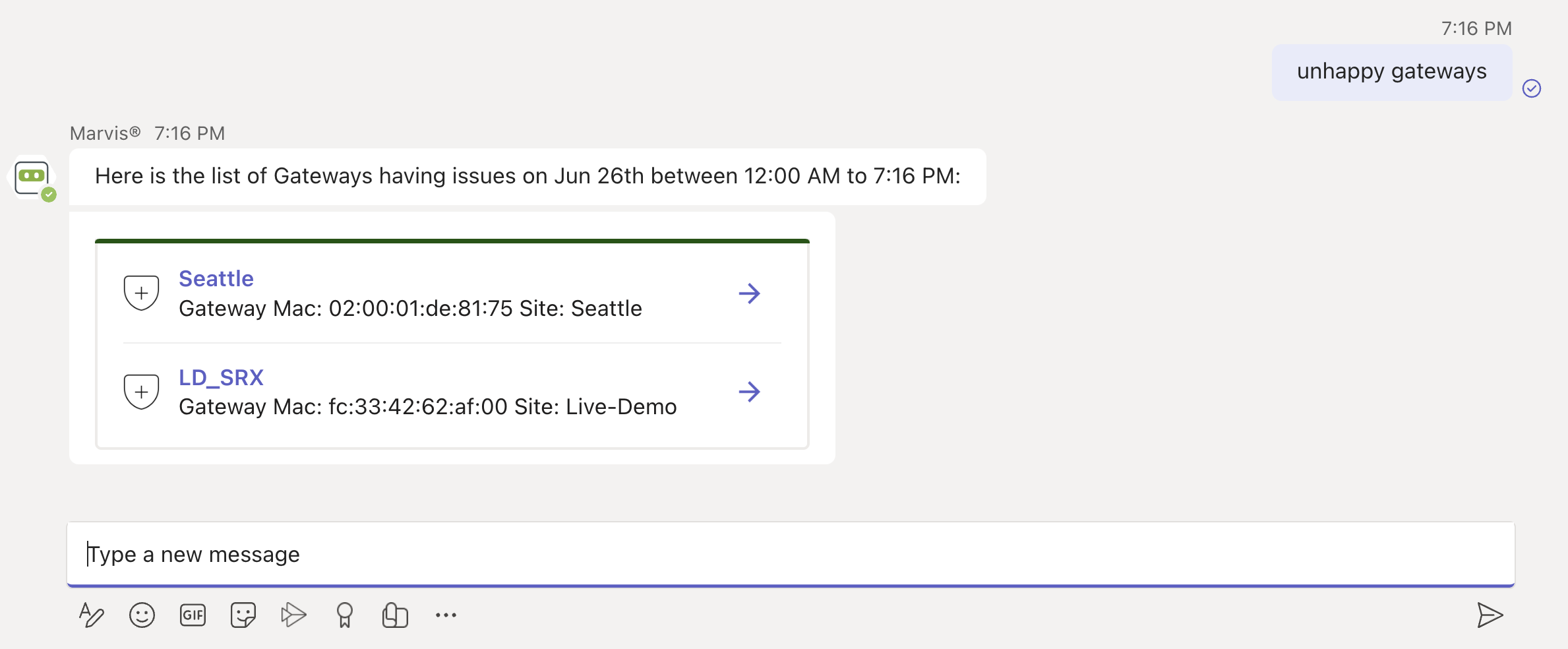
Chat interface showing query results for unhappy gateways on June 26th from 12:00 AM to 7:16 PM. Seattle gateway MAC 020001de8175 at Seattle site and LD_SRX gateway MAC fc334262af00 at Live-Demo site. Shield icons and arrows present for actions. Text input field visible for further queries.

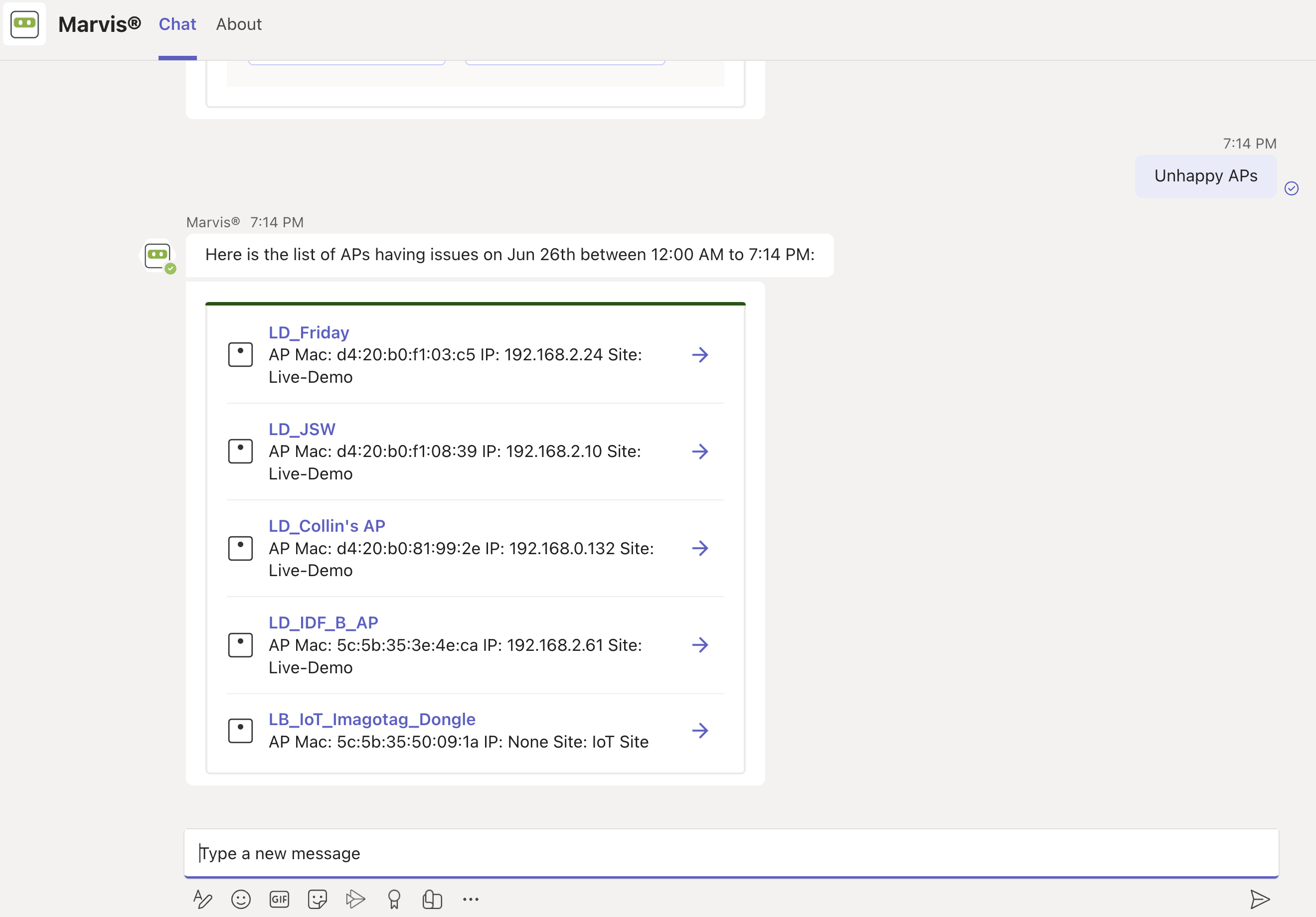
Unhappy APs:

Chat interface displaying a list of Access Points with issues on June 26 between 12:00 AM and 7:14 PM, including names, MAC addresses, IP addresses, and sites.

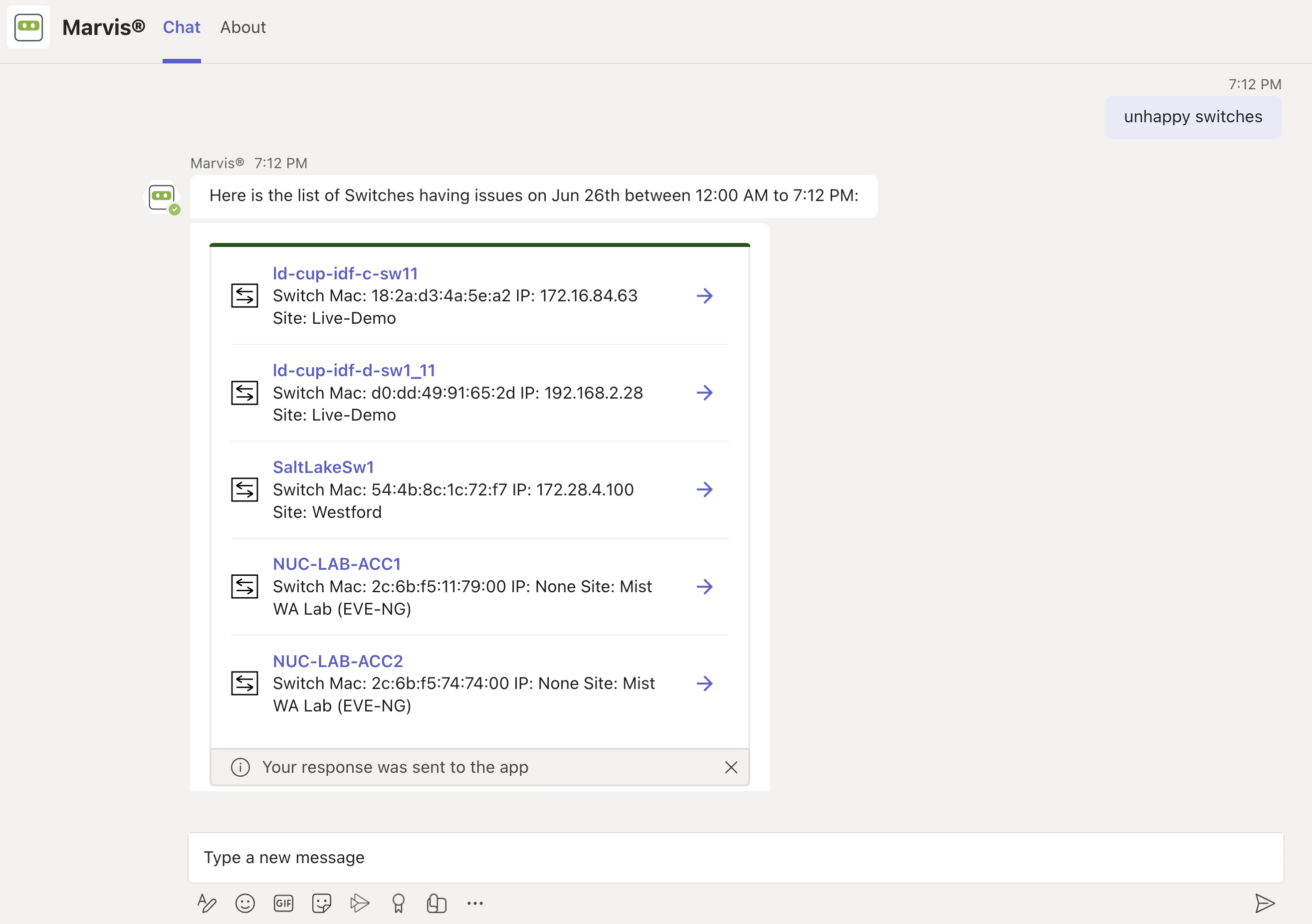
Unhappy Switches:

Chat interface with virtual assistant Marvis listing network switches experiencing issues on June 26th from 12:00 AM to 7:12 PM, including switch names, MAC addresses, IPs, and site locations.

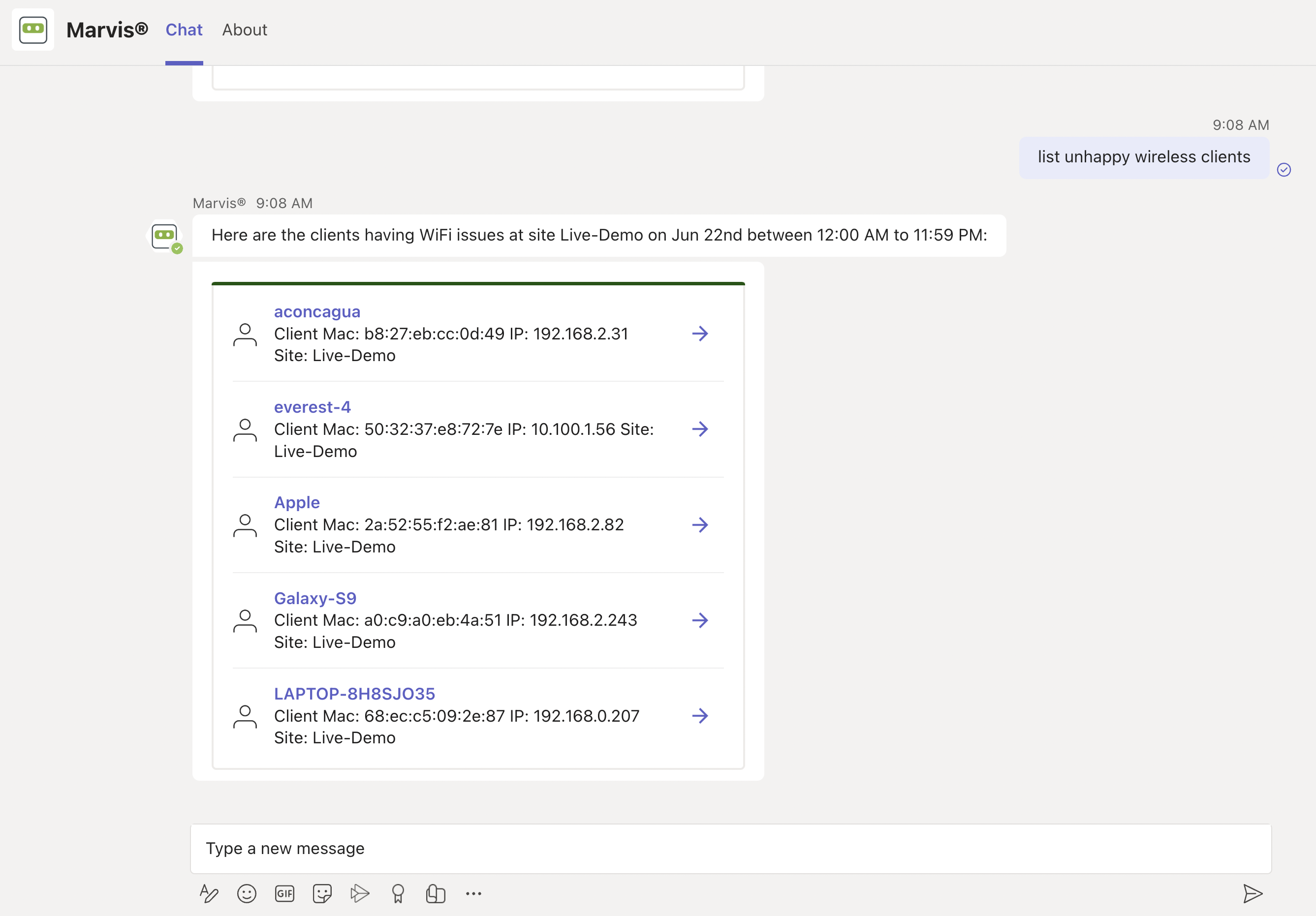
Unhappy Wireless Clients:

Chat interface showing a query asking to list unhappy wireless clients and a response listing five clients with WiFi issues at Live-Demo site on June 22nd.

Troubleshoot a Site

You can use the Marvis app to troubleshoot sites to identify site-level failures.

To check whether a device is experiencing any issues, enter a phrase such as "troubleshoot site name" in the Teams window.

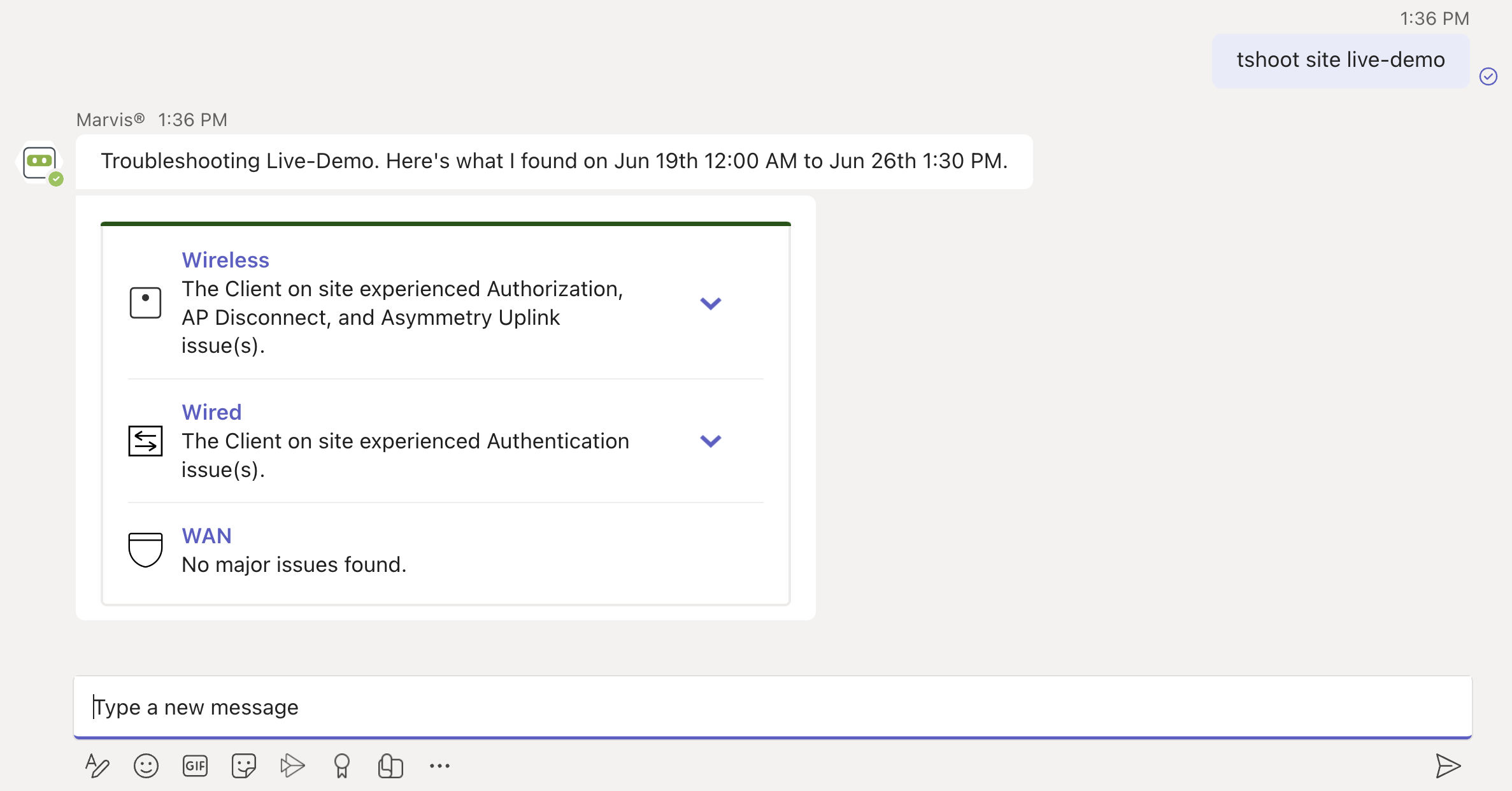
Here's an example that shows the details Marvis provides for the phrase "troubleshoot site name." Marvis shows the troubleshooting results for the site. Marvis classifies these failures under the following categories:

  • Wireless

  • Wired

  • WAN

Troubleshooting interface for Live-Demo showing diagnostic data from June 19th 12:00 AM to June 26th 1:30 PM. Wireless issues include Authorization, AP Disconnect, and Asymmetry Uplink. Wired issues include Authentication. No major WAN issues detected.

You can click the expand arrow to view more details. You can drill down further to view site-level insights and device-level insights.
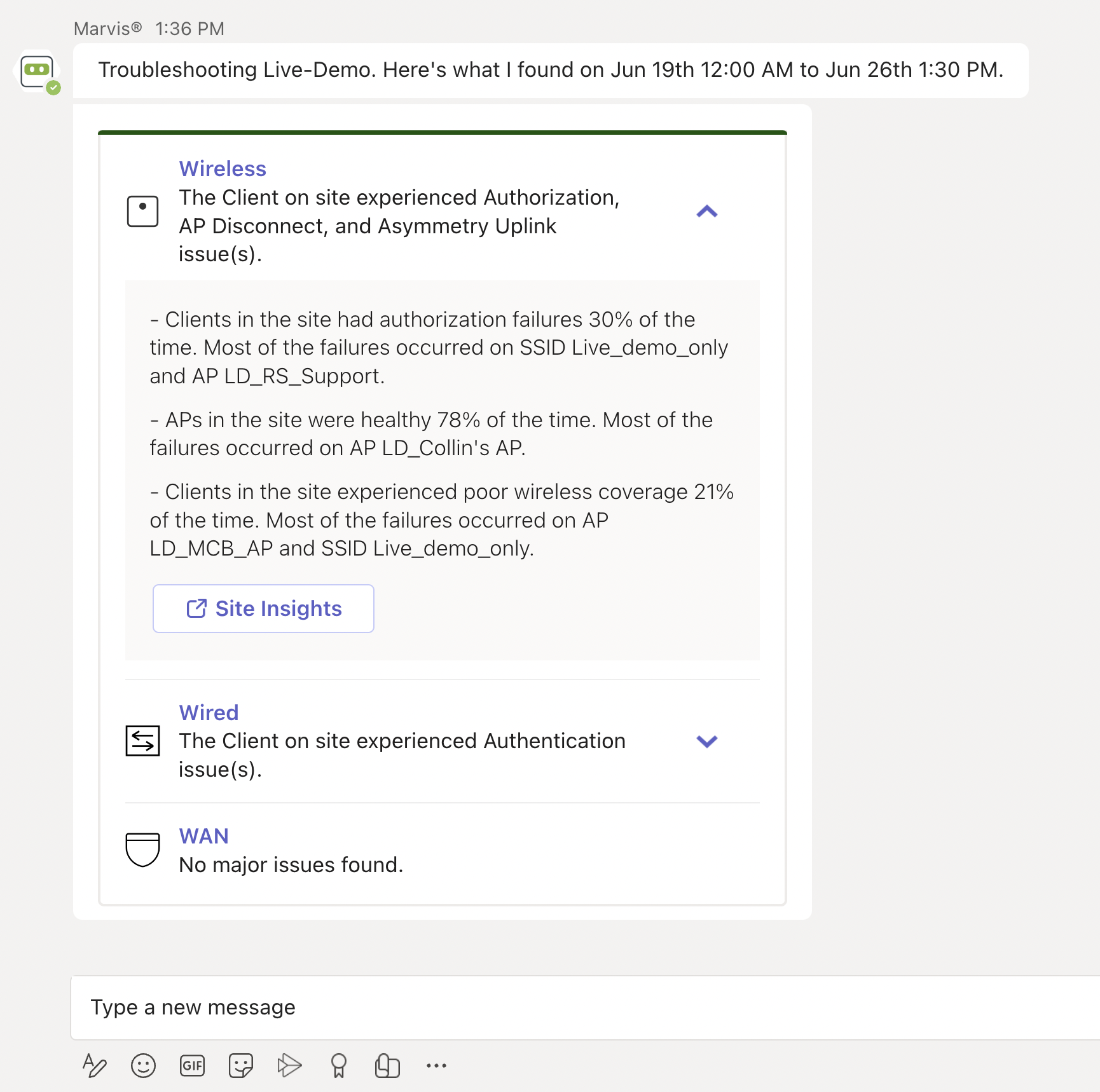
Troubleshooting report showing wireless issues with authorization failures on SSID Live_demo_only, AP disconnects, uplink asymmetry, and poor coverage. Wired shows authentication issues. WAN has no major issues. Site Insights link provides details.