View or Change the Organization in the Marvis App
Select the organization that you want to view in the Marvis app.
You can run queries against multiple organizations and also switch between organizations using the Marvis app,
The Marvis app enables you to:
-
Switch between organizations.
-
View the current active organization (that is, the organization that you're connected to).
-
Connect to a new organization or reconnect to the active organization.
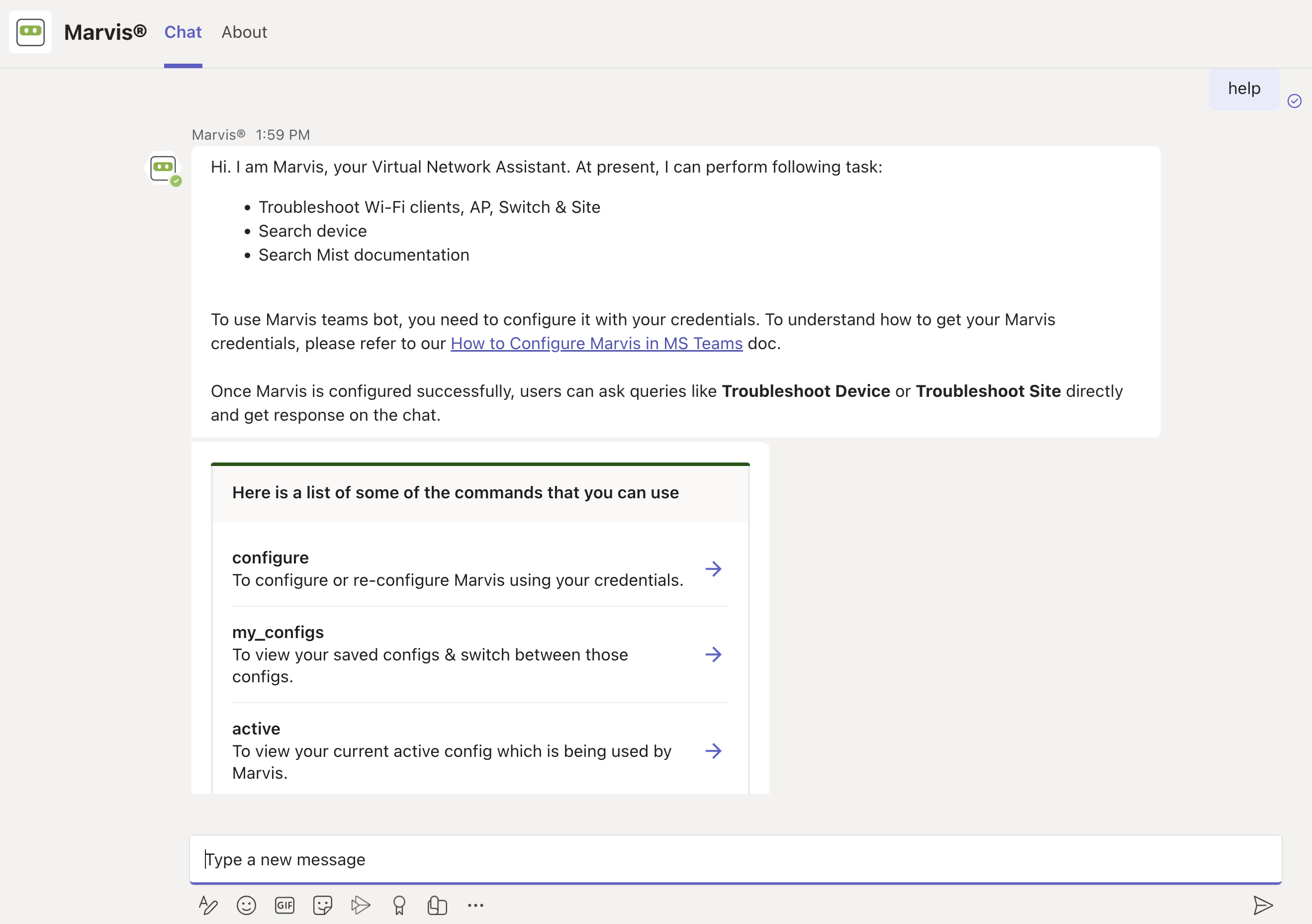
Simply type help in the Marvis chat window, and you'll see details about the configure, my_configs, and active options:
-
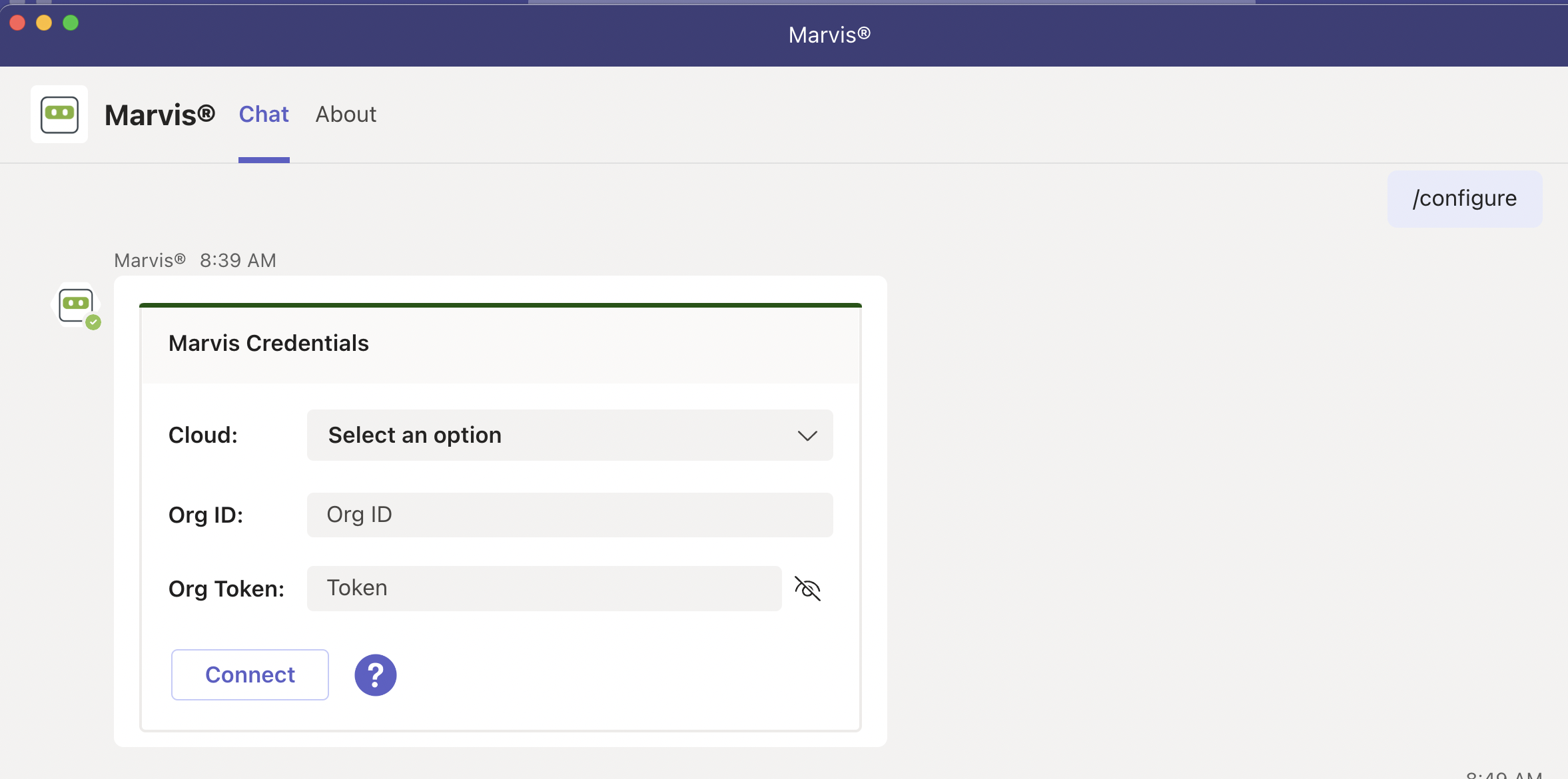
If you enter configure, Marvis displays the login screen. You can either reconnect to the current active organization or connect to a different organization.
-
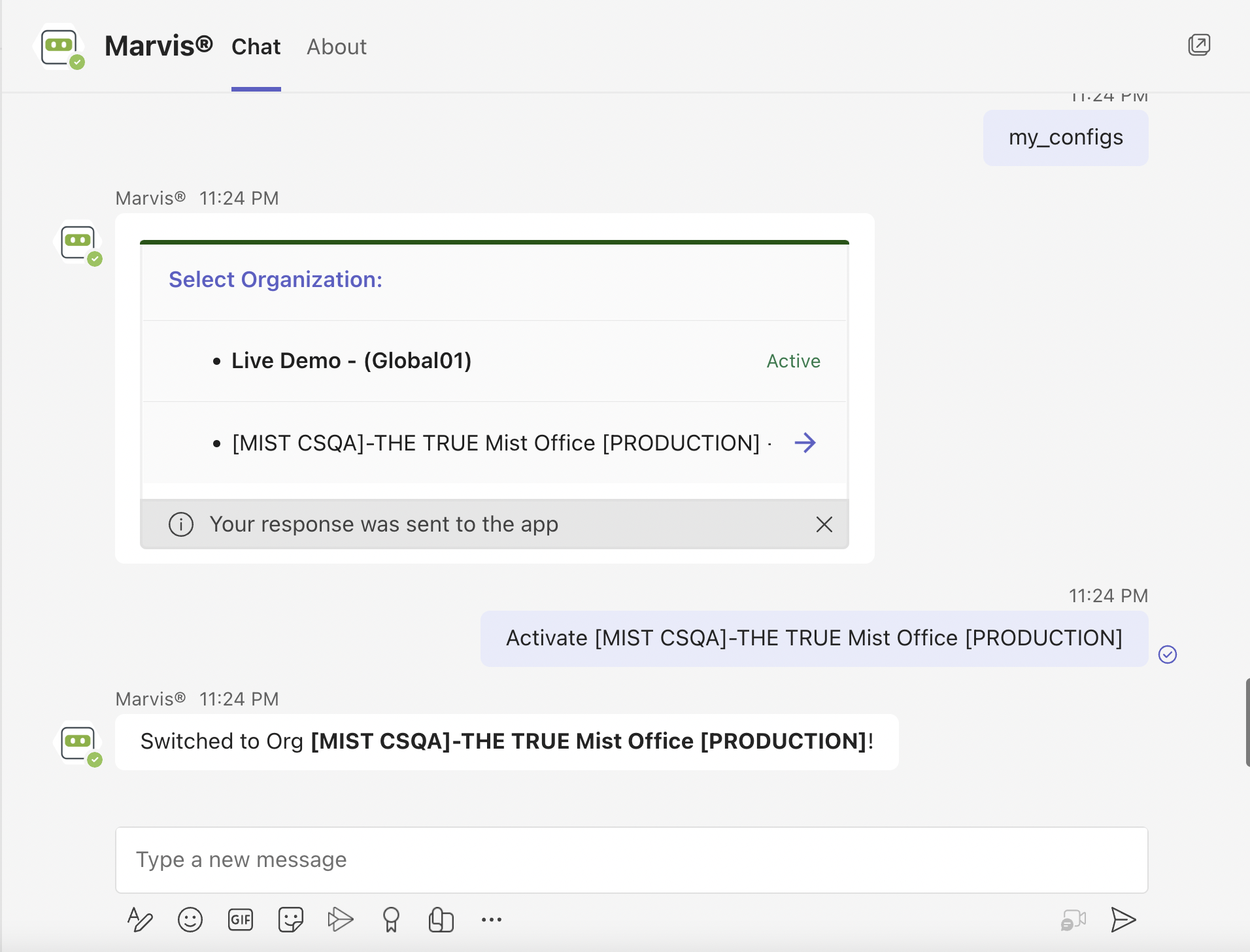
If you enter my_configs, Marvis displays the following:
-
Organizations that you're connected to
-
The current active organization
Selecting another organization makes it the active organization. You can query Marvis for information about the devices and sites in that organization.
-
-
If you enter active, Marvis displays the organization that is currently active.