Install the Marvis App in Microsoft Teams

Follow these procedures to install the Marvis app, connect it to your Juniper Mist™ organization, and add the app to a Teams channel.

Teams users can install and use the Marvis app only if the administrator allows the app in the Teams environment. Additionally, the administrator must make the app available to users through permission policies. See Enable or Integrate the Marvis App in Microsoft Teams.

Install the Marvis App in Teams

To install the Marvis app in Teams:

  1. From the left pane of your Microsoft Teams window, select Apps.
  2. Enter Marvis in the Search box and click the Search icon.

    You'll see the Marvis app listed in the search results.

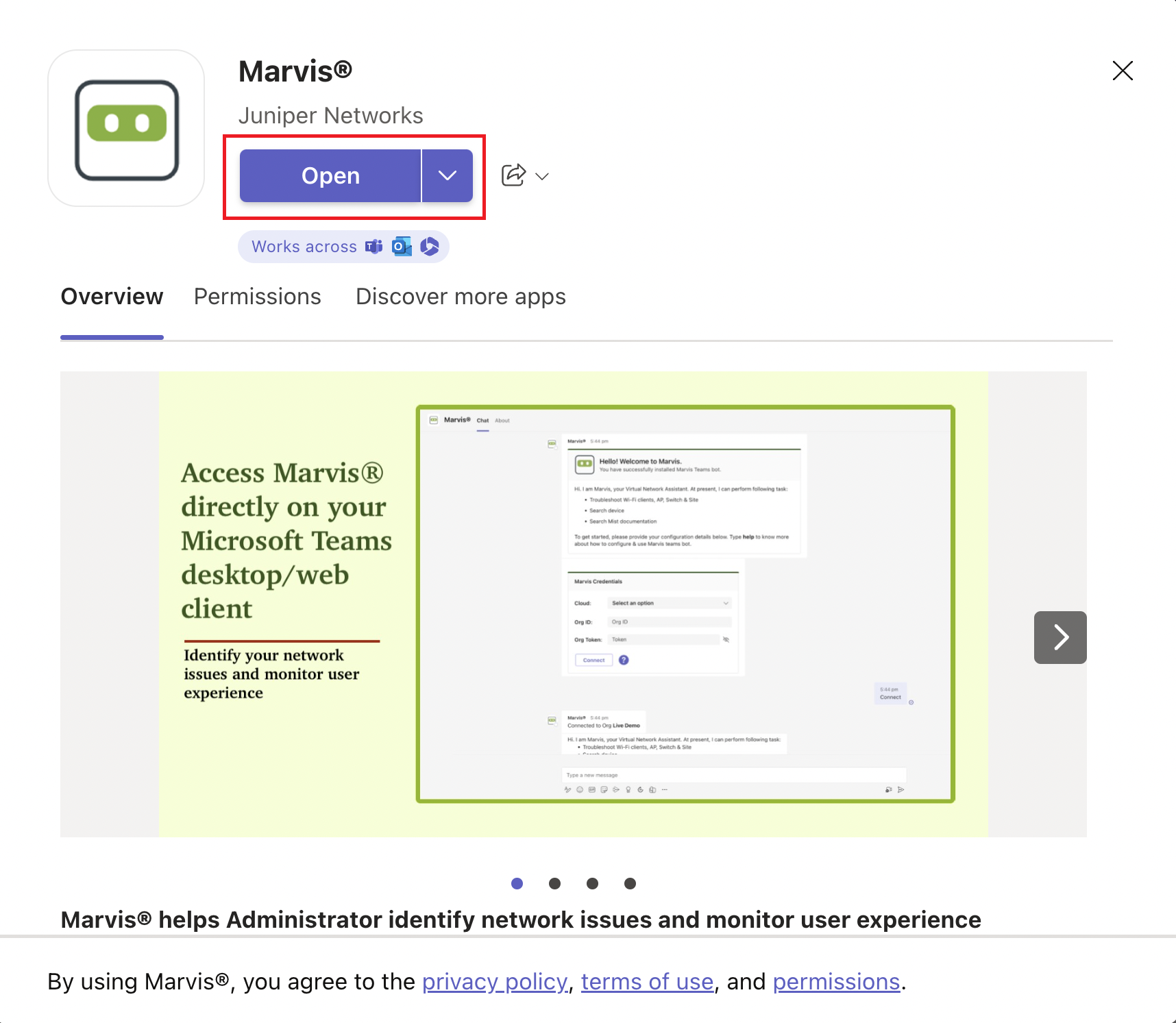
  3. Select the app and click Open.

    Screenshot of Marvis by Juniper Networks app page in Microsoft Teams. Features Open button, app description, preview of Marvis interface, and footer agreement note.

    You'll see the following window, which indicates that you have successfully installed the app:
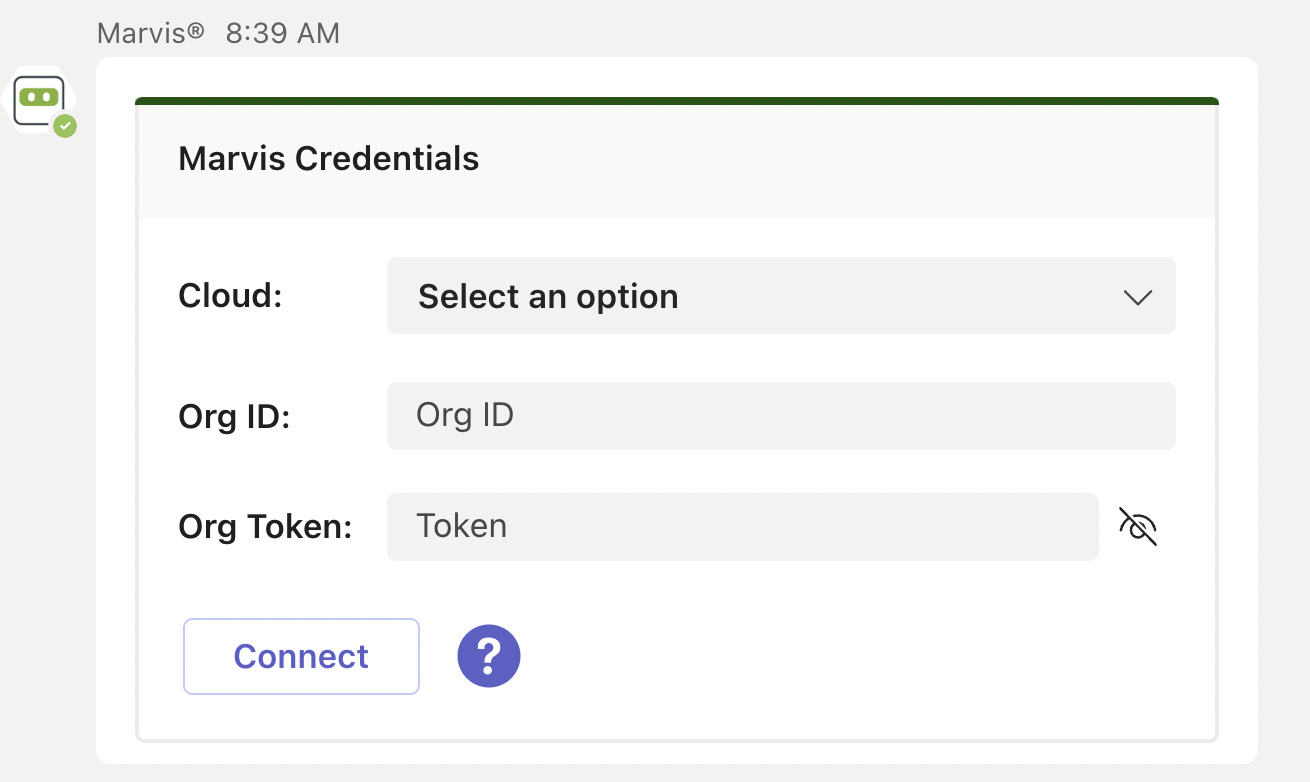
    User interface for entering Marvis Credentials with fields for Cloud dropdown, Org ID, Org Token with hide-show option, Connect button, and help icon.

  4. Next, you'll need to connect to your organization in the Mist portal.

Connect to Your Mist Organization

To connect to your Mist organization:

  1. Enter the following details to log in to your organization:
    • Cloud environment name (for example, Global 01, Global 02). You can obtain this information from the Mist portal login screen.
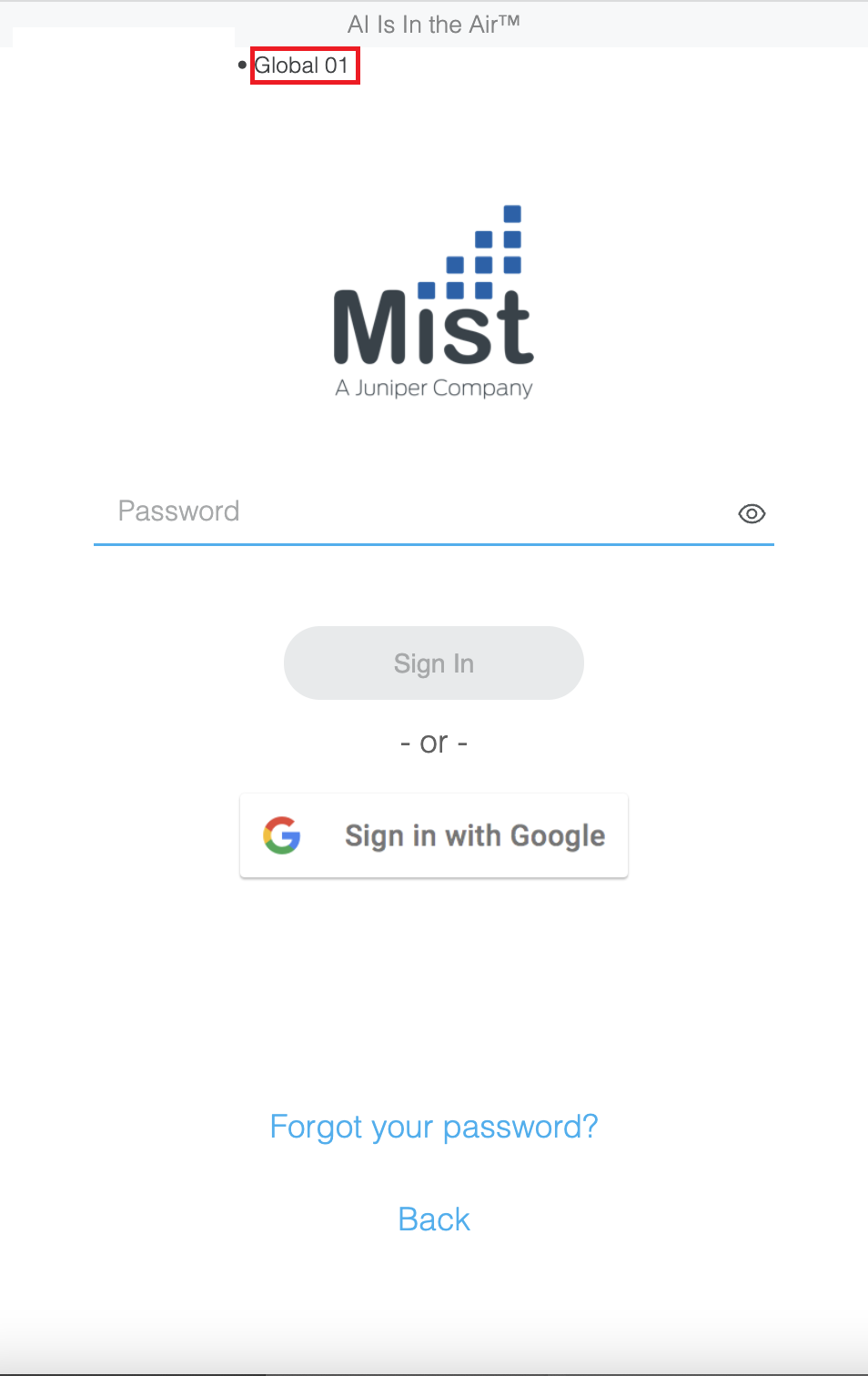
      Login page for Mist, a Juniper Networks company, with AI Is In the Air tagline, password field, Sign In and Google Sign-In buttons, and links for Forgot your password and Back.
    • Organization ID (Org ID)

      You can find your Org ID on the Organization > Settings page in the Mist portal.
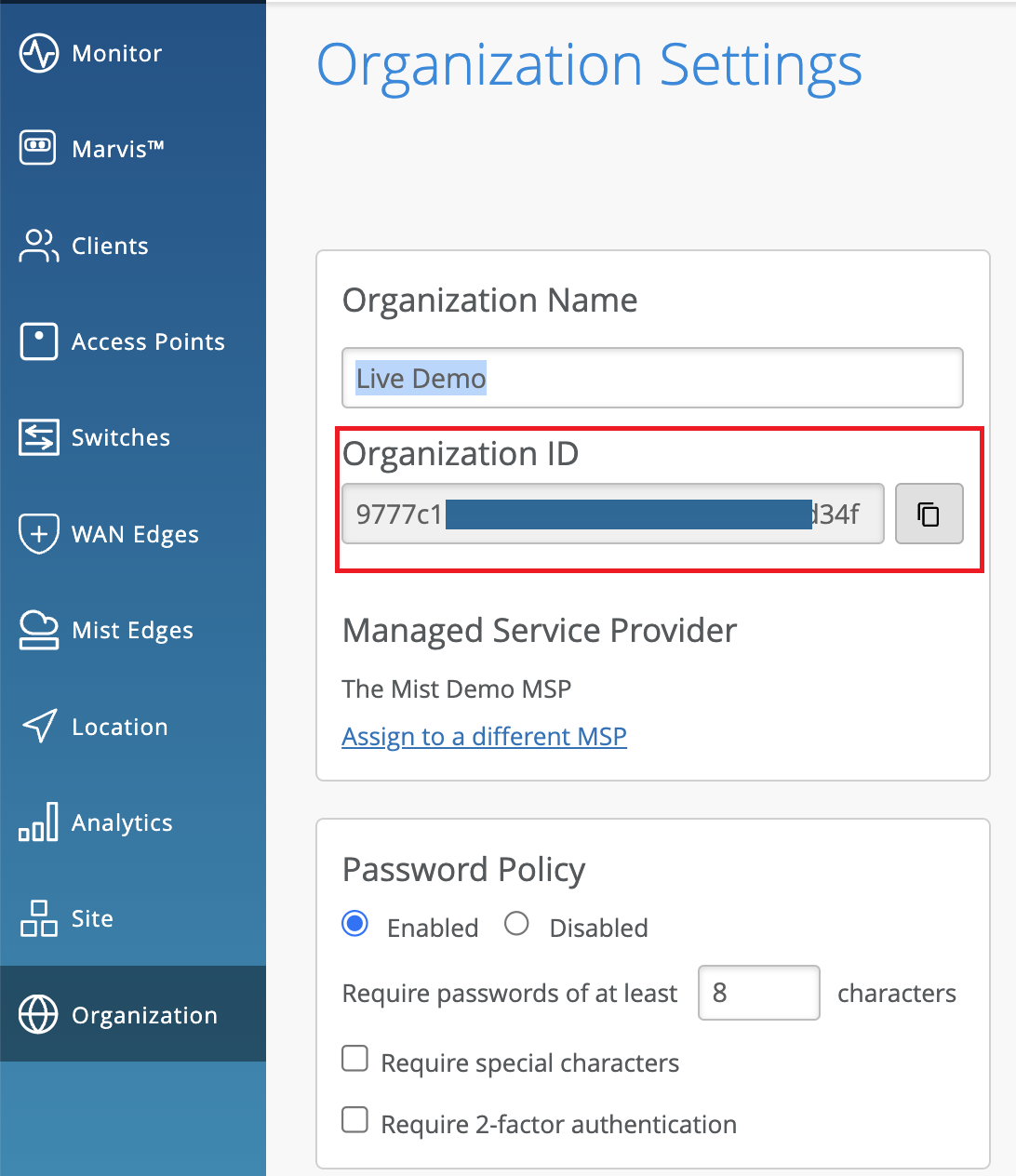
      Organization Settings page showcasing organization name Live Demo, organization ID partially visible in red, MSP set to The Mist Demo MSP, password policy enabled with 8-character minimum, no special character or 2FA requirement, and a navigation menu for IT management features like Monitor, Clients, and Access Points.
    • Org Token

      You can generate the Org token on the Organization > Settings page in the Mist portal. The Org token operates like the user-based API token, but it is tied to a particular organization. Org token permission is based on the Access Level and Site Access options you select.

      To create a token:

      1. Click Create Token under the API Token section on the Settings page.

      2. Enter a name and click Generate. The generated key is the Org Token.
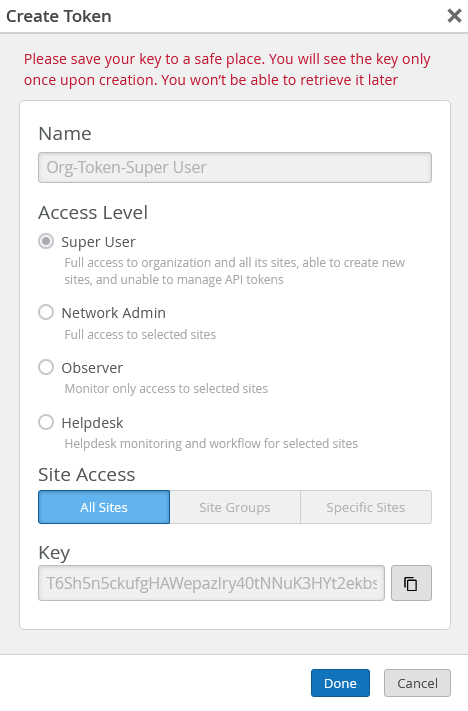
      Create Token interface with fields for token name, access level options, site access scope, generated token key with copy button, and action buttons Done and Cancel. Warning to save key securely is displayed.
  2. Click Connect. A successful connection displays the following window:
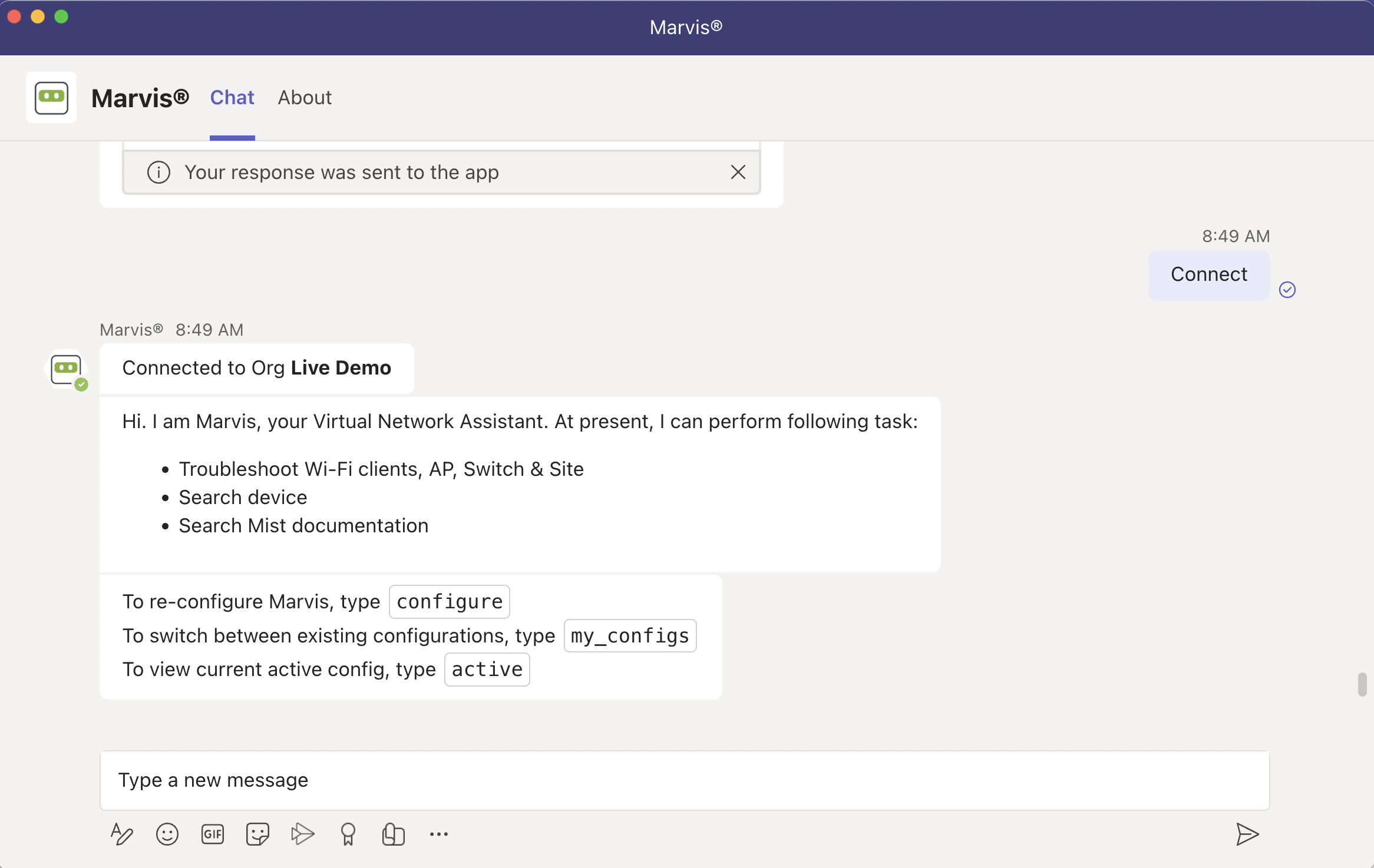
    Chat interface for Marvis virtual network assistant connected to Live Demo organization. Lists tasks like troubleshooting Wi-Fi clients and devices, searching Mist documentation, and provides configuration instructions. Text input field and icons for attachments, emojis, and options are shown.

Add the Marvis App to a Microsoft Teams Channel

You can add the Marvis app to a Microsoft Teams channel as a team member. Members of that Teams channel can then query Marvis for information.

Before you add Marvis to a Teams channel, you must install the app in Teams and connect the app to the organization, as described in the previous sections.

To add the Marvis app to a Microsoft Teams channel:

  1. In the left pane of your Microsoft Teams window, select Apps.
  2. Enter Marvis in the Search box and click Search.
    You'll see the Marvis app listed in the search results.
  3. Click the app and select Add to a Team.
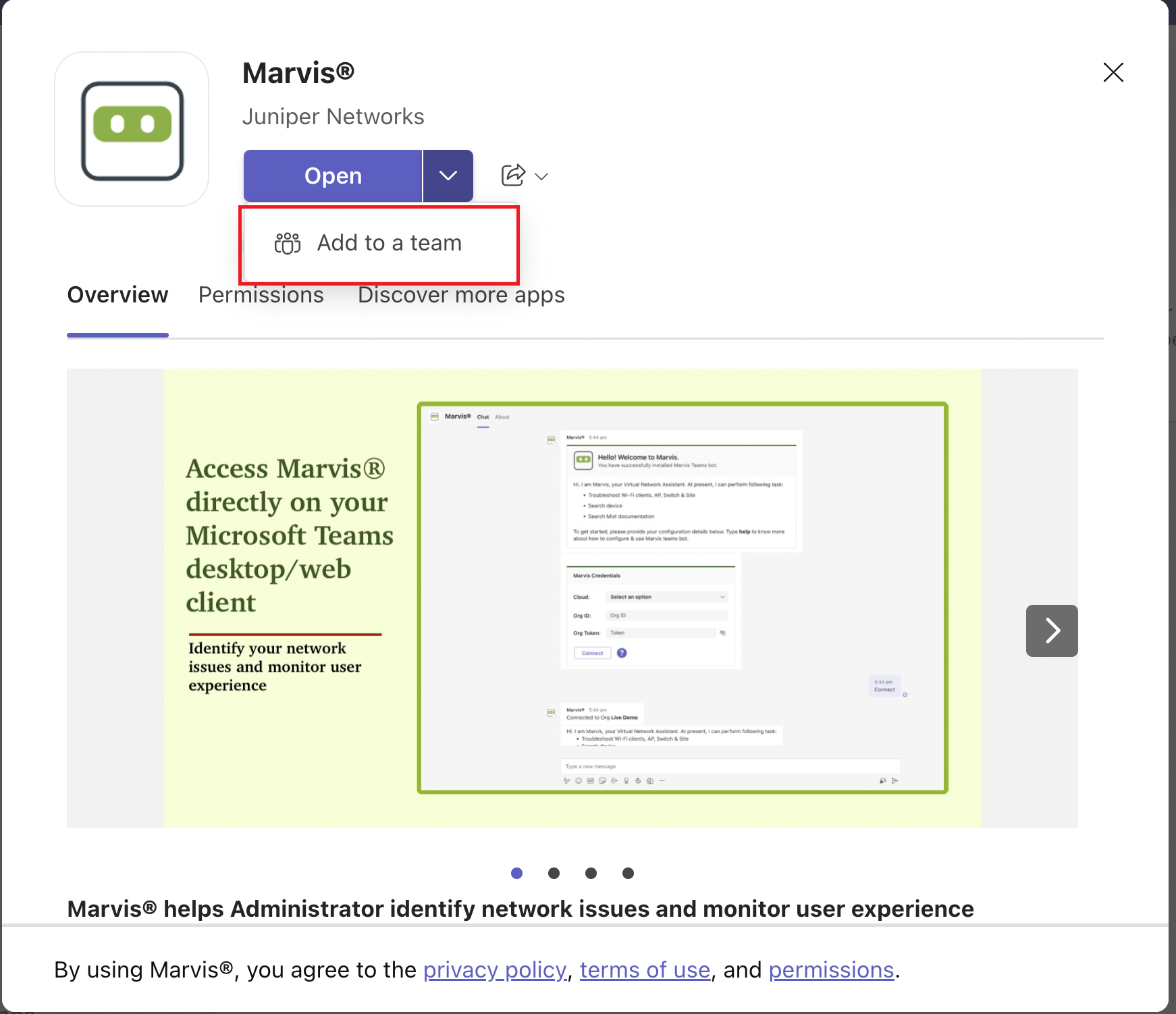
    Marvis app by Juniper Networks on Microsoft Teams store with options to Open or Add to a team and overview detailing network issue identification and user experience monitoring.
  4. Select the Teams channel.
    That's it! You and your team members can start asking Marvis questions.
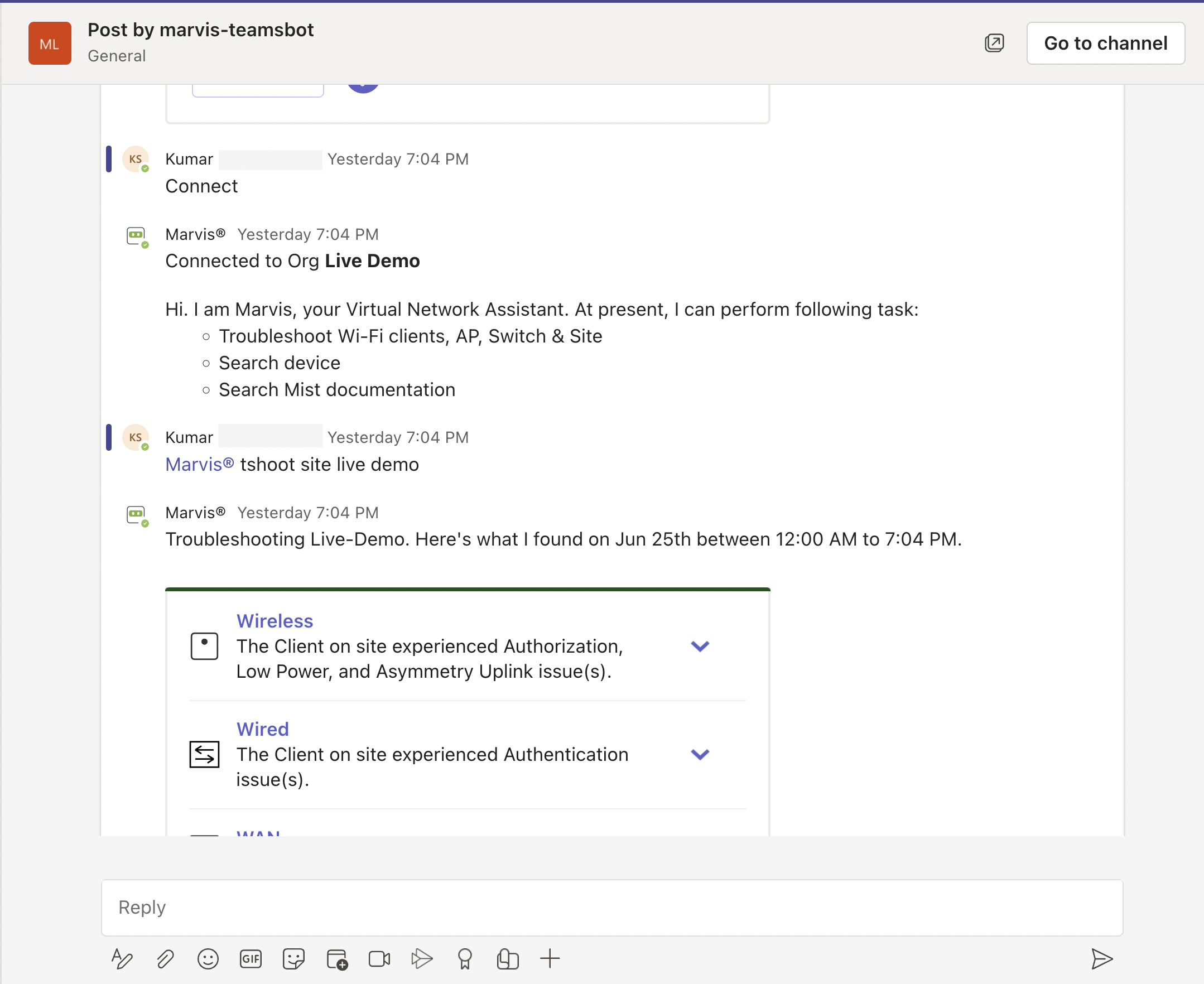
    Chat interface showing Kumar asking Marvis to troubleshoot the Live Demo site. Marvis lists its capabilities and provides a summary of issues found, categorized into Wireless, Wired, and WAN sections, with options to expand for details.

  5. Use the @marvis prompt to enter your first question.