Search and List Functions in the Marvis App
Use the Marvis App to search for devices, sites, and documentation.
Search for Devices and Sites
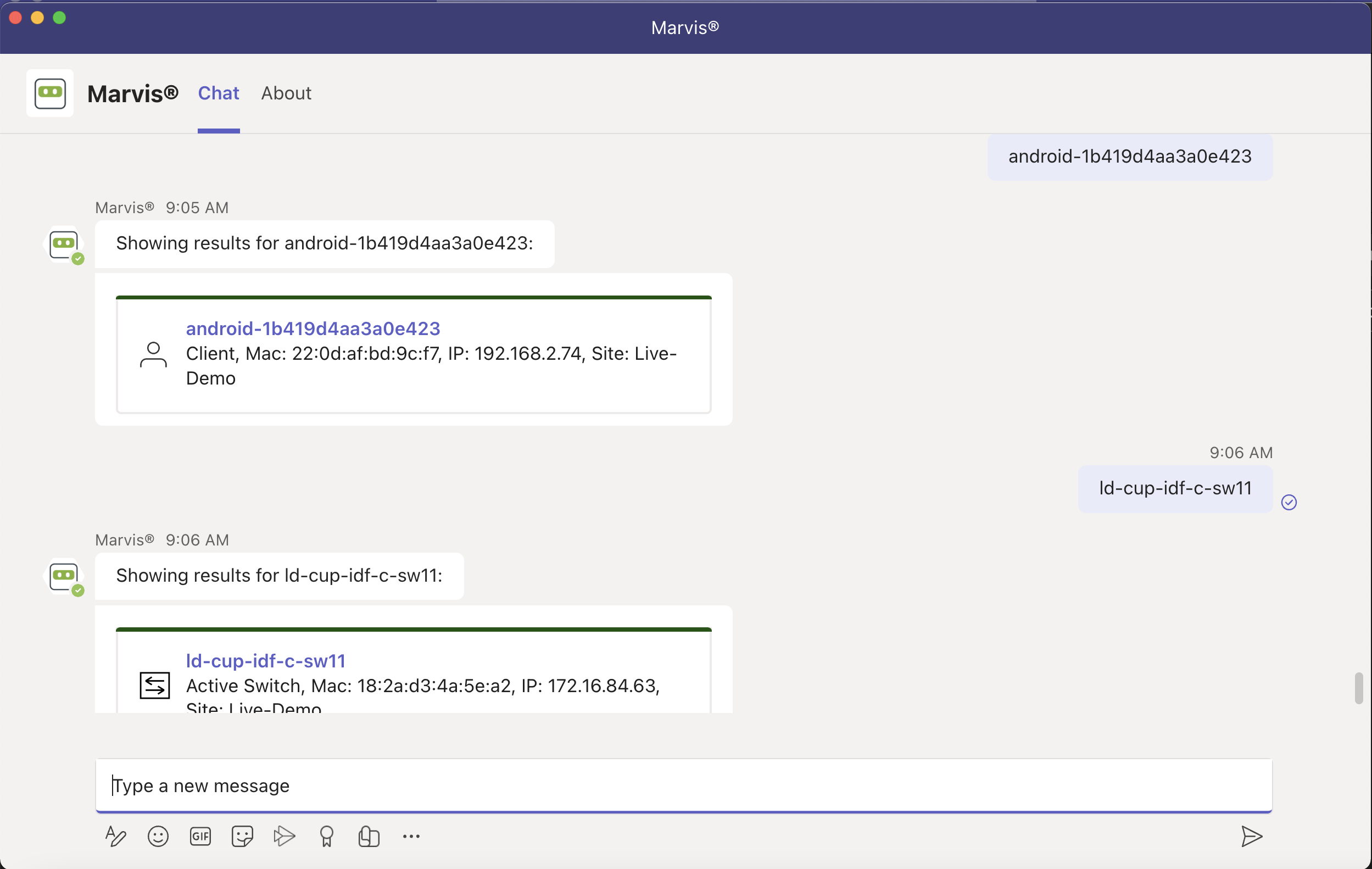
You can use the Marvis app to search for devices such as wireless or wired clients, access points (APs), switches, and WAN edge devices based on the device’s name or MAC address. You can also search for sites by site name. To search for a device or site, simply enter the device or site name in the Marvis chat window.
The search results provide links to the Insights page for the device or site. Note that you can even search using partial names.
Here's an example:
Here are some examples of phrases that you can use to search for a device or site:
-
<client name>
-
Search <ap mac> <switch model>
-
Find <WAN edge mac>
-
<wired client mac>
-
<site partial name>
-
Locate <client username>
Search for Documentation
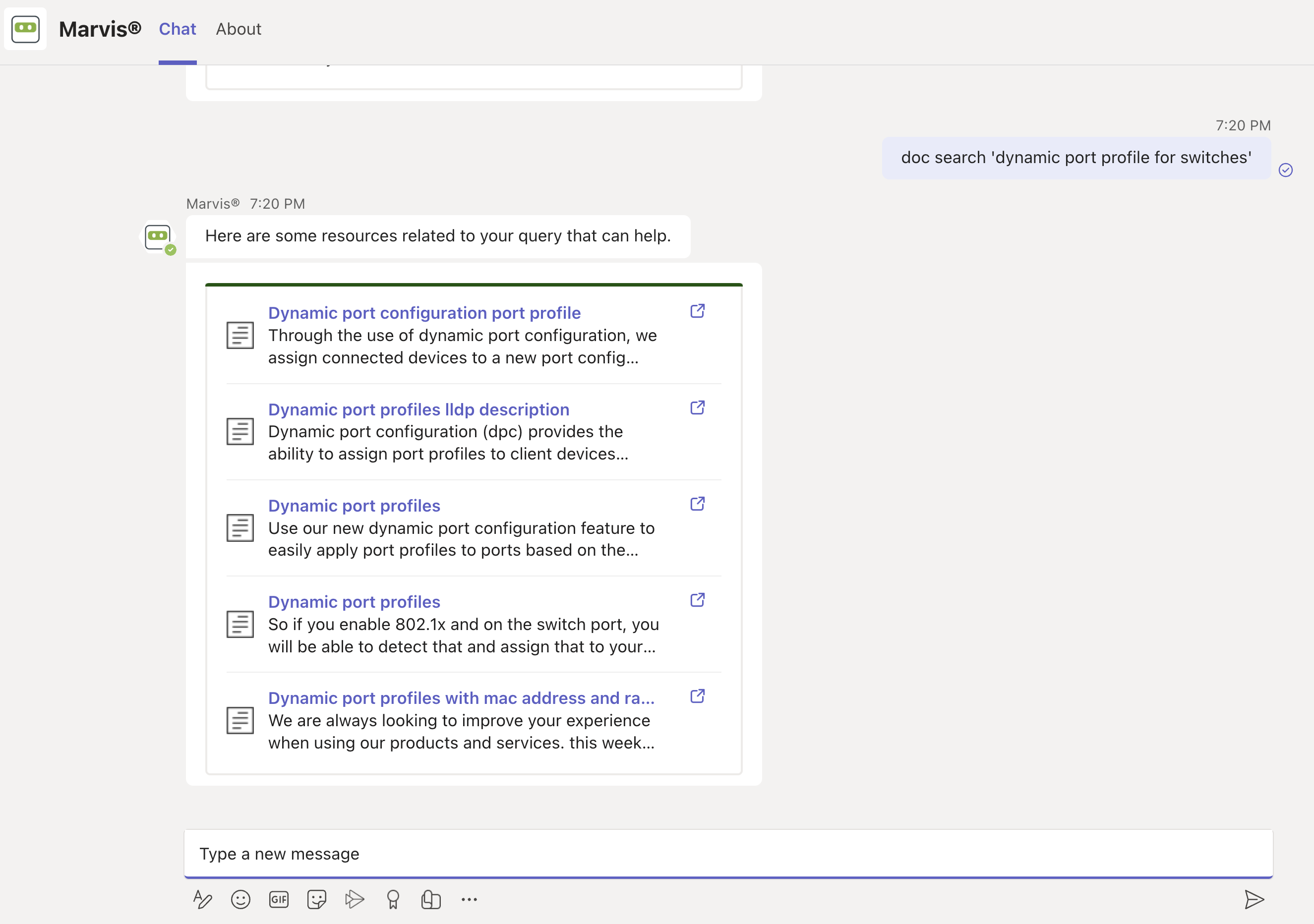
You can search for documentation without having to go to the Juniper Networks documentation portal. To search for documentation, enter a phrase such as "doc search <text>" in the Marvis chat window. It is not necessary to enter the exact name of the topic. You can enter a word or phrase, and Marvis displays all topics containing the text you entered. The following screenshot shows the results of a documentation search using the phrase "doc search <text>".
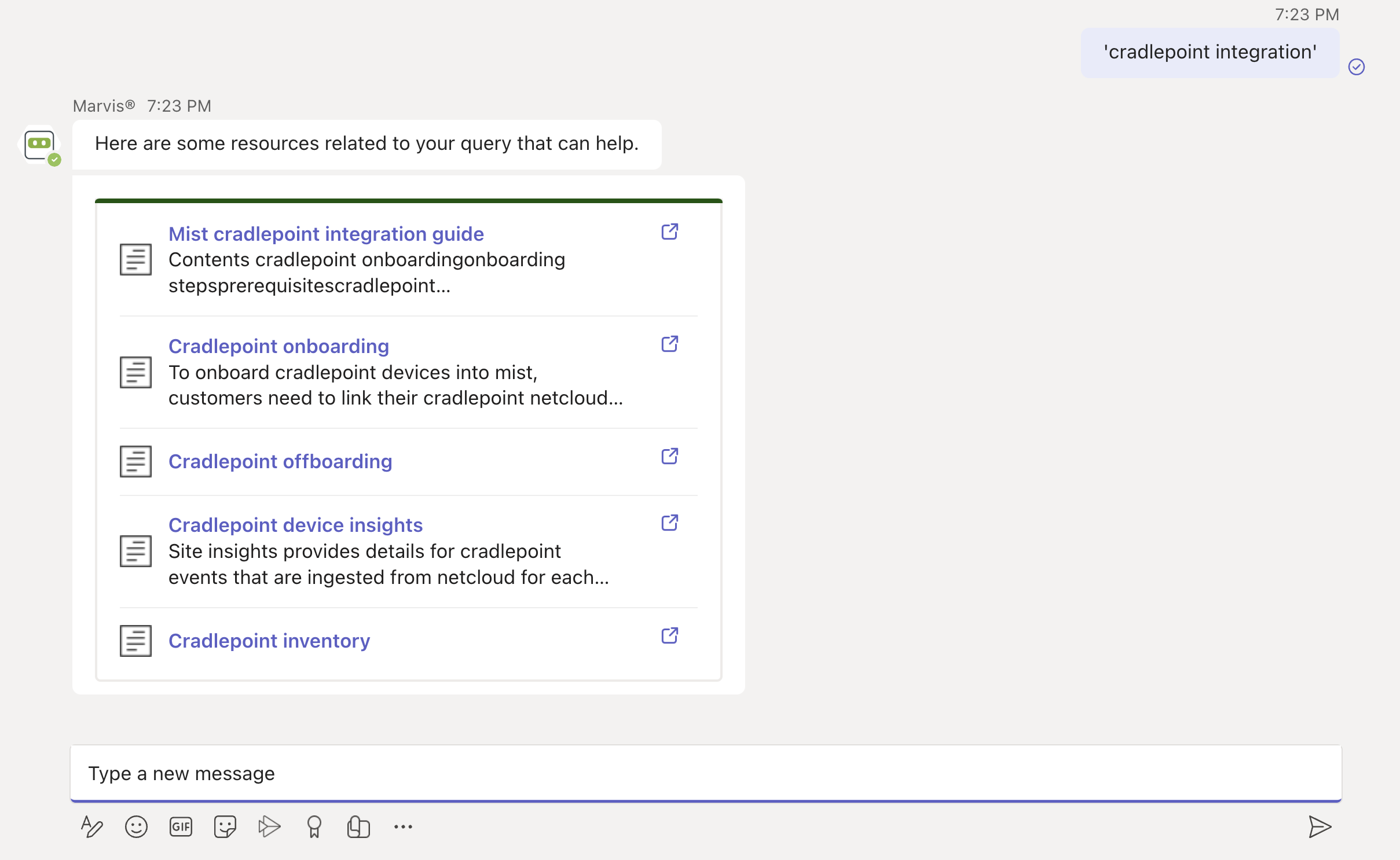
In the following screenshot, notice that Marvis displays documentation links even though the phrase does not contain the key words such as "doc" or "search.".
List Function
You can also use the list function to view information such as unhappy clients, access points (APs) running an incorrect firmware version, and switches in a site.
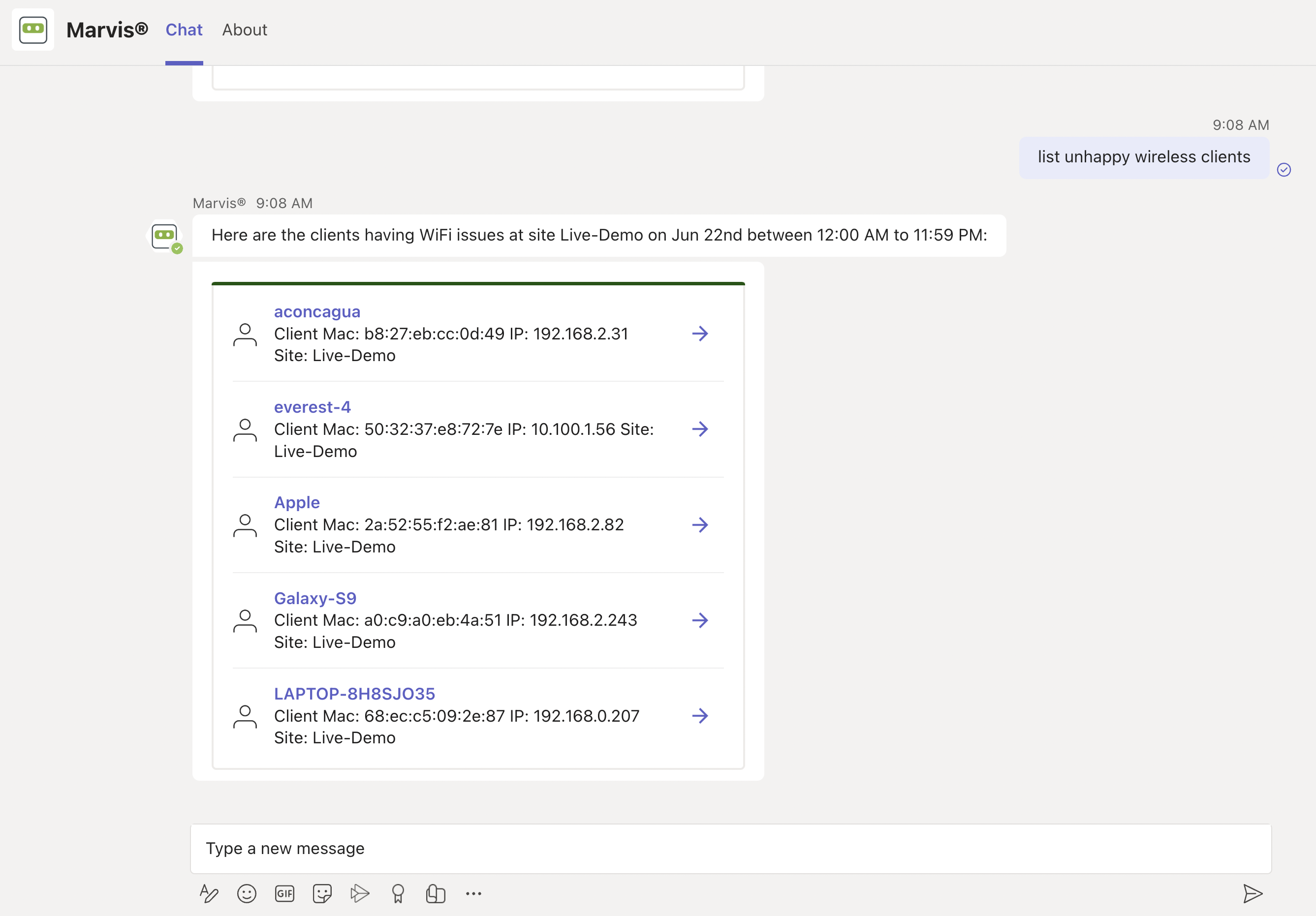
To determine which clients are experiencing connectivity issues (which we also refer to as unhappy clients), use phrases such as, "list unhappy wireless clients" or "list unhappy clients" without providing details.
Marvis displays a list of clients that are experiencing issues. You can select any client from the list to view the details.
Here is an example that shows the details that Marvis displays for "unhappy clients."