Connectivity Actions
Use the Actions dashboard to resolve client connectivity failures.
When you click the Connectivity button on the Actions dashboard, you'll see a list of all available actions. You can then click an action to investigate further.
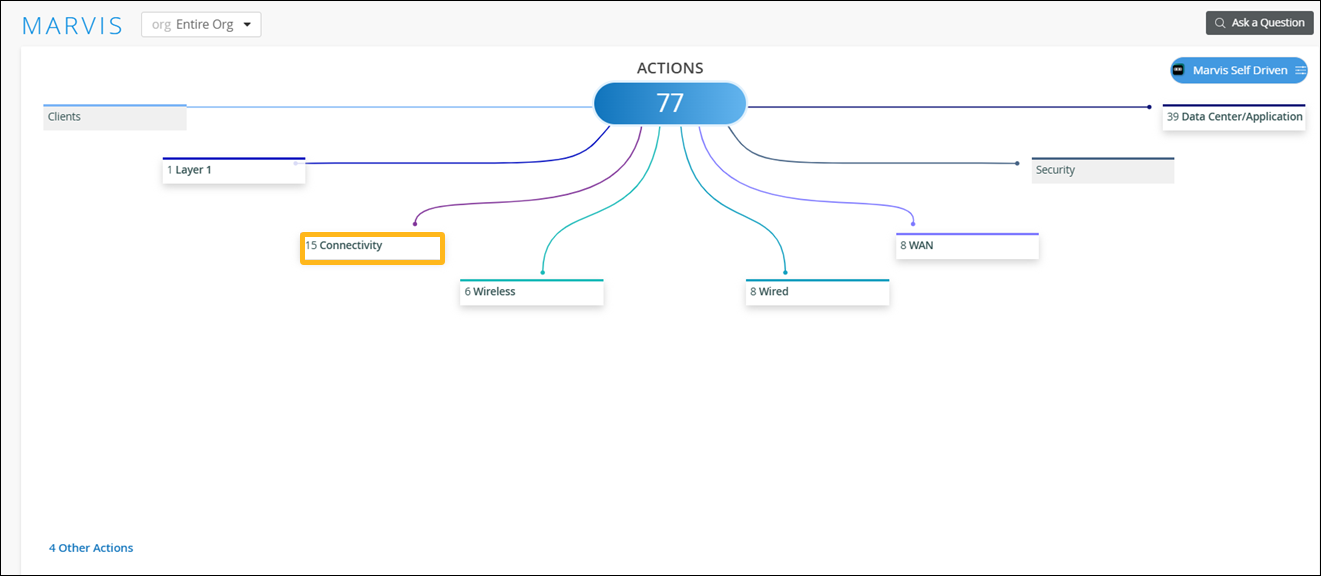
Your subscriptions determine the actions that you can see on the Actions dashboard. For more information, see Subscription Requirements for Marvis Actions.
How Are Connectivity Failures Detected?
Marvis uses anomaly detection or scope analysis to detect connectivity failures, as follows:
-
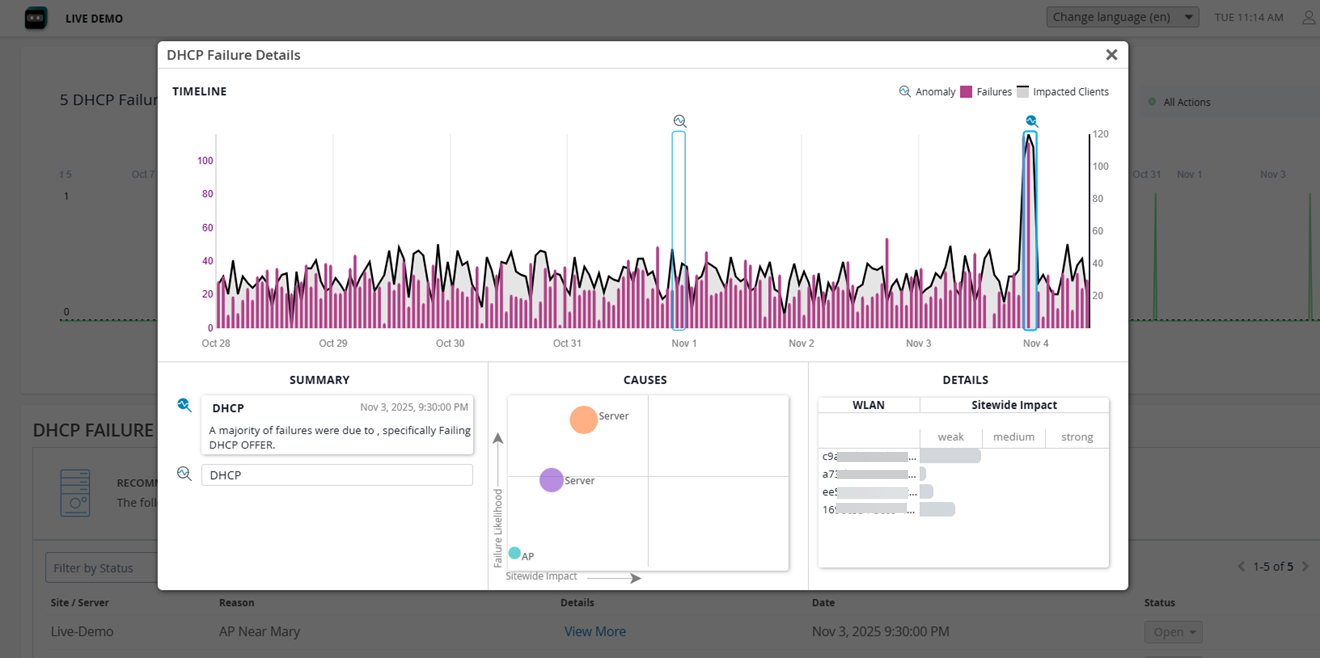
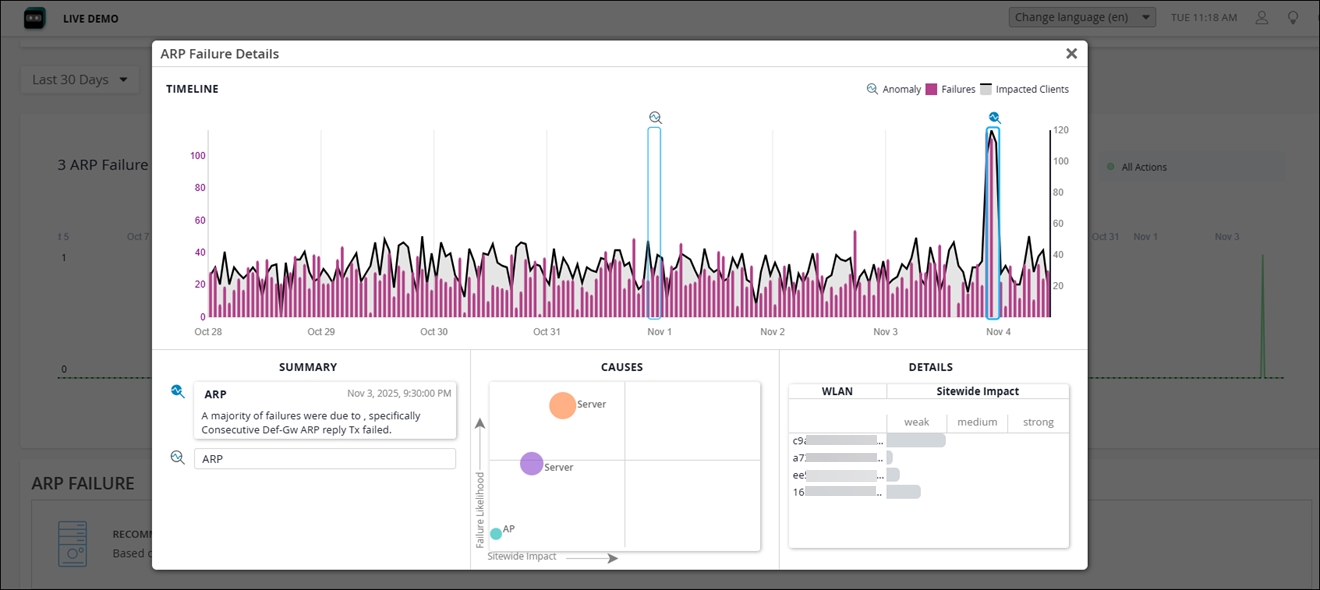
Anomaly Detection—Marvis detects issues when they start to occur at your site, such as multiple clients failing for the same reason. Anomalies are failures that occur across most, but not all, devices on your site. The Details page (Anomaly Detection Event Card), which you can open with the View More link, lists the component that probably caused the failure. For more information about anomaly detection, see Anomaly Detection Event Card.
After you fix the issue, the action automatically resolves within 24 hours.
-
Scope Analysis—When the failure rate across all clients at your site is 100 percent, Marvis performs a scope analysis on the issue to determine the root cause of such a failure. Marvis provides the details of the affected clients—MAC address, VLAN, and WLAN for which Marvis triggers the scope anomaly. Marvis indicates the issue that needs to be fixed, whether it is a RADIUS, Domain Name System (DNS), or Dynamic Host Configuration Protocol (DHCP) server; a WLAN; or an access point (AP). Here is an example that shows how Marvis reports an issue based on scope analysis:
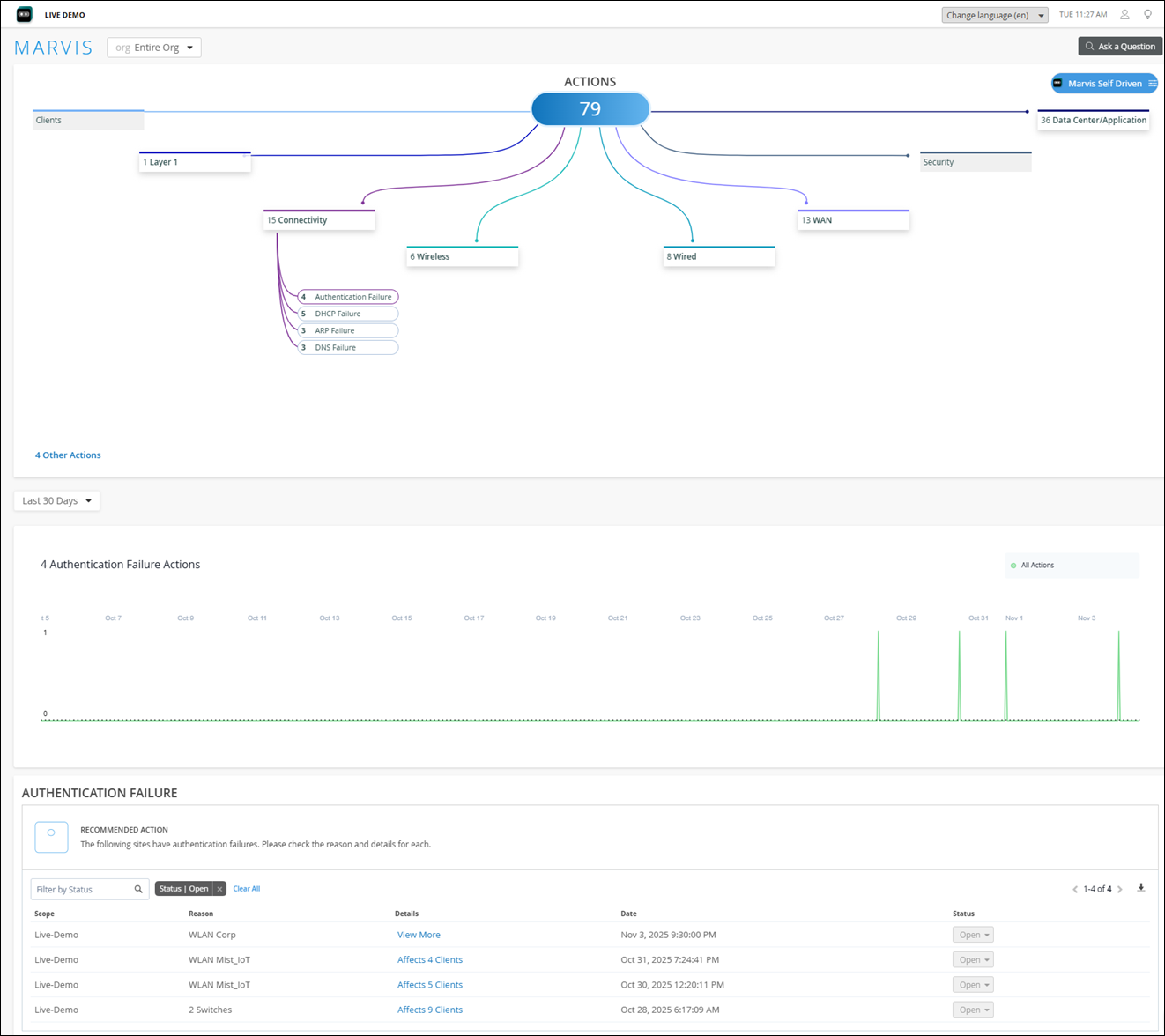
After you fix the issue, the action automatically resolves within an hour.
Authentication Failure
The Authentication Failure action detects both 802.1X and preshared key (PSK) failures. Click the Authentication Failures button to see the impacted devices and the recommended actions in the lower part of the page.
If you see a View More link in the Authentication Failure table, click the link to open the Event Card. For more information, see Anomaly Detection Event Card.
802.1X Failures
The 802.1X failures include the following:
-
RADIUS Server Missing Events: These events are triggered when a RADIUS server at a site does not respond to Extensible Authentication Protocol (EAP) requests. This failure to respond results in a high number of clients failing 802.1X authentication on the wireless LAN (WLAN). Marvis might detect failures across multiple APs broadcasting to the same 802.1X WLAN. These failures indicate that a RADIUS server is either configured wrong or is missing from the network. In this case, you'll need to check if the RADIUS server is online and reachable.
-
RADIUS Missing AP Events: These events are triggered when clients connecting to a few APs fail to authenticate to a WLAN that has a RADIUS server configured for EAP authentication. This RADIUS event indicates that you have not configured these APs as network access service (NAS) clients on the RADIUS server. You must add the missing APs to the RADIUS configuration to resolve the issue.
Here's an example that shows how Marvis Actions reports an 802.1X authentication failure.
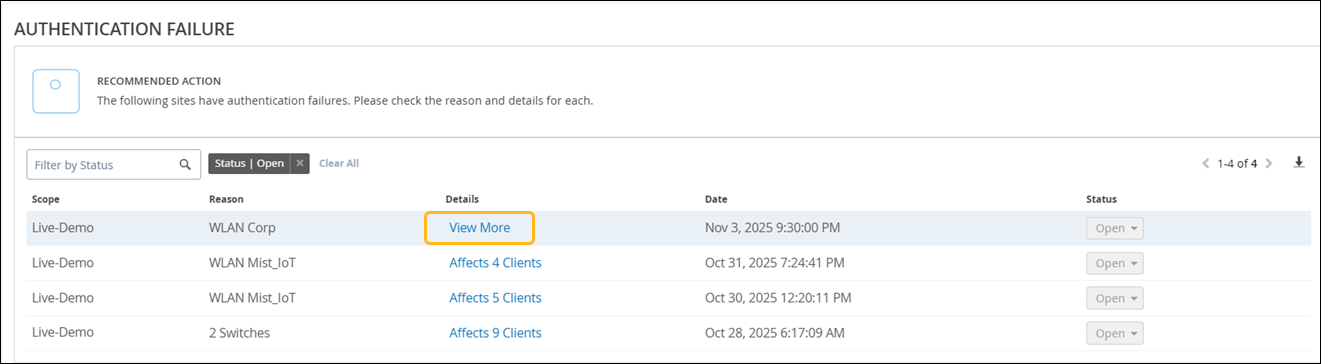
Marvis detects authentication failures even in wired-only deployments.
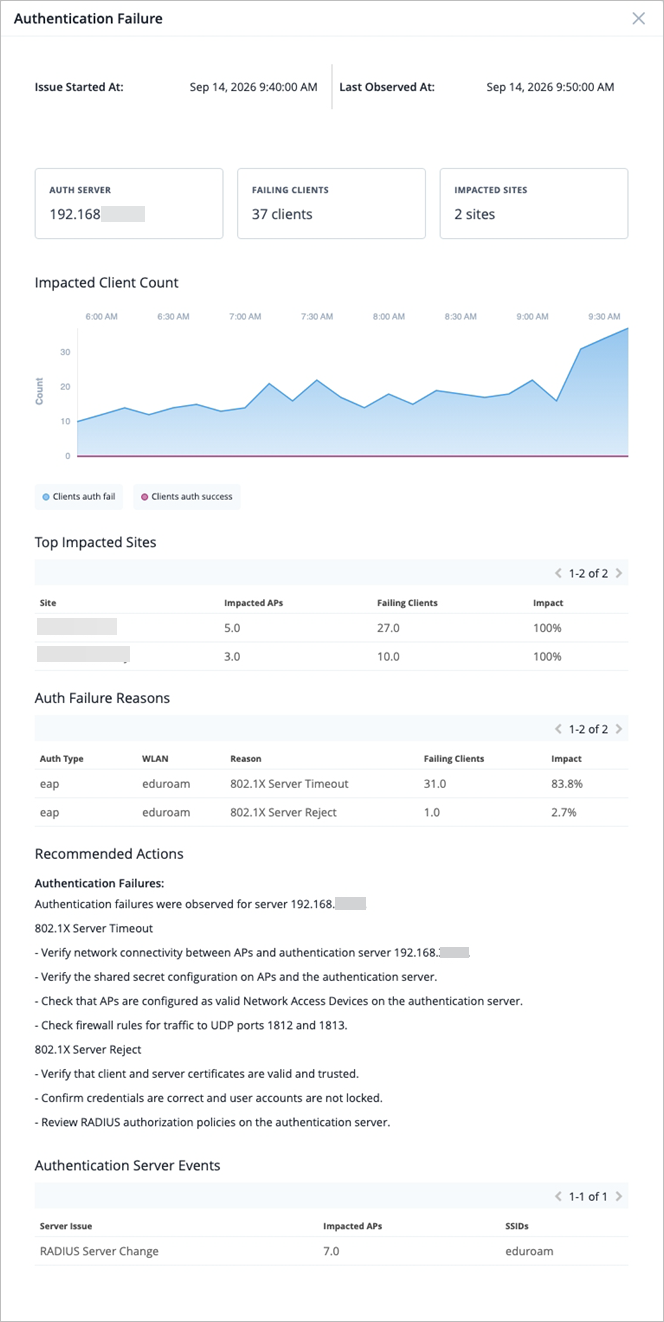
The Authentication Failure action detects a server-level anomaly that spans across multiple sites. The View More link provides a detailed analysis that you can use to understand the scope of the issue and the root cause. The details also include a success versus failure rates trend to quickly identify the anomaly window for the affected WLANs, and impact metrics for sites and clients with failure contribution percentages. Authentication failure events are listed with the following reason codes that identify the exact cause of the issue:
-
802.1X – Server Timeout—The authentication request to the RADIUS or authentication server did not receive a response before timing out.
-
802.1X – Server Reject—The authentication server rejected the request (for example, due to an invalid certificate, incorrect credentials, or an authorization policy violation).
Authentication failures from the same authentication server across multiple WLANs or sites are grouped into a single organization-level action. This provides a consolidated view of server-side connectivity problems.
The recommended actions are specific to the reason code.
PSK Failures
Marvis detects PSK failures when an unusually high number of clients fail to authenticate to a PSK WLAN due to a PSK mismatch. To resolve PSK failure errors, you'll need to verify the PSK for your WLAN and clients. A possible cause could be a recent PSK change that was not communicated to users.
DHCP Failure
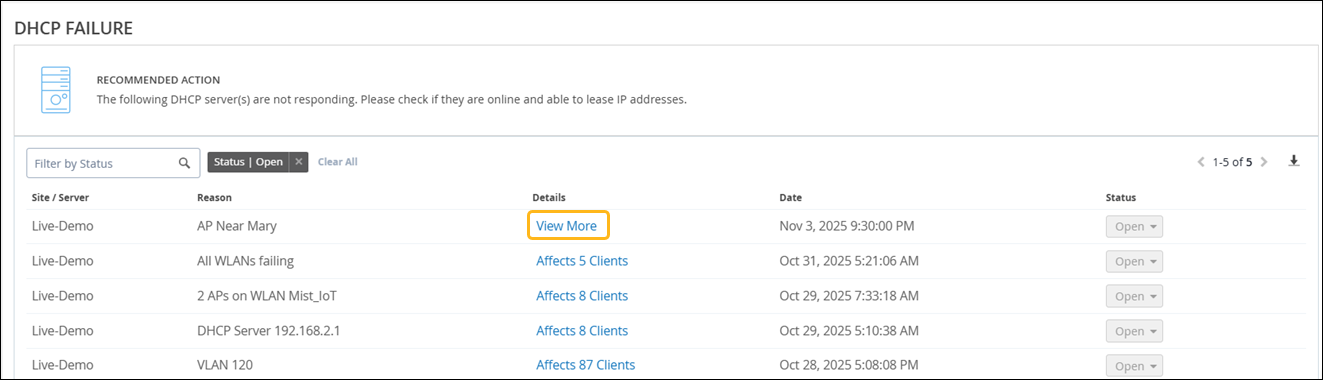
The DHCP Failure action appears when Marvis detects DHCP failures due to offline or unresponsive DHCP servers (DCHP timeouts).
Marvis provides details about these DHCP servers, enabling you to troubleshoot and resolve the problem quickly. When you see a DHCP Failure action, ensure that the DHCP servers are online and can lease IP addresses.
For wired-only deployments, you must enable DHCP snooping for Marvis to detect DHCP failures.
If you see a View More link in the DHCP Failure table, click the link to open the Event Card. For more information, see Anomaly Detection Event Card.
ARP Failure
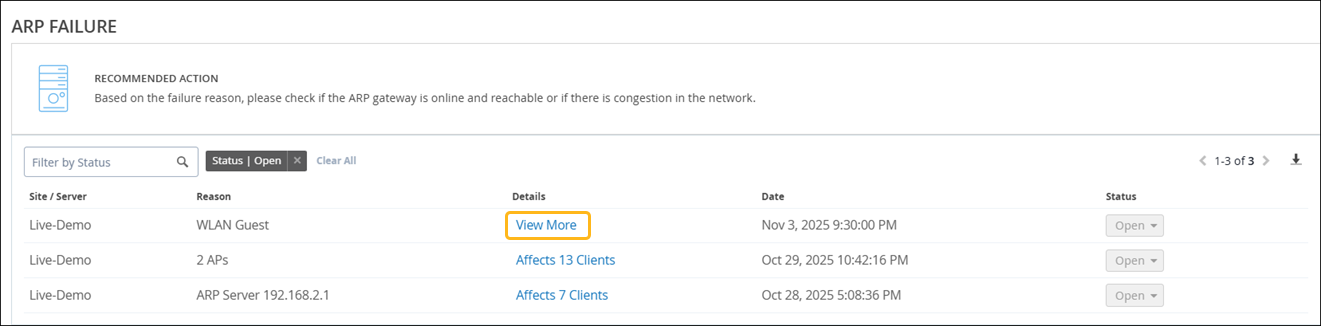
An Address Resolution Protocol (ARP) Failure action appears when an unusually large number of clients experience issues with the ARP gateway. These issues include Gateway ARP timeout and excessive ARP. When you see an ARP Failure action, you must verify that the gateway is online and reachable. You must also ensure that the network is free of congestion.
DNS Failure
Marvis detects unresponsive DNS servers for your site if a large number of clients experience DNS errors when using the network. If you see this action on your dashboard, you need to check that all your DNS servers are online and reachable.
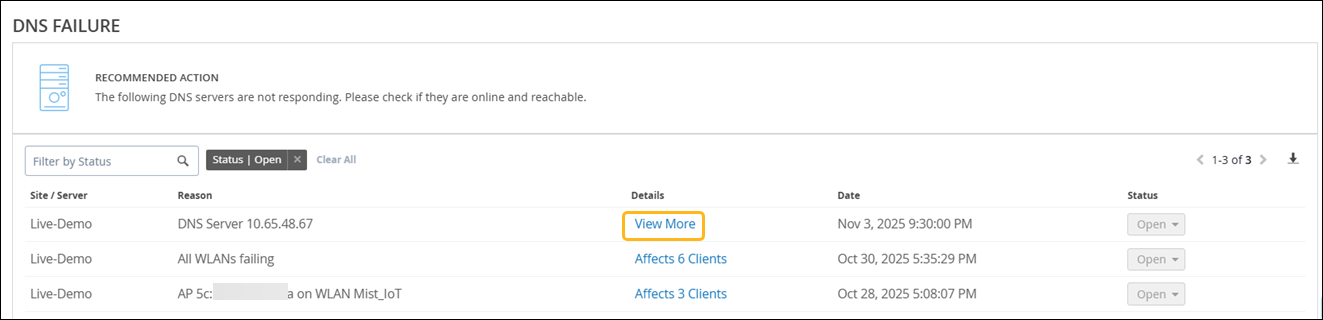
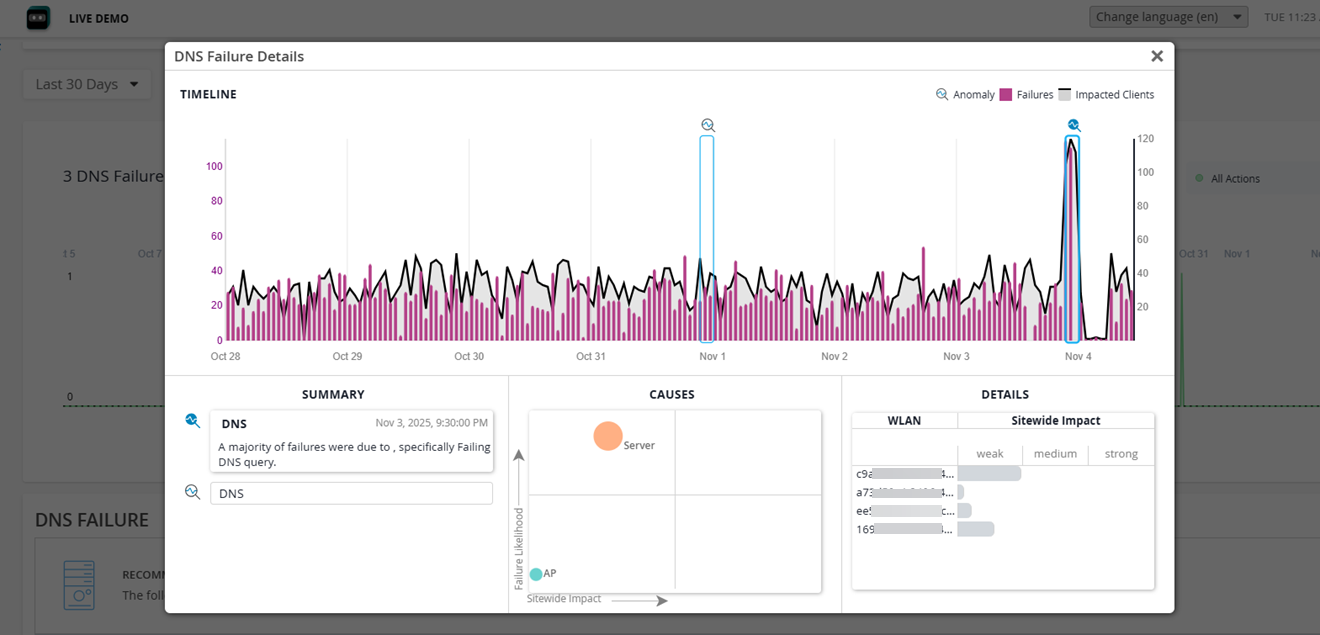
If you see a View More link in the DNS Failure table, click the link to open the Event Card. For more information, see Anomaly Detection Event Card.