Wireless Actions
Use the Actions dashboard to resolve issues affecting your access points (APs).
When you click the Wireless button on the Actions dashboard, you'll see a list of all available actions. You can then click an action to investigate further. Available actions are described later in this topic.
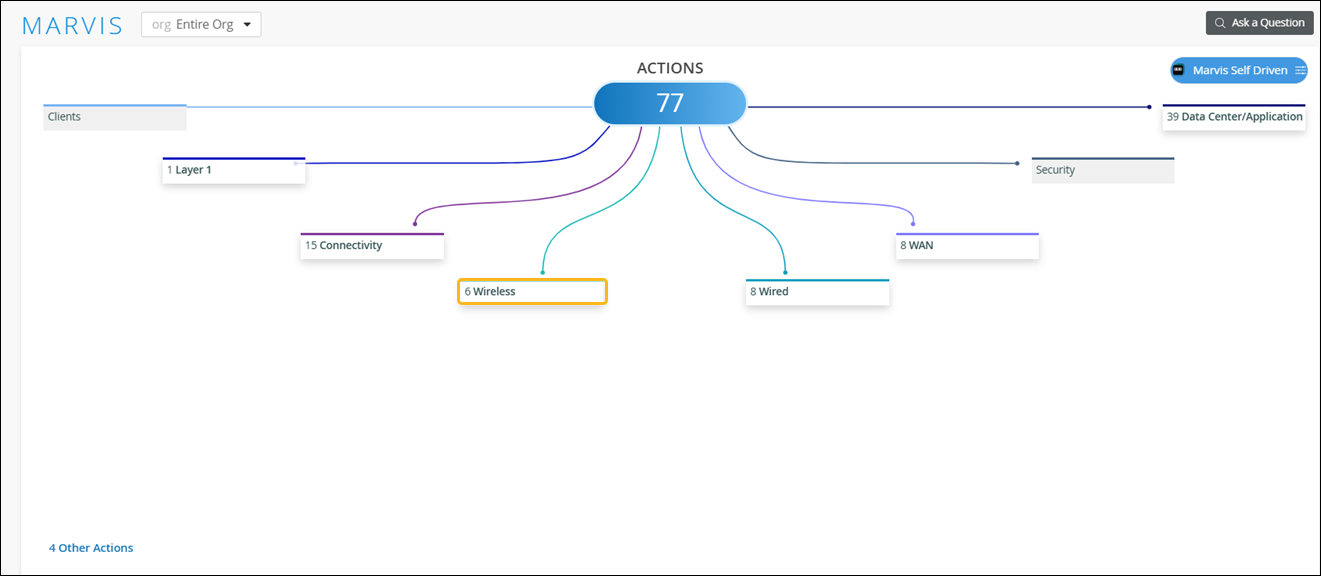
Your subscriptions determine the actions that you can see on the Actions dashboard. For more information, see Subscription Requirements for Marvis Actions.
Offline
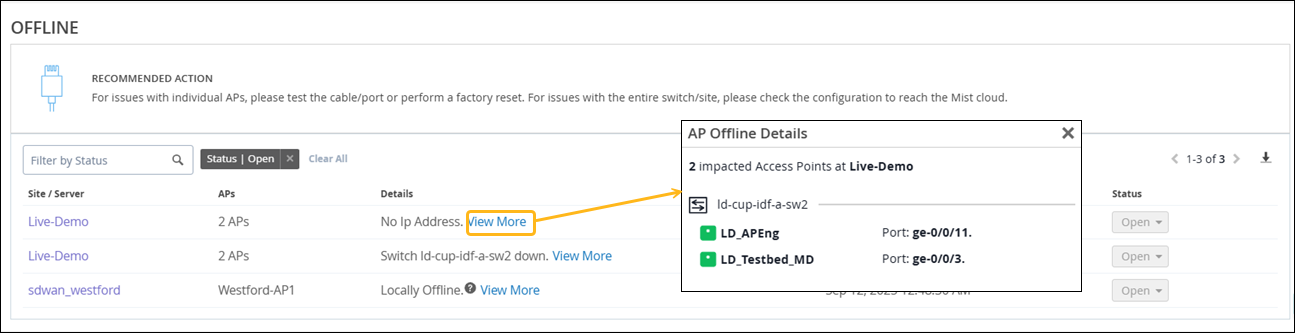
Marvis detects APs that are offline due to lack of power, loss of cloud connectivity, or any other issue. Marvis can determine the scope of Offline AP actions such as these:
-
A site is down and all APs at the site have lost cloud connectivity.
-
A switch is down and all APs connected to the switch have lost cloud connectivity.
-
An AP is locally online (heard locally but not connected to the cloud).
-
An AP is locally offline (not heard locally and not connected to the cloud).
Here's an example of an Offline action where Marvis identifies three APs that are offline:
Health Check Failed
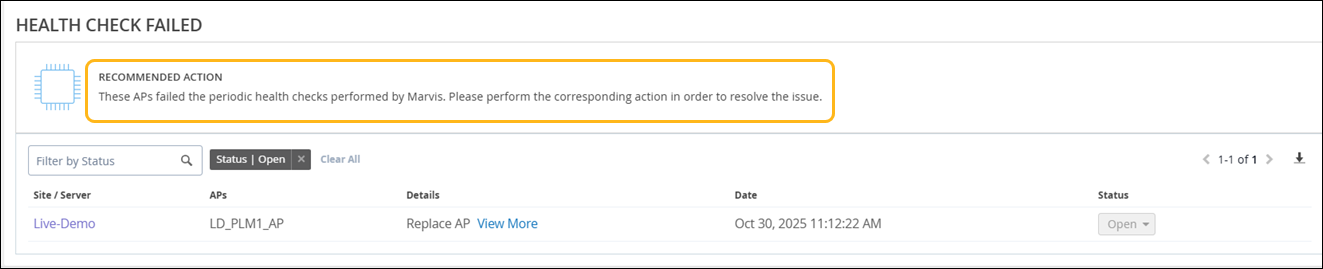
Marvis reports health check failures when it detects potential hardware or software issues.
Marvis shows the Health Check Failed action for these types of issues:
-
Issues that cannot be debugged, meaning that the AP needs to be replaced.
-
A software issue that a newer firmware resolves. You can use the Upgrade button to upgrade the firmware directly from this page.
After you fix the hardware or software issue, Mist AI monitors the AP for a certain period to ensure that it is operating normally. Hence, it might take up to 24 hours for the Health Check Failed action to automatically resolve and appear in the Latest Updates section.
In this example, Marvis identifies an AP that failed the periodic health checks and needs to be replaced.
Non-Compliant
Marvis monitors the firmware version running on all the APs at a site. The Non-Compliant action flags APs running a firmware version that is older than the version running on the other APs of the same model at the site. You can upgrade the APs from the Marvis Actions page without having to visit the site.
For Marvis to generate a non-compliant action, the site must have at least five APs of the same model and the automatic firmware upgrade option must not be enabled in the site configuration.
After you upgrade the APs to the proper version, the Non-Compliant action automatically resolves within 30 minutes.
Coverage Hole
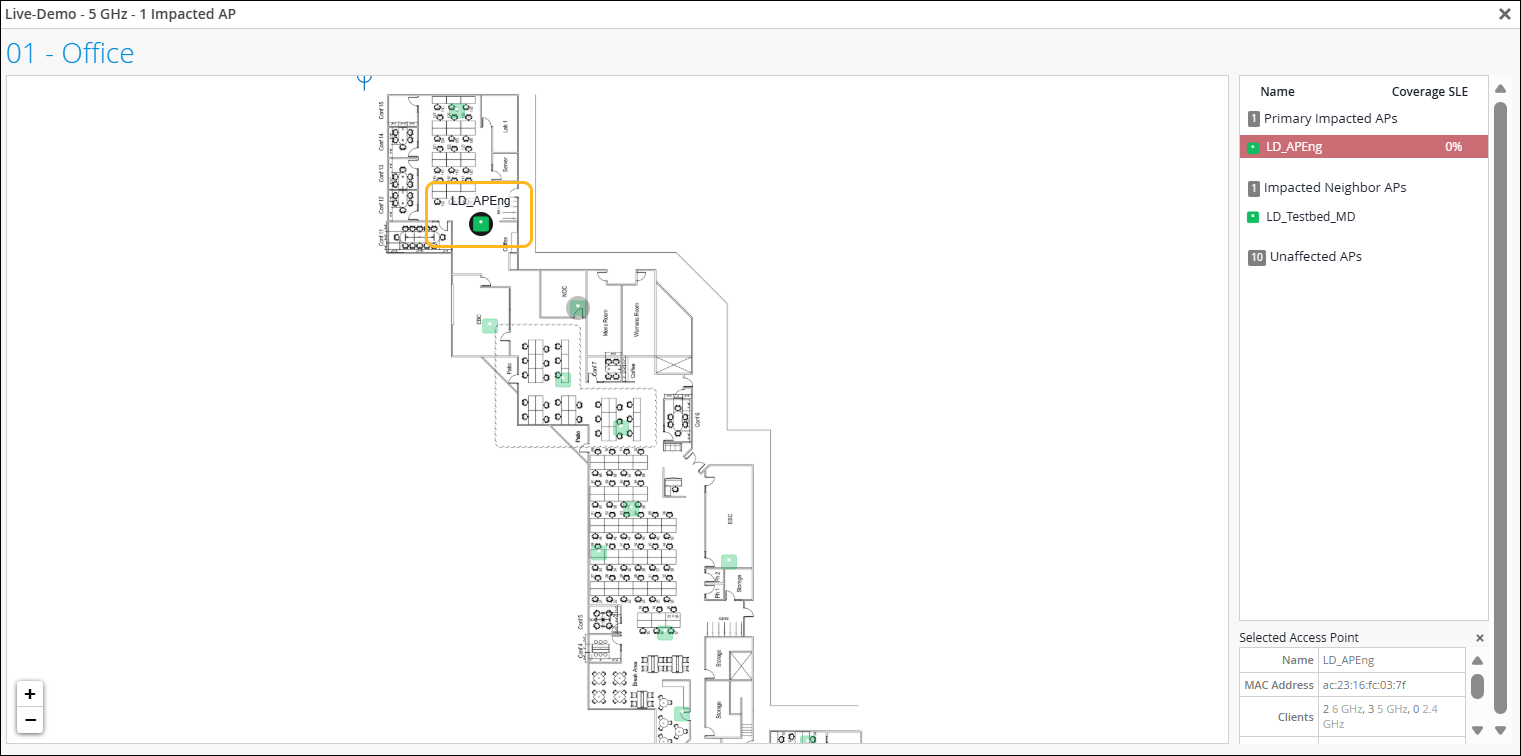
The Coverage Hole action detects coverage issues at your site and provides a floor plan indicating the APs with the issues. Use this visual to locate areas with low coverage. Then make necessary improvements, such as adding APs, upgrading firmware, changing AP placement, or increasing the power output of existing APs.
You need to have a floor plan already set up in Location Live View to take advantage of the Coverage Hole visibility.
In the following example, Marvis pinpoints a site that is facing frequent coverage issues:

Here’s the floor plan visual showing the affected AP (highlighted):
After you fix the issue in your network, Mist AI monitors the network for a certain period to ensure that the coverage is sufficient for the network. Hence, it might take up to 24 hours for the Coverage Hole action to automatically resolve.
Insufficient Capacity
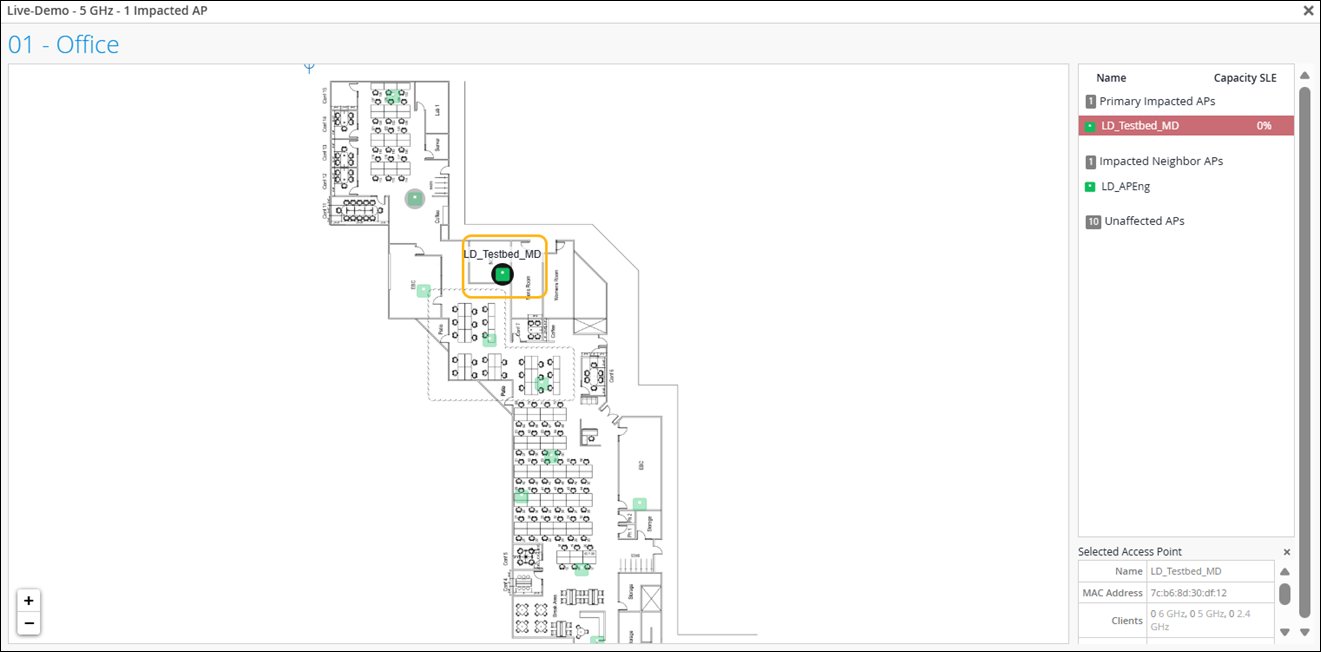
The Insufficient Capacity action detects capacity issues related to an abnormal increase in an AP’s utilization. This action usually occurs when client traffic peaks significantly. Marvis provides a floor plan visual indicating the APs experiencing capacity issues. You can use this visual representation to find the affected APs and make design improvements.
You need to have a floor plan already set up in Location Live View to take advantage of the Insufficient Capacity visibility.

Here’s the floor plan visual showing the affected AP (highlighted):
AP Loop Detected
Marvis can detect a loop in your network based on the AP receiving the same packet that it sent out. With AP-based loop detection, Marvis detects loops caused by duplicate datapaths in the following scenarios:
-
Traffic from the same VLAN tunneled to the Mist Edge device and locally bridged to the switch port to which the AP is connected.
-
Traffic from the same VLAN transported through two different tunnels to a Mist Edge device.
-
Port flapping caused by persistent Spanning Tree Protocol (STP) topology changes.
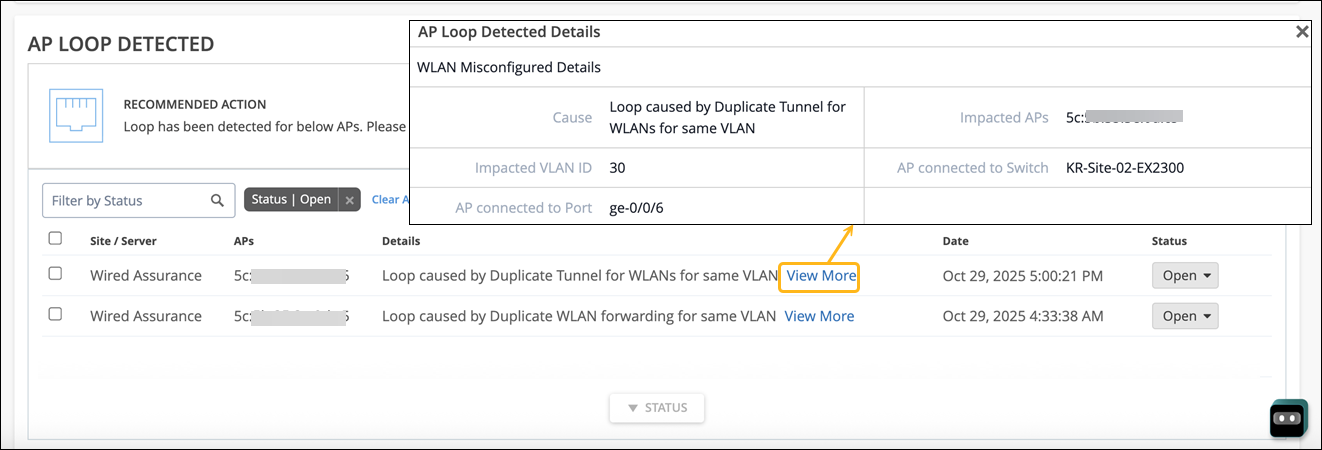
Marvis identifies the exact location at your site where the traffic loop is occurring and shows you the affected switch and AP. Here's an example. You can use the View More link in the Details column to view specific details about the issue. In this example, you can see that Marvis provides the cause for the loop, the VLAN ID, details of the AP, and the switch to which the AP is connected,
ISP Offline
While the AP Offline Marvis action flags APs that are offline due to a local network or cloud connectivity issue, the ISP Offline action focuses on APs that are offline due to ISP-related issues. Marvis detects APs that are offline due to, for example, issues with routing, DNS, incorrect network settings, or ISP regional outages.
Marvis can assess the scope of the issue, that is, it determines whether the issue is limited to APs in a specific site or APs across multiple sites. In addition, Marvis can also pinpoint the ISPs through which the impacted APs were connected, which makes the troubleshooting process easier.
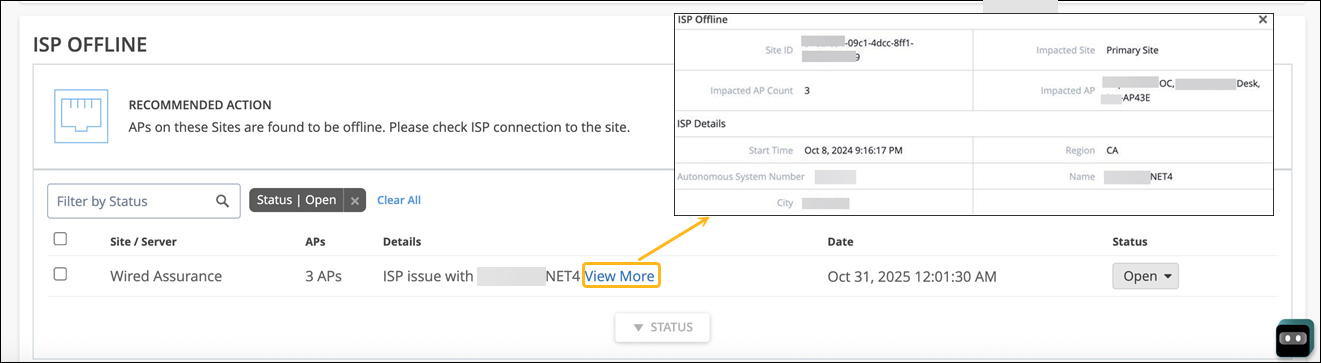
Here’s an example that shows an ISP Offline action. You can see that Marvis provides the details of the ISP such as name, ISP’s Autonomous System Number (ASN), and region. It also lists the date and time from when the APs are offline. Marvis lists each impacted site separately with the list of offline APs and ISP details.
If you see an ISP Offline action, here are some of the steps that you can take:
-
Check the ISP’s portal to find out if there is any outage reported.
-
Check the router or modem configuration for any changes.
-
Contact the ISP support team.
Mist Edge Anomaly
The Mist Edge Anomaly Marvis action helps you to quickly identify and troubleshoot unusual traffic patterns or tunnel behavior on your Mist Edge devices. Marvis leverages telemetry data from Mist Edges to identify and highlight potential issues such as:
-
Abnormally low Tx/Rx traffic—Low transmit or receive traffic might indicate that traffic is not properly passing through the Mist Edge.
-
Traffic surge—Huge spike in traffic that could indicate potential loops in the network
-
Port or link errors—Link-related errors (such as interface errors, link flaps, or negotiation problems) can impact connectivity and performance, impacting user experience. Marvis flags these conditions so you can investigate cabling, hardware, or configuration issues.
-
Sudden drop or abnormal change in AP tunnels—A significant decrease in the number of AP tunnels terminating on a Mist Edge might indicate widespread AP disconnections or failures in tunnel establishment, potentially affecting network coverage and service.
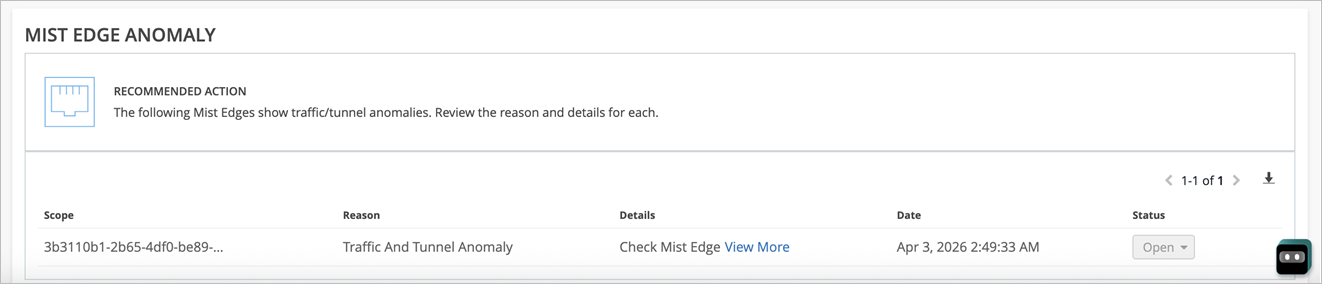
The View More link provides details and the reason for the failure. Hover over the graph to view the Rx/Tx packets, number of tunnels, packets dropped, and the number of clients connected at any specific time. You can also view the details of the events generated.

By highlighting these anomalies proactively, the Mist Edge Anomaly action helps you detect and resolve problems faster, often before such issues become widespread and impact users.
Dynamic Capacity Optimization
Dynamic Capacity Optimization is a self-driving Marvis action that automatically tunes AP radio settings to improve the overall Wi-Fi performance when self-driving is enabled. This action is triggered when Marvis detects:
-
A considerable number of APs with insufficient capacity, or
-
A single AP that is consistently overloaded
By dynamically adjusting the channel band and bandwidth, the Dynamic Capacity Optimization Marvis action can help improve capacity on overutilized APs, improve client experience, and deliver measurable throughput improvements for users. In coordination with Radio Resource Management (RRM), this action can:
-
Enable dual-band operation on APs to serve clients on dual 5 GHz or dual 6 Ghz, increasing available capacity
-
Increase channel width (for example, from 20 MHz to 40 MHz) where conditions allow, providing more throughput per radio based on client usage
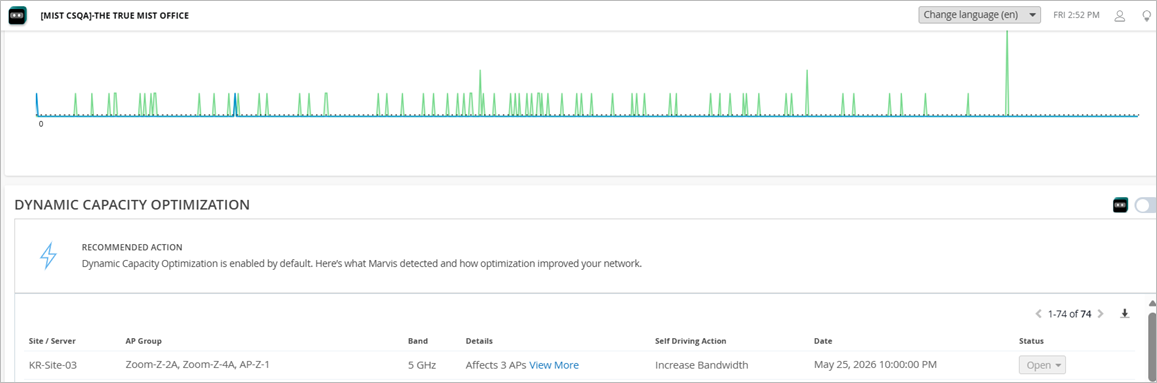
Clicking the View More link provides details such as the impacted top 5 APs, expected improvement in peak throughput, and the self-driving optimization (when applied).
Note that the self-driving capability for Dynamic Capacity Optimization is disabled by default.

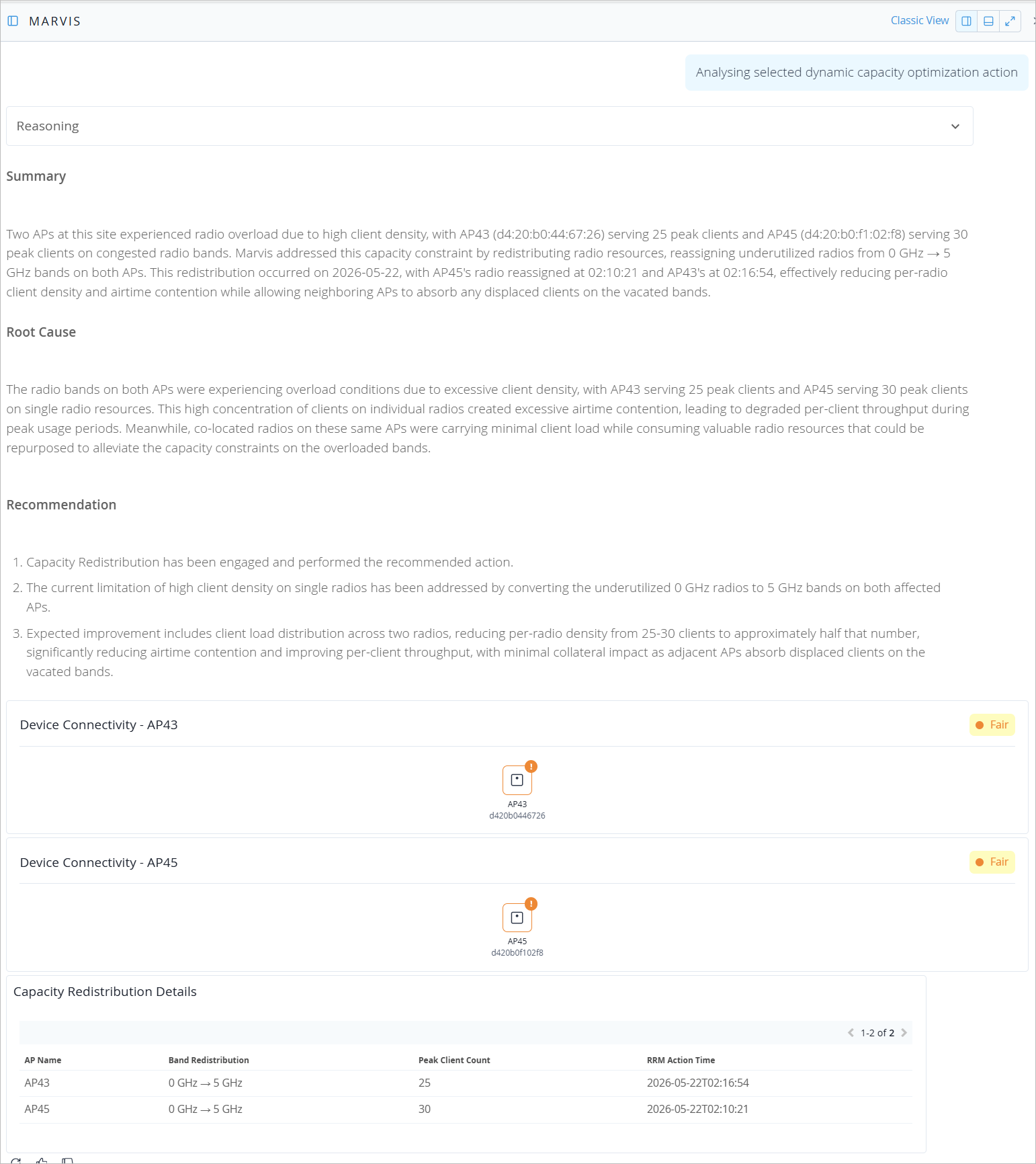
When you click the Ask Marvis option, it automatically brings up the Marvis conversational interface and provides a detailed analysis of the issue. This includes a summary of the issue, likely root causes, recommendations, device connectivity status, and a graph illustrating the impact of the capacity optimization on the peak throughput. You can also ask follow-up questions to dive deeper into specific aspects.
DFS Optimization
The DFS Optimization Marvis action is a self-driving action that provides deeper visibility and intelligence into how the Mist Radio Resource Management (RRM) system responds to Dynamic Frequency Selection (DFS) radar events and how these events impact Wi-Fi channel assignments.
DFS radar detections on certain Wi-Fi channels can significantly impact wireless performance. This action provides clear insights into
-
Which channels are being avoided due to DFS events
-
The specific action taken based on the event severity
-
The rationale behind why certain channels are avoided
For each site, you can see which channels were affected and the number of radar events that occurred on each channel. With DFS optimization, you no longer need to manually deselect or avoid DFS channels.

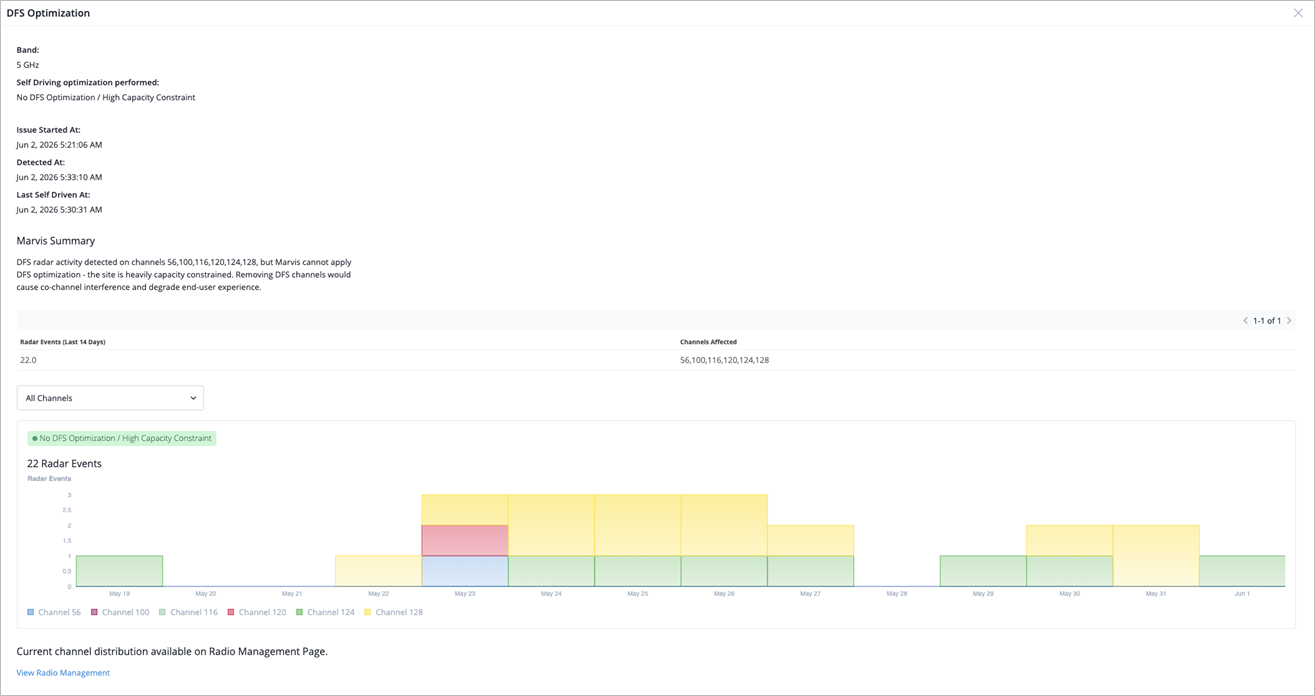
The View More section provides additional details about the DFS optimization, including a graphical summary of the total radar events across the impacted channels, with the option to filter by individual channel. Each channel is evaluated and assigned one of the following classifications:
-
No DFS Optimization/High Capacity Constraint—RRM detects DFS radar activity but does not perform optimization because the site is severely capacity-constrained. In this case, moving radios off DFS channels would impact performance. Thus, DFS channels remain in use despite radar exposure. Additional capacity, such as 6 GHz, is needed before RRM can safely perform DFS optimization.
-
Low DFS Optimization/Medium Capacity Constraint—RRM detects significant DFS radar activity, but moderate site capacity constraints limit how far the RRM can reduce DFS channel usage. RRM avoids the most affected DFS channels while keeping others in service to meet capacity needs. Additional capacity, such as 6 GHz, gives RRM more flexibility to move away from DFS-affected channels.
-
Medium DFS Optimization/Low Capacity Constraint—RRM detects significant DFS radar activity, and site capacity constraints are low. RRM moves most radios away from the affected DFS channels while retaining a limited number of DFS channels where necessary to support capacity.
-
Medium DFS Optimization/No Capacity Constraint—RRM detects moderate DFS radar activity, and the site has no capacity constraints. It can move radios from the affected DFS channels to more stable alternatives without affecting performance.
-
High DFS Optimization/No Capacity Constraint—RRM detects significant DFS radar activity, and the site has no capacity constraints. It moves radios from DFS-affected channels to stable non-DFS channels.