View the Webhook Delivery Status

Check the delivery status for your webhook events.

You can view the delivery status of webhook events reported during the last 61 days.

You can view status for the following webhook topics:

  • Alerts

  • Audits

  • Device Up/Down

  • Ping

To view the webhook delivery status:

  1. Go to the appropriate page:
    • Organization-level webhooks—Go to Organization > Admin > Settings.

    • Site-level webhooks—Go to Organization > Site Configuration.

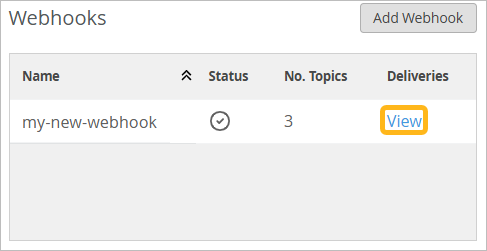
  2. Under Webhook, click View.
    User interface showing webhook management with a button labeled Add Webhook, a table listing webhooks, and details for my-new-webhook including active status, 3 topics, and a yellow View link for deliveries.
  3. View the webhook event information in the Webhook Deliveries window.
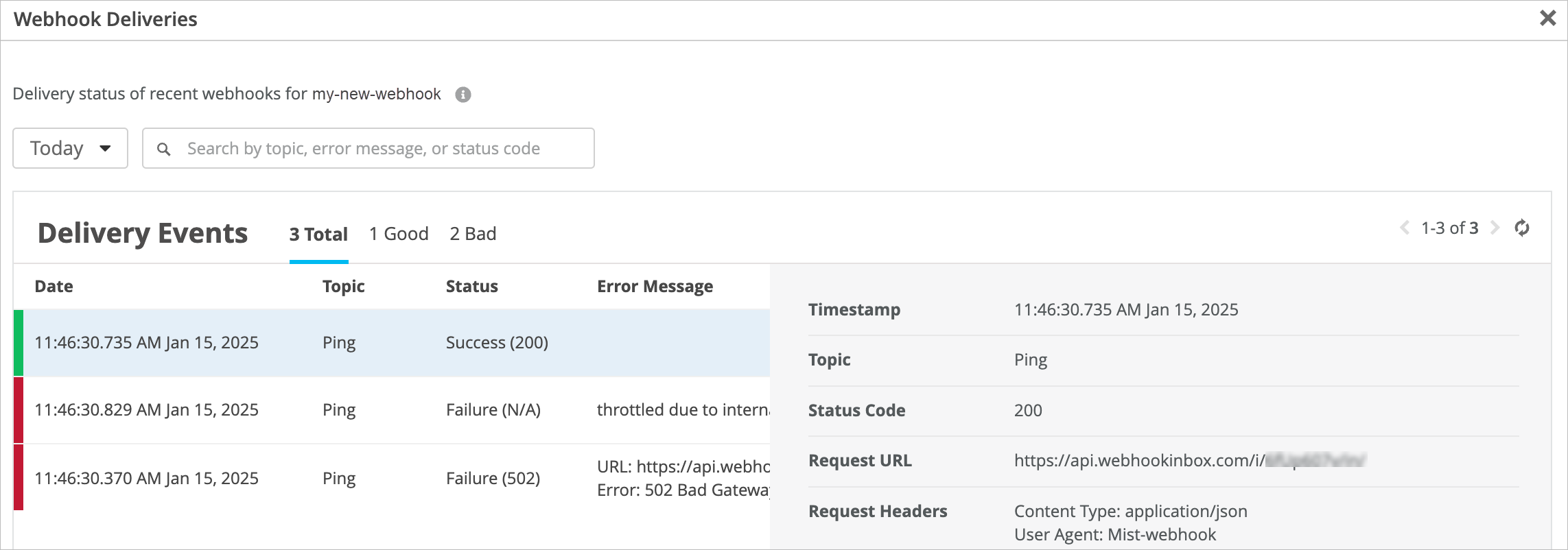
    Webhook Deliveries dashboard showing delivery status of recent webhooks for my-new-webhook. Includes total events 3, 1 successful, 2 failed, and a table with details like date, topic, status, and error message.

    Tips:

    • To find a particular event—Adjust the timeframe and enter search terms.

    • To filter the list based on status types—Click Good or Bad, or click Total to see all events.

  4. Click any item to view more details on the right side of the window.

    Information includes:

    • Topic

    • Request URL

    • Request Headers

    • Request Body

    • Response Status Code (if any)

    • Response Headers (if any)

    • Response Body (if any)

    • Error Message (if any)

  5. Click X to close the window.