Install vLWC and Verify Installation
This section explains how you can install the vLWC vApp on a VMWare environment and verify your installation.
Install vLWC using vCenter Server
-
Depending on where your OVA file is available, select the
URL option and provide the URL to the OVA file,
or select the Local file option and click
Choose Files to browse the local drive and upload
the vLWC OVA image. Click Next.
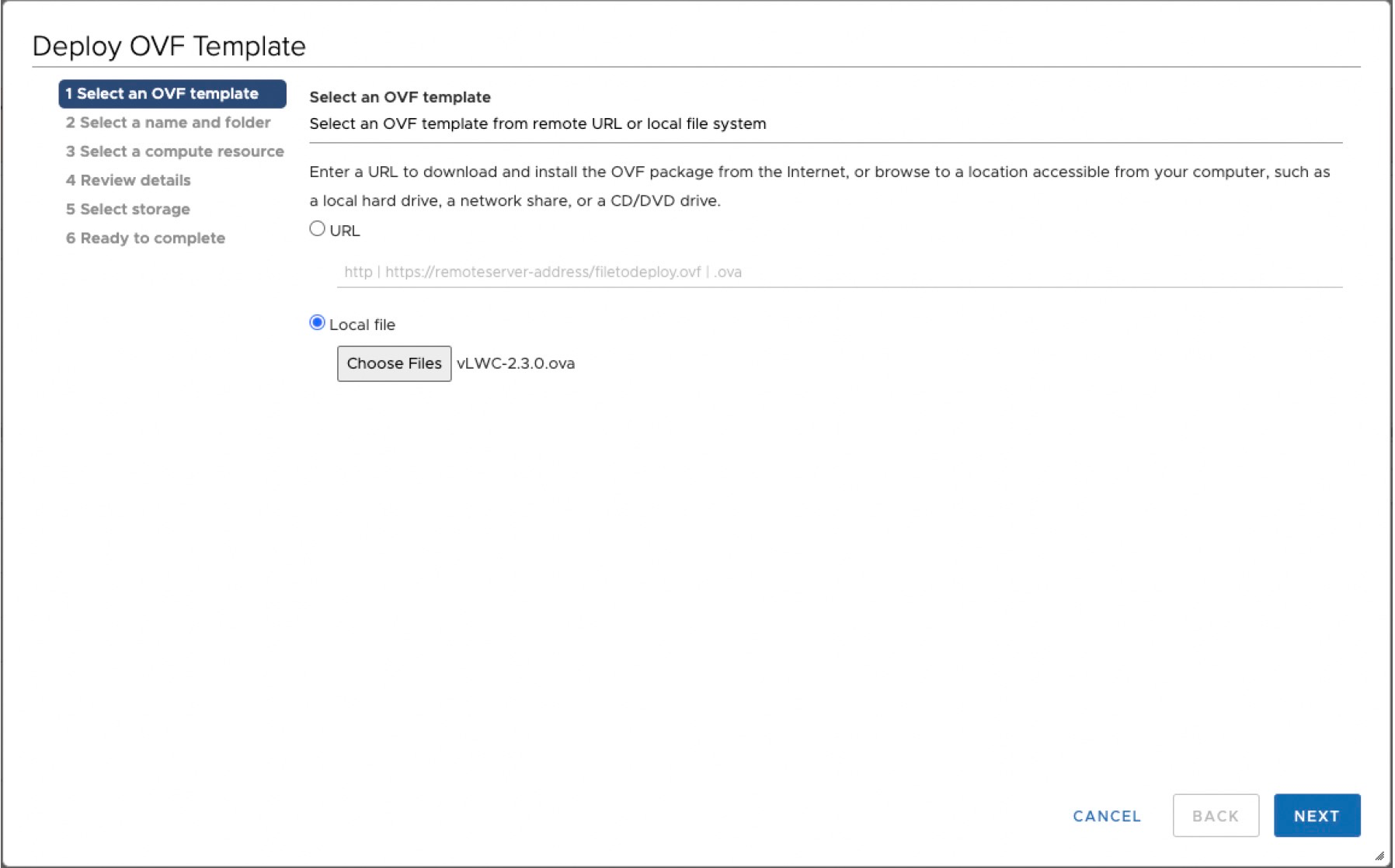
The Select a name and folder page opens.
-
Select the VMWare network to attach to each network interface using the
Destination Network drop-down for each of the source network. You can ignore
the IP allocation settings as they are not used by the vLWC. Click
Next.
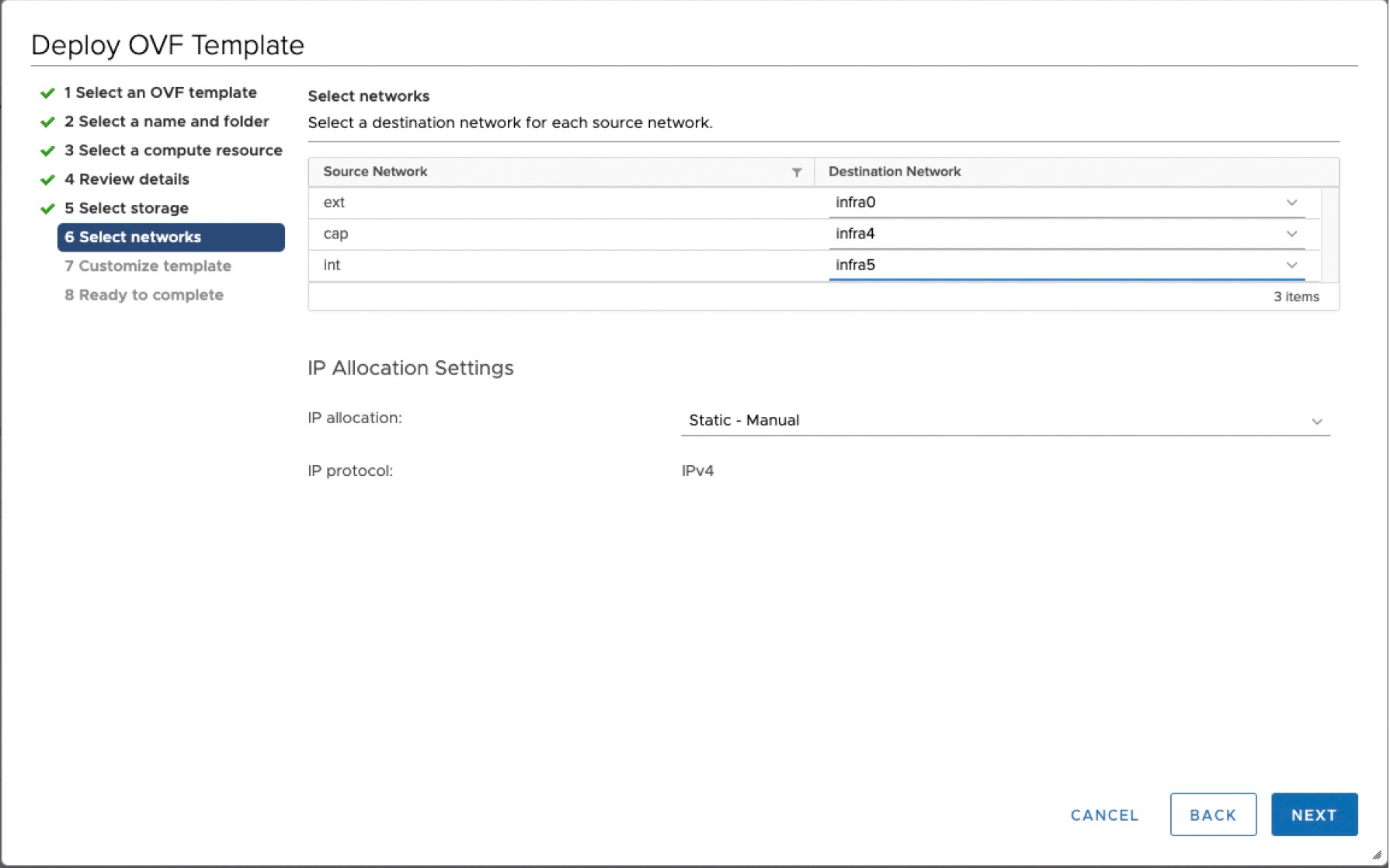
The Customize template page opens.
-
Specify the network settings for each vLWC interface over a series of 20 vApp
properties. For each interface, select the correct address type. For static
address, specify the necessary settings for that interface.
The internal
and external interfaces must each have unique DNS entries.
Table 1: Supported IP Address Versions for the Interfaces Interface Supported IP Address Internal
IPv4 or IPv6 address
External
IPv4 address only
Management
IPv4 address only
Once you have configured your network, click Next.
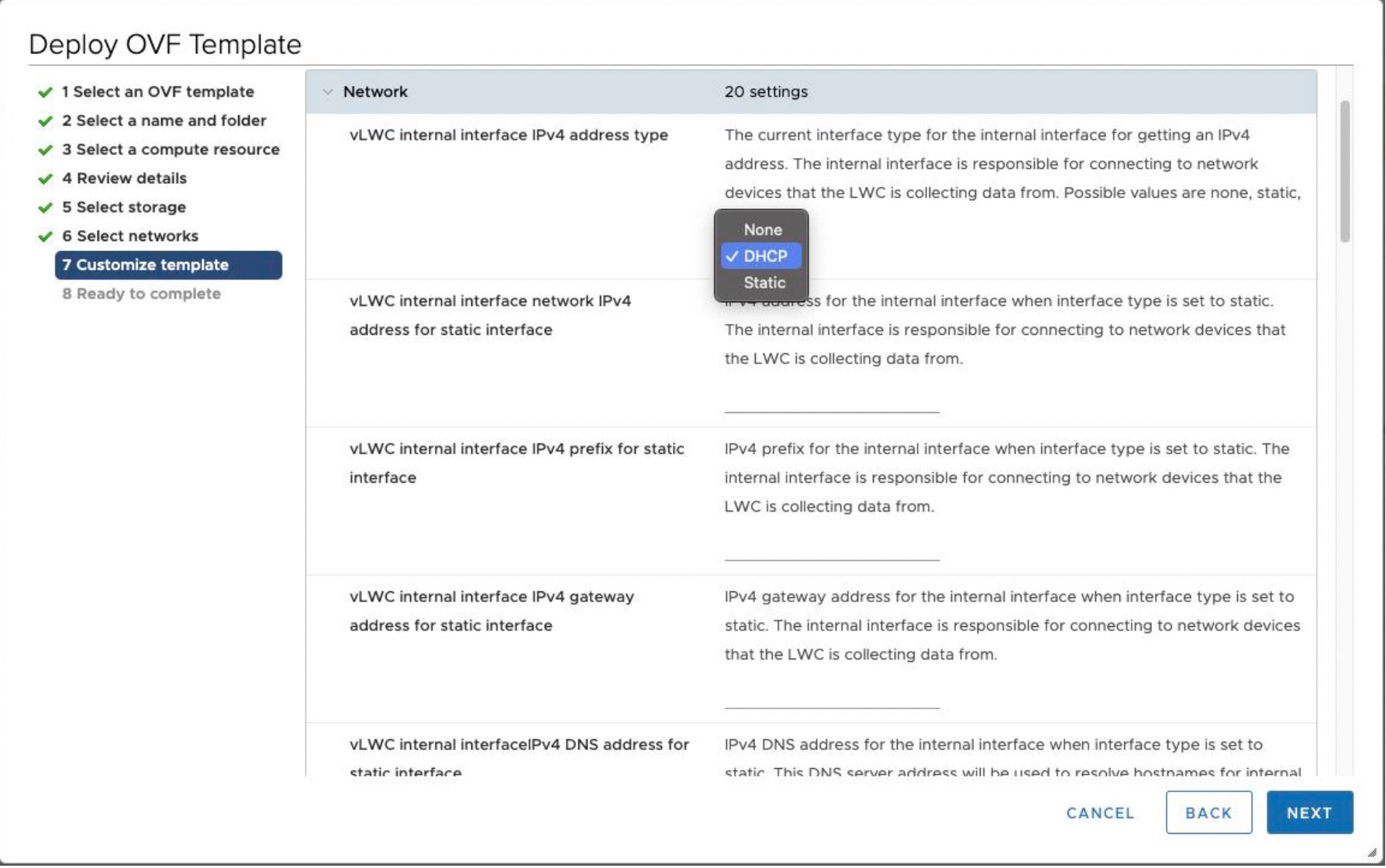
The Ready to complete page opens.
-
Verify the configured settings for the vApp deployment and click
Finish to start the deployment of the vLWC.
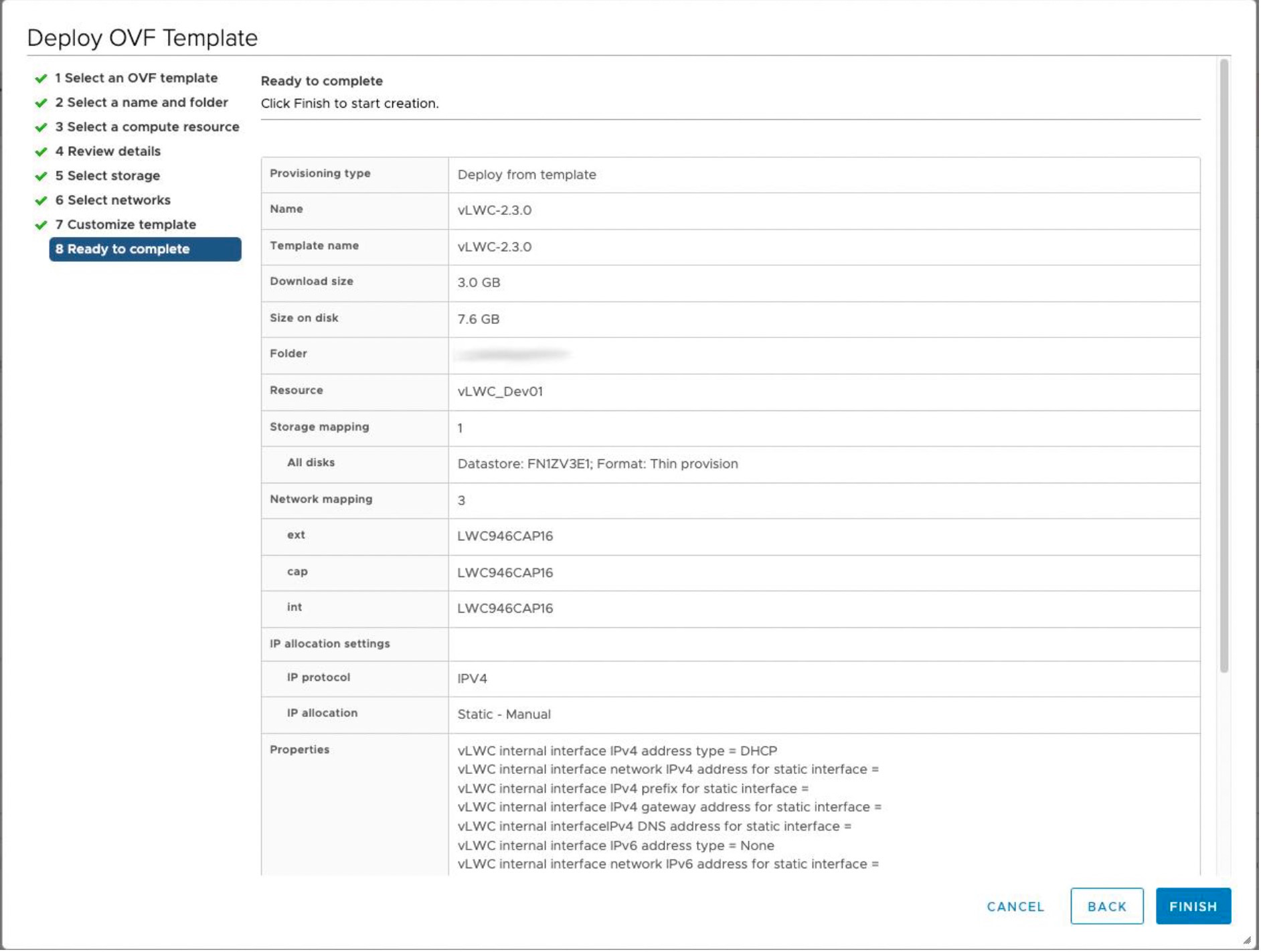
Verify Installation
Once installation is complete and vLWC is powered on, you can confirm a successful deployment through the Summary page of the VM. The Summary page of the ggc-lnx VM is located under the vLWC vApp entry. It should show an Ubuntu Linux (64-bit) VM running with VMWare tools also running along with the IP addresses assigned to the VM in the IP addresses list. See Figure 1.
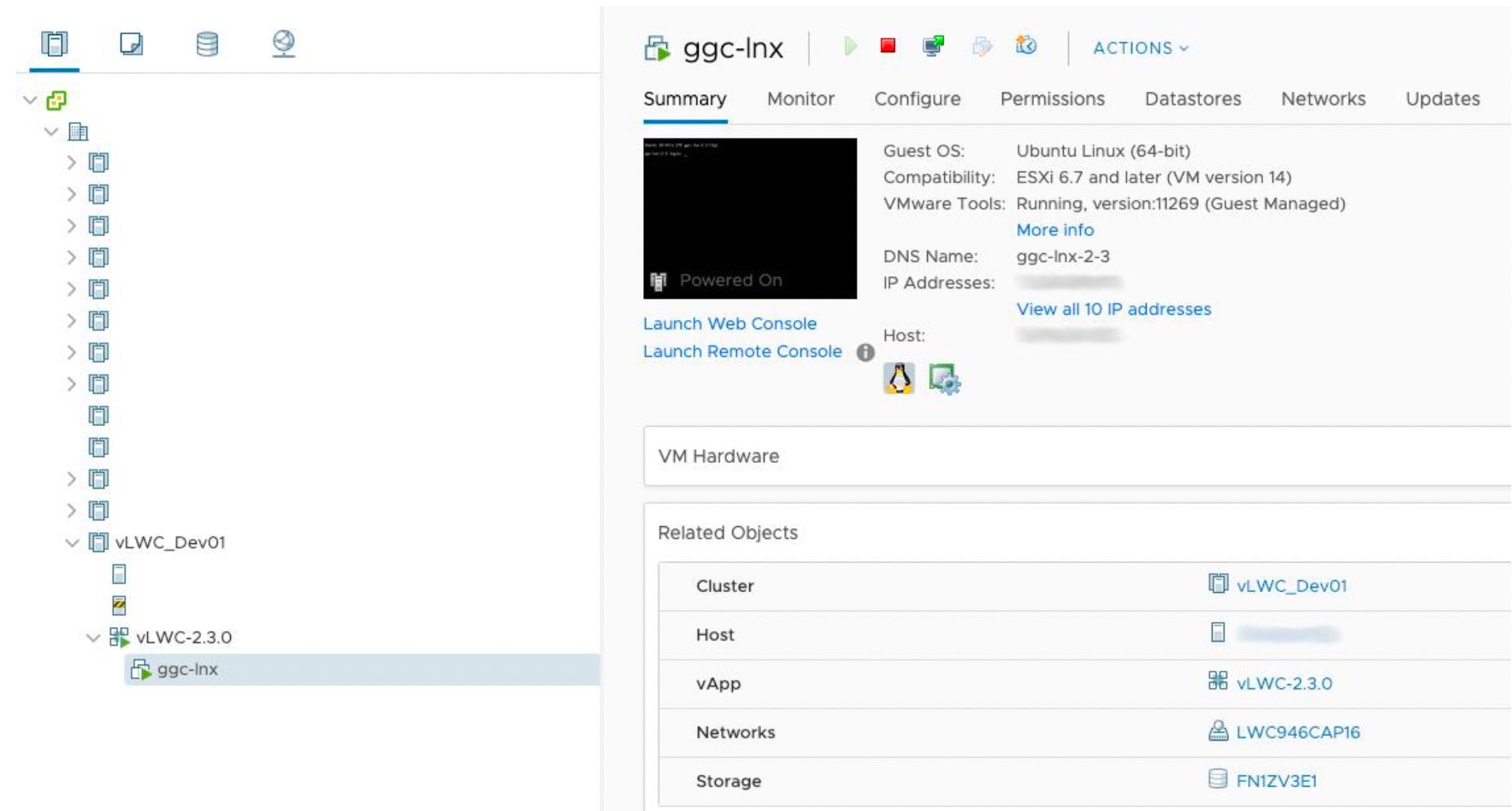
From the Summary page, you can also launch a console connection to the VM and view the current network status through the JSI Shell.