Access the Captive Portal
To access the Captive Portal:
-
Log in to the JSI Data Collector.
The login method depends on the JSI Data Collector login page displayed for your LWC. Use the method that corresponds to the login page you see.
Method 1: Log in using the LWC serial numberEnter the LWC serial number in the Serial Number field and click Submit to log in.
Figure 1: Method 1 Login Screen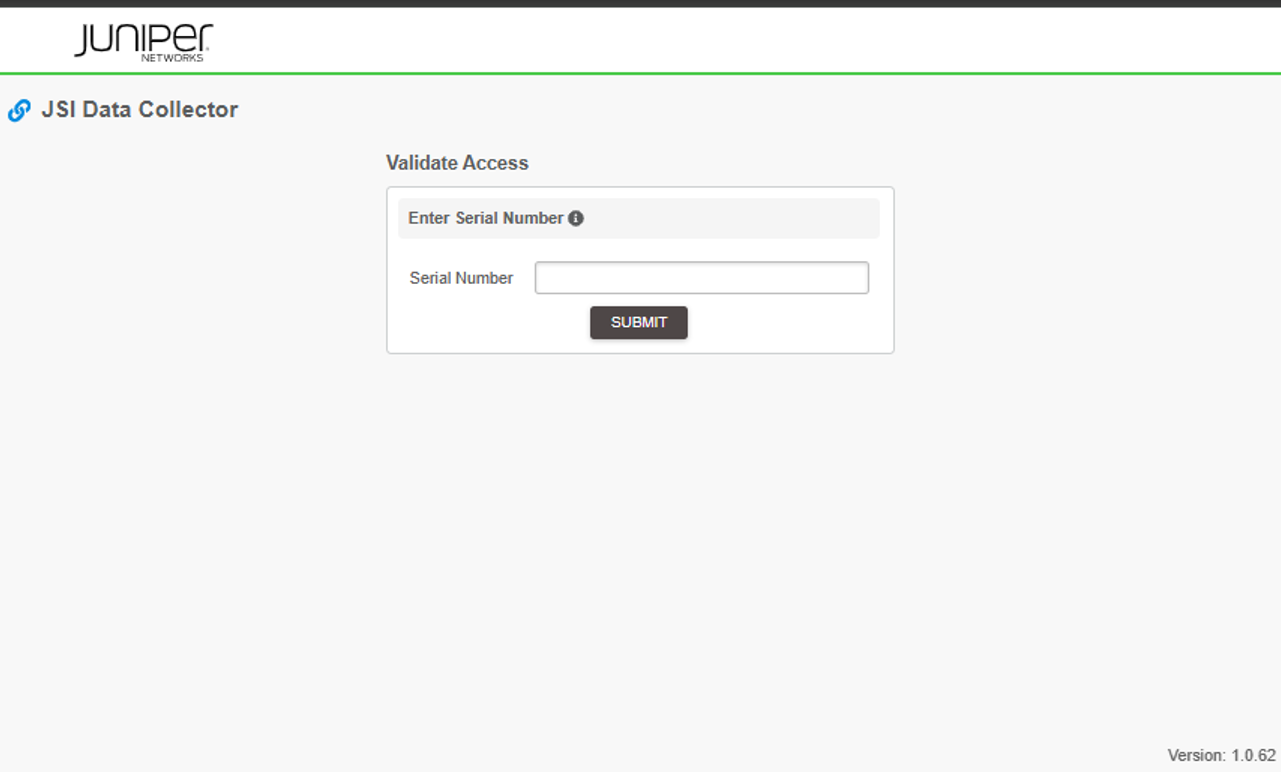
Method 2: Log in using the
jsiuseraccountIf you are using the latest version of the LWC, the JSI Data Collector login screen will appear as follows:
Figure 2: Method 2 Login Screen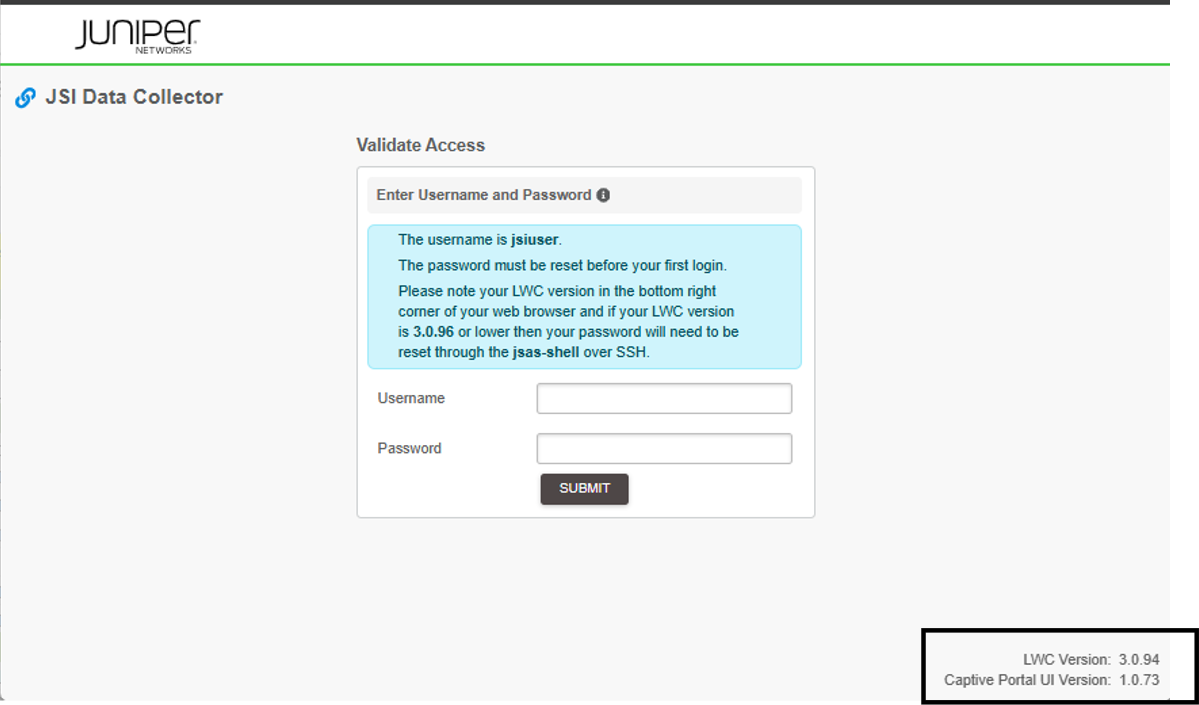
If the LWC version is earlier than 3.0.96, reset the
jsiuserpassword before logging in for the first time. You can find the current LWC version on the lower right corner of the screen.To reset the
jsiuserpassword-
Open a shell on the computer connected to ge-0/0/0 on a physical LWC or the cap interface on a virtual LWC or KVM LWC.
-
Connect using one of the following:
ssh jsiuser@cportal.lwc.jssdev.junipercloud.netssh jsiuser@<cap_interface_ip_address>
Note:To obtain the default password for jsiuser, see KB77944.
Once the password is reset, use the new password to log in.
Method 3: Reset the
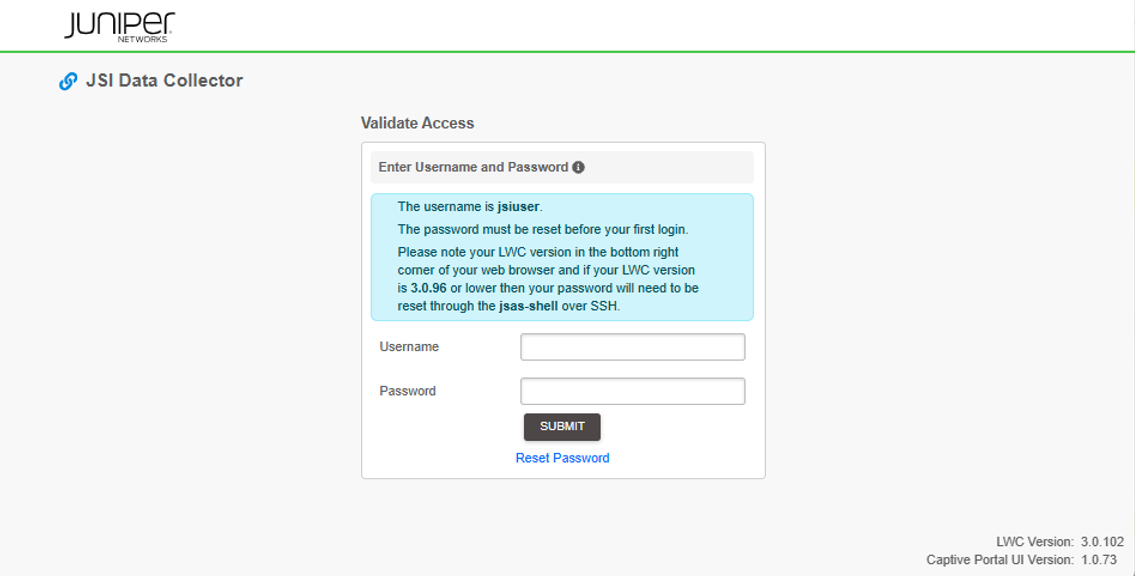
jsiuserpassword from the login pageIf Reset Password appears on the login page, you can reset the
jsiuserpassword before the first login.To reset the
jsiuserpassword from the login page:- Click Reset Password.Figure 3: Method 3 Login Screen
- Enter a new password that meets the password requirements displayed on the page and
click CHANGE PASSWORD.Figure 4: Reset Password
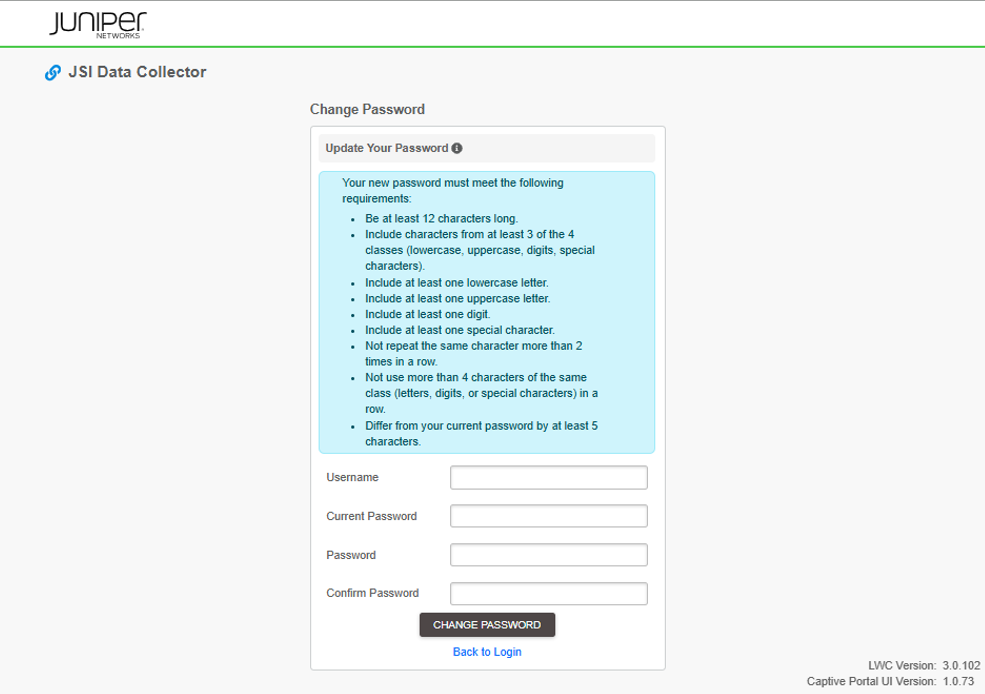
- Once a new password has been created, the browser will automatically return to the login page.
- Log in to the JSI Data Collector using the new password.
-