HPE Networking ATP Cloud UI Overview
The HPE Networking ATP Cloud UI is a web-based service portal that allows you to monitor HPE Networking ATP Cloud features enabled through your SRX Series Firewalls. The HPE Networking ATP Cloud based services are hosted in the HPE Networking cloud and are maintained and managed by HPE.
If you are a licensed Junos Space Security Director, you can use Security Director 16.1 and later screens to set up and use HPE Networking ATP Cloud. For more information using Security Director with HPE Networking ATP Cloud, see the Policy Enforcer administration guide and the Security Director online help. The remainder of this guide refers to using HPE Networking ATP Cloud with the ATP Cloud UI.
You can perform the following tasks with the ATP Cloud UI:
Monitoring—Display following information:
-
Verdict of scanned files (clean or malware)
-
Blocked access to known Command and Control (C&C) sites
-
Infected hosts, including their current and past threats
-
Details of exfiltration attempts
-
Discovered Internet of Things (IoT) devices
-
Quarantined emails with malware
-
Other attacks related to the Domain Name System (DNS) and Secure Sockets Layer (SSL).
-
Configuring—Configure following features:
-
Create and view allowlists and blocklists that list safe or harmful network nodes
-
Create and view access to different categories of feeds
-
Share threat intelligence captured through malware analysis
-
Configure email quarantine settings and profiles that determine which file types to submit to HPE Networking ATP Cloud for investigation.
-
Reporting—Use the dashboard to view and drill into various reports, such as most infected file types, top malwares identified, and infected hosts.
The ATP Cloud UI has infotips that provide information about a specific screen, field or object. To view the infotip, hover over the question mark (?) without clicking it.
Accessing the ATP Cloud UI
To access the HPE Networking ATP Cloud UI:
-
Open a browser that has HTTP or HTTP over SSL (HTTPS) enabled.
For information on supported browsers and their version numbers, see HPE Networking ATP Cloud UI Browser Support Table. -
Type in the URL for the customer portal and press Enter.
The customer portal hostname varies by location. See Table 1 for customer portal URLs by location.
Table 1: Customer Portal URLs Location
Customer Portal URL
United States
https://amer.sky.junipersecurity.net
European Union
https://euapac.sky.junipersecurity.net
APAC
https://apac.sky.junipersecurity.net
Canada
https://canada.sky.junipersecurity.net
The ATP Cloud UI login page appears. See Figure 1.
Figure 1: HPE Networking ATP Cloud UI Login Page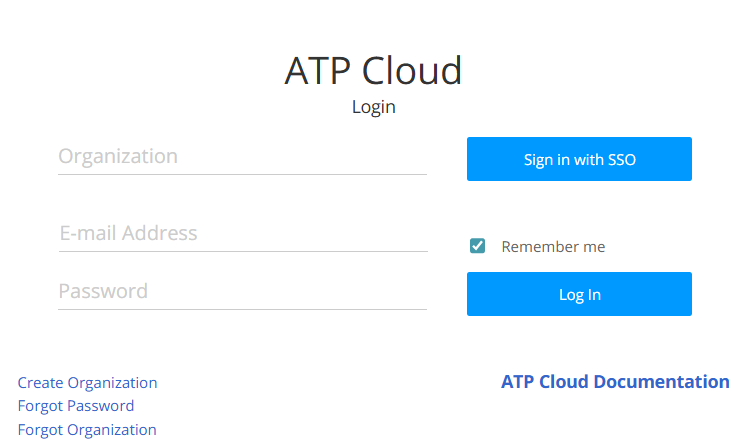
On the login page, type your username (your account e-mail address), password, and organization name and click Log In.
The ATP Cloud UI Dashboard page appears.
Note:Users can login to HPE Networking ATP Cloud using different organizations. You can manage organizations using the Configure > Misc Configuration > Organization Management page. See Organization Overview. You must be a system administrator to see the Organization Management page. See Create and Edit User Profiles for information on role-based access control.
To terminate your session at any time, click the icon in the upper-right corner and click Logout.
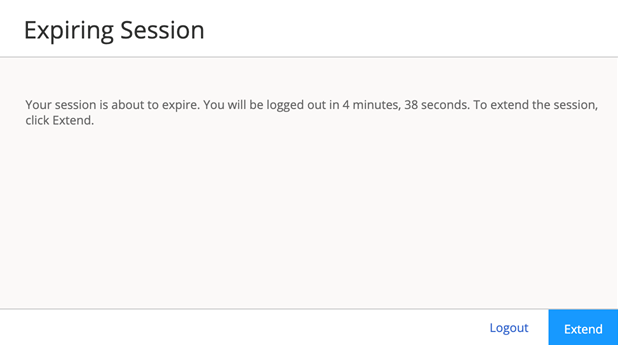
Each ATP Cloud session lasts for 60 minutes. Before a session is about to expire you will receive a notification message as shown in Figure 2. To extend the current session, click Extend. To logout of the session, click Logout. You can extend the session for maximum 25 times, after which the session will logout automatically.