Delete System (Freeform)

You can delete Freeform systems from the Topology or Systems view.

Delete One or More Systems (from Topology)

  1. From the blueprint, navigate to Staged > Physical > Topology and click Edit to open the topology editor.
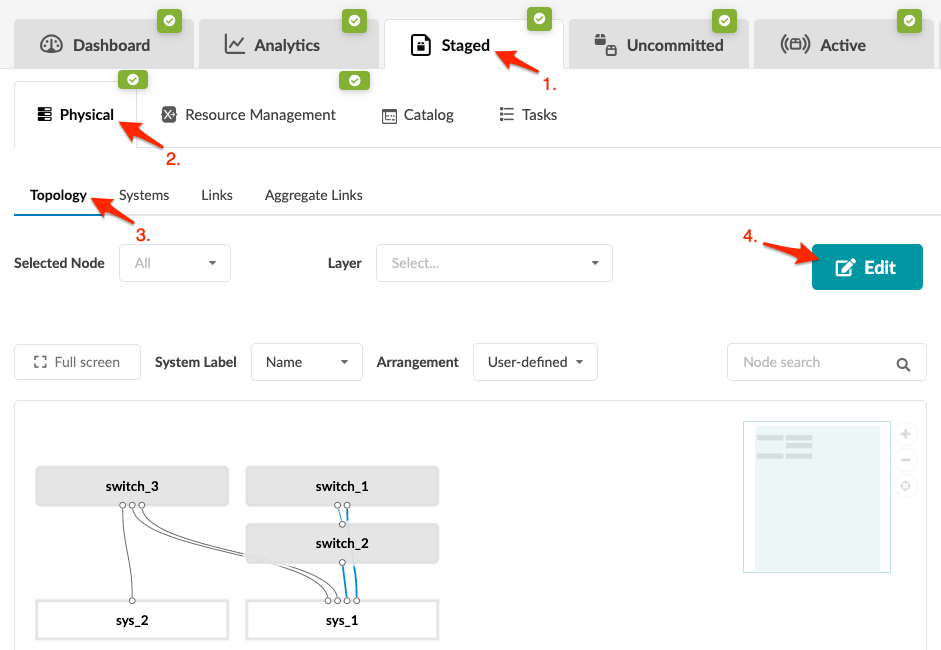
    Network management interface showing tabs for Dashboard, Analytics, Staged, Uncommitted, and Active, a navigation menu with options like Physical and Resource Management, a selected Topology tab displaying a network diagram with nodes labeled switch_1, switch_2, switch_3, sys_1, and sys_2, an Edit button, and filters for node selection and view customization.
    CAUTION:

    Be careful. If you click away from the topology editor after making changes without clicking Save, your changes are discarded.

  2. In the topology editor, select one or more systems to delete and click the Delete selected nodes button that becomes available.
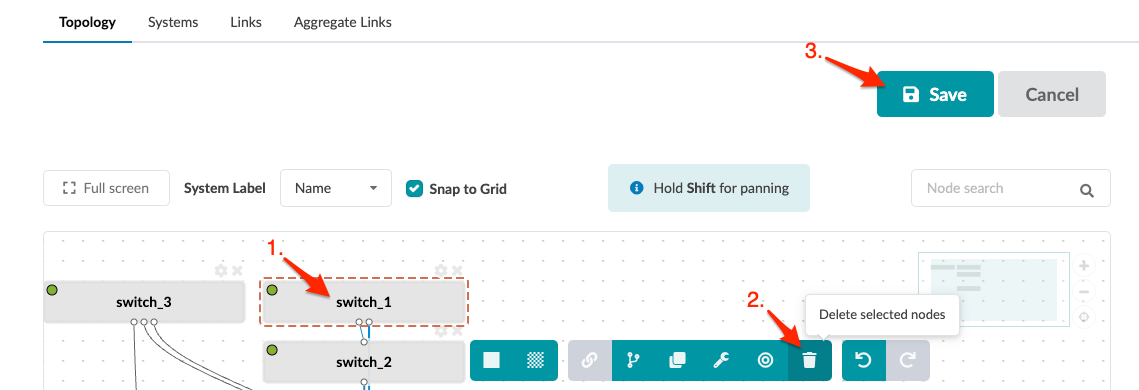
    Graphical user interface for network topology management with selected switch_1, toolbar options including delete and save, and navigation tabs.
  3. Click Save to stage your changes, exit the topology editor and return to the Topology view.
When you're ready to activate your changes, commit them from the Uncommitted tab.

Delete One System (from Systems)

  1. From the blueprint, navigate to Staged > Physical > Systems and click the Delete button for the system to delete.
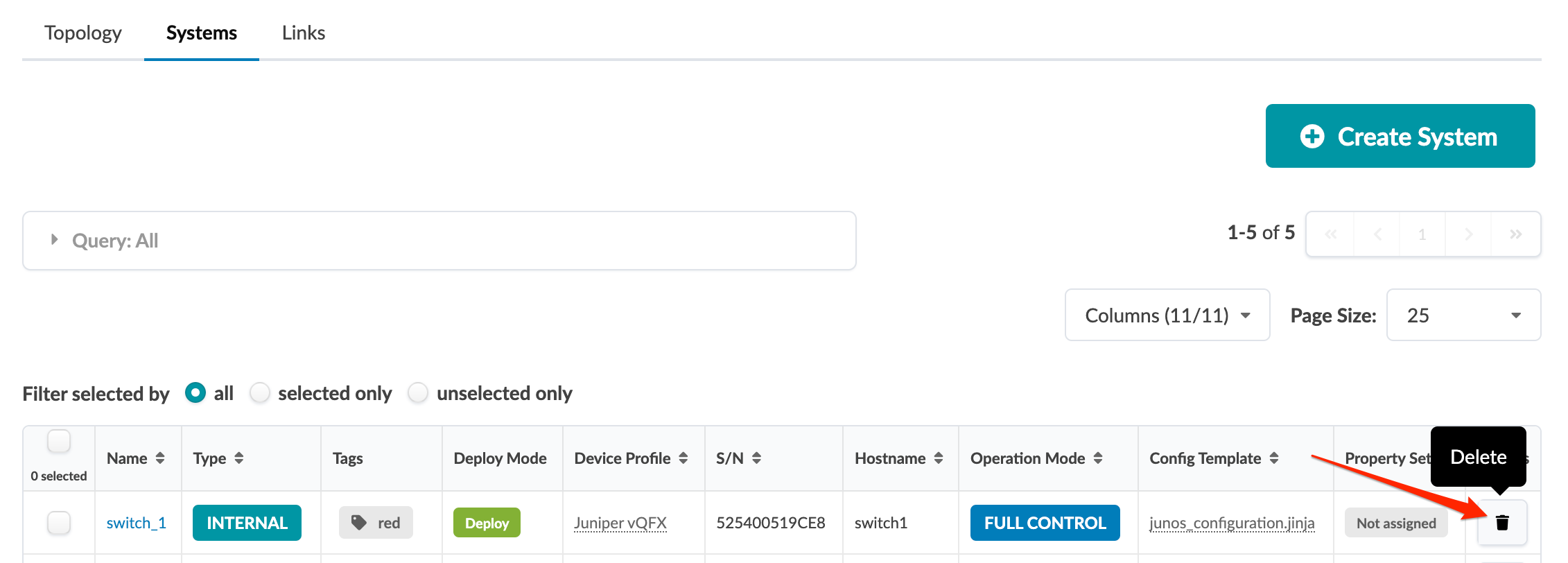
    User interface for managing systems with a Systems tab showing a table entry for switch_1 with details like type INTERNAL, tags red, and device profile Juniper vQFX.
  2. Click Delete to stage the deletion and return to the Systems view.
When you're ready to activate your changes, commit them from the Uncommitted tab.

Delete One or More Systems (from Systems)

  1. From the blueprint, navigate to Staged > Physical > Systems and select the check boxes for one or more systems, then click the Delete button that becomes available above the table.
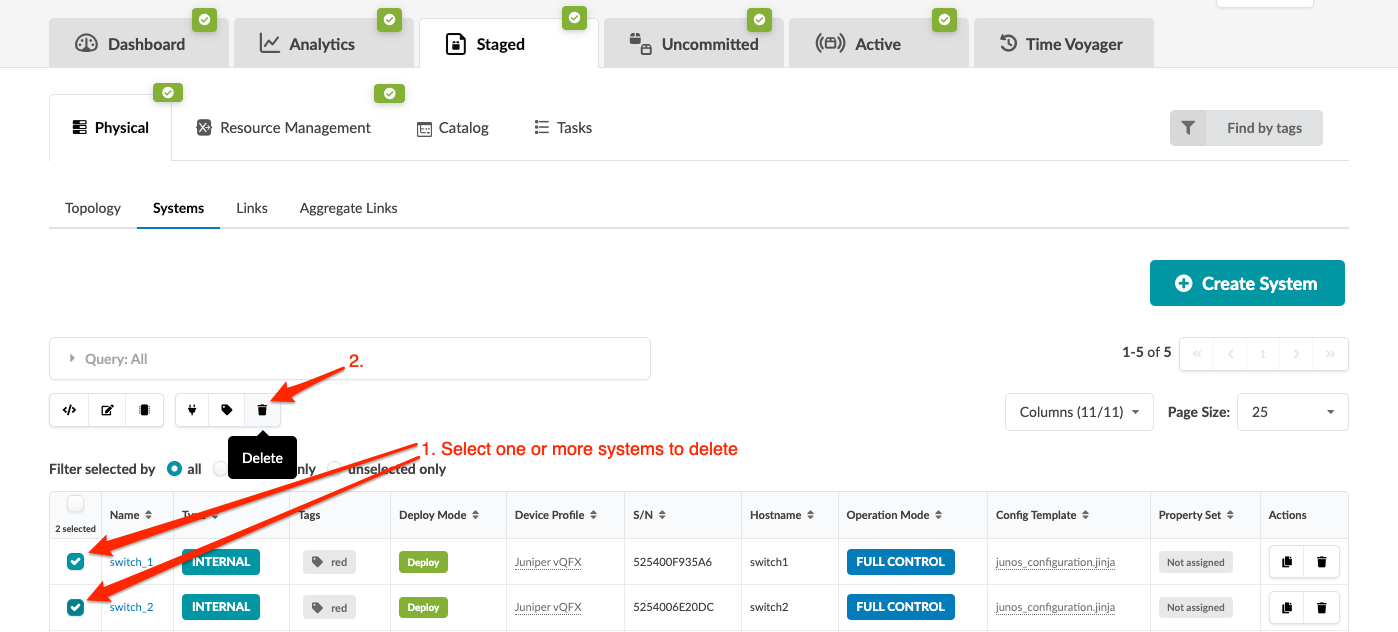
    Web-based management interface showing a table of network systems with details like name, type, and deployment status. Highlighted instructions guide deleting selected systems, with checkboxes checked for switch_1 and switch_2. Tabs at the top include Dashboard and Analytics.
  2. Click Delete to delete the systems (and any links that are connected to the systems) and return to the Systems view.
When you're ready to activate your changes, commit them from the Uncommitted tab.