NOS Rollback on Juniper Devices
Overview
Starting in 6.2, HPE Networking Apstra Data Center Director provides a "one-click" NOS rollback. NOS rollback is an agent-based job called Rollback and is supported on managed device or an upgrade group of devices to the immediately previous version of Junos OS or Junos OS Evolved. NOS Rollback automatically uses the correct rollback image, validates whether the device or upgrade group are eligible, and tracks the entire operation with clear status and event logs.
Because NOS rollback is an an agent-based job, you can monitor the operational status of the rollback.
For example:
-
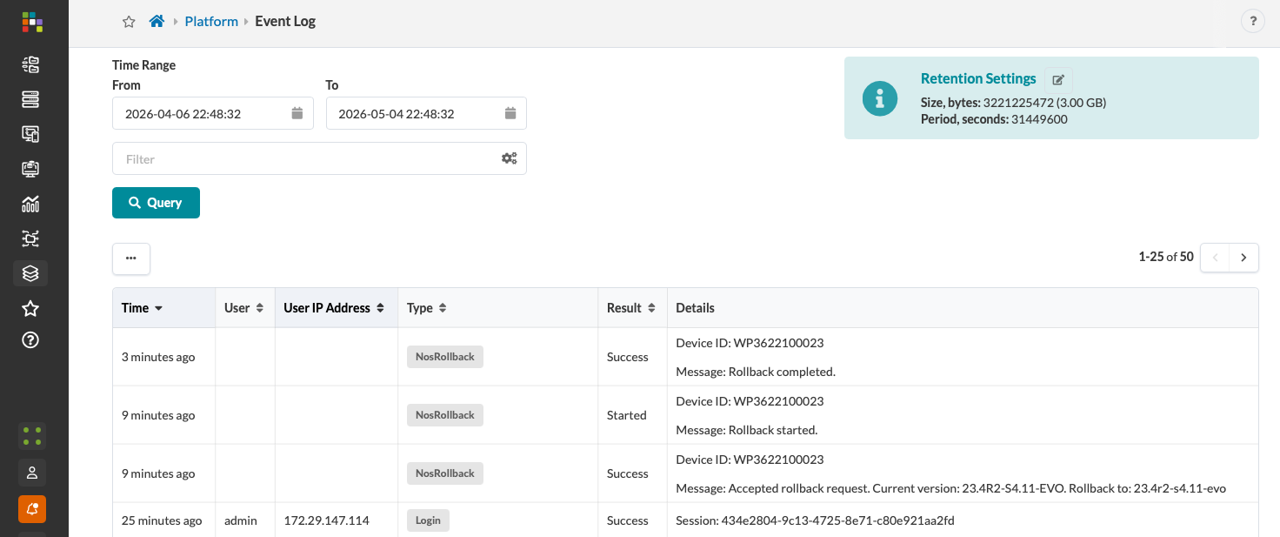
Use event logs to identify who started the rollback, which devices were selected for rollback, and the results of the rollback.
-
Monitor the progress in status reporting.
-
Use event logs to track the status of the rollback job.
Rollback Requirements
NOS Rollback is not supported on non-Juniper devices.
Built-in validation ensures that a rollback only happens when:
-
The device is a Juniper device.
-
A valid rollback image is available on the device.
-
The device is eligible for rollback.
Performing a Rollback on the Managed Device Tab
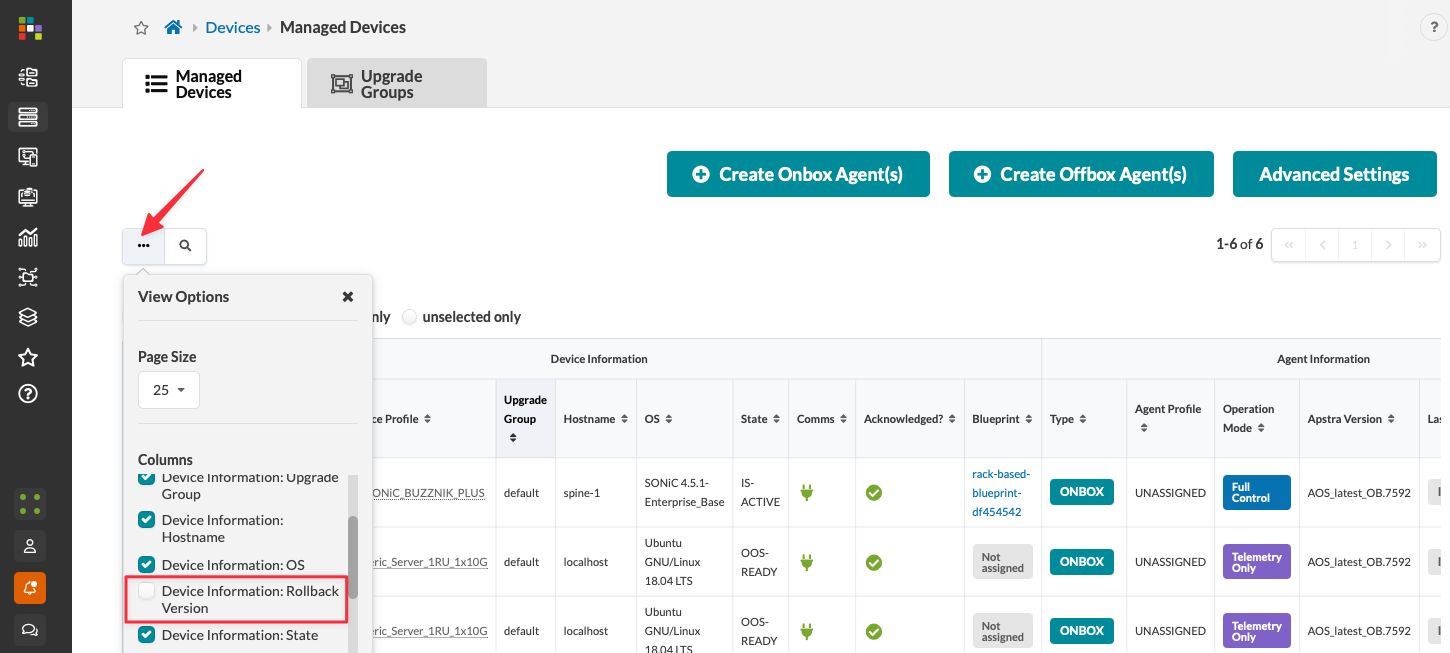
On the Managed Devices tab, the Rollback Version column is disabled by default. Click the three dots to see the View Options menu, and then click Device Information Rollback Version.
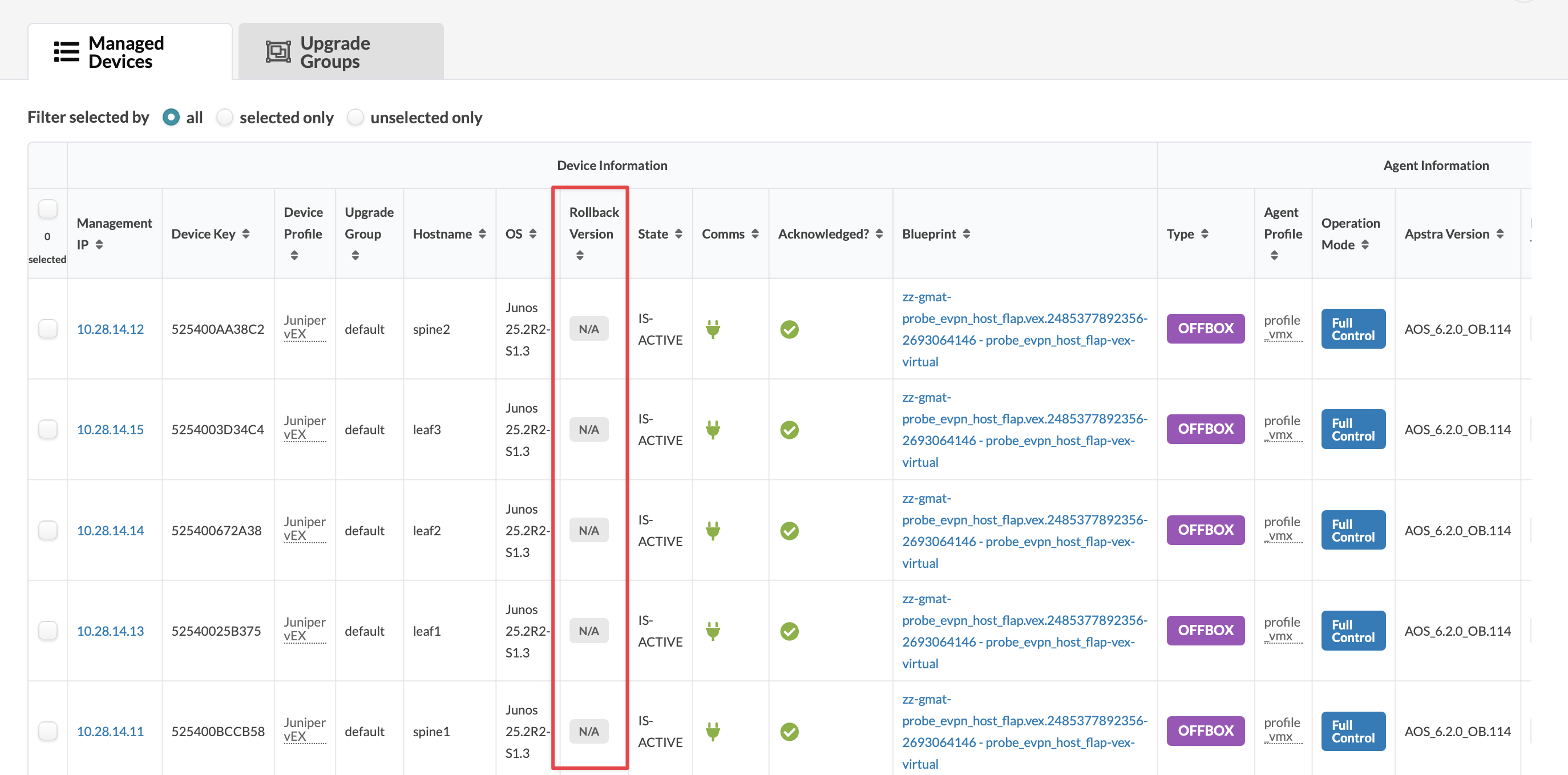
After selecting the Device Information Rollback Version box, a new column will appear in the Managed Devices tab that will show the available rollback version for each device if a rollback image is present in device.
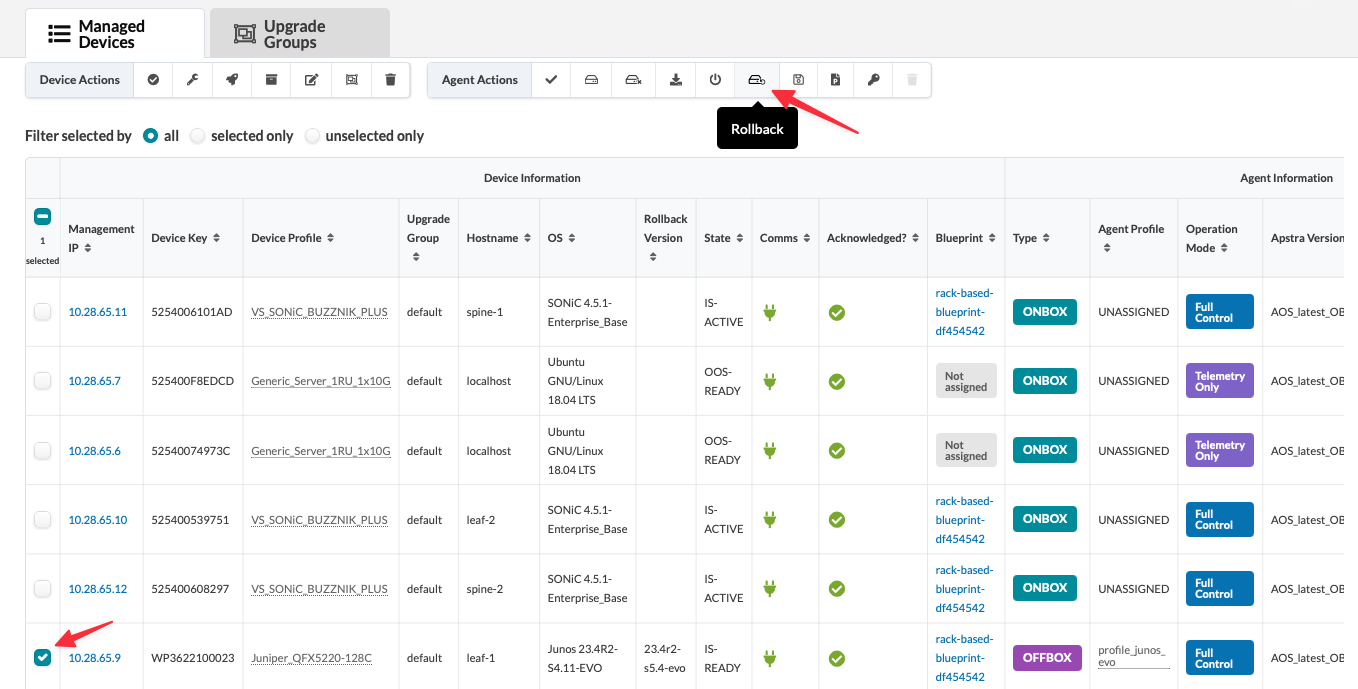
To rollback a device, select the device you want to rollback and then click Rollback.
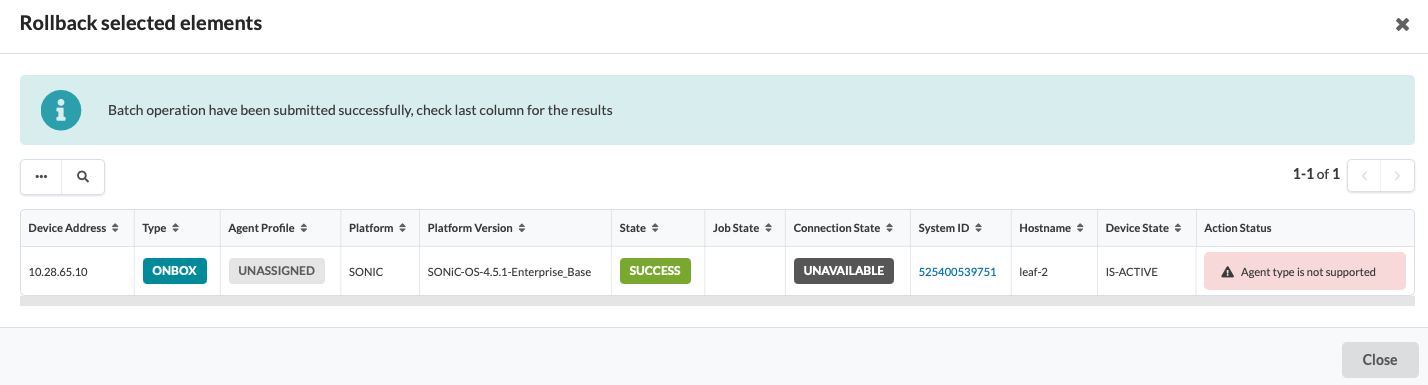
If you try to rollback a non-Juniper device, you will see an error message that says Agent type is not supported.
Performing a Rollback on an Upgrade Group
Perform the following steps to rollback
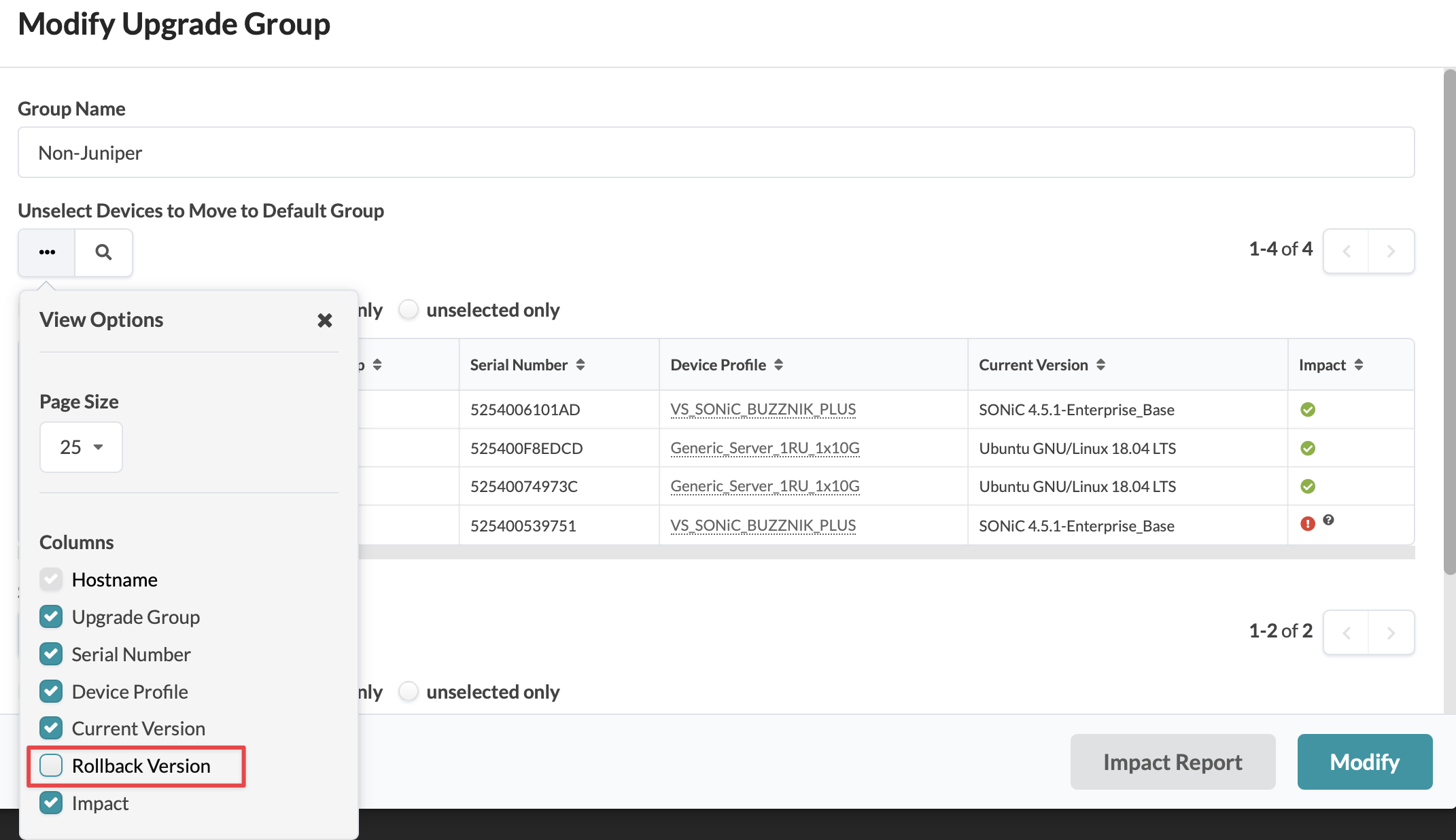
On the Upgrade Groups tab, the Rollback Version column is disabled by default. Click the three dots to see the View Options menu, and then click Rollback Version.
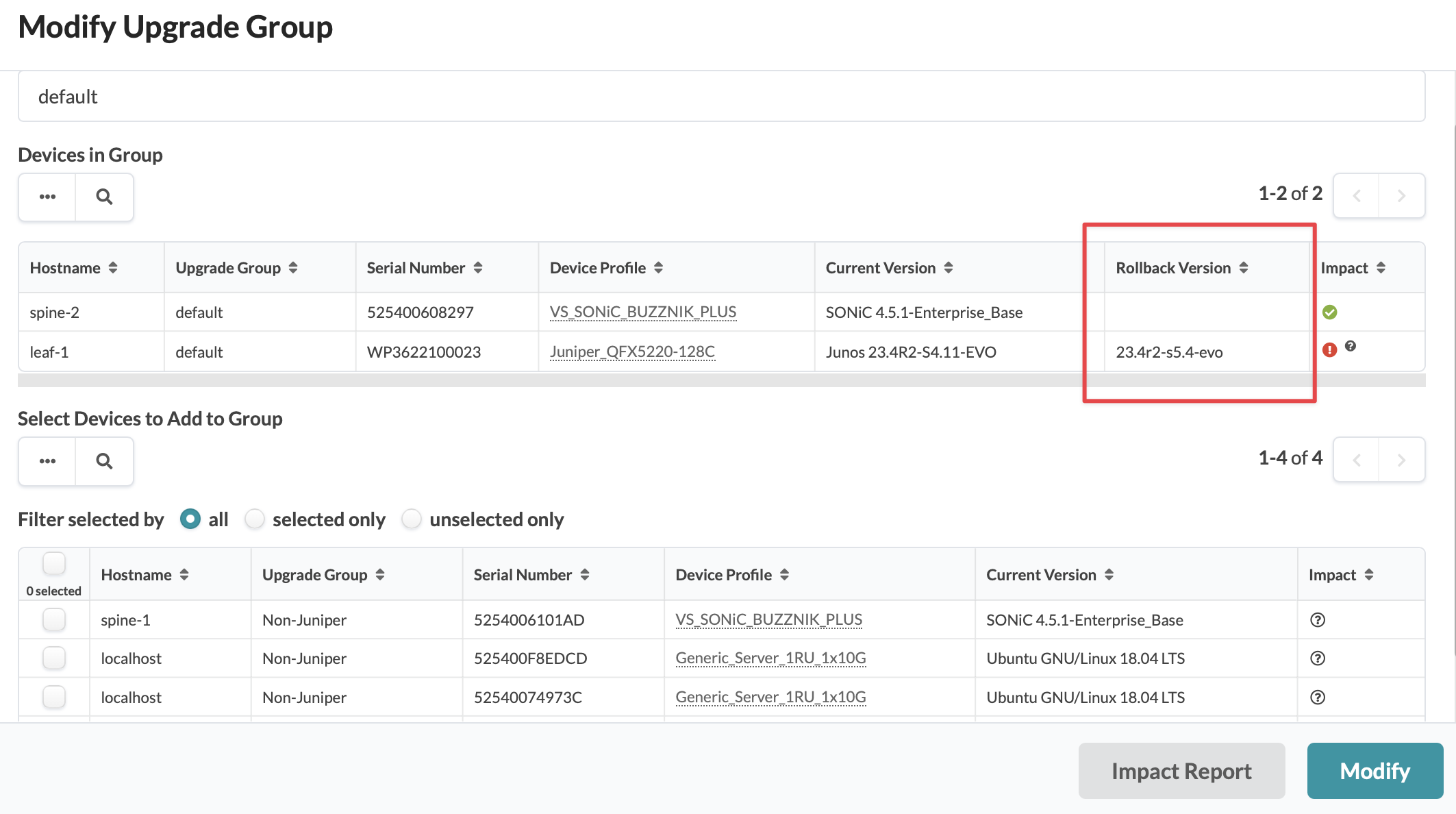
After you click Rollback Version, you can see the rollback information under the Rollback Version column.
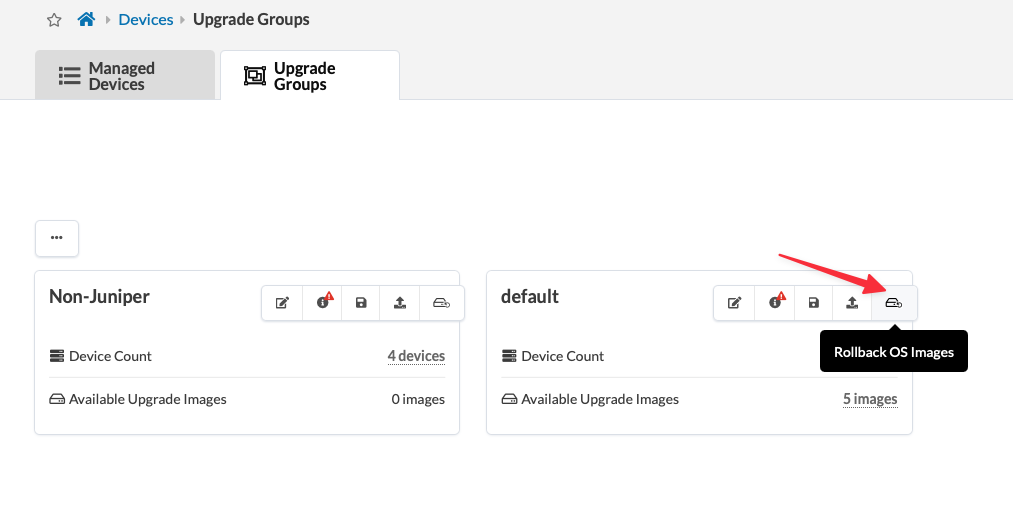
Click Rollback OS Images.
Select the devices that you want to roll back and then click Rollback.
You can select all eligible devices or select eligible devices in the Upgrade
Group. In this example, we are choosing leaf-1.
After you click Rollback, Apstra DC Director starts a
Rollbackagent job for each eligible selected device. Monitor the job status in the Action Status column.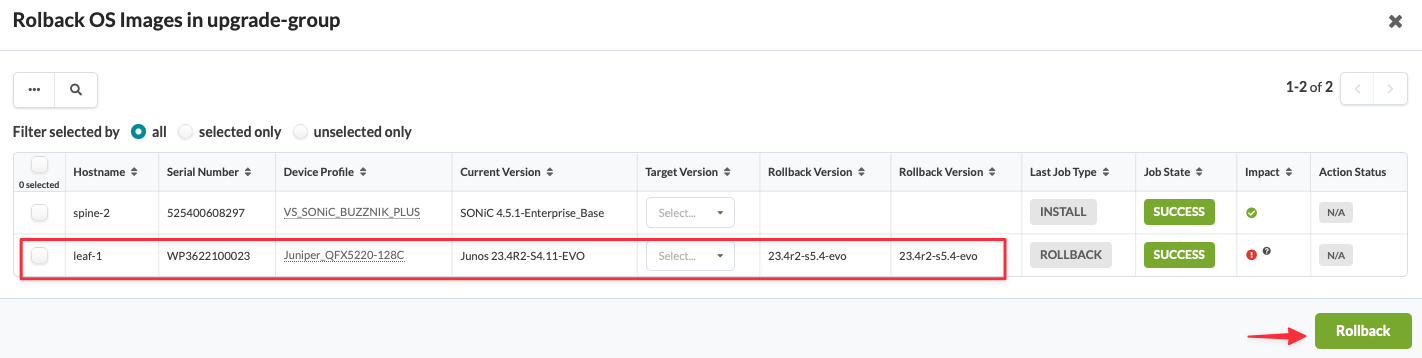
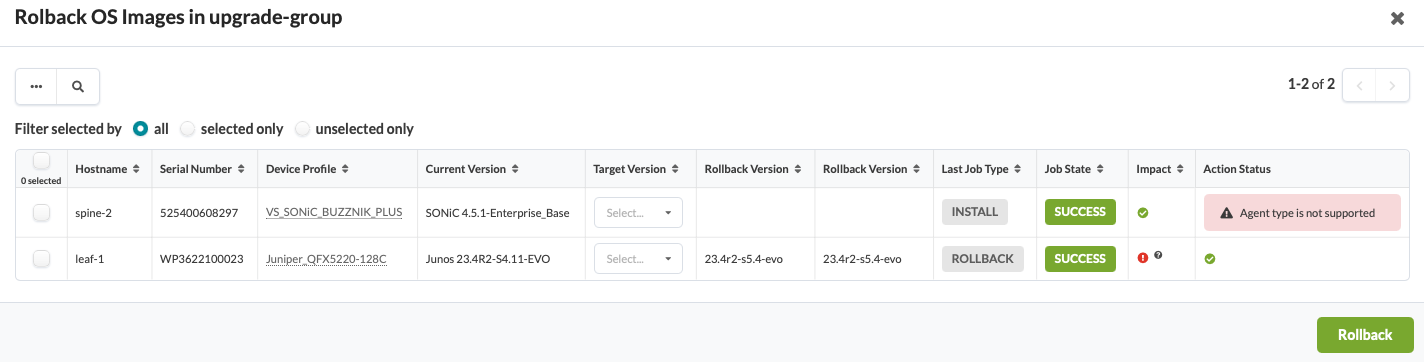
If you try to rollback a non-Juniper device, you will see an error message that says Agent type is not supported.
If the rollback was successful, you will see a green check box in the Action Status column for leaf-1.
Event Logs
Here's an example of an event log for a NOS rollback. The event log identifies the IP address associated with the user that made the change, the devices that were selected for a NOS rollback, and the results of the NOS rollback.