ON THIS PAGE
Links (Active)
Active Links Overview
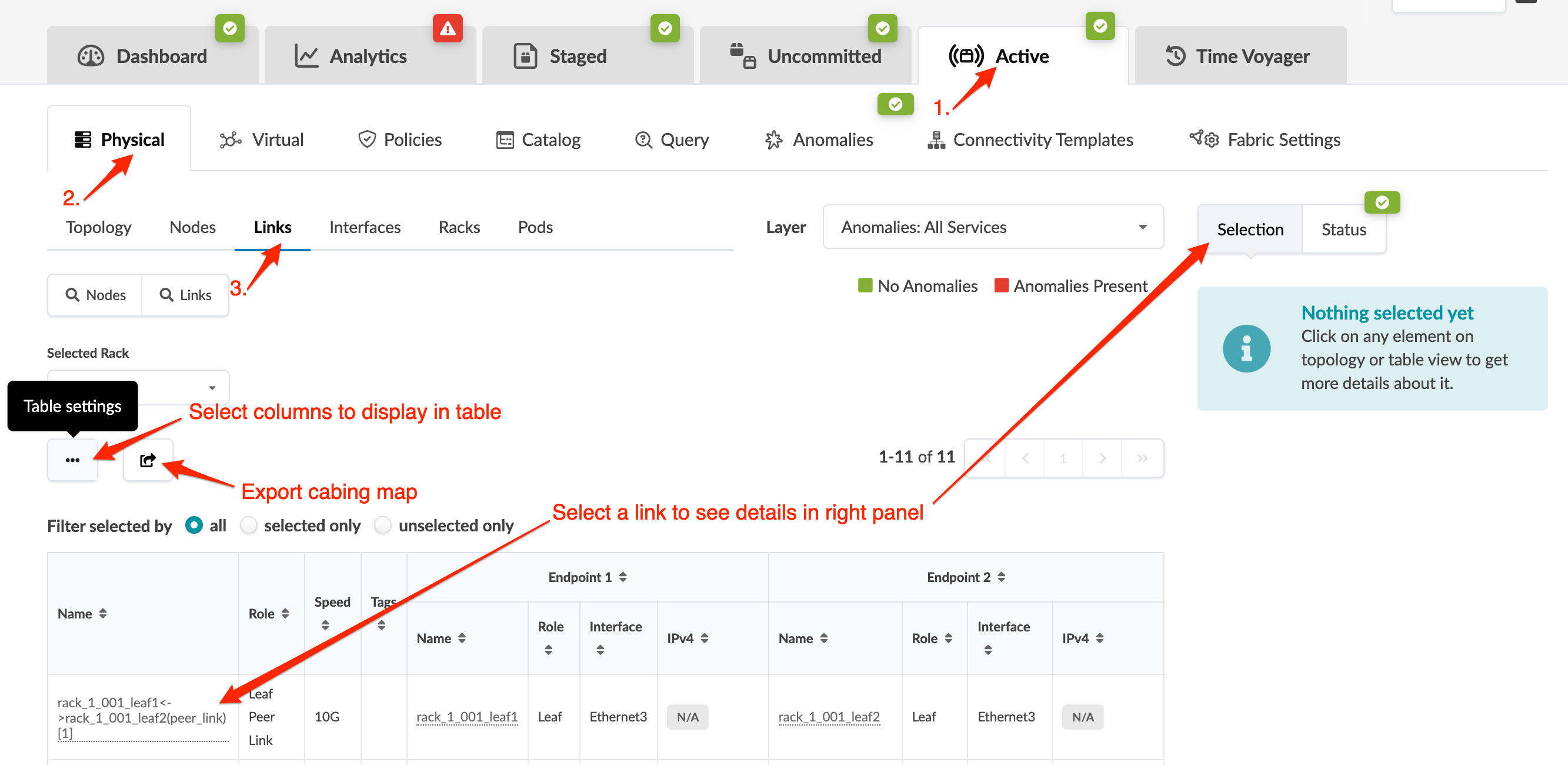
From the blueprint, navigate to Active > Physical > Links to go to links in the active topology. To search for specific nodes or links, click its query box, enter your criteria and click Apply to go to results. To go to properties of a particular link (in the right panel), click its name.