Delete Link (Datacenter)

You can delete links from the Neighbors view or the Links view of a selection in a blueprint.

Delete Link (Neighbors View)

  1. From the blueprint, navigate to Staged > Physical > Topology and select the node where you want to delete a link.
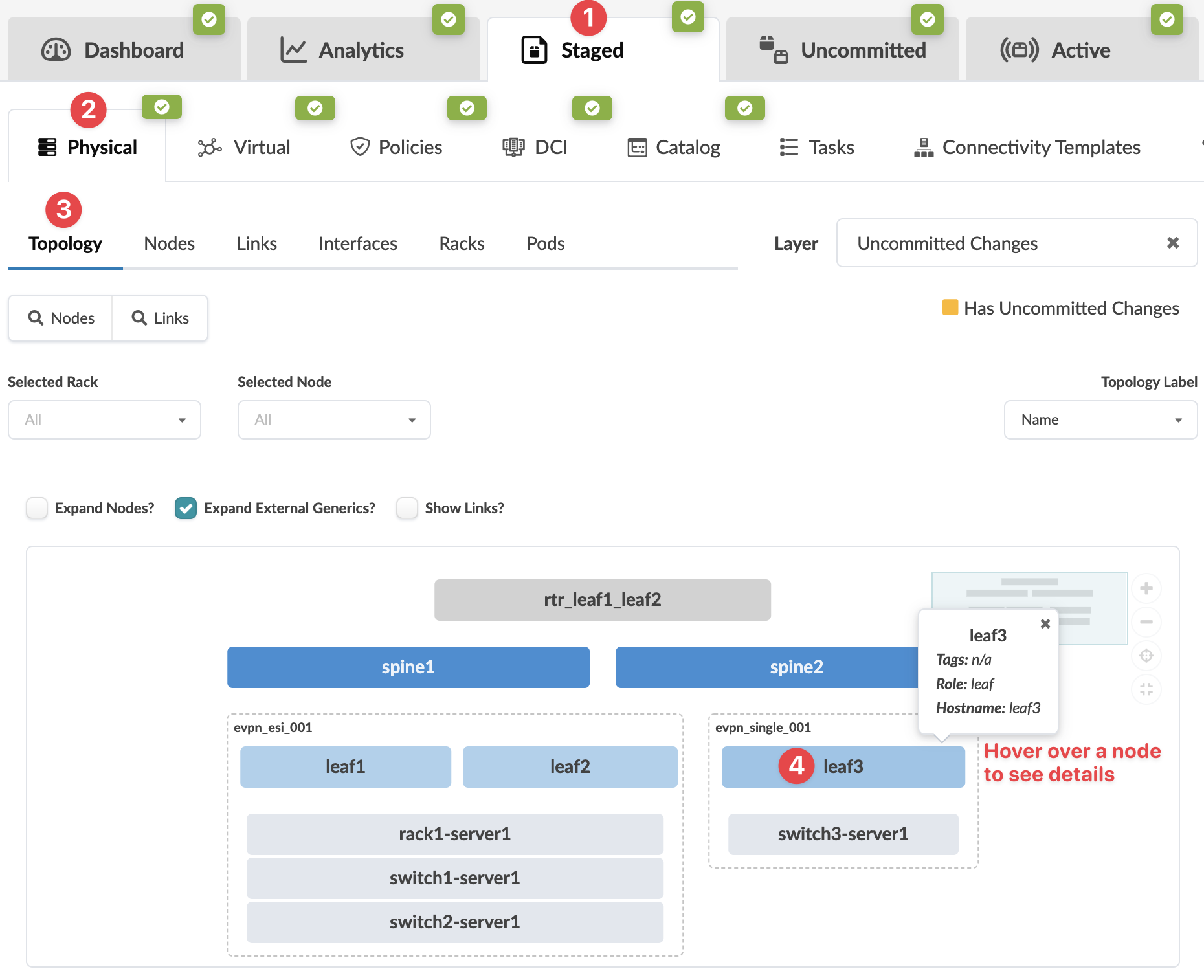
    Network management interface showing physical topology. Spine nodes connect to leaf nodes, which link to devices like servers and switches. Tabs and filters allow configuration and visualization of uncommitted changes.
  2. From the Neighbors view, select the interface checkbox to see the operations available for that node (and that you have permissions for).
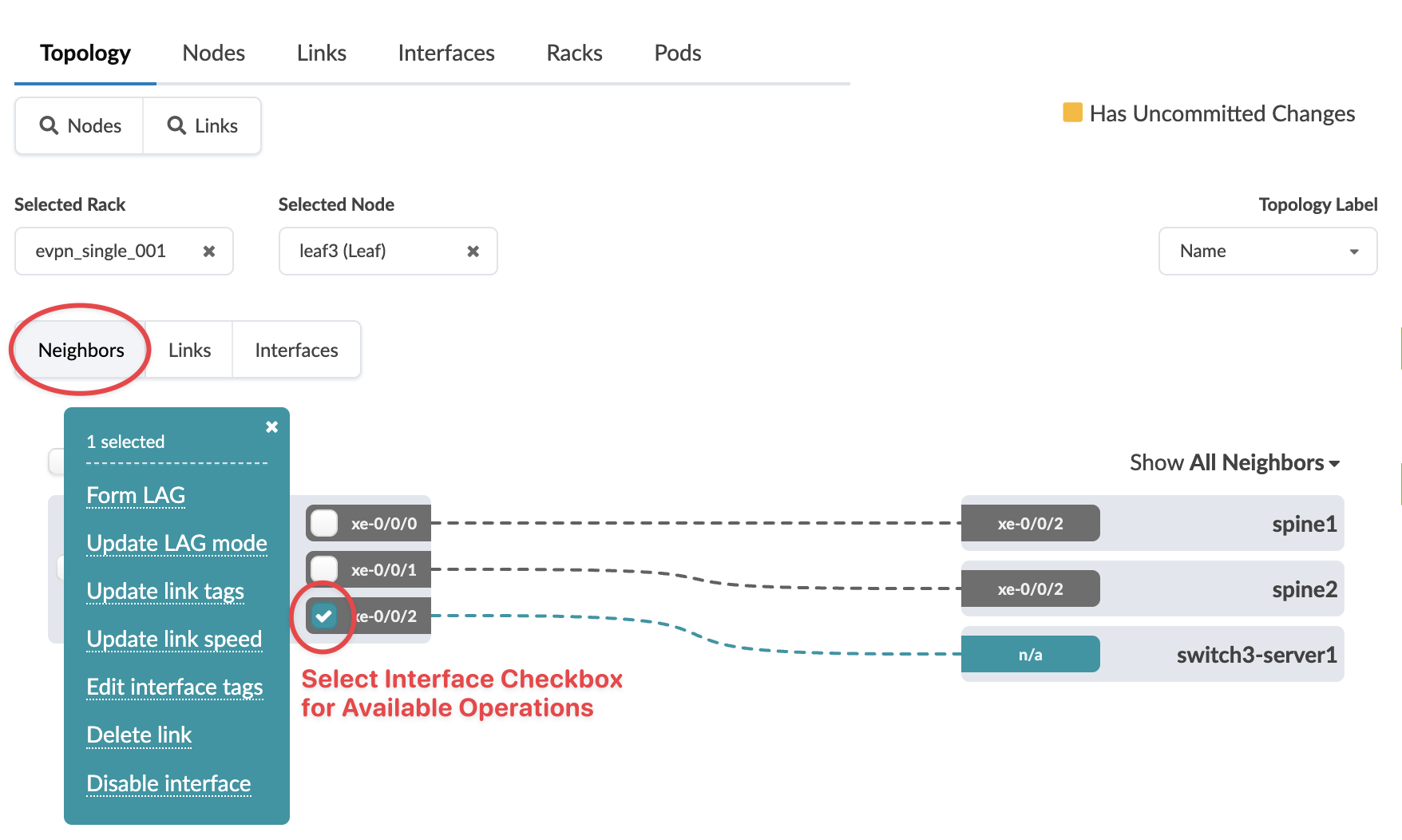
    Network topology interface screenshot showing tabs for Topology, Nodes, Links, Interfaces, Racks, Pods. Selected Rack: evpn_single_001, Node: leaf3. Neighbors: spine1 via xe-0/0/2, spine2 via xe-0/0/2, switch3-server1 via n/a. Interface xe-0/0/2 checkbox selected, dropdown for operations: Form LAG, Update LAG mode, Update link tags, Update link speed, Edit interface tags, Delete link, Disable interface. Red text highlights checkbox function. Yellow indicator for uncommitted changes.
  3. Click Delete Link.
    The Delete Link dialog opens.
  4. Review deletion details. Any connectivity templates that are applied on the link will be unassigned. Click Delete to stage the deletion and return to the Neighbors view of the selected node.
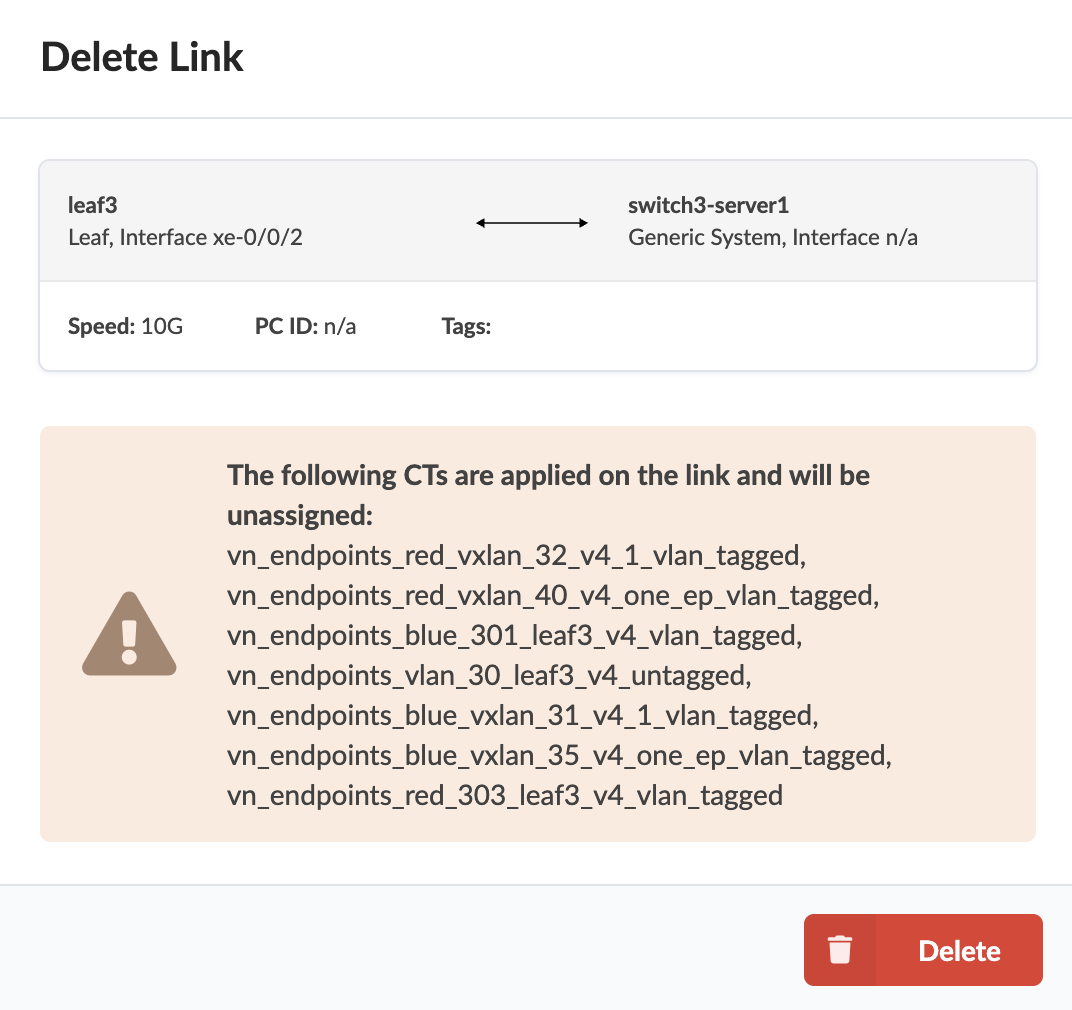
    Delete Link confirmation dialog showing link between leaf3 switch xe-0/0/2 and switch3-server1. Speed 10G. Warning: Deleting will unassign configurations.

When you're ready to activate your changes, commit them from the Uncommitted tab.

Delete Link (Links View)

From the Links view of your selected node you can delete one or more links at the same time.
  1. From the blueprint, navigate to Staged > Physical > Topology and select the node where you want to delete a link.
    Network management interface showing physical topology. Spine nodes connect to leaf nodes, which link to devices like servers and switches. Tabs and filters allow configuration and visualization of uncommitted changes.
  2. Click Links to go to the Links table, then select the link(s) to delete in one of the following ways:
    • Select one or more links in the left column and click the Delete button above the table.
    • Click the Delete button in the Actions panel for the one link to delete.
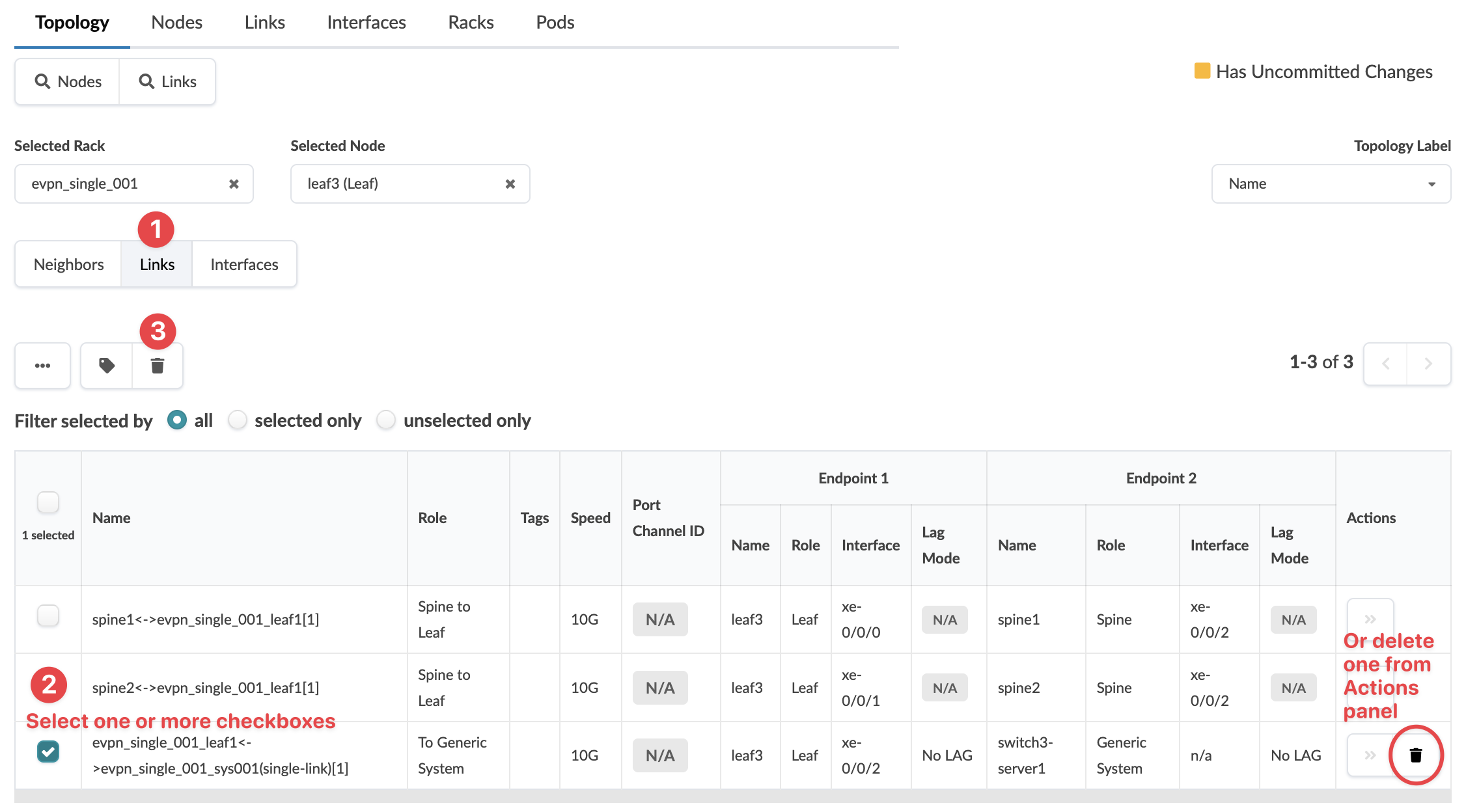
    Network topology interface showing 'Topology' section with 'Links' tab active. Selected rack 'evpn_single_001' and node 'leaf3'. Table lists network links with details like name, role, speed, and endpoints. Checkbox selected for a specific link. Actions panel with option to delete link. Yellow indicator for uncommitted changes.
    The Delete Link dialog opens.
  3. Review deletion details. Any connectivity templates that are applied on the link(s) will be unassigned.
  4. Click Delete to stage the deletion and return to the Links view of the selected node.

When you're ready to activate your changes, commit them from the Uncommitted tab.