Change Assigned Device Profile (Devices)

You can change the device profile assigned to one or more devices from the Managed Devices table, or you can change it for a single device from the Device selection page.

Change Device Profile from Managed Devices Table

To change a device profile from the Managed Devices table:
  1. From the left navigation menu in the GUI, navigate to Devices > Managed Devices and select the check box(es) for the device(s) with the device profile(s) to change.
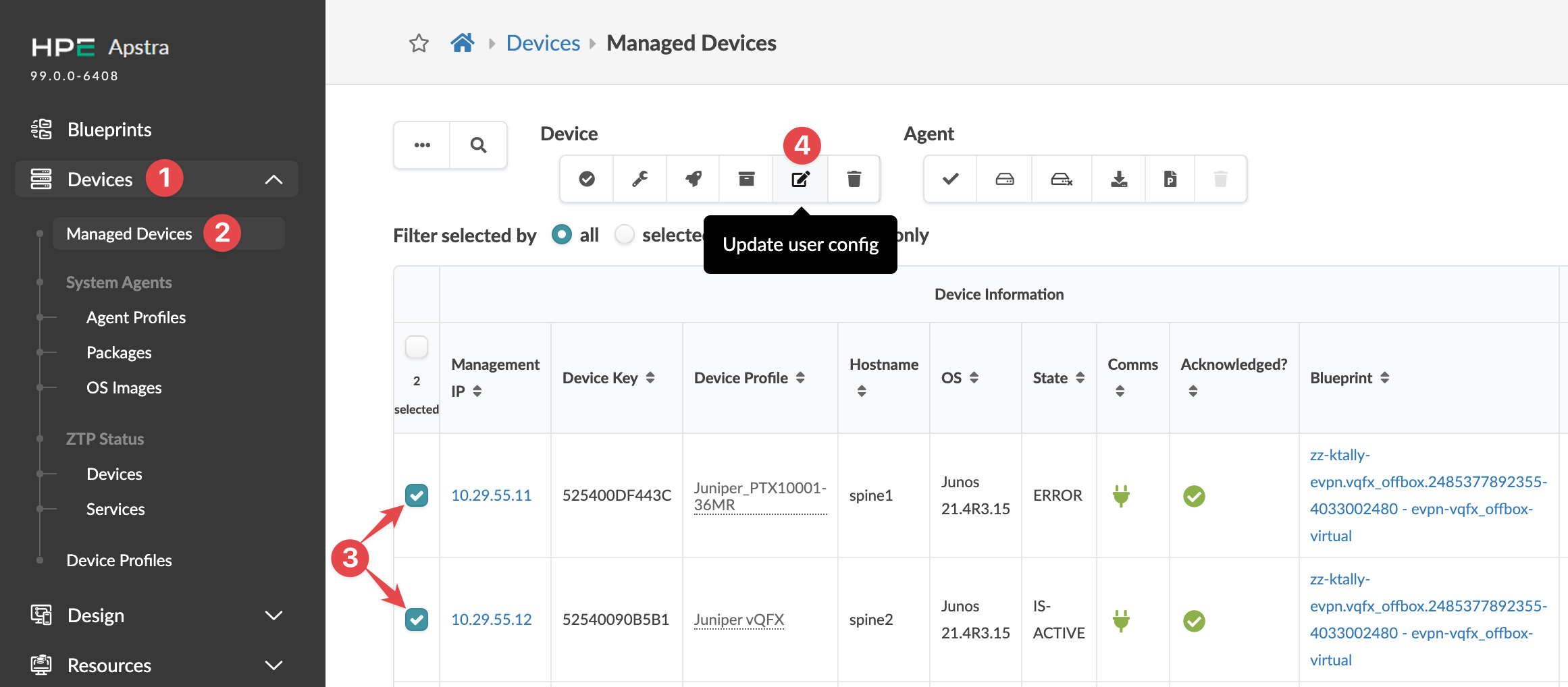
    Juniper Apstra interface screenshot of Managed Devices section with list of network devices showing details like Management IP, Device Key, and Device Profile.
    The Device menu appears above the table.
  2. Click the Update user config button (looks like an edit button).
    The Update Systems dialog opens.
  3. Select the Set Device Profile check box, then select the device profile from the drop-down list.
  4. Click Confirm.
The device profile is changed and you're returned to the Managed Devices table.
If the devices you updated are assigned to a blueprint, you also need to change the assigned interface map in the blueprint.

Change Device Profile from Device Selection

To change a device profile from a selected device:
  1. From the left navigation menu in the GUI, navigate to Devices > Managed Devices and click the management IP for the device with the device profile to change.
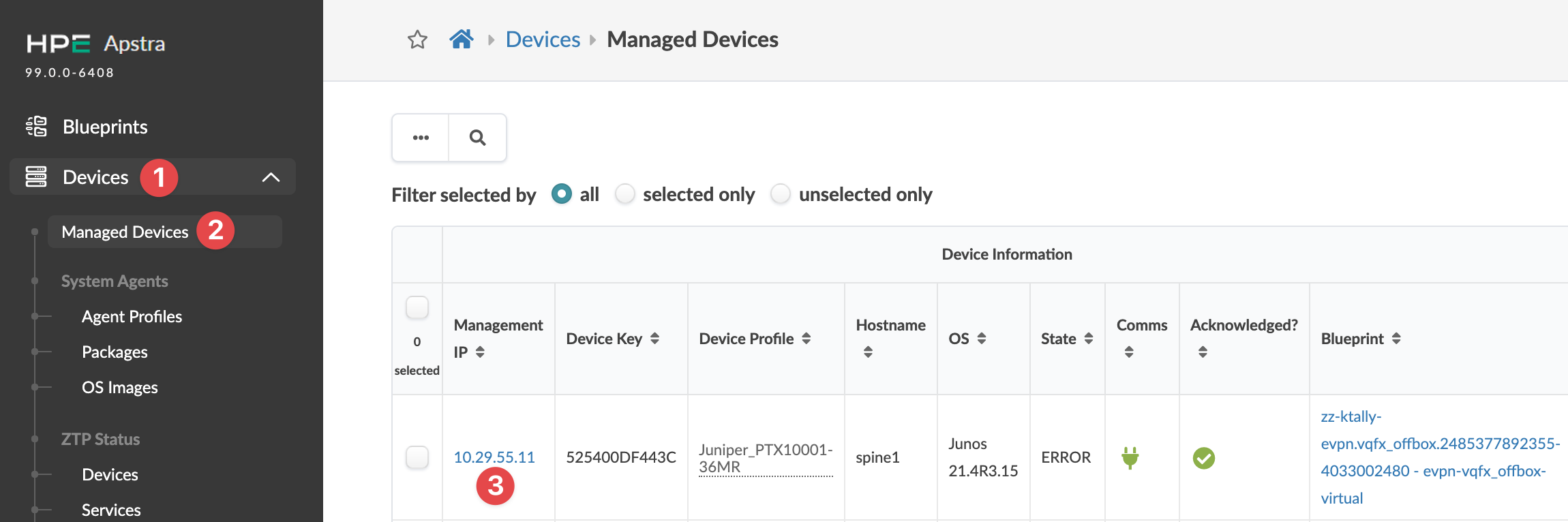
    Juniper Apstra Managed Devices interface showing device details like Management IP, Device Key, Hostname, OS, and State.
    The Device detail page appears.
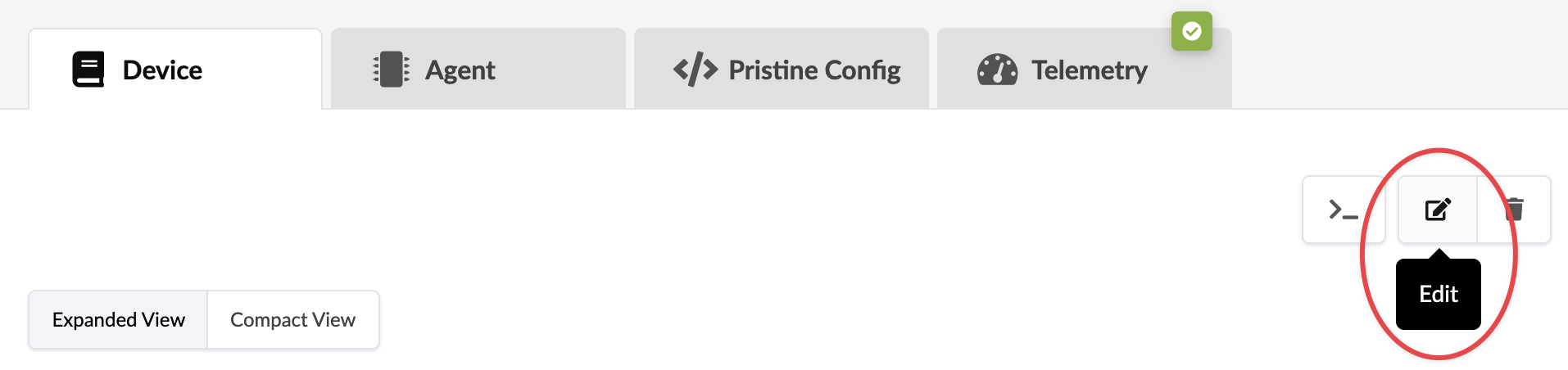
  2. Click the Edit button (upper-right).
    User interface screenshot of a software application with tabs for Device, Agent, Pristine Config, and Telemetry. It offers Expanded and Compact View options, action buttons for terminal, edit, and delete, and a green checkmark indicating success.
    The Edit Systems dialog opens.
  3. Select the device profile from the Device Profile drop-down list.
  4. Click Update.
The device profile is changed and you're returned to the Device detail page.
If the device you updated is assigned to a blueprint, you also need to change the assigned interface map in the blueprint.

Change Device Profile Example

One example of when you might need to change a device profile is when one device has multiple device profiles associated with it. Device profiles represent different line card configurations.
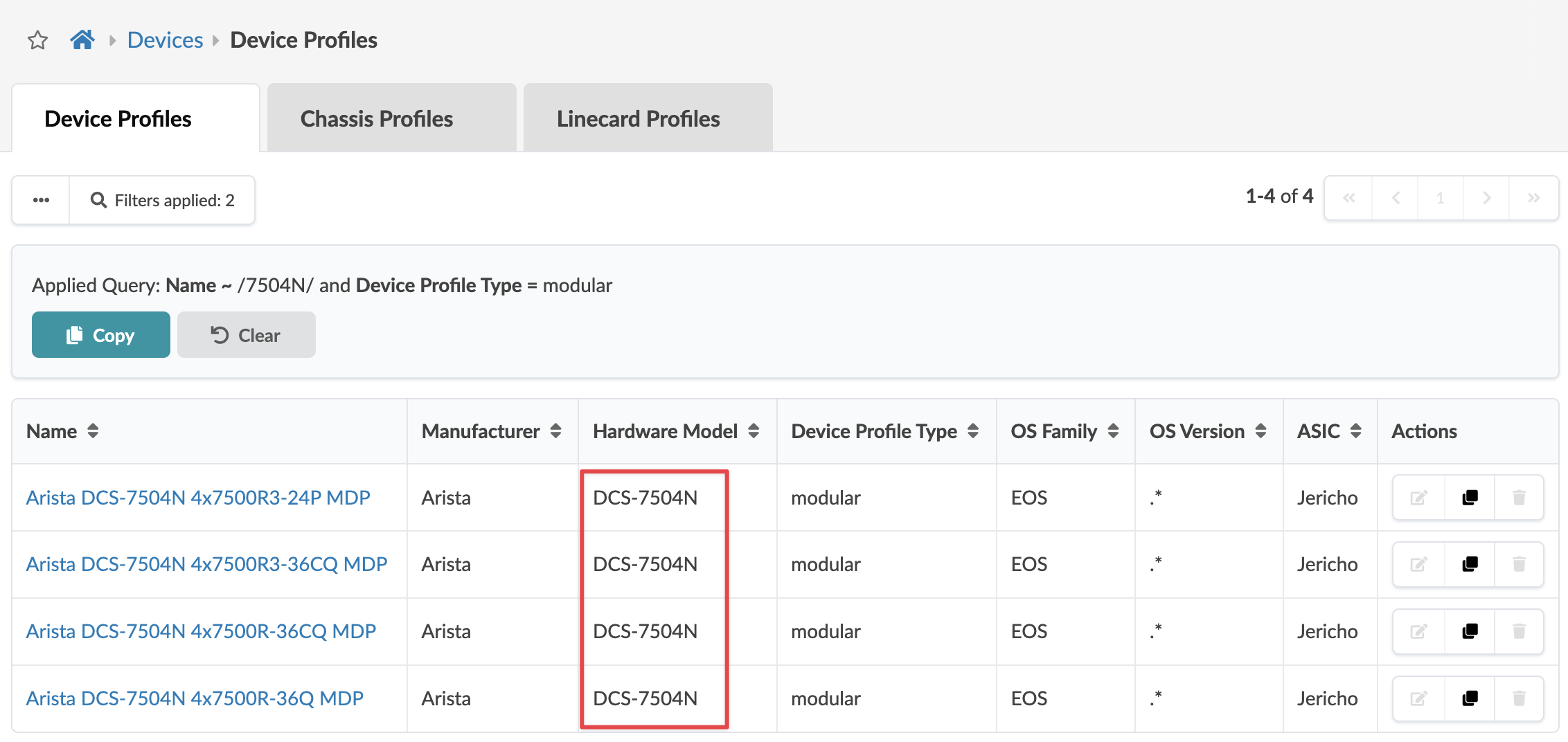
Device Profiles web interface showing a table filtered by Name 7504N and Device Profile Type modular with columns Name, Manufacturer, Hardware Model, Device Profile Type, OS Family, OS Version, ASIC, and Actions.

The first device profile that matches the device chassis model (based on the selector model field) is associated with the device (DCS-7504N for example). If you're using a modular device in your network, check that the correct device profile is associated with it. If it's not, change its device profile to the correct one before acknowledging the device and assigning it to a blueprint.