Delete Device
You can delete one or more devices from the Managed Devices table, or you can delete a single device from the Device selection page.
If you want to remove a device from Apstra management, see Remove (Decommission) Device from Managed Devices for the complete workflow. There are additional steps before deleting the device.
If the device to be deleted has not been acknowledged, you can delete the device as shown below.
Delete One Device from Managed Device Table
-
From the left navigation menu, navigate to Devices > Managed
Devices and click the three dots in the Actions
column (right side) for the device to delete, then click the Delete
button in the Device menu.
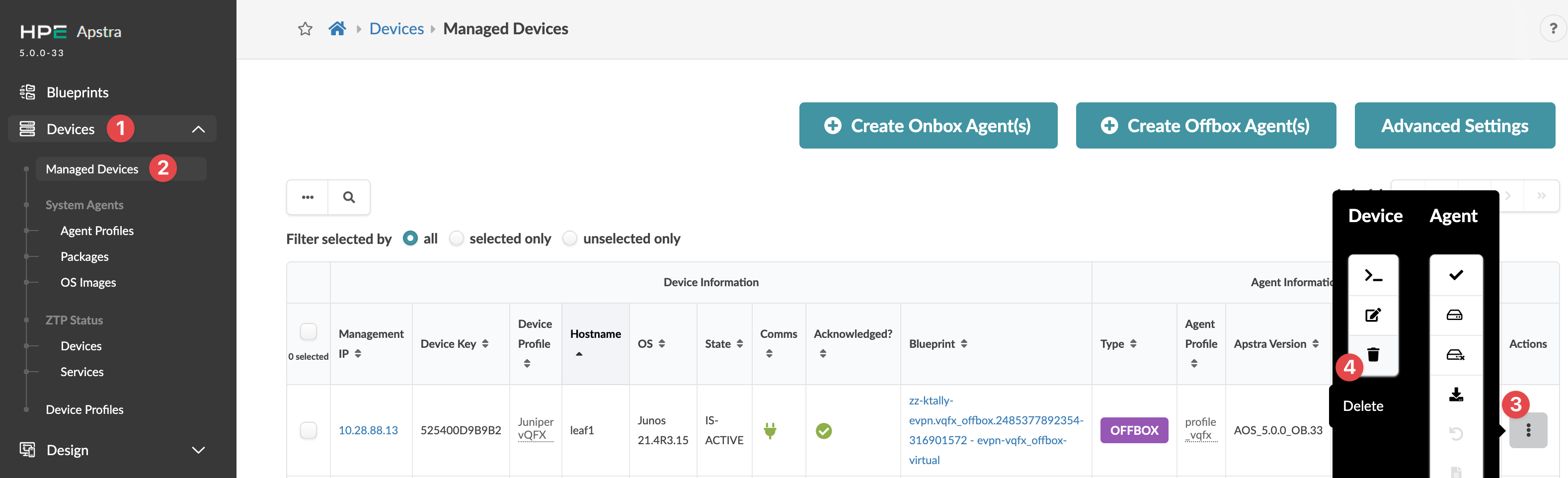 The Delete device? dialog opens.
Delete Multiple Devices from Managed Devices Table
-
From the left navigation menu, navigate to Devices > Managed
Devices and check the box(es) for the device(s) to delete,
then in the Device Actions panel that appears above
the table, click the Delete system(s) button.
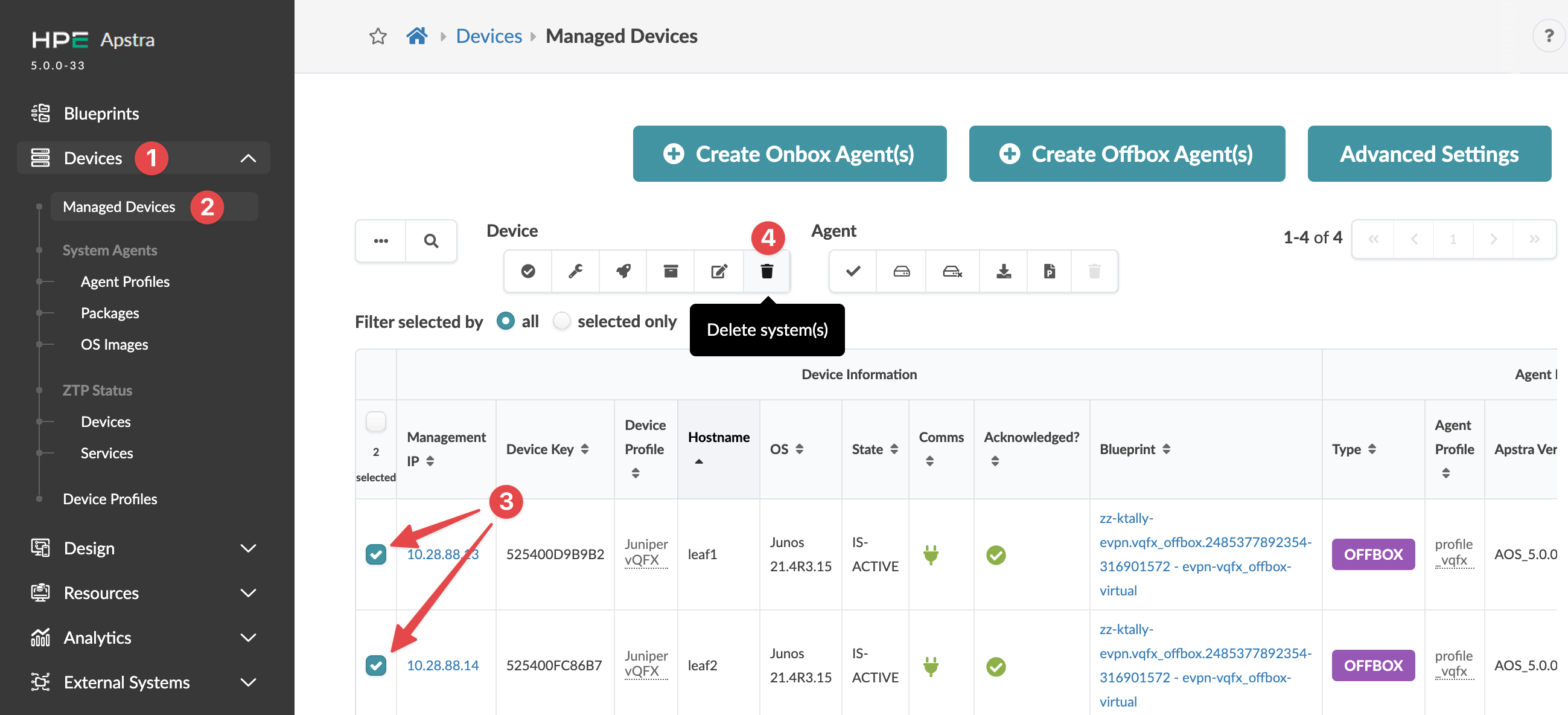 The Delete systems dialog opens.
Delete Device from Device Selection
-
From the left navigation menu, navigate to Devices > Managed
Devices and click the Management IP (not the check box) for
the device to delete.
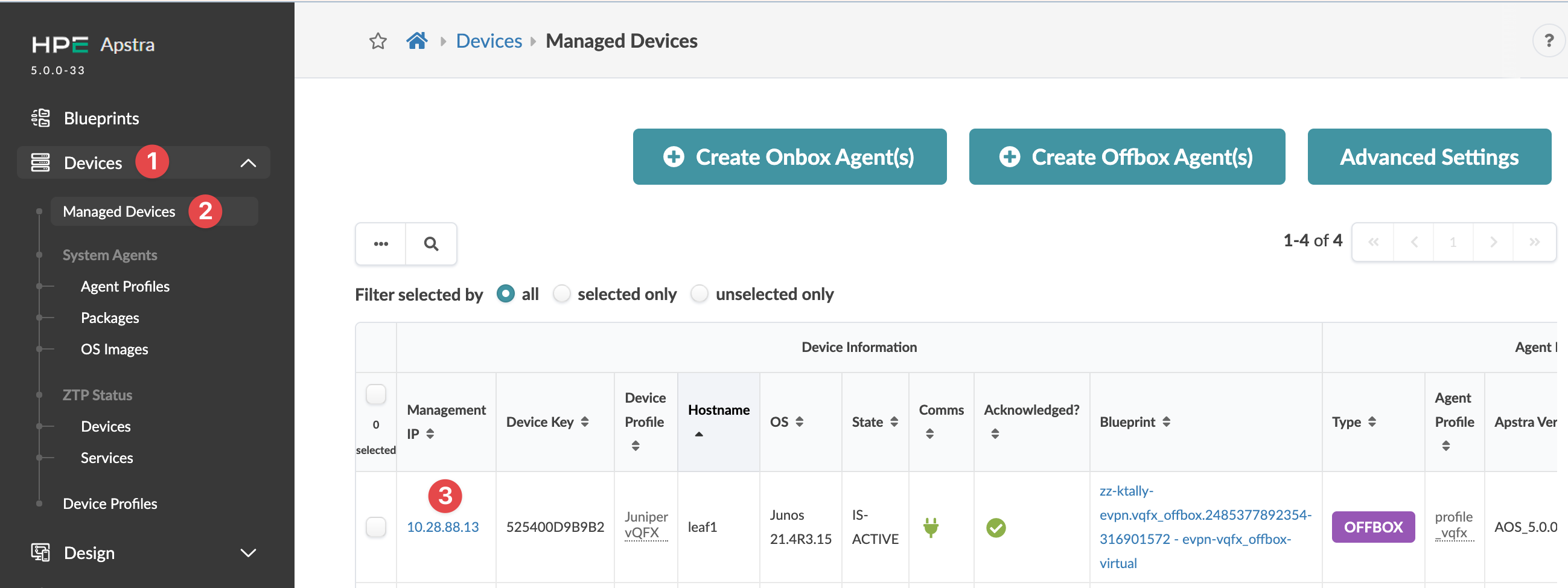 The Device page for the selected device opens.
 -
Click the Delete button (right side).
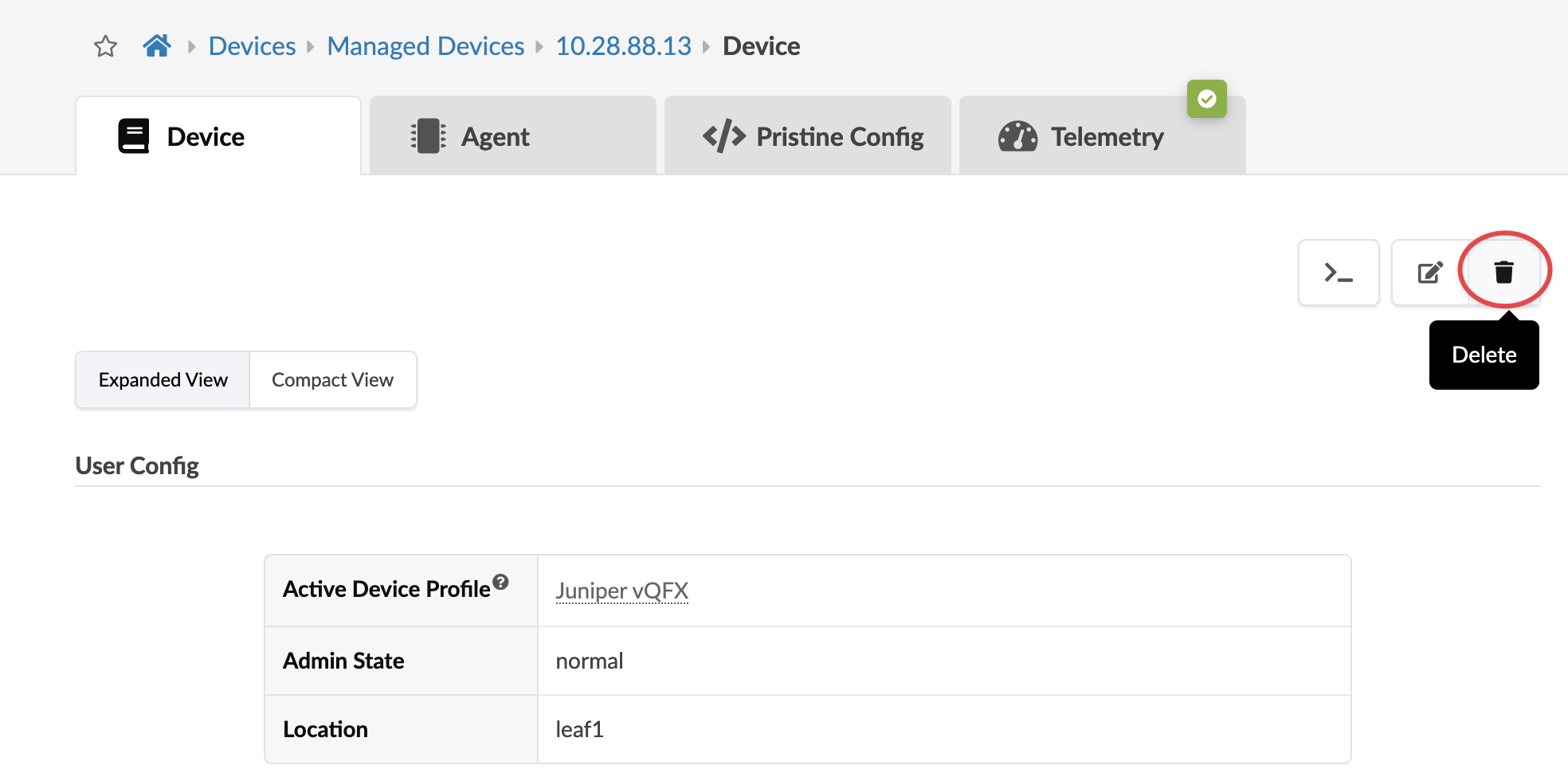 The Delete device? dialog opens.