Update Deploy Mode (Freeform)

You can update system deploy modes from the Topology or Systems view.

Note:

When you set the deploy mode on a system, it appears in its Device Context. But if you haven’t added deploy_mode (as a Jinja variable) to the config template that’s assigned to that system, it has no effect on the rendered configuration.

Update Deploy Mode on One or More Systems (from Topology)

  1. From the blueprint, navigate to Staged > Physical > Topology and click Edit to open the topology editor.
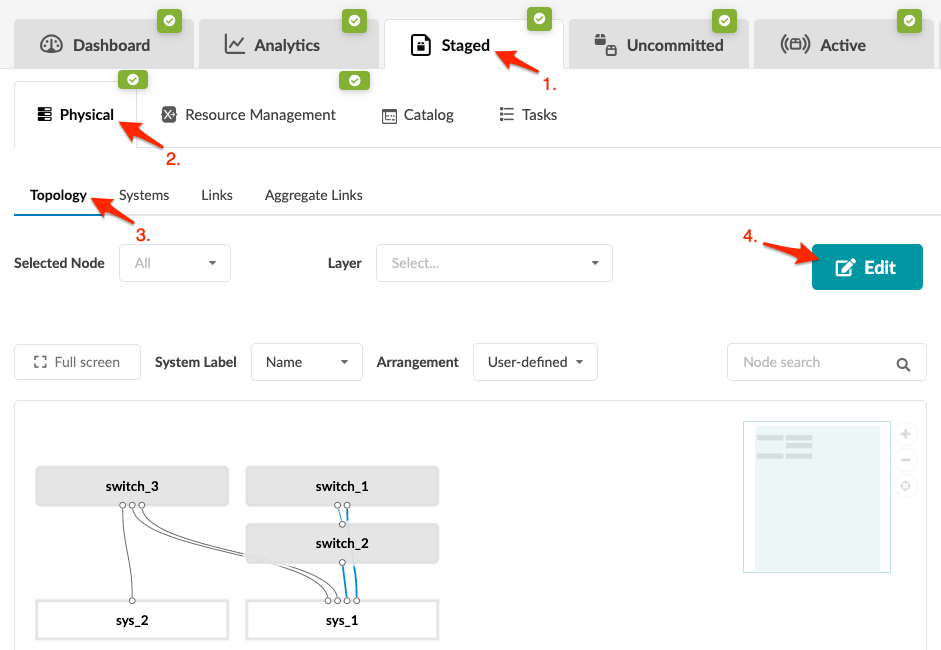
    Network management interface showing tabs for Dashboard, Analytics, Staged, Uncommitted, and Active. Physical navigation menu selected with Topology tab active. Network diagram displays nodes labeled switch_3, switch_1, switch_2, sys_2, and sys_1 connected by lines. Edit button and search filters visible.
    CAUTION:

    Be careful. If you click away from the topology editor after making changes without clicking Save, your changes are discarded.

  2. In the topology editor, click one or more systems to change, then click the Manage selected nodes properties button that becomes available. (You can also open the same dialog by clicking the settings button for the selected system. It's the gear at the top-right of the system.)
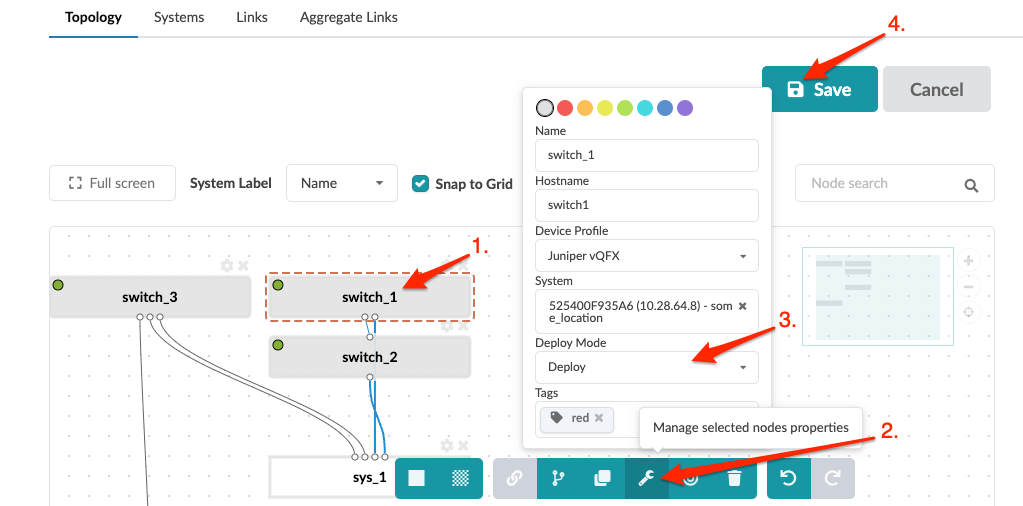
    Configuring network topology in a GUI with a selected switch node. Node Properties Panel shows editable fields including Name, Hostname, Device Profile, and Deploy Mode. Save button at top-right.
  3. Select the new deploy mode from the Deploy Mode drop-down list. The changes apply to all selected systems.
  4. To close the dialog, click anywhere on the canvas outside of the dialog.
  5. Click Save to stage your changes, exit the topology editor and return to the Topology view. (If you leave the page without saving, your changes are discarded.)
When you're ready to activate your changes, commit them from the Uncommitted tab.

Update Deploy Mode on One System (from Systems)

  1. From the blueprint, navigate to Staged > Physical > Systems and click the system name to go to details for that system.
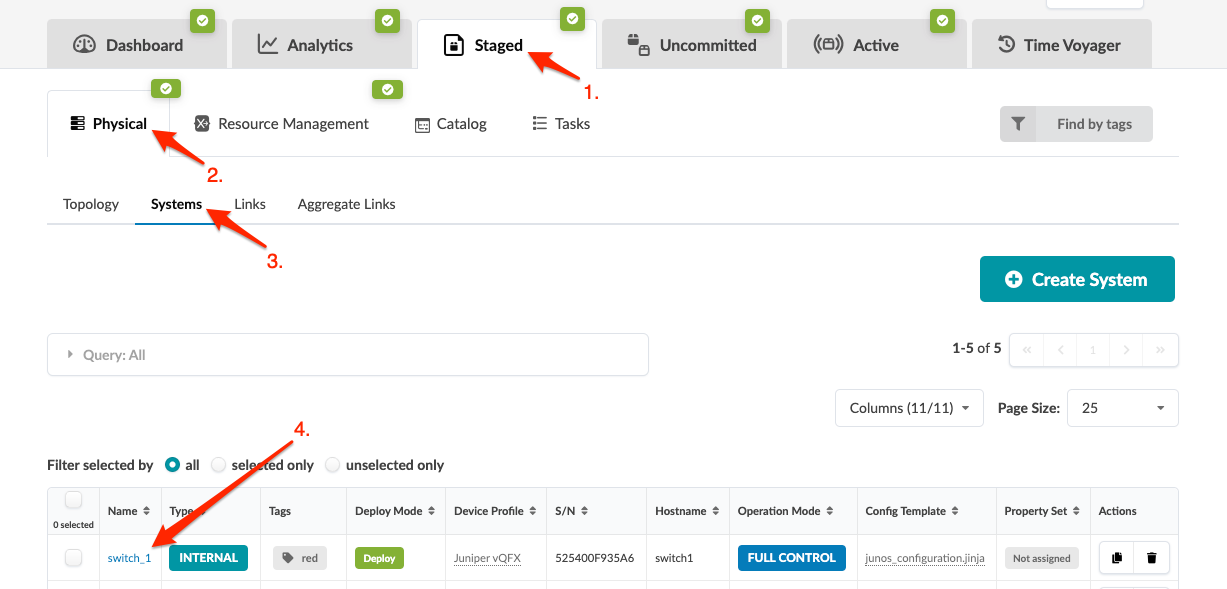
    Network management interface showing tabs like Dashboard, Analytics, Physical, and Time Voyager, with Systems sub-tab selected. A table lists system details for switch_1, including type INTERNAL, tags red, deploy mode Deploy, device profile Juniper vQFX, and hostname switch1. Options include filtering systems, adjusting columns, and creating a system.
    Note:

    You can also get to the Systems details page from the Topology view. From the blueprint, navigate to Staged > Physical > Topology and select the system to update.

  2. In the Devices panel (on the right side), click the Edit button for the Deploy Mode field.

    Network topology diagram showing switch_1 with three interfaces connected to sys_1 and switch_2. Configuration panel on the right with deploy mode and junos_configuration template. Checkbox for show aggregate links is checked.
  3. Select the deploy mode (deploy, ready, drain, undeploy), then click the Save button to stage your changes.

Internal systems with deploy mode set to Deploy require an assigned config template. Make sure the config template assigned to the device includes deploy_mode or your changes will have no effect on configuration.

When you're ready to activate your changes, commit them from the Uncommitted tab.

Update Deploy Mode on One or More Systems (from Systems)

  1. From the blueprint, navigate to Staged > Physical > Systems and select the check boxes for one or more systems, then click the Set Deploy Mode button.
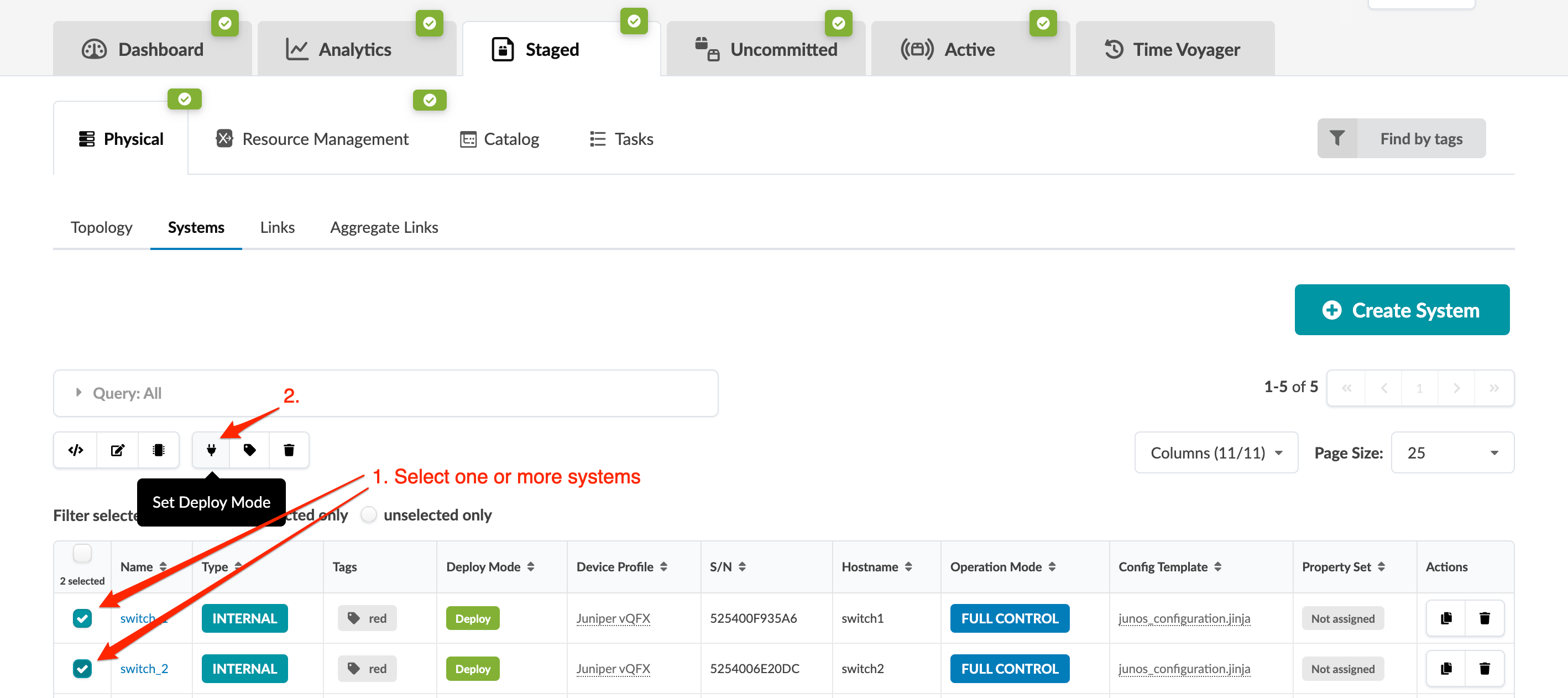
    Network management interface screenshot showing tabs for Dashboard, Analytics, and Time Voyager. Systems tab is selected, listing systems with details like name, type, and deploy mode. Instructions with red arrows highlight selecting systems and using Set Deploy Mode button. Create System button and filtering options are visible.
  2. In the dialog, select the deploy mode (deploy, ready, drain, undeploy) for the selected systems.
  3. Click Set Deploy Mode to stage the changes and return to the Systems view.

Internal systems with deploy mode set to Deploy require an assigned config template. Make sure the config template assigned to the device includes deploy_mode or your changes will have no effect on configuration.

When you're ready to activate your changes, commit them from the Uncommitted tab.